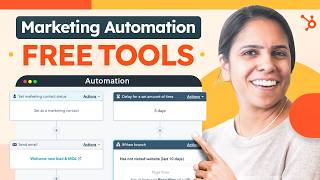
Adrithi walks through HubSpot's free CRM to set up marketing automation. Learn to build active and static lists, trigger emails automatically when someone opens a message, and send follow-ups right after form submissions.
Chapters
I'm here to answer the age old question for marketers. How can I do more with less? The answer? Marketing Automation. Hi, I'm Adrithi from HubSpot and I'm here to talk to you folks about how you can automate some manual tasks you're doing as a marketer for free. Some would even say it's like having your own personal assistant. Come, I'll show you how. So today I want to talk about the three ways you can implement automation for your marketing free account. That's through lists, through emails and through forms. Let's start with lists in your navigation. Head on over to CRM and select Lists. Now a list is a way to segment all the contacts you have in your CRM. And there are two types of lists. In the top right click Create List and you'll be able to choose between these two types. Now the first is an active list. An active list automatically updates over time. So, so let's say you have a list of folks who live in Austin, Texas. If that's an active list, if that property changes, let's say a contact moves out of Austin, they will no longer be part of your list. It is automatically updating. A static list on the other hand is just representing that moment of time so it's not going to update as properties change. Now with your HubSpot free account you can create up to 10 active lists and up to 1000 static lists. So let's walk through creating an active list. Let's take that example. Actually I want to create a list of everyone who lives in Austin, Texas because I'm speaking there in two weeks and I want to make sure to invite these folks. I'm going to click next and on the left hand side here I'm going to add a filter for a contact property. For City is any of Austin, click Enter and it'll take a second to load your list. So just because no one pops up right away, don't worry, the system is just working. I do want to show you though what a complete list will actually look like. So let's take this lead scoring list. On the left hand side you'll see the property that we filtered by and over here you'll see all of the people who meet that criteria. Now you might be asking yourself okay, this is great to have the list. What am I going to do with it? There are a couple of things you can do. If you click into actions you can actually export this list. So this is great to kind of use for marketing campaigns. You can also if you check mark, these folks use can assign all of these people to a sales rep so that sales rep can work them. You can also create tasks for all of these folks. And if you have our pro or enterprise, there's some more automation that you can do for these folks. That's automation number one. Let's move on to emails. On the left hand side go to marketing and select Marketing email. Now with your free account you can have one automated action after an email. So let's go ahead and create an email for today. We're going to create a regular email and something that I love about HubSpot is our templates. I don't have to create my email from scratch. I'm just going to use this welcome template. And even though I don't love all of it, that's okay because editing it is such a breeze. I just drag and drop modules over it. It's the easiest thing to use. But once I have edited my email, it's exactly what I want. I'm going to head on over to automation. Now here I can create automations for this email. The recommended workflow that HubSpot provides is adding contacts to a list based on the action they take within that email. So let's say there are links in your email. Once a contact clicks into that link, they can be added to a list of your choice. So I'm going to click in here and I want them to be added to my MQL list. So now I have a list of folks who I know are really interested in my email. Maybe these are the folks that I'm going to go enroll in another campaign. Maybe these are the folks that I can pass off to sales. But now I just have a really, really targeted list so that I can work these leads in a different way. Now if that isn't the automation you want, no worries. You can add your own automation on any of these triggers. So if maybe the contact just opened the email unsubscribed, mark email as spam. And once you click save, you can also have a slew of other actions to add. So you can send them another email if you'd like. You can update records in the CRM, you can create tasks. But I will say for the most part, most people stick with our recommended workflow of whenever a user clicks a link in the email, they're going to be added to that static list. Now the third and final thing we're going to talk about today is form automation. Now with your marketing free account, you can add one automated Email after a form submission. So head on over to marketing and click Forms. On the top right click Create Form. I want to do it on a standalone page and just like emails, we have a list of templates on our left hand side. So the form I'm creating today is going to be for an ebook and I'm going to click Start now. Again, just like email, we can drag and drop all of the properties on our left to our actual form. So let's say I want to know their company name, but I don't want to know their phone number. I'm going to just click delete once. This is exactly how I want it to look. I'm ahead over to automation. And again we have a recommended version, but you can also create your own. I really like this recommended version. It's automatically sending an email to every contact who submits a form. I think this is the table stake workflow that everyone should have, especially if you're offering them an ebook or something else to download. Sometimes people misplace that link. It's really, really useful to have that link in their inbox. So I love this. But you can of course create your own. So the trigger has to be a contact submitted a form, click Create. And then if you click the plus button you can also add in. Maybe you want to send an internal email, maybe you want to update a CRM record. Really look into this, play around with it, see what works for you. And there you have it. Three ways to make your life so much easier with marketing automation for free. So what are you waiting for? Sign up for HubSpot's free CRM today.