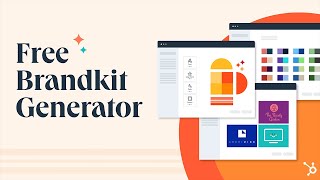
Sylvan Chabi walks through HubSpot's Brand Kit Generator, which lets you build a complete brand identity in minutes. Enter your business name and industry, pick colors and fonts, preview logo variants, then download everything as PNG, SVG, WebP, and apply it straight to your HubSpot website.
Chapters
Hi everyone, Sylvan Chabi here from HubSpot and I'm going to present to you today the Brand Kit generator which will allow you to create your brand identity. So whether you need logos, social media icons, color palettes or favicons, well, you are at the right place and all that for free. And the best part is that you can upload your brand kit at the end of the process to HubSpot CMS3 directly in just a couple of clicks. But let me show you. So let's say I am a gym owner, so I will enter my business name which is Magic Gym for example. Then for industry I can try exercise slogan Sport is live. Sounds good. I click on Continue. Now I will choose an icon and here. But this one looks fine. So we'll click on Continue. And I choose a color that blue is nice forward and this one is fine and that one looks nice as well. So I can move forward with that one. And here I'm in the editor, so if I want to play around a little bit and try some changes, I can. So let's say layout, this one is better, I will keep that. I can try another font. Well, I like the the other one better. So we'll just click on undo. I can do the same with the icons, other colors, but I'm happy with that. So we'll go forward. And I am now on the finalized Brand Kit page. So you add different version of the logo right there. The typography used, the color palette, the web pages, regular sign if you want to see what it looks like. And finally social media platforms where your visuals will be applied then or X formerly Twitter. Now I have a few options. Either I can go back to the brand Kit if I'm not entirely satisfied to the Brand Kit editor, meaning you can play around a bit more then come back on that page. Or if you are happy, you can either share it with a colleague or a friend. This way they will land on that page and simple themselves. Or you can directly download an archive with all the different files containing your visuals. So I will click on download Asset. I will enter my information there and finally continue. Then the archive will be downloaded. It will take a few seconds. And here my brand kit is being downloaded, so I can go there. And that's basically what you will find in your brand kit. So this is a PDF version of the finalized Brand kit page that you saw before. You have your colors here, so primary color xcode and the secondary ones you have also different version of your logos Favicon right there. And so different colors apply to your logo, the PNG versions, SVG and finally webp for improved load speed. Then you have your font file right here and your social kit where you have all the social media icons with all the right dimensions. So now that I have this, I would like to create a free website with the brand kit. And I can do just that by clicking on this, this button right there. Okay, so now I just have to click on customize your website. And here you are. So you can check your theme to see what it looks like. I will close the tour. Okay, so you have here you can see the colors that we determine. And if you want to use your fonts, you can just change them there. So I can just go here, I see that this is shrink hand. So we'll just select it there. There we go. And I will check it here too. Okay. And I'm happy with that. So what I will do, I'll just click on publish. All right, So I can go back to the user guides and what I want is publish and manage pages. So we'll go start publishing and I will look for one of the pages I can use. So let's say this, okay? And this is basically your template right there with the font you chose and the different colors. However, now if you want to use your logo and your favorite icons, and I bet you want to, you have to do an additional step. So I will explore on my own. Go back to the user guides and I will go the settings right here. Now I just have to go on account default. Click on branding in here. Brand key generator, click there. And then that's where you will add the logo. So here upload and I will use, let's say that logo right there up. And I can also add my favicon right here. Click there up. I want browse. I will upload a icon right there. And that's it. You're all set. So you just have to create the different pages, publish your website, and you have everything ready for your business. Thank you, everyone. Take care. Bye bye.