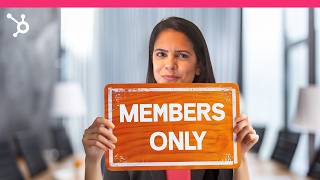
Learn how to build a membership site in HubSpot using design manager templates and landing pages. Set up access groups, restrict content to members only, send invite emails, and enable SSO. Pull a CSV of 90-day registration and sign-in activity to track member engagement.
Questions this video answers
May 28, 2024
HTML and HUBL
90 days
Chapters
Want to know the secret to creating a thriving community? Engagement. With membership sites, businesses can create and deliver valuable content tailored to the interests and needs of their community members. This can include blog posts, videos, webinars, podcasts, interactive discussions, you name it. By consistently delivering high quality, relevant content, businesses can keep community members engaged and coming back for more. Let's see what it looks like in HubSpot. Before we get started on how to actually create the membership site on HubSpot's platform, I do want to just show you quickly what it's going to look like once it's all created. So right here I'm on a website that we've already created and on the top I'm going to click members so I can see my members Only content. All I need to do is input my credentials and once I log in, I am greeted to my members only content library. So here I have reports, ebooks, infographics. I have all the resources that I need as a customer. This is going to something that I'm going to bookmark and go back to over and over again if this information is super valuable to me, which it should be. Now, in addition to having a library, you could also have blog posts, podcasts, and other singular resources as well.
Another use case for a membership site is a customer portal. A customer portal is a way for your customers to get access to their.
Tickets so they don't have to keep.
Calling in and and wondering if your.
Customer support team is working their tickets. All right, now let's actually start to build out our membership pages in HubSpot. To begin, we need to start with templates. Now, even though they're templates, you can completely customize them so that they match the look and feel of your brand. But to create these types of membership pages, we do need to start with a template. So in order to do that, go into your design manager, which can be found under Content, and create a new file. Make sure you've selected HTML and Hubble. Click next and here under template type, you can choose whatever type you want. You can do a page, you can do a custom email, a blog post, blog listing, you name it. Once you have done this, the fun can begin because that's when we actually create our access groups. That's when we create our content and send out the good news to all of our customers. Now, one of the first things that I want to talk about is actually building the membership site. While this may be intimidating with HubSpot, it's really one of the easiest things you can do because of our drag and drop website builder. So come on, I'll show you how it works in your HubSpot account. Click into contact and select landing pages. Give your landing page a name and choose a template. Now if you don't love any of the templates, that's totally fine because you can always edit everything that you see. Just a template and it's just a way for you to start building out that website. So I'm going to choose the home template and as I mentioned before, all of these modules are able to be drag and dropped somewhere else. You can also delete modules that you don't want, rearrange it with just a click. Truly, one of my favorite parts about HubSpot is building websites because it's so fun and I don't need any help from a developer. It's really, really just an easy process. Now, as you are building out your website, I really want you to think through how you can convert unknown visitors into prospects for your sales team. So for instance, you can add a consultation form so that anyone who logs into this membership site can immediately fill out that form and talk to a sales rep. Or you can even add something like a chat widget. So if they are on the website, they notice something catches their eye and they want to talk to a sales rep right away. That's an option for them. So that's really easy with this website because what I'm going to do is just go over to add and drag a form and put it on my landing page. I'm going to use my contact us form and as you can see, I can edit it if I need to. Don't need a comment section. So now I have a really clear way for an unknown visitor to leave their information so that they can get in touch with a member of our sales team. Next up, I want to talk about making lists of folks who you want to enroll in these membership sites. So the first thing that we need to do is create an access group. In order to do that, go into content and select memberships. Now, you want to create an access group so that you are in charge of determining who is going to see these resources. You can either create a static group or a dynamic group. A static access group is based on who who you add manually to a list, whereas a dynamic group is based on a CRM property. So if a contact matches a specific filter or property, they're automatically going to be added into this list. So for this example, we are going to use a static group. Enter a description if you want and just follow the prompts on screen. The next step is to select the group members who are part of that static list. You can use recent static lists that you've created or you can go and check mark every single contact that needs to be added to this list. Once you've done that, go ahead and review the Access Group summary before creating Create Group. And truly it's that simple. Once you've created the Access group, the next step is to actually restrict the content that you want to only these groups of people. So in order to do that, let's head on over to our settings and on the left hand side under content you can do this for blogs or pages, but for this example we will use blogs. All you do is make sure that you are looking at the blog that you want to restrict. And under access control click Access Group Membership Required and choose the list that you just created. So I just did this for my blog. But be rest assured that you can also do this for your knowledge base, certain pages, your customer portal and so on. Now the next step that we want to do is actually tell these folks that they have access to this exclusive content. So we want to make sure we're sending them emails saying hey, here's your login information. In order to do that, let's go back into our membership homepage and if you click into a group and hover over the names, you'll actually be able to resend invite emails. That's going to send an invite email to this person with their credentials and telling them that they can log in to use these resources. If you're enjoying this content and want more HubSpot content, make sure you are subscribed to our YouTube channel. Now if your customers or prospects are anything like me, they've misplaced a password here and there. Well, not to worry because with HubSpot you can actually set up SSO or single sign on. Single sign on makes it so that you can use your Facebook or Google password to log into these password protected membership sites. So let's say it's been a couple months and you've lost track of all of the folks who have access to to a specific membership site. Not to worry. With HubSpot you can actually audit all of the members who have access to your site in your settings. So in your settings under private content you can actually download a registration and sign in activity log and this is going to give you all of the domains from the past 90 days. You can download this activity log in a CSV and this is going to be a really great way to understand who is actually interacting with your content on a regular basis.
As a marketer you can use the knowledge of what pages your prospects have been on to create smart content. That means whenever they visit a website instead of a generic message, maybe it's a more tailored message referencing their interests. Or maybe you put a live chat for only folks who have visited your membership site.
That's powerful now.
It's also great for your sales team.
If they have a list of folks.
Who are regularly engaging with you, maybe they can offer a free consultation or product demo. Or if they're already customers, maybe it's a good time for your sales team team to see if they need further products or services. If all of this still doesn't get you excited, remember that HubSpot has been awarded as leaders in the small business.
Mid market and enterprise spaces.
So what are you waiting for? Sign up for our free CRM today.