Learn to build reusable web app widgets with Wix App Builder. The tutorial walks through creating a Travel app with 15 widgets like Flight Booking and Route Planner, then importing it into a Wix site where you can customize settings and update everything centrally.
Chapters
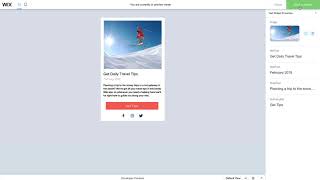
The Wix App Builder lets you create fully customizable web apps and widgets that you can reuse on any Wix website. Let's do a quick walkthrough to help you get started. Inside the App Builder on the left, you'll see your widgets. These are all different elements of one application. In our example, we've created a complete Travel app with 15 different widgets like Flight Booking, Route Planner and Upcoming Events. We'll build them here and then use them on any client's travel website. We'll start off with a pre made widget, but you can start from scratch by clicking Add New Widget. Click the plus sign to start adding elements to your widget like text, images, repeaters, and any other elements you need. Open the code panel at the bottom to customize your widget's behavior. On the right, under Widget API, you can add widget properties, events and functions. The properties define which parameters it receives and and will later become your widget settings so you or the site owner can customize it on any website. In the top right corner, hit Preview to test your new app.
When your app is complete, click Build and it's ready to use across any of your WIX websites.
Back in the editor, make sure Corvid is enabled. Under Site Structure, go to My Apps and click Import an App. Choose the app you want and click Import. Now you can
easily add each widget to your site. Click on the settings you previously defined to configure your widget or change its design to
perfectly match your site and you're all set. You can reuse your app on any of your WIX websites and update it at any time. If you need help, we're always here. Click Resources for documentation, examples and our user forum.