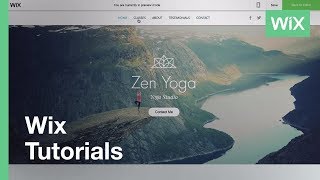
Learn how to use anchors in Wix to create direct navigation links to specific page sections. Add an anchor element, name it, then link it from menu items or buttons. Anchors are invisible to visitors but let you jump straight to a Contact form or any section.
Chapters
In this video, we'll show you how to add anchors to your site and link them to your menu or buttons. Anchors make it easier for your visitors to navigate to different sections of your site. For example, you may want visitors to go straight to the Contact section of your website. You can use an anchor to do that. How to add an anchor. Your website may already have anchors built in. You can rename them, move them around, or delete them anytime. If you don't already have an anchor, the first step is to add one. Click Add on the left and select More. Click Anchor here to add it to your site. Click on the right hand side of the anchor to drag it to the section you want. Keep in mind they're invisible to visitors. It's a good idea to give your anchor a name. That way, if you have multiple anchors, you can easily keep track of them. Your visitors won't see this. Next, you'll need to link your anchor to something. You can link it to almost anything on your site, like your menu buttons and more. We'll start by showing you how to link your site's menu to an anchor. Go to Menus and Pages. In the top left corner, click Add a Link, select Anchor and choose the page and location where you want your menu to link. We'll pick the home page and choose Contact. Name the anchor in your menu and click Done. Your menu will automatically update with your changes. Now you have an anchor in your menu that connects to the Contact form of your homepage. You can see that all the anchors in your menu have an anchor symbol here. To reorder your menu, click and drag into place. This will not affect your anchors or links. Click Preview to see how it works. Next, we'll show you how to link a button to an anchor. Click on a button and click the link icon. Select Anchor and choose the page and location you want to link to. Then click Done. To see it in action, hit Preview and click the button. Now you're ready. This video is always here, so come back and watch again for more help.