Catherine Hall walks through WebinarJam basics: expect a 5-10 second delay on the live stream, use the chat or question modes, and know that only six people can speak at once. You'll need a microphone to request speaking time, but a webcam is optional.
Chapters
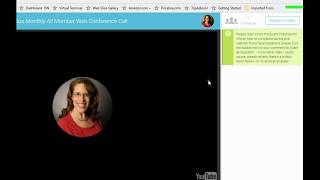
Welcome dual 3K and NAVAC, all member power Team members, thank you so much for watching this brief training video. I want to show you how to be able to use the webinar JAM program, which is what we'll be using for all of our upcoming events. And so this is a very brief training just to point out some of the elements in the webinar. So right now what you're looking at is just my image. And this is a YouTube streaming video. It's streaming live, and as such, it does have maybe a 5 or 10 second delay from when I say something or when I hit the button for a screen before you see it. And so with that slight delay, I'm going to sometimes pause a second or two. So if I seem like I'm pausing a little longer because I'm learning myself how to manage the slight delays that occur. So as an attendee, you have the ability to do several things. Now, what you see right here is a sticky message. And so you see that it refers to the pre event checklist for info on how to contribute during this webinar. This pre event checklist was emailed to you and a link to that is also going to be placed here in the sticky box. So you can click it at any time to go to that URL to learn about how to use it. Also, if you arrive on this webinar, I'd say about five or six minutes before it actually starts, you will be able to see an actual video that will go over how to use this program when you are. And so that's something that is really fun to do and I might be able to process that video and share it for you in the course of the webinar. Unlike our previous program where I could just unclick everybody and you could just talk at random, this program allows Only up to 6, 6 people at a time to be sharing or commenting. And in order to comment, you need to have a microphone and a webcam to share your video. You need to have at the very least a microphone. And what you'll do is you'll hit the button to request to speak. When you hit that button, I will on my side see a request. Now, because I'm actually in test mode, I can't activate it and show the speaker. But what will happen is when I accept it, you'll get a message saying that you're being added to the presentation, or you'll get a message saying that your browser doesn't support that. So just be mindful that those are the two options that might come up. Also, if you decide you don't want to talk after all, you can always just cancel that request.
Now, additionally, down here at the bottom is the chat box. Now you have several options. You can send a chat or you can ask a question. And if you are asking a question, it will show up on my screen differently, which is great because I can distinguish between just someone giving a comment or asking a question. So always in this little bubble, you can change it from chat to question and that information is listed on the sticky message above. So if you hit add a question and then you type.
So there's questions.
And then I'm going to hit enter. And now that question has been sent from me, I can edit my question or I can delete it, I can erase it if I want to. I can choose to send it to everyone. Well, since it's just me on the webinar, or you can choose to send it to a presenter. So now there are more than several people on the call and you want a private message sent to me as the presenter, you can select presenter.
So now over on my side of the screen, I actually have a message that comes up and I see a question.
And so I actually can now view the questions.
So that shows me what the question is.
And here I actually can write a response.
And so there is my response.
Now I also, if you send me a message privately and I think it's something that everyone should hear, I actually can broadcast that message to everyone. I can reply privately to your message. So here I'm going to reply to you.
And there you can see where it now says private. So this is a private message.
I can edit your question, I can erase it. I can actually even say, wow, that's a great question. Let me invite you to speak. So what I. And there you can see this is an error that came up because I'm both the attendee and this presenter. Okay, so my suggestion for these webinars is type a comment, a question or request. If you would like to be speaking, hey, I have a comment I'd like to add. Then simply just say, please add me. You can hit the request button up there. Or if I see a really great question, I'm going to say to you, hey, I'd like you to share your question in more detail. Just let me add you as a speaker. Okay?
Alright. And so at that point I can even send you an email to the email account on file with the message so that you have it in an email format. So I might just simply say regarding your message and I can send an email to you. So I have a lot of features that did not exist before, and since this is a live streaming video, when it is concluded and finished processing, it's going to be immediately available. So I hope you all will enjoy working with this program. And there's a pre event checklist that we have created for you. So look for that in your inbox, in your email and I'll see you on the webinar. Thank you.