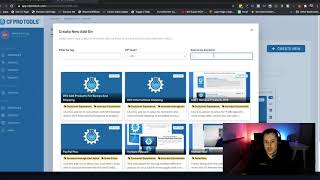
A short screen-recorded tutorial by Matt (CF Pro Tool support) demonstrating the "Three Step AJAX Step One" add-on for the Three Step order form. The video shows creating the add-on in CF Pro Tools, copying the generated code, where to paste it in ClickFunnels (Settings → Tracking Code → Footer Code), and a live demo that verifies contact capture for use with abandoned-cart automation.
Chapters
Foreign. Hey, what's up guys? Matt here with CF Pro tool support and in this video I'm going to show you guys how to use a new add on called the three step AJAX step one add on and that that would be used with the three step order form. So it's kind of an add on to an add on. So if you guys haven't already installed and are using the three step accordion style order form add on that I've used in the past, one with the big white house on it, I would recommend go and check that add on out, make sure that you get that installed. What this one, what the AJAX step one add on will do for you is it actually allows you to, when you click on step one and actually submit information, it actually allows that information to be captured. So that way if you guys have like if somebody goes part, part of the way through and they don't end up finishing the order process, you can capture their information and you, it gives you an opportunity to use this little automation tab here. And then what you would do is actually have an abandoned cart sequence where it says saw page but didn't purchase. You could actually add in emails here, put a short delay on there and then send out a couple emails to say something like hey, noticed you left the cart with nothing in it and didn't. Did you need this? Whatever you want to put in there, right? Put them on a small gilt trip, whatever rate, whatever gets the job done, right? Get them back, get them to order the order what was in their cart. So let's go in. I'm going to show you real quick how this works guys. This is one of the simplest add ons. All you have to do is configure it and literally just add it in. So what I'm going to do here is bring this over here and I've already actually started searching it up. But if you guys were in here you would go to your add ons little area and then you would click on Create new. What you're going to do is type, start typing in three step AJAX or three step AJAX step one. You click on that and then you're probably here actually looking at your add on or you're probably here looking at this video right now. So like I said earlier, you will want to make sure you have that three step order form already installed. And then what you're gonna do is just take this code. There's no configuration. We're gonna call this live setup and we're going to click Create add on button and that's it guys, we're gonna come down here, grab that code, copy it out, do a right click copy or click the blue button to copy that. We're gonna go back into click funnels. Alright. And then what we're gonna do is we're gonna go to our settings, we're going to go to our tracking code and then we're going to go to our footer code and what we're going to do. This is a little, probably seem a little bit odd but we're going to put the three step AJAX code up here at the top and make sure that that one's first and then the three step order form is second. If you guys have order summary I would have that up here at the top. So that one is the first one to load from your footer code setting. Okay, so that's how that would work. I'm going to hit the save button and then, and then we're going to go do a quick test on this, just make sure that that works and you guys would see that way you guys will see the code or the contact information. One thing I will do is test this with a live page. What we're going to do is come down here, just add in john+one I guessmail.com and then we'll click next step and we'll go oh this looks cool and then select a country, then open that up Australia. I already clicked next step. Oh, you know what I realized I don't really want this. So at this point, guess what? John+1mail.com is now already added into the system. So let's go look and make sure that that's the case. So we're going to go to contacts here and john+one. Actually john mail.com was also added as well probably when I was using this before. So that's how that would work. You can see that that was added, the contact was added and then what would happen is that that would, that's when it would allow that those automations to kick in. So if no order was taken place, what would happen? If no order took place it would send out an abandoned cart sequence. If you had that set up inside of your automation sequence. So that's it. Hopefully you guys enjoyed this. If you guys have any questions, definitely please send an email in and I'll do my best to help you guys out. Okay, thanks and I'll see you guys in another video.