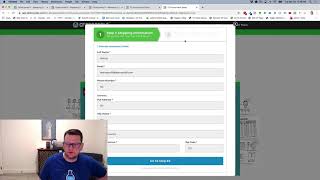
This YouTube demo (by Jaime Smith) demonstrates the CF Pro Tools "Add Remove Products" add-on for order forms. The video shows the order-form-specific version (distinct from an OTO version) and demonstrates adding/removing bump products via buttons (not checkboxes). The presenter shows a funnel/order form with bumps (three-column layout) that add specific products — e.g., "My Awesome Book" audiobook and "workshop recordings" — when the Add button is clicked and remove them when the Remove button is clicked. The presenter also notes the addon pairs well with a Multiple Popups add-on and offers more design/content control for bump layouts.
Chapters
Hey there, in this video I want to show you a quick demonstration of an add on called Add Remove Products. And this is meant for the order form. There's also a version of this called Add Remove Products OTO that will let you use it on the OTO pages to do things like an OTO bump where you have a core product and then you want to add products to that. That's in the OTO version. This is the order form version. And I'll show you a quick example of what this looks like. You may have seen this before on the Traffic Secrets Secrets Expert Secrets funnels where the bumps are actually triggered by a button click instead of a checkbox. And so let's run through and show you what this looks like. So I've got an example funnel here that I built up. Kind of do a little design hacking, a little funnel hacking here. This might look familiar to you, but what we've got here is an order form. And we can just click here to open our order form. And, and you'll notice we've got an order form and a pop up here that's using another add on called the, the Multiple pop ups add on. But what we've got going here is if we actually do a toggle here to show our step two, then we can actually see that we've got these little bumps here. We've got one multiple bumps which is kind of key to this. But then we've also got the, the bump layout. These are actual bump offers that have kind of a three column layout and they've got some text in the middle with an image. And the buttons, and the buttons are actually how we add products to the order. So you'll notice that when you click that button we added the My Awesome Book audiobook version. And if we click this one, it will actually add the product for the workshop recordings. And so if we then we click the remove, it will remove that and remove that. So these work just like traditional bumps where you have the checkbox but, but instead of using the checkbox to trigger, we're actually triggering them with buttons. Now you could also use this, you know, in multiple different ways because the functionality is basically that you've got a button and when you click to add, you know, in this case when you click add, it's actually going to add a specific product to the order and then you'll have a matching button that gets swapped out. And then when you click on this button, it, it will remove that same product from the order. Same thing here when we add adds the product. When we remove it, removes the product. So you can use that multiple different ways. But the one you'll see most often being used for is this type of bump layout where we kind of get a lot more design control, a lot more content control over how things are functioning. So that is the, the add remove products add on. And that's an example of what you might use it for. So make sure and watch the instructions. We'll show you how to get set up and use it for yourself.