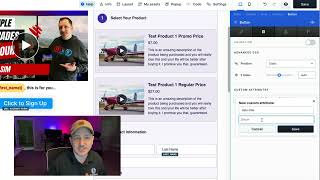
This is a short how-to video (CF 2.0) demonstrating how to set up several ClickFunnels (CF) add-ons by replacing the old CF 1.0 CSS title method with a custom HTML attribute. The presenter walks through editing an element’s Advanced → Custom Attributes, adding a data-title attribute whose value is the former CSS title (examples: CF-FB-fire-lead for the Facebook Fire event add-on; CF-URL-keyword-replacer for the URL keyword replacer). The video notes an occasional alternate pattern where the attribute value may be set to true and refers viewers to written instructions or support for edge cases.
Chapters
Hey, what's going on in this video? I'm going to show you guys how to set up a pretty good amount of our add ons work the same way with CF 2.0 installation. So I'm going to give you guys kind of a coverall here as to how that works. If you guys are seeing this video, then this is how you're going to set up this add on for CF 2.0. So in CF 2.0 you will notice there is the way that we set up a lot of our add ons is with the custom attributes. So we're going to go into. For this particular add on, you might go into the button or the checkout element or the headline element, whatever it is that you're working with. What I want you to do is use the same CSS titles that you would have previously used from the previous steps in CF 1.0. So uh, let's look over here. So if you're looking at, for example, this is the Facebook Fire event add on, right? So what we're gonna look at, we're gonna go through this and set it up just like it shows here. We're gonna go through the demo, creating your pages and installing everything. The one thing that we're not gonna do is set up a CSS title like we used to in CF 1.0. So everything up to here is the same though. So what we're gonna do, we're gonna. Let's say where it says CSS title for the button action, it says it needs to be CF-FB fire dash lead in order for that to work. Right? So what we're going to do is we're going to copy that out and I'm going to show you how that works inside of CF 2.0. It's going to go the same way with any other add on which is set up similar to CF 1.0. So again, if you're seeing this video, set the set the add on, whatever add on it is that you're looking at. We're going to set it up like this. So go into the button, whatever it is that you need to go into. And you're going to go into the advanced tab. Okay, we're going to add a custom attribute. Okay, what we're going to be looking at here is the data title. We want the data title to be a new custom attribute. So name it Data dash title. And then the value needs to be that CSS title that's been used previously inside of this add on. Okay? So it's instead of changing the CSS title, we're just adding a custom attribute. In this particular instance it was going to be CF dash FB dash fire dash lead because that's what our previous CSS title was for the Facebook Fire event. Okay. Once we've done that, we hit save and that's all there is to it. Let's do another example. If you are doing the Facebook or if you're doing the URL keyword replacer, you would come in here to the heading and you would change it out like this. So you're going to go again into the advanced settings and you would go to the custom attributes. So inside of the custom attributes, what we want to see here is the add a custom attribute and what you're going to add in again is data title. And the same CSS title that you would have used inside of 1.0 would be CF URL keyword replacer. Of course, go back through watch the previous instructions so you see how to set up the rest of the add on. This is just a replacement for the CSS titles where you would normally do that. Okay, so if you're watching this video, that's how you set these types of add ons up is pretty much the same way. Just don't set up the CSS title. It won't do anything but set up a custom attribute instead as we just showed is always going to be the data title equals CF URL keyword replacer. Okay. In some instances it will also work to do the CF that like whatever the CSS title is and the value to equal. True. We will let you know in the written instructions if it needs to be set up that way. But for now the best way that you can do this is to do data dash title equals that CSS title that's been previously published. Okay. If you have any questions, let us know in support supportools.com and we'll do our best to assist and help you guys out. Okay, thank you very much and have a good day.