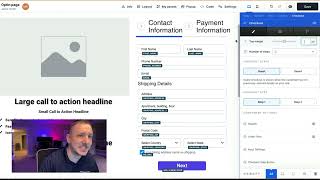
A short screen-recorded tutorial by Jaime Smith demonstrating how to set up a checkout cart element on a product/order page. The speaker shows creating/editing a page, inserting an Order → Checkout element, changing the checkout from two-step to one-step, switching the display from Modern to Classic (to show a checkbox), and preparing the layout so the product ID and bump product can be identified in a follow-up video.
Chapters
We are going to look at how to set up your checkout cart right now. So let's go over to the opt in page. Create a page. If you haven't already done this, you should have a product page, an order page. Make sure that you're going through the process of building this. And then what we're going to do is we're actually just going to go in and edit this. So what I'm going to do for the sake of this particular test, I'm actually going to delete the current checkout that we have in here. Now, I've created a dual column setup here and just added in some random stuff. I've actually already got this special row down here, but we're going to talk about that later. I don't know if I'm going to rebuild that or not. But what you're going to do here is you're going to add a new element and you're going to probably the easiest way to do this, click on order over here and then click on checkout. So you want a checkout element over here. Okay. So that's going to pop up right here in that column. And then what we're going to do, it defaults to a two step. I don't know why this wouldn't work in a two step. I haven't necessarily played around with that. But for the sake of argument, what we're going to do before we go too far is we're going to go over here and we're going to turn this into a one step just to make it a little bit easier to do our next step, which is finding the product id. Okay. So if you want to go through the process of setting this up like this, you can go through and stylize this. You can make it look however you want. I'm not going to go through that in this particular setup. But down here in the bump text, the bump area, what we want to do is see where it says bump headline and there's a little icon. We want to get rid of that. And then we want to leave pretty much everything else here. We're going to do a little bit of updates on in another video to this. But right now, this is what we're looking for. The only other thing you might want to do is change that from modern over to classic so that you have a checkbox up here. Okay. But if you just for the sake of this particular video and getting that product id, this is how we're going to do it. But you can always try to switch over to the modern look later if you want. That adds a little add remove button down here at the bottom, right. So we're just going to click over to classic. We're going to going to hit save. And that's all we're doing for this video. I will see you in the next video where we are going to look at the product ID and how you can identify that for your bump product. Okay, See you over there.