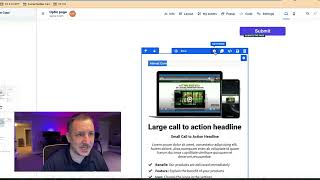
This YouTube tutorial (by Jaime Smith) walks through creating and styling a custom section in a page editor intended for ClickFunnels' bump area. The speaker demonstrates adding a full-page or small section, inserting a one-column row, placing images/headlines/paragraphs/bullets/graphics, then adjusting row settings by removing padding and setting width to 100%. The video notes that a custom attribute will be added (in a follow-up video) to move the section into the bump area so it appears higher on the page.
Questions this video answers
100%
Top, bottom, and side paddings (remove all padding).
Chapters
All right, back to the editor. So we're back in the editor now and what we're gonna do is we're gonna create that custom area that we were talking about where you can see all the nice styling and the colors and you can see the images, the graphics videos, all the cool stuff that you want to customize this with. So what we're gonna do is we're gonna create a new section down here at the bottom of the page. So what you're gonna do, if you haven't already, is just find that green button where it says add section and then you're gonna add a full page section like this. Or it could be, you could make a small. This is actually extra, I think extra small or small. That way it's about the size that it should be. And if you mess up, you can always come in and change that as well. So come in here, click add new row. I would do probably a one column row. And then you can start adding in all of your content. You've got image that you could add in there. You could add in a. Let's see navigation. I wouldn't do navigation progress bar like I did there. You can add a, add some stuff in there, a little graphic like this. And then you can change that. Click on your, your graphics images like that. You can add in like a headline. So just find the info that you need. You can put in your sub headline, put in a paragraph. You could put in bullets like this. You could set this up and make it look pretty just like this one down here. So one other thing that we're gonna look at here. Once you set this up, once you set this up how you want it to look, what you're gonna do is you're gonna come in here to your row settings like just like this and you're gonna come to your padding and you're gonna make sure to take out your padding for the top, the bottom, the sides, and then you're going to make this width. Alright, you come over here and put the percentage for the width and set this to 100%. Okay. This is going to make it easier once you actually it'll make it so that it looks better inside of the actual bump area container. So once you've set all that up the way that you want it, you should be good. I'm actually just going to delete this because I've already set this up. So let's get rid of that. We have this one here and now I'm going to show you what you're going to need to do with the actual custom attributes. So this one I'm actually going to make a whole new video for. But once you customize this, what we're going to do is we're going to add a custom attribute that tells Click Funnels to move this particular section into the bump area so that it's not sitting down here at the bottom of your page. It's going to be moved up here. Okay. So make that look how you want, and I'll catch you guys in the next video. See you.