This content was created by Jaime Smith. This content was uploaded by Jaime Smith. This is a YouTube video titled "bump content 2 products" created on January 15, 2026, providing a tutorial on using CF Pro Tools 2.0 to add and manage products, specifically focusing on setting up a product as a bump product in a sales funnel.
Chapters
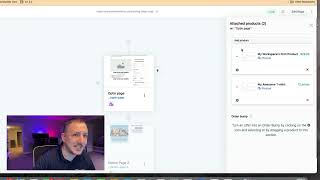
All right, first things first, let's go over to CF Pro Tools 2.0 and we are going to ensure that we have added a product. So that's the first thing that we want to do. You're going to come over here, go to your products tab in the far left column there, and then you're going to go in here and add a product. If you haven't created the product, click up here to create your product. It could be digital, physical, it could be a bundle if they allow for that. Add in your product, put in a little description. Although the description isn't going to matter that much because we're going to override it with what we're doing here with this add on with bump content. So it's not going to matter as much. Okay, so make sure to do this. I'm not going to go through that process, but make sure to set up your product with your variations. You should be good. It should be a single price product. Okay, I'm not going to go through that process here, but what we are going to do is go back to our funnels and I'm going to show you how to manage that. So once you've added that product to your products tab. Remember, CF 2.0 has universal products and you can assign that product to any funnel in your account. So we're going to go to the account or the particular funnel that we're working with, and that happens to be this one. And we're going to click and this is my order page. Even though it says opt in page, it is an order page for all intents and purposes. There should be three dots on there. We're going to click on that and then there should be a drop down here that says manage products. So click on Manage products. Now what we're going to do here, you can see that I've already added the product. But what we want to do here is I'm going to add in my awesome T shirt. So I'm just going to delete that. But we're going to add the product and then we're going to look for it over here. I'm going to look for my awesome T shirt and then I'm going to select that particular product. Now you'll see that it shows up up here at the top. So what we want to do is click on the settings cog wheel and then we want to come down here and check off. Product is a bump product. Okay, so now it's going to. You will want to put a little bump pre header in here. You might want to say click here to snag our whatever our T shirt for X amount of dollars. Just put something in there. Your title override is not going to matter and your description must be blank. If you fill something into this description blank it will override the bump content and it will put your description in there instead. So if you put something here it's going to override the bump content and it will not work. So do make sure that this is clear in this particular instance. Okay. You can put a title override if you want. I'm not going to worry about it right now. Okay. Update the included product. Do make sure to click that and you'll see that down here in your order bump area. Alright, so that's all there is to that. In the next video we're going to go through and look at how to find your product ID and how we're going to check out the how we're going to build the checkout item inside of CF 2.0.