CF KickStart cf editor basics part 1
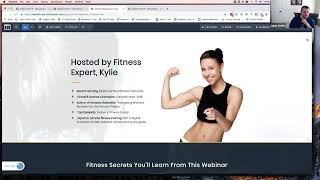
This chunk is a detailed, practical ClickFunnels editor tutorial (host Jaime Smith) showing how to build a live webinar registration funnel called “Yoga Funnel Secrets Live.” Jaime demos choosing a template, inspecting and renaming sections and rows, cloning and deleting sections, and rebuilding the page from scratch. The session covers element-level work (headlines, images, three-column features, countdown timer, dividers, borders/shadows, responsive considerations), best practices (use one form—preferably a popup—ensure buttons either submit the form or open the popup, name sections for easier targeting), and connecting the funnel to Zoom (schedule webinar, require registration, enable cloud recording, and set Zoom reminder emails). Jaime also demonstrates testing registrations and explains timezone wording (use “Eastern” or ET rather than EST/EDT) and small UI tips (emoji/symbol insertion, image sourcing from Unsplash).
Questions this video answers
August 10, 2019 at 7:00 PM Eastern (example used for the countdown and Zoom webinar scheduling).
Enable Zoom reminder emails: one day before and one hour before the webinar.
Chapters
And let's just get back to our basic funnels and we're going to click Add New and we're just going to go with the old classic funnel builder and we're going to host a webinar and it's going to be a live webinar. And we're going to call this Yoga Funnel Secrets Live. And I'm going to put this in the demo, actually I'm going to put this in cfcodelab so that we can remember to share this out. Once we build this out, everybody's going to get copies of these share funnels when we build these out. And especially, excuse me, especially as we layer onto them because we're going to add in some of that custom functionality into these pages. That's kind of the benefit of doing this, right, is that we can build in some of these cool features that don't exist out of the box. And as we walk through and figure out how to build them out, we're going to build them into these share funnels so that you guys have those to jump off on from your own funnels. And so we're going to share this into the cfcodelab group tag so we can find it easily later. And we're going to click Build Funnel. And so what we get when we've got a live webinar registration, which is what we picked, we get a webinar registration page and we get a webinar confirmation page. We don't need a broadcast room page which would normally come in an auto webinar. We're going to want to add a webinar replay page because we'll want to have a replay in this funnel later. But the first thing we need to do is get people into the live webinar. So that's why it comes just pre built with these basic things. And so let's kind of scan through these and see if there's any that kind of jump out that are similar to what we saw over here. Because I do like this kind of layout. So honestly, if I were looking to do this myself, I'd probably drop the 300 bucks and just buy this template and go from there. And then you can obviously tweak and customize from there all you want. So let's see what we've got. In kind of that one column structure, I don't see a lot that jumps out that way. This might be the closest. Yeah. Cause this is kind of that centered kind of one column straight down. Then we got our three column block here. And so let's see any that super jump out. Maybe this one. It's kind of that got that one column. Let's do a little quick preview of this. This probably has our three secrets. Okay, so this is. Yeah, this is kind of similar. The structure wise is similar to what we need. The difference is that we've got an email field right on this. I never recommend this because, you know, it's simple, it's one step, you don't have the pop up but. But it also doesn't get that little micro commitment. So I always recommend putting the email field of the pop up, actually having the form to actually submit. But this at least gives us the structure to build from. So let's go ahead and pick this one and that will give us our structure. The other option is you can just totally start from scratch. And so in fact we might run through this one real quickly and then do another where we just start from scratch and build out the sections and look at where what we need here. Because that's the other thing that is kind of nice is knowing that, hey, figuring out from a design perspective, how is this thing laid out? You know, do we have different sections in here? Do we have rows? How are these rows structured? And being able to look at somebody's design and pick these things up. And I know Catherine goes through a ton of this in her design hacking course and I definitely recommend that, you know, going through that. So kind of figure out how these things are crafted. But we can kind of run through some of that as well. And so, but let's just take a look at this. We're into. I'm not quite sure what happened to our. Oh, this is just our preview page. Okay, so we can close that out and then let's actually open this up in our editor. So and we'll just take a quick look at how this is actually structured and laid out. And then I think it probably makes sense to actually do this from a complete blank slate and lay out just the sections of what we want. So we got a webinar registration page opened up here in the editor and we kind of see that this top, this top kind of big section with the background here, this is a section. So we can see the green border around this. So this is one section. And then we scroll down, we've got another section. And this section can have its own background. And that's kind of the benefit of using these sections is you can apply a full page background to a section, but rows within that section are never going to be full width. You can make them be full width with some custom CSS and all kinds of other things. But if you can avoid that with your basic structure, then that's a great thing. So these rows, you can put a custom background on the row, but it's not going to stretch to the full width of the page. But the section, you can make it full width. And so that's the benefit of using a section versus just saying, well, I'm going to have one section on my page and I'm gonna add a bunch of rows into it. And so that's kind of what we're looking at here. So we've got a different section, it's again full width and we can set a different background color on it, kind of separate things out. We've got again another section here. And notice we've got this background image on this section again, so we can apply a separate background image on this section. And then we've got in that we've got our two section row, kind of got the about. And then we've got this here. And then here we've got again another section and we've got a little bit of a very subtle background, but it gives it just enough texture. We can just barely see the make out of somebody's back here with a little tank top on. And then we've got the fitness secrets you'll learn from this webinar. Again, row here, a couple elements in it. And then we've got our three column block. So we're going to build something like this. And then we've got our button and this totally is done wrong. I don't know why this is done this way. This button goes to the next page in the funnel, which is not accurate. This button also will never actually submit to the page. So whoever built this template out didn't really understand how Click Funnels works because just because you have an email field here on the form, this button, if we look at this button, it is not set to submit the form. It is actually set to. Yeah. And notice it even says this does not submit your form. So this registration will never actually be registered. All it does is send them to the confirmation page. So they never actually got registered for the page. So we need it to be submit, order, submit form. And then that will actually submit. Now this one down below, we don't want it to go to the next page in the funnel. We to want. We want it to scroll back to the top. So it needs to scroll to this section. So that's just a quick thing. That I would change as well. This one should not go to the next step in the funnel and it should not submit the form because there's no email field here. This again is why it's good to use the pop up because then we have a single place where they're actually filling out their details. And when they click the button, it doesn't matter how many times we have the button on the page, they always go to the same spot. They go to the pop up to fill in their details and submit. And then you have one submit button and one email form on the page. You should always only have a single form on your page because quick funnels won't work properly otherwise. But this one, if you're going to have your form at the top, you need to scroll this to the top so that they can fill out that form. So we're going to select a section in row and it's probably this top section. I like to name these things. Here's another little trick that you can use that you can find these things easily is actually go into Sorry. And I probably did that a little bit quick. You click on the gears for your settings and then go to the little hashtag icon from Get CSS Info. Then you can set the title of these things and the title would then be displayed in all of your menus everywhere. So you can identify which section this is. So I want to. You know, that's one of the first things that I like to do when I'm going through these things and building up funnels is actually identifying my different key components so that I can find them easily. And then I also want to get into the JavaScript and the custom CSS sections modules here in a few weeks. I use those same things to actually write my code so that I can tag onto those things easily. So we can call this something like top section and click update. And now if we go in back into this button and we click this and we go to set action and we go to select our section. Now we'll see it's top section. So you notice I selected a section. It wasn't even the right one because it was just called section. Here's another section. Here's another section clone. So we can't identify what these actually are. But because I renamed it to top section, then I know exactly which one it is. So now if I save this page and then I do a preview. Now if I were to scroll down to the bottom and click Registered Webinar. Now, now I can click that and it will scroll me back to the top to fill in my email address. And then this button should now be a submit form. So if you can see it just barely down in the bottom of the browser, the end of the URL there that's highlighted at the very bottom says submit form. That means it's actually going to take this email field and submit that. So they'll actually get registered. So. So that's all functional now. But that's kind of the structure. So that's one of the things we wanna look at is how things are structured. And so let's skip out of this and then let's go back and actually build out a blank one. And actually let's just create a variation of this. And we're gonna create it from a new template. We're gonna create it from templates that way we just have one funnel build out. And if we scroll down here, it's gonna give us one webinar registration pages is our template type. And it doesn't look like we don't have one that's actually set as. Yeah, we don't actually have one that's set as blank for our webinar registration. So that's okay. What we're gonna do is we're gonna. We're gonna wipe everything out. So let's just pick that same template. Actually, let's. Let's go back. We're gonna create a variation, create from template. I should. Let's close this again. Do it one more time. We'll just create it from the exact same template that's actually already fixed. And then we're going to delete everything. So we'll create a duplicate page from webinar registration. And then this one we're going to go ahead and open up. And it's gonna load. And then let's go ahead. We're just gonna delete everything out of here. So I'm gonna delete this section. I'm gonna delete this section, delete this section, delete. And I actually at one point. And so now we're back to a completely blank template. We have nothing in here, so we have to start with adding a new section. And so we've got our page open here. And I'm just going to pull this off into a separate tab and I'll pull it off screen. And then I'm going to pull it back. So we've got this here. So we can see up at the top. We've got this kind of separated. It's got just a white background and it's Got a button and it's got a logo that is probably its own section. We want to set that into its own section. It's got a two column row in it. Then we've got this full background image that's going to be its own section. And then we've got this thing here where it kind of overlaps. And that is going to be. We can do that. And click. Funnels are going to take a little bit actually, they may have fixed this by now. We're going to use what's called negative top margin to pull this box up from one section into the next. And so we're going to put this thing in its own section. And then we got this. What you'll learn in this webinar. And then the three secrets, those can all be one section. And we'll just use a one column row and then a three column row. And then this here again, it's got a full page width background image. So that's going to be its own section. And then this here again is just a all white background. So that's its own section. And then we've got a footer, you know, looked like a, just a black footer down at the bottom. So that would be its own section. So we've got 1, 2, 3, 4, 5, 6, 7 sections that we need to add. And so I kind of look at these things when I'm looking at structure. If you're looking at kind of funnel hacking and you're going in your. I want to build something similar to this. I'm going to use my own images, I'm going to use my own fonts and I'm gonna use maybe my own colors. But I wanna, wanna make it somewhat similar to this. I like the structure of this. I'm gonna make it say my own things. We're not stealing, we're not copying, but we're, we're kind of, we're, we're taking the best features of something and we're using them in our own. Then we kind of wanna walk through and see. Okay, so how does, how does this build out? We kind of wanna have some of these same things. We might drop off this thing at the bottom. But let's say if we wanted to rebuild this again exactly as it is, we would need seven sections and then we would build up from there. So let's bounce back in now. So we're gonna add a new section, the top one, it's gonna be a full width section and it's gonna have a two column row because we had that, we had the logo and the button. So let's go ahead and do a two column row. So now we've got that one built out, and then we wanna add another section. And that's also gonna be a full width. And if we go back and look at that one, that was this one here, this gives, gives us a, gives us a background image. But we've got just a single column here for a couple of headlines. So we had a couple of, couple of rows or single row with a couple of elements in it. So let's go ahead and. Let me, let me actually minimize this down here. Okay, so now we're gonna bounce back to this. So we're just gonna add just a single row, single column here to that one. So we've got that. And now let's go ahead and build another section. And then we'll go back and kind of start structuring these things out. And then this is, this is how I kind of like to build through things. That kind of shows you that, hey, I can build out the structure of my page first and I kind of know how everything is going to be built. And then from there you start layering in your pieces and then things come together pretty quickly. It's kind of like having Lego blocks. You know, you kind of get an idea of how you want things to be put together and then you lay out, okay, which blocks do I need? And then how do I stack them? And once, you know, and have kind of that plan for how things go together, then the last piece is like, okay, now I'm going to tweak and I'm going to color and I'm going to paint. I'm going to do whatever to make things aesthetically look the way I want to. But once you get the structure there, it's kind of that foundation, right? We talk about needing to have a foundation for what it is you're building. So once you have that foundation built out, that structure built out, it's kind of like framing a house. You know, once you, you know, once you have a plan for it and you get the foundation laid, you can put the walls up pretty quickly. I've seen houses come together. The shell of a house come together in a day or two days. In fact, there's some people that sell kits for building your own house. You know, if you're going to build a log cabin or something like that where they'll ship you all the components, and as long as you have a level pad to put the, put the frame on, They've got instructions for how you can use three or four people and put together the shell of a house in a day. It's. But it's because you know the kind of the map you've laid out in advance. What's my structure going to look like? How am I going to build the wall? So in this case, okay, I've got a section, I've got a two column row. I've got another section. This has just got a couple of. Could use different rows here sometimes. That's kind of nice. Or just use a couple of headlines within one row. I've got another section here and it's all one column rows. I've got another section here where I've got a one column row and then I've got a three column row. So we kind of map out that structure in advance. So we're just gonna. Now we just got to go through and kind of build that scaffolding. And so let's see, so we. Which one are we building out here? So we've got our. This is our image background with our headline, right? So we've got our image background headline and then we've got this section that is going to be all one column rows. And so we're gonna build out again. We're just gonna add a new row. And in this one we can see we've got this kind of border around this thing and it pops a little bit. So what we're gonna wanna do with that one is. And I'm not sure how they structured this, honestly. We'd have to go and play around a little bit to get these little wrapping banners off the tops. But this might actually be a three column row with where these are on the edges. And then this thing is in the center with its own. Um. So these are. It's probably done with images in here somehow so that we're not gonna worry too much about getting this effect. It's nice, but we're just gonna worry about getting this overall just pull this thing up and have it overlap. So we're just gonna use a one column row. In essence, in reality, this is probably actually a three column row. But we're just gonna build it as a one column row. So we added our one column row in here and then we've got a new section. Sorry, sorry, Richard. Yeah, let me, let me pull this microphone. Richard says the audio is coming in and out. Is everybody else kind of noticing that same thing? I'm not sure why it's doing that, but we'll pull this microphone closer. How's that? Is that a little bit better? Dan had mentioned the same thing last week. I wasn't quite sure what was causing it, but hopefully, hopefully this is okay. Perfect. Richard says perfect. So good deal. I repositioned my microphone here, so you may see it in the screen now. Oh, you actually don't. I can see my own face and it's not there. So cool. So, yeah, definitely. Let me know if that changes. But we'll just kind of leave that centered straight in front of me. So now we've got this. So we want to build up this section here and so we've got this section of the block. What you'll learn in this webinar. So let's bounce back in. So now we need to create another section and this one again, it's going to be full width. And in this one we actually have two different rows. We have a one column row because we're gonna build out this first headline here. So this row is gonna have a couple of things in it and it's got a, you know, looks like it's got a headline and then another block of text below it. They're both one column. And actually it's. This is actually probably a three column with. You could do a divider in here and kind of space those things out. And you could probably hide those so they're not visible on mobile. We're not gonna worry too much about that. It's a nice visual effect. But we can figure that piece out later. But let's just make this a one column row. And then we've got a three column row below that. So now we're gonna add a new row and we're gonna do a three column row below that. So now we've got our three column row and then we've got this other block here with another little. With our urgency and scarcity. So that's a new section. So let's bounce into that. And then we're creating new section and we're gonna do full width and then we're gonna add a one column row into that. And I'm not gonna worry about building out this section at the bottom, but we will put a footer on there. So let's go ahead and add one more section. So we're gonna have six total sections here, if I remember correct. So we'll hit full width. And then we're gonna add. Let's see. Yeah, we're gonna keep the footer super simple. So we'll just do a one column and it's just go one block at the bottom. And so we'll do that. And now I'm gonna actually go back and I'm gonna. I'm going to name some of these things so they're easier to identify as we're looking through them. So we're gonna call this, you know, header section and then we'll call this. We're gonna call this the hero. And I like that because it's got kind of that top, that kind of top, you know, big, big background here image. This is our hook. Or maybe we'll just call it hook section. I kind of like that better, actually. So we'll call this hook section. Hit my caps lock. There we go. So we're going to update that and then we'll call this registration block. We'll call this details block, details section. There we go. And then this one is going to be our what you'll learn section. We'll just call this learn section. And then we've got. Here, we've got. This is going to be our, our urgency section. We've got that. And then this is going to be our footer. And so we'll just call this one footer section. Okay, so now we are looking good there. So now we've got kind of our main components built out, right? So we've got our sections. We're going to change, you know, top paddings, margins and all that fun stuff. We're going to go and we're going to find some images that might be good for a background here and we're going to start building some of these things out. So the first thing we want to do is if we've got. We haven't. We haven't built out a logo for this, so we're not going to worry too much about this. But I'm going to click image here and let's see if I can actually find. Let's just, let's see if we've got logo. I'm just going to use. And we're gonna make this the. I'm gonna make that. We're just gonna add in the CFCodelab logo there. And we're gonna make this top section. We're gonna make this one actually. The background is gonna be white. And so let's go ahead and set a background color on that actually. And if we. Let's do this first by setting the background color on the page and then we probably don't even need to do that. So the background color out of the box on pages. I don't know why ClickFunnels does this, but it's this muted gray, and it's really kind of an odd gray color. We just want it to be plain old white. So we're gonna set that. And now we don't even need to worry about setting that background color on this section. We just need to be aware that if we change the background color of the page later, that we're gonna need. And we want this top one to be white. We'll have to set a background color on the section, so you have that option. So now all the sections, if they're transparent, we'll pick up that white. They'll just see through. But if we need to change one specifically, then we'll set. We can set a separate background, either separate background image or separate background color on each of the sections as well. And so obviously this logo is way too big and we've got too much padding, but we also want to add a button here. So let's go ahead and at least get the structure. So we'll put a button there and then let's again go and take a look. Okay, so we've got a logo, we've got a button. Okay, cool. And now we've got, in this one, we're not gonna worry about the image just yet, but we've got a couple of headlines. So we've got a sub headline and a headline here. So let's go ahead and add a new element. I'm gonna click sub headline. So the only difference, just so you're aware, the only difference in clickfunnels between a headline, a sub headline, a paragraph is the default font size that's set. They're all the exact same element, just copied several times in the code, and then they have a different default font size. Other than that, there's no difference in those elements. So it doesn't matter which one you use. They all have the same settings, they all get tagged the same in the code. They are all have the class of EL headline. And we'll go into more of that when we look at custom CSS and the custom JavaScript so that you know how to select those things. But they all are exactly the same with the exception of the default font size. But they can all be changed. So if you accidentally pick a headline and say, oh, that's too big, I didn't want a headline, I want a sub headline. Doesn't matter. Sometimes it saves you a little bit of time by picking one that starts out smaller. And it also starts out with a different set of text. That's all there is to it. They are all exactly the same element under the guts. So just be aware of that. But so we inserted a sub headline that's kind of our top. And then we want to insert a. We'll use a headline element a little bit bigger text. And we'll insert that. So we can kind of see that that gives us this effect here. We've got. This one has. Let's see if I can actually zoom in on this a little bit. Oh, no. Oh, there we go. So we've got, you know, secrets revealed and then we've got this headline down below that. So. And so we've kind of got that effect there. Okay, cool. And then the next one is. Is our registration block. Right. And so we. This one has got a little headline in it. Another headline, another headline. So we've got three headlines in there. So let's go ahead and add those in. So we've got probably a sub headline and then we'll add another one. And then we'll use a headline for this one. And then we've got another sub headline. Okay. And then we've got a countdown timer. And so let's add that countdown timer in there. So we'll go down and we'll just pick a countdown timer and then we've got a big old button. So now we've got a button in place. And so let's go ahead and. We'll just put in some basic text here. Hook lead in. And then just so we kind of have an idea when we go back and look at this, what we need to put in place. We're going to call this a super strong and sexy hook headline. And then we're going to say for this one, this is kind of our live webinar happening on. So we can even put that live where live web class begins then? Or yeah, this one has a date. Live webinar class begins on. And then this one is the date. So we can put the date. So let's just. Let's pick. Next Saturday is the 10th, I think. So we'll do August 10, 2019. And we'll say at 7pm Eastern. This is one thing to be aware of. And you guys may have noticed this when you're looking at registering for different webinars that if you put in just. And this is maybe just me from being a developer and having such a pain in the butt time with daylight savings time and all that stuff going back and forth and it switches and dates are different depending on what time of the year it is and all that. But a lot of people, the general public does not know that there's a difference between edt, which is Eastern Daylight time, and est, which is Eastern Standard Time. Most people, if you put est, they think it just means Eastern. But in reality EDT and EST both exist all the time. And depending on which part of the world you're in, you know, so for example, mountain time. There are some states like Arizona, that is in Mountain time. They are in the mountain time zone, but part of the year they're in Pacific Standard Time, part of the year they're in Mountain standard Time. So they, they switch time zones or they equate themselves with different time zones so they don't switch. But for the rest of the mountain time zone that does observe Daylight savings time, it's hard to keep track of. So I like to say, because most people don't, they just want to know when does it happen in my time zone? So they just want to know, is it mountain time, Eastern time, you know, Australian time, you know, now when you get worldwide time. So it's always best if you can define like a well known time zone and just say Eastern time. If you put it in est, that is actually not necessarily true. If you're in daylight savings time and you put estimate for that time, then it can be confusing to some people, especially international people that may not be recognizing daylight savings time. If they were to go and look up what's EST for this date, Google will return them the Eastern Standard Time for that date. It doesn't look and say oh, it's. They mean what they really want to know is Eastern time. No, if you ask specifically for Eastern Standard Time, that may be an hour off from what you expect. So I always like to just put Eastern so or ET for just Eastern time if you need to keep it short. But yeah, that's just something to think about when you're thinking of times. EDT and EST are two separate things and they're in est. Most people think EST stands for Eastern. It does not. It stands for Eastern Standard Time. So just something to be aware of. Sorry, that's my little rant on, on time zones because they're a pain in the butt when you're programming. Okay, so we've got that build out and then we've got our timer. And so let's set our timer. Now we're gonna count down to that August 10th date. So we're gonna say 0808, 10, 2019. Oh, mess that one up. 2019. And we're going to pick their time here and that is going to be 7pm and notice it's EST here. So even though I believe we are in daylight time, it set as EST here. I think this actually calculates for Eastern time. But again, just another example of where these things don't mean the same thing. So we've got that set now and then our button and then we can, you know, set our button up here. And we probably want that to say something like reserve. Your spot now. Reserve your spot. Not reserver. I like to make these big and chunky. So we're gonna bump that text size up kinda like that. Cool. Okay, we're looking good so far. We can even go in. If we wanted to pick out a different look and feel for the countdown, we could do that through themes. We've got all kinds of different options here. I think we'll just stick with what we have so far. We can always go back and play with this later. But we're just kind of getting the structure built out. So we're looking pretty good. So we've got our hook lead in. Let's go ahead and just apply so we can kind of see this, what this is gonna look like a little better. Let's go and apply a background image and then we'll probably go pick a different one. But we can start with some background images here. We can even start with just one of the stock ones built into clickfunnels. We can also do a search. We can do stock. These don't really have any good backgrounds, but we can do a search here. We actually have. Unsplash is actually a pretty good site for searching for images. So if we go and type in yoga and do a search, it will go out and find us all kinds of photos. So we could probably do something like this. We could double click this one and it will actually pull this in and we can click add image. And then we want to set this to fill width and we could probably even do it at full center parallax and see what that looks like. We're definitely going to want to change colors. We'll probably change out the image entirely. But that at least gives us an idea that this is our spot that we want to. That we're going to have the image in. And then same thing down below. I think this was going to be our. Actually this one was going to be our other one. So we could probably pick a different image there. And so we're looking good. We're getting our structure built out and now this one, let's look again. So we're going to build out what you'll learn in this webinar. So I kind of like that. I don't know what I. Oh, headline. So we'll click headline. And that's pretty universal. Headline works pretty well. And then for these, these are going to be our three secrets. So here we've got little icons. You know, if you can find ones that fit for your secrets, that's great. But let's not worry too much about those right now. Let's. Let's just get the headlines. So we're going to do a headline here for this secret number one. And then what we can actually do to speed up the process a little bit is we can actually clone this out and then just drag these over. So we've got secret number two, secret number three. And I do kind of like these little dividers in here. We kind of can see this little green that kind of divides this. That gives a little visual little something to it. So we can add that. That's just a divider. So if we can go in here and look, if we scroll down, there's actually a divider element. So we can add that in here and we can then click on our settings. It's probably got a ton of margin up at the top. Probably don't need that. So, yeah, that sets it down to zero. Probably do it like 10. There we go. And then you can change the width of it and say, okay, I only really want it to be like 30% and I want it to be center aligned to kind of match up. And then I want it to be. That one was pretty chunky. It was like three pixels. And then I want to set a different color for it. So let's. You know that green is pretty similar to what was on this page here. Yep, pretty darn similar. It's probably, probably exactly the same color, honestly. And then again, we can just clone this and then drag it over here. That way we've already got all the settings are already set and we've got it going there. And then now we want to add a. Let's add a paragraph and let's go back and look. Yeah, we can see we just kind of got a paragraph of text here. And so that's good. I kind of like that size. Let's kind of bounce out. Is that size good? I might even bump that up just a little bit. It's probably 16 pixels to start. Let's bump that to 18. Okay. I think that looks pretty good. So let's go ahead and clone that. And these, you could probably, you could probably left align them. So I could probably click in here and do left align. Yeah, no, I don't really like that. Let's go ahead and make this center aligned again. Okay, great. And now we're gonna do the same. We're just gonna clone this and we're gonna drag and we're gonna drag. And now we've got our blocks laid out. Okay. So we've got our structure here, and then our next one is this block here. So we've got a couple of headlines, we've got a headline, sub headline and a button. So we are gonna go ahead and add headline and I think we have a sub headline and then add a button. Okay. And then this one, let's go ahead and add a background image. So we remember that we want to swap this out with something down the road. Let's just put this one in as a, as one of the basics. And let's do something like this green one here. We're gonna do add image and we're gonna. Again, we're gonna set it as. We'll set that as full center parallax. So we get a little structure. Again, we're not gonna stick with this, but it gives us our. Gives us at least our structure here. And I'm probably gonna actually add like a ton of padding to this one top to kind of make this bigger. So there we go. So we're good there. So we'll kind of get some of the structure. We're kind of starting to see this thing to come together. And then we got rid of this section. But if we wanted to do it, this would just be a two column row with the image on the left side and the. With no padding on the bottom so that it bumps up against this section. So you get rid of all the padding on the section and all the padding on the row on the bottom so that it hits the bottom of that. And then you've got on the right column, you've got a sub headline, a headline, a paragraph, and. And then a bullet list. So super easy to build that out. In fact, you know what, let's just build that out just so we can see how I would build that real quickly. So we'll add a new section here and it's gonna be a full width section and we're gonna add a new row. I'm probably gonna just hide this here in a minute. Did I add a. I thought I added a new two column Sometimes if I move the mouse while I'm clicking it, it doesn't stick. So now we're going to build it. Now we're going to add an image. Add an image. And then we're going to add. Did we have a headline first? We had a sub headline. And then have a headline. And we're going to have a paragraph. And then we're going to do a bullet list. Perfect. And then this, I believe this headline was left aligned. This headline was left aligned. This text is left aligned. And so that kind of gives us this structure here. And then if we were to look at images here. Let's see. I have any good ones? I don't think I probably do here. We could do something like this. We'll just throw that in there. And so we've got that. And then we've got. This one is going to be our footer. And so we're just going to throw in a headline here. And we're actually going to make this. So we're going to say copyright. And here's a little bit of a trick. ClickFunnels now accepts emojis and UTF8 characters and things like the copyright symbol and all that. And so you can actually use those. If you're on a Mac, it's real easy. If you're on Windows, you can do it as well. I think on Windows, it's like shift Windows key semicolon. It will actually open up what's called the emoji viewer. And I've got. You can actually set this in preferences in Mac to have this show your keyboard preferences on the tab at the top. Are you guys able to see this? Okay. The very top part of my screen. So hopefully you can. Hopefully the video picks this up. Okay. But at the very top here. Okay. Joe says yes. Okay, awesome. So at the very top, I've got this show emoji and symbols. If I click on that, it's actually going to open up a separate little window open up on my other screen. But it looks like this. And this shows me all of my characters. I've got emojis in here. I use this to actually insert emojis into my email subject lines in clickfunnels. I can just go in here and what happens is wherever your cursor is blinking at, if you double click on one of these things, it will insert it into that spot. So if you want to put things like the copyright symbol, then you can actually go to letter like symbols. And copyright is right there. So I insert copyright. And now my Copyright symbol is inserted right there. And that's how you can get these things into real quickly and easily without having to know the special, you know, key combination you have to press to get the copyright symbol. You can get. You know, you've got all kinds of the tm. Is there all of those. What are the buttons on Windows? Richard asked. That's a great question. I'll have to look up specifically, but I think. I think it might be shift Windows and Semicolon on Windows should open up a similar keyboard viewer. And if that's not it, then I'll have to look up. I had to look it up for once. I don't use Windows myself, but somebody else had Windows and they were trying to do it. And I'm pretty sure it was something to do with semicolon. It was the Windows key and semicolon. I think a shift or control might have been involved. Yeah. And Jeremy says it depends on what version of Windows you're running. That's absolutely true. I think this was for the, like windows, you know, 12 or 13. What. Heck, I don't even know what versions of Windows are anymore. But I think it was one of the later versions of Windows that actually includes this. So. So, yeah, so this is a great little tool if you wanted to use instead of saying so, you could in here. And then it kind of. It always stays static. It stays on top of everything. So a lot of times I will have it on a different. Oh, I've got a little. Cancel that. Okay. So I've got a little. Sometimes I've got three monitors set up, so I'll drag it over to another monitor, something like that. But you can actually go in and, you know, say, I wanted to put that copyright there in my cursor. Then I could double click and it'll put it there. And then I could go in here and get rid of my copyright and just say copyright, you know, use the copyright symbol 2019. That's well recognized as well. I kind of prefer to use the word copyright. I am not a lawyer. I don't even pretend to play one on tv. But my understanding is basically as soon as you write something, it is copyrighted as of that date. So it's not as critical to put that in there. But it is kind of nice and gives a little bit of. A little bit of something to it to say, hey, I'm actually trying to protect this thing and I intend to enforce my copyright. There is no legal requirements to go and register some copyright in order to say, this is A copyrighted work. If you can show that, hey, I was the first one that wrote this. It was written on this date. Somebody else took and copied that exact same thing, then you will, you will win that copyright debate. So copyright 2019. And then we could put in something. And a lot of times you might even do this as like a two column row. I'm gonna get rid of this keyboard. Viewer will throw this over here. You could do, you know, a two column row and put like copyright over here. You could put your product name, you could do your footer in a bunch of different ways. But I'm just gonna put some extra spaces. In fact, I like to do. I like to say all rights reserved. And don't take me for legal advice on this. This is just what I do. Served. And then you could do, you know, another row down below that or another headline down below that and use that to do nav elements. Or you could do a navigation, an actual navigation element. I just kind of like to use, you know, use. We'll even just do it as a paragraph so the font's already the right size. And do something like terms and conditions and then space, sometimes a couple extra spaces and then do like a pipe and a couple spaces and then privacy policy. Space, space. Do it slow because if you double space, sometimes that'll add a period on Mac and then income disclosure. And. And then these you can each individually turn into links. So just click link and that's great. And then we could go back and put those links in later, but at least lets us know that we want these to be links. I want to close this out and I want to click back on this now created as a link. Cool. And I keep forgetting to close it out. And now we're going to link it again. Okay, cool. So now we've got these things. So we got our links there. And obviously we're gonna make this much, much smaller. So probably make this something like 16. Probably doesn't need to be bold, but it can be. We could probably get rid of some padding. We probably got some top margin at the top of this thing. Yeah, 15 again, suck those things up against each other. Maybe put five pixels there. Yeah, do something a little like this. And then we want to probably give this its own color, its own background color. So we're just gonna do a background color down at the bottom this. And we'll make it kind of a dark gray like this, maybe something like that. We could make it this green color. We could do a lot of different things. We'll just make it this green color for now. And so now we want this image to bump right up against the bottom. Right. And obviously this woman is headless. The one that we have in our example here, she's got a head, so we're not gonna worry about how to suck it up to the top, but let's make sure this gets sucked up to the bottom. So now if we actually go into our row here and we get rid of all the bottom padding, and then we go into this section and we do the same thing, get rid of all of our bottom padding, then we should be pretty darn close to sucked up. I'm not sure. There might actually be a couple. Because that should suck up all the way to the bottom. I think there might actually be a couple of pixels of white space around the bottom of this image. So. But that's how you kind of get that image down to the bottom of that. And that actually, honestly looks pretty good just the way that it is. So just for reference, that's how we kind of do that. And so now we can kind of see we've got a pretty similar structure. The things that we don't have yet is we don't have a shadow around this, and we don't have it sucked up into this. And so. And we also. This one is, you know, obviously the full width of this row is available, so we won't kind of make that. The one that's in our example is, you know, a little bit narrower. It's sucked up a little bit against these things. So let's. We can do that by just simply changing the width of this row. And now if we go and look at it now, it's getting closer. In fact, let's go ahead and go and put a border around this. So let's go ahead and go into advanced, and then we'll do the corner radius. Let's go ahead and keep it square. Our example is square. Our example is square, and I kind of like that. So we'll keep our corner radius square, but that would be where you can add, you know, 5, 10, 15, 20 pixels of roundness to the corners. We'll leave those square, but we're going to turn on our border. We're going to do a full border all the way around. And I don't like. We don't want it to be 3 pixels once we want. We kind of want it to out of the box. This is. We've got kind of a dark border that's got some transparency to it. We could pick a. Just a lighter gray that's got full transparency. We've got a real light gray here. I kind of like that. So now we can at least see the border. So when we're changing our width, we kind of know when we get to that sweet spot. Okay, I think that looks pretty good. And now also, that row has a drop shadow on it. So we can do a 20% drop shadow. Yeah, so we can kind of see in this. In this one here. It's got a bit of. Not too much. It might just be a border, but it's got a little bit of a shadow behind it. Again, if we were to zoom in a little bit here. Can't tell entirely for sure. No, I might just have a. Yeah, it's got a little bit of a shadow on. Might not even have a border. It might just be white with a drop shadow. But that's. That's kind of what we got going there. And so I kind of like this. It looks pretty good. Looks pretty similar. And so now the next thing we need is we need this actually to this row to suck up onto this. And so if we do. And this. Right. It's been a little while since I've done this. So if we do say, negative 40. Oh, that went to negative 400. We don't want quite that much. Nope, we want about negative 100. Yeah, there we go. And. Oh, we want our row to have a background color, because otherwise it's just gonna see through to what's behind it. So we need to put a background color of white. And now we can see that we've got our kind of. That similar result. And so let's save this. Since we haven't saved any of our work along the way, which is usually a bad idea. But I've just been kind of hammering on. So now we kind of see we've got the basic structure that we laid out from over here. So now we're missing this banner. And when we really get down into it, we'd probably tweak that. But that's not our biggest and most important piece right now. And I'm not a huge fan of this section, so I might actually just hide that. And honestly, at that point, I would probably change this background color back to white, since we have. Since we have a background image on this one here. And so we'll save our page and we'll just do a quick preview. And so we can see even in the live view. Obviously, we need to move change a lot of things, but we get the little parallax effect on our two background images which are kind of cool. And then we've got our box in here. We've got our timers working, counting down. We've got our bit of gold button. We've got this, we got our section here. So we got a lot of content to add but we got their structure and so we've got a structure going and we're looking pretty good. How are we doing so far? I honestly could use a little bit of a break. Do we want to take a little bit of breather break here before we, before we jump into the rest of it and we start really mocking this thing out and start putting some content in here, start connecting things up? Sure, sure. Okay. Good. Yes. Joe says nice. Sure. Yeah. Let's, let's do this. Let's take a, let's take a 10 minute break. So it's 12:11 now. So let's, let's plan on being back in 10 minutes. So we'll be back about 20 after 12 and I'll go for a little bit more. And if, honestly we have some flexibility in this. So if it gets to the point where it's too long, I don't want to take up everybody's entire Saturday but I do want to get through this. So if we need to break this up and do this into two sessions where we go through this a little bit more in the next session and then we'll move back out. Hey, maybe we get an extra bonus. Maybe this becomes a ten week course instead of an eight week course. But we'll do that. But we've got a lot more that I want to run through today. So we'll come back in about 10 minutes. We'll get started. So we'll call it 1222. We'll just say 1225, we'll start back up. I'll leave the room up and going. So you can just stay in here. But I'm going to mute everything else and I'll mute down my video and then. Yeah, and then we'll get going. So I'll see you all in just a few minutes. Okay. We'll give it another minute here for make sure everybody jumps back on or if everybody wants to throw in the chat if they're back and get everybody, we'll get started again. You want to get fresh water, a little bit of a snack and I know Jeremy had to drop off. No, actually it looks like he's still on. Joe says he's back so it doesn't look like Dan's on. Not sure if Dan had to drop off for good or if he'll be back. So we'll give it another. Well, we're at 12:25, so we don't want to hold up everybody's time. I know it's been a long Saturday morning already and Jeremy says still here for a while. Okay, good, good. So we'll jump back in and get started. See if I can refresh my memory real quick where we left off. What we'll probably end up doing is breaking this into another session I had gone through. And there's just. There's a ton of stuff that we want to make sure and cover and I want to make sure that you guys all get the best out of this that you possibly can. So make sure that I can cover everything that we possibly can when it comes to building out these funnels and getting this going. And we've got more to go through, so they're definitely going to be some bonus sessions to come on this one. So. But for right now, what we've got is pretty good compared to. It's actually horrible, honestly. But the structure wise matches up pretty close to what we have here. And as I was walking back into the room, I thought about something and that is the fact that this logo and button up here at the top is not something that I would normally recommend. And really, you don't want the logo and the button up top. They can be okay, but the logos are all about brand recognition at this point, Especially if you're running this to a cold audience, they aren't going to know your brand. They don't need to know your brand. They just need to be drawn in by this sexy hook and then get them to reserve. So I honestly would not put this up here, especially on cold registration form. If this was a warm audience, a hot audience that knows the brand and is interested in only coming and are more likely to visit and more likely to register because they recognize the brand, then yes, absolutely. But in this case, we're looking at what can we do to connect with a colder audience. So the logo up top is not really a. It's not something that I would recommend. So what we're going to do instead is, is we're take a little bit of what we'd seen from some of these other examples, like this one here, where we've got a headline up at the top that gives them more of that, you know, definition of what this is and the urgency and scarcity. So we're going to build that in instead so we're going to do that by adding a. Just a one column row and we're going to add in a headline actually. Yeah, we'll do a sub headline and then we'll just say build up some urgency and scarcity there. And then we will just take this and we will get rid of this row. And then to kind of save some space up top, we're gonna start off by getting rid of some of this padding and we're gonna maybe take that down to five. Take that down to five. See how we're looking. That didn't see. Oh, we've got padding on our row here as well. So we got our padding down on our section, but we wanna take our padding down on our row as well. So we're gonna take that down to five and that down to five and see how we look now. Okay, so that's looking a little bit more like we want and I kind of like to have a little bit of a drop shadow sort of effect on this down below it. So like the top of the photo has a little drop shadow. So we can do. It's just a little visual aesthetic thing. So we can actually do a drop shadow on this, on this section and give it like a 30% drop shadow. And we should see. Not seeing it play out here. Let's save it and see what we get. We might have to do a little bit of a margin at the top of our next section. So let's do a little preview. Yeah, it's not showing up there. So I think that's what we got. Without enough margin there, it doesn't actually show the drop shadow. And so what we're gonna do is we give this a little bit of a top margin, say a 10 pixel. That's too. There we go. Now we've got a little bit of a drop shadow there. I don't. It's a little bit too much. So we want to weaken it just a little bit. So we'll do like a 20% drop shadow and then maybe give it a little less margin. Just gives a little bit of a separation so we can see just a little bit of. A little bit of a separation up there at the top. It just kind of draws, especially in the center where the sunlight, you know, was pretty white. It gives us that line and it kind of draws a focus to that a little bit. So yeah, so we do that. So those are just some basic things here. And so the next big things that we'd want to do in this one is Obviously we need to craft our hook and we need to make that super strong. And so you can kind of tell from some of these attention entrepreneurs, small business owners, online marketers and marketing agencies that's a good lead in. So that's what we're looking at here, is a good lead in. Now obviously it's good for this one. It's not necessarily good for what we're looking at. Obviously we've got this warning, your website is dead. Or attention all business owners with a website. That's a good lead in. Let's look at Lawrence, what we have here. Would you like the freedom to work from home and spend more time with your family? So this is a question based one. I kind of like that. So let's, if we were to do something like that here, then we could do something like. Is your yoga studio sucking the joy out? And let's, let's do. Is owning your yoga studio. Zone a yoga studio sucking the joy out of your practice? So yeah, I like something like that. Zoning yoga studio sucking the joy out of life. Something like that. We won't go in and spend a ton of time on this because I know we're already kind of running a little bit long today. But those are the things that we'd start building out. We start filling in some content. We'd start and then we'd go back and we'd start okay, so we've got some good content. We'd go and probably start looking at some better images and let's. Trying to see. I kind of. Let's, let's see if we can find a better image on this one right off the bat. So we've got yoga. That one's pretty dark. We could do a dark one with some. That one's kind of cool. This is kind of cool. Trying to see if we can find one that's going to work well with our text. So we have light text on a dark image or we need to have a really super light image. So if you guys haven't used this before, a lot of people didn't even know this exists. This is not something new. This has been around for a long, long, long time to be able to do a search for images. And unsplash is a great one. They have a ton of images and they're all royalty free. So you can add them on your site and then they just get loaded into your library and you can use them from there. So let's see if anything. Let's see if we can actually search for yoga studio. See if anything comes up, Let's see if we can try this one, see how that looks. Okay, well, let's not play around with that too much today. I don't want to take up a ton of people's time, but we'd basically be looking for an image and we'd probably end up really kind of meshing this out on the back, kind of like what we saw before with this image here. You know, it's a black and white image. You can actually do. You can take and do some treatments. We might even make that. Part of the next session is to actually find a treatment and show you how to use some free tools to do that. You can use things like Canva to apply a little overlay. You can use some online editing tools to do all kinds of different stuff. You can also do some custom CSS to do a little bit of a blur effect or to suck that into the background a little bit. And then one of these days, I would love to have my good buddy Jake Leslie, who is a fantastic funnel designer, come in and actually do a session for us. He will probably be one of our VIP bonus sessions where we'll actually jump in and let him run through and say, okay, let's take one of these funnels, we build out and tweak it from a design perspective to actually make it as sexy as possible and show you some of the tips and tricks that he has got. And he is an absolute wizard when it comes to quickly and easily designing and adding some of these effects, both in Photoshop as well as translating that and then into clickfunnels. And so we'll get that going as well. So we're not gonna worry too much about the design on this today. The next thing that we wanna do. So we've got this set up, we've got our time, we've got August 10, 7pm Eastern. We've got our countdown going. We need to actually have a form where people can register, right? We haven't built out that pa, so that's the next big piece. So let's go ahead and save this. And actually let's just. So we can read this text. Let's see if we can do. Change some colors here. So we're gonna change this text color to white. And then what I like to do, if I've got text, white text on a dark background, I like to actually have. Actually have it give it a little bit of a drop shadow. And so we can do text shadow, we can do strong. And so that's gonna make it Pop out there. So now we can actually read it on this. Even when it's in this white on almost white. So is. So that looks already a ton better. And then we can do the same thing here and we'll just, we'll make this text white as well. And then we'll do the same thing. We'll give it a text shadow of strong and then that's going to make it pop out. And then I would probably make this one super big. You know, make that more like that. Probably get rid of this margin. Go like that and probably do like a 42, something like that. Cool. Okay, so now we can at least read the headlines. So that's looking much better. And we've got this pulled in. So the next thing is we want to make sure and actually have a pop up that has, has a form that works right. That gets people to actually register. And in order to use the pop up and get people to register on the pop up and we want this button and this button to both do the same thing. We want them to open the pop up. And so that's what we need to do here with these buttons is actually go in, set action and set the action to open the popup. And so now that will actually open the popup. And this one here and we'll make this one say the same thing. Reserve your spot now. And then we'll do set action, open the pop up. Great. So that way it doesn't matter where they're at on the page, when they click the button, it's going to open the pop up. And so and now the pop up. If we do show popup we get kind of a crazy looking pop up here. Oh, that's because it's leftover. Even though we deleted everything else, we didn't delete all this stuff out. So let's do that. Let's delete this out. We're gonna start with a clean pop up. Delete that out. And so now we're add a row. Now let's add edit pop up settings. Let's get rid of this. Probably not a border. I like turn the square images. I kind of like having some edges. So we can do like five pixel rounded edges. You kind of see these edges rounded here a little bit and want a full border. This is set at 5 pixels. I kind of like doing like a 2 pixel, maybe a 3 pixel. These things you can play with a little bit more and usually it's like a gray kind of like that color gray and can't really see it. There very well. There do a drop shadow. There's usually a little bit of a drop shadow effect. So do like a 20% drop shadow on that. And then the background color, we'll change that to white. And then the backdrop, this is the one that I talked about where it needs to be really dark so that the rest of the page is, you know, very, very much darkened out. And the focus is just on the actual pop up itself. So that's the backdrop color here. And if we click this and open it, we'll notice this one's probably been modified from whoever built the theme. But you'll notice it's only 0.56. So it's. You're sending it to, you know, an RGBA color here. That's a bit of a blue. Let's set this to black. And now it's. The page is entirely gone, right? And this isn't even full black. This is actually a little bit of a gray. But now we can just take this transparency slider and drag it down a little bit to even like 0.9 and you can make it a blue. Do that same thing and drag it down. It's gonna kinda mask those things out or do you know, like we used the green color in before. You can drag it down but you really want something that's really gonna mask that kind of stuff out. So that's why I like using like a gray, you know, a dark gray that you can kind of drag down a little bit or on almost black like this or black. Black. That's not even black. Black, black. Black is 006 zeros is entirely black. And then from there you can, you know, adjust your transparency so that it's just barely visible to like an 8. 5. That's even probably a little bit too much. So like 0.9. You know, everything's pretty well hidden at that point. You know, you should be focused entirely on this pop up. So now in the pop up we want to have a one column. We need to have a row in there. So the pop up is empty right now. So then we want to add a headline. And so we want our headline to say. And it's got. Looks like they had the text set to white for some reason. So we'll do this text and we want the text to be. I want to highlight everything first. There we go. Reserve your spot. And then we might have another little paragraph below that. And I think the settings for this section or this pop up are probably set to have a text color of white. Yeah, text color White. So let's set our text color to black here or to this color. There we go. Now all the text we put in is gonna take on that color by default. And so now let's put in here. It. Okay, something like that. So again, we're just kind of reinforcing the urgency scarcity. Just enter your name and email below to reserve your spot on this exclusive. Wide training seats are very limited, so please be sure to jump on early to make sure you have your spot when the training starts. So, yeah, so we kind of got that going here, so that's great. Um, and then I probably. What I can. What you can do sometimes is actually put in a new row and we'll do another one column row. This just kind of helps separate things out a little bit. So you can kind of style things separately. Maybe maybe make this one narrower than one up above if you want to. But sometimes having multiple rows and stuff gives you a better way to kind of separate out. Because there's some things you can do on a row that you can't do on an individual element, like add borders around the entire row or shrink the width of it down to a specific thing. So I like to add rows in when you can. So I'd probably also get rid of some of this padding here. We'll get that. There we go. Maybe, maybe a little bit of padding. We'll do five. There we go. And then let's maybe get rid of some of the padding up at the top of this row so that it sucks up to the top a little bit more. So we'll do like 10. Okay, cool. And then now we want to make sure we have our form and so on this. This is one thing that I highly recommend. When you're looking at building these things out, don't collect anything more than you're actually going to use or anything that you're actually going to need. So don't put in name, email and phone number. If you're never going to send a text message or if you're never going to actually personalize the emails that go, go to the person that you're sending out about the webinar. If you're. When you collect an order form later, you're going to collect name and email address because you're going to need that for your order. So if you're not going to use it prior to them making a sale, prior to making a purchase, then don't collect it, just collect email address. So start with email address. You have to have that but you don't need anything else. Unless the system that you're interacting with the needs that in order to make the registration, some systems require. I believe gotowebinar requires first name and last name to make a registration. If I remember correctly. I don't believe that Zoom has any of those. But we're going to test out and we're going to find out. So we're going to add an input, and we want that input to be your email address. And so we've added a new input field. And then we want to go in for the input type, select email address. Now, the placeholder by default is your email address here. So that's good enough. That's. That's really what we need there. And then we need a button, right? And let's put that button in a new row again. So we can change the width of that row if we want to. So the button can be. We can make the button, say, fluid, so that it fills up the entire width of the row. But maybe we want to shrink the row down a little bit. So the button's wide, but it's not as wide as the. And I'll show you what I mean by that here in a second. So we're going to add a new element, and we're going to add a button, and we're going to make the button say, reserve your spot. Oh, post. Wow. Got super dyslexic there for a moment. And then the font size, I really like to make these things big and chunky. So we'll do 32 and then sometimes from mobile, and we haven't even gotten into mobile optimization yet, so we'll do that on another session because there's a lot to that as well. And we've got the colors there. We're not gonna worry about that right now. But the other thing we can do is go into advanced. And then our button width, if we do fill width, you'll notice our button gets super wide. And that's okay. That looks okay. We can also add what's vertical space? So if we want to make that button a little taller, which I kind of like, we can do that. If we say we want it to be fluid, but we want it to be wider. We want. You know, it's like sucks up a little bit too much of the text. You can actually add horizontal space to these buttons and click 40, and it'll actually add a little bit of extra padding on the left and right of that button, a little more horizontal space. So that looks pretty good. But out of the box, I think it's 25. If you want to do full width or fill width, you can do that. Because you're limited on horizontal space, you can only take it up to 40. That's the max. Unless you do custom CSS, which we can do. But because we put this in its own row, what we can do is this. Leave it at fill width. We may not want it to be as this wide, but we want it to be wider than what we can do with 40. What you can do is actually in this row, let's take down our padding first. Our top and bottom. Let's set this at like 5. I like to leave a little bit of padding because otherwise it gets hard to select that item in the clickfunnels editor. But now. And so now let's do left and right. We'll take that down to five. And now you can see now it's even a little bit wider than our input field here is. But now watch this. Now we can actually take and shrink this down. So now our button is super wide, but we have control over how wide the row is. So we can make it a little bit bigger if we want. So that's one way you can make that happen. So we'll just leave it like that for now. But now we want to actually go in and set this one. And now we need this to actually submit our form. So we're going to click submit form order. We're going to click that there. So now we have our pop up. Now we have an email address. Now we have our pop up. Our pop up's functional. Our form should submit. We've got our buttons on the page that actually open the pop up. And now we need to connect it to Zoom so that when somebody clicks on this and registers, they get registered for our webinar. So let's do that. Now let's go into Zoom. I'm going to open up a new window here and I'm going to open up and we'll log into my Zoom account. And let's see, I'm going to go to webinars and I'm going to schedule a webinar and we're going to call this Yoga Funnel Secrets. And I probably would name this something else. Actually, I would not name it Yoga Funnel Secrets. What I would do is I would name it my hook. So I would call it how. Let's call it something. So I would come up with my hook first. Secrets to building a yoga studio. You love secrets. To owning a Yoga studio. You love something like that. Much, much, much better hook. That's a horrible one. But you, you're going to want to take your hook, your kind of main hook here like this. Learn how I became a highly paid virtual consultant and how you can do it too. Take that hook and make that the topic of your, of your webinar. And then you can give it some additional description here as well. Because what's going to happen is that topic is going to get pulled into the reminder emails. And so you want that to tie in. You don't want it to tie into your product name because they don't even know you have a product yet. So you want to tie that into the actual hook, not into the actual product. And then, so we've got that. And then we want to set a date. So we said it was going to be August 10th, so we're gonna set it for August 10th. And we were gonna set it for 7pm so we're set for 7pm and we're gonna set it to go for two hours. Because generally your webinar, your perfect webinar presentations are gonna be about 990 minutes to 2 hours with Q and A. So, you know, if you're doing, you know, basically 90 minutes of presentation, you got basically 30 minutes of intro, story and kind of introduction of the vehicle. And then you've got your kind of three stories to go from there. And then you've got your hook and your offer take up about a half an hour. So you're going to run into kind of three main chunks, kind of your intro, background, your, your, your, your origin story about 30 minutes, and then your three secrets, your stories there for each of those will run about 30 minutes, and then your hook and your offer will run about 30 minutes. And then you can have Q and A after that that walks through and answers questions. So you're going to want to reserve about two hours. Zoom's not going to shut you off at two hours. It's just this gives people an idea of what to expect. But we're gonna set it for two hours and then we're gonna set this to Eastern time because out of the box for me, because I'm a mountain, I've got mine set to mountain time. So I want to set this to Eastern time. So we're do Eastern time. That's the time it's not recurring. Registration, we're gonna say as required because we want people to register. And the video, you always want. So this is for the host and for the panelists. People are coming in as registrants, not either one of these. So you can promote somebody to a panelist. But I like to make sure the video is turned off and off for these. And then I like to set it. You can do telephone or computer audio and do both. I often just set it to computer audio, but you can leave it by the default and you can have Q and A. That's good. What I would recommend, I'm not going to get into actually running a webinar because it's going to be different for everybody. But if you enable the practice session, it enables you actually start the webinar before you let people in. And then that allows you to make sure your audio and your microphone, your video and all of that stuff is actually up and functional working before you actually start the webinar live. So that's not a bad idea, especially when you're doing a live webinar to customers. And so you can do enable practice session, make the webinar on demand. No. And record the webinar automatically. I definitely like to check this. And then I put in the cloud, just make sure like this recording that we're doing today is probably going to bump me over my max. You can actually buy more space with Zoom. But it will, it will probably say, hey, you've got a few sessions here out in the cloud still. You need to delete some to make room. So. But you can do in the cloud and record the webinar automatically. And then there's some advanced options here. You can just set alternative hosts so other people that are going to log in if you wanted to, but generally you're probably not going to need to unless you're doing like a JV webinar with somebody else. And then we're going to do schedule. And so now we've got it scheduled. And now this is here. So now, because I have Zoom already connected and we ran through and connected this before in the last session, I believe we connected Zoom or walked through the process of connecting Zoom to the ClickFunnels account. Because I have that on my page now are connected to my ClickFunnels account. Now I just need to go in and go to Settings and and integrations on my registration form and say select an integration and pick my Zoom account and it's gonna load, it's gonna call out to the Zoom API, it's gonna say action. What do you wanna do? I'm gonna add to a webinar, it's gonna go out and pick out my webinars and now my webinar is there and I just pick that webinar and now it's gonna say it's connected and that's all there is to it. So now when I save this page, now it's got a connection to my Zoom webinar. So when somebody registers, it's automatically registered to the Zoom webinar. And so if we go in now and preview this, one of two things is going to happen. Well, actually two things are going to happen. One, it's going to go right back to the exact same page because we don't have a thank you page build out yet. And then it should actually notice. We should be able to go into Zoom and see a new registrant and that is going to be our registration. So let's go ahead and test it. We can see we've got our image here. And this is actually looking really good. I actually kind of like this image, although you don't see the person doing yoga behind it. But this looks good. And so obviously this image needs to change and we definitely need to do some sprucing up, but overall looks pretty good. And we'll click reserve your spot now. And then let's put in an email address. I'm going to put in a test email. This is a great way to test your registrations because you need a unique one in clickfunnels. You kind of want to see uniqueness and you'll need a uniqueness in Zoom. It's not going to register people multiple times in Zoom. So you need a unique email address. And this is a quick way to do it. If you use Gmail, it works out of the box, or if you use a system that uses Gmail, it works out of the box. And I believe that the probably 95% of most email systems now today support this. And that is using a plus and then anything else. So basically anything between the plus sign and the at sign in your email just gets ignored. So my email is jamiefprotools.com but I can do Jamie plus and then I like to use the date. So it's 0803 19. And then I put a dash one for my first test, dash two for my second test, dash three for my third test, so on, so forth. So that I get a unique email address for it every test that I'm running and then cf@cfprotools.com so now I have a unique email address. So now I can click reserve your spot. Now this is going to say submitting and then I'm going to just see my webinar registration page reload. And that is because I don't have a thank you page. So there's no next step in the funnel. So the process then for the next step in the funnel is to just come back to this same step. But let's go into our Zoom account now and let's take a look. So we should be able to go now back to our webinars list and see our webinar. So let's click on this to open up this. And we should see also I do have a 100 webinar size. So this you can actually say only 100 seats available. You can use that in your urgency and scarcity. And we'll see we have registrants of one automatically approved. We click view and you can see that my registration is right there. And so what it does if you don't actually have a name field is it actually inserts clickfunnels will send over and Zoom will take basically the email address and put it in as the name as well. So then you get. That's why you see this email address in here twice. It strips off for first name and last name. It strips out the first chunk of the email. So that's why it says Jamie +0803:19:1 and Jamie0803:19:1. This is first name, last name. And then the email address is behind the scenes. So if we click on this link then we'll see that. And so you see the first name here. So if you collected first name and last name then you would see that. We're not worried about that. Just let it show up like this in Zoom. Unless you're going to use those fields in your registry, your email series don't collect the fields, don't worry about it. So that's what we got going. So status is approved. Here's the email address. You know, email and all that stuff. So you can cancel registration, resend the confirmation email. There's all kinds of stuff you can do from here and then that's what you've got going on. And then you can also go into your email settings in Zoom and you can actually say which emails are going to be sent and you know, how do you want to send them? This English email contact. So that's, you know, that's your email address, name, email address and the confirmation emails to register sent upon registration. So you can actually edit this email in Zoom. There's not a ton you can do. So the meeting topic confirmation. So this is going to say you know, whatever the meeting topic is. And so you might change this to something to like you're registered for colon. And then the topic. I might change that up a little bit. This confirmation at the end of that may not read perfectly. So just keep those things in mind. And these are just placeholders. And so. And there should be a little, a little area where you can, where you can actually find the placeholders. I thought they had a little key for what the placeholders are, but it doesn't look like it. So. But you know, hey, it says right here, hey, username. Thanks for registering for Secrets to Owning a Yoga Studio Love. And so, so, yeah, so that's. And then this is going to say secrets to Owning a Yoga Studio Love. And so you might want to make this confirmed, you know, yoga Secrets to Owning Yoga Studio Love right there. And save that. And then you can enter some additional text here, another paragraph, but it's always going to start with this. Okay, and then. And so then you can enter some additional text. You can do the same down below. This is the actual invitation. So they give them the specifics on how to, how to add it to the calendar. They got links for that. They've got. The join link is going to get inserted here automatically. And then if you wanted to have text down at the bottom as a footer, you could do that as well. So we're going to click save on this and that's all there is to it to setting up in Zoom and getting connected to your actual registration page. So hopefully that makes a little more sense if you wanted to go in. In fact, let's, let's just do this just to see. So in this case, we're using Zoom. We know Zoom is going to do some weird stuff with the first name and last name. So let's, let's actually enter. Let's put a name field in here just so we can let that be customized just a little bit. I'll show you how to use that and then we'll see what that looks like inside of Zoom when we do that. So we're going to throw this in here and we're going to give this a full name and then we'll save your name here. Actually, we'll say full name here. We won't set it as required, but let's change this. Know why? That's, give that a little bit of margin. There we go. Full name here. Your email address here. I might even just say name here. Little less, a little less threatening there. And we'll, we'll Just say this one and say your email address. Say email address here or we'll put this one as best email address here. Okay, great. And so now let's go ahead and save this. And now let's. I think this is our preview. Let's get rid of that. So another preview. Let's get rid of that and then we'll preview it again and then we'll register again and then we'll see. This new registration should include a name. So we're going to put in Jamie and then we're going to make this 1 dash 2 and we'll do reserve your spots. Perfect. And we're back to where we expected because only because we don't have a step two. So now we should be able to go to. Imitations and we should see registrations. If we view these, it should see our second one. Okay, so now we've got our second one. So you can see now we've got a first name and the last name is still the email address because we didn't send over a last name field. There wasn't one in clickfunnels and it couldn't find the last name. So that's what we get. So we've got the first name here. And now let me see if I can actually pull up. I think I closed down my email, so let me. I'm gonna drag this over on a different window and let me see if I can actually pull up my email because I should have gotten an email registration from our confirmation email from Zoom that includes that and we can see what the difference is between those two. Yep. So I got an email here. And so we can see the name's not ideal, but it's gonna, it's gonna be okay. There's not really any way to control. This is one of the downsides of using. Zoom is a great tool and I really like it. But this is our, this is our registration. So it says hi, Jamie, and then they're using for their username, it's the first name, last name, and thank you for registering secrets to owning a yoga studio you love. Please submit any questions to this email address. And then here's the link to join. You'll notice that this link is super long. The reason is because when somebody clicks this link and you want this on your live webinars, when somebody clicks this, this link, Zoom knows that they attended the webinar and you can download a list of people that actually attended the webinar. So that's why we want this super long link versus normally A join link for just a meeting is super short and it's just going to be the W and then the number. So but when you require registration like this, you get the added benefit of being able to go into Zoom and say who actually attended. So if you have 100 people online, then you can see, you know, who were those hundred people and you can follow up with them specific, specifically, you can actually download a list of those people and you can add that list into clickfunnels and send them emails to say, hey, I noticed you attended the webinar. That's awesome. Did you have any questions? You can follow up with them that way. And so, yeah, so that is kind of what we get from Zoom. We've already got emails coming out, we got the confirmations there and then this one is, you know, again, we kind of get this. There's not, unfortunately there's not a way to turn that piece off because inside of Zoom that email is always got that. We can't turn off the username piece up here. That's a built in piece of this registration. The other option you have is you can actually just turn off this webinar, this email entirely. But the benefit of using the Zoom one is because the link is already there and they can join in that way. And so we want Zoom to send these. When you're using Zoom, GoToWebinar has a little more control. So if you use GoToWebinar, it's a little more expensive, but it gives you more marketing control over the emails that are actually sent out. And so no email, no reminder email to attendees and panelists, no follow up. We want to turn on the reminder email. So, and this is the other option inside of Zoom is you can say, hey, I want to send a reminder email about this and how many do you want to send? I want to send it one week before probably not, because you're probably not promoting that far out, but you probably want to send it one day before and it'll give you the email here, reminder meeting topic starts in whatever time it's going to send them, tell them how, when it's, you know, how, how long before it starts, starts in one hour or one day. And then again it comes up and it's going to give them that reminder, it's going to give them their join link and, and then you can also do one hour. And so now it's going to send that same email for both of these reminders one day and one hour before starts. And so if the time here is going to Say how to own a yoga studio that you love starts in one hour. And then, so we want those. And so then I'll get email reminders of those things and then you could set up follow ups to, to those people that come in and you could send up follow ups to the absentees. And again, the issue is if we send this here, you don't have a whole lot of control. It's just gonna, it's. This block is always there. So I don't really like that. So I don't generally set this up to send follow up emails to attendees or to absentees about this from Zoom. Gotowebinar is great for their email marketing. Zoom not so great. Hopefully they catch up, but they're not so great right now. So I leave these off. But the reminder email so they get the proper join link to join you live when you're doing a live webinar is ideal inside of Zoom. So I would click on that and we'll save that. And yeah, so that's the setup. And so the next thing that we would need to do is actually go into our, into our webinar page or our webinar funnel and we need to add a. We need to build out our confirmation page. Since we're running at three hours right now on this session, we still got a few people on here. I appreciate you guys sticking, sticking through with me, but since we're running up on three hours, I want to take everybody's entire Saturday up. So I think what we'll do is we'll break this out into a new session. We'll pick this one back up next Saturday where we'll go through and we'll fine tune this thing. We'll get rid of our old crap one here. We've got this. If we refresh this, we should see a fresh screenshot of our new design and we'll start working on that one. We'll really polish that up. We'll get some of our copy put in place, we'll build out our confirmation page, we'll build out our replay page. These things will go much faster next time around. Since we've got the structure now. We've been through kind of how to structure these things. We can build them out quick, quickly. We'll build out our replay pages and we'll also go through and make sure everything is connected. So hopefully this has been good for today. Hopefully you guys have learned a ton from this and there's a ton more to come. So I appreciate you so much for jumping in and being part of this. And I appreciate you taking time out of your Saturday to hang with me for a little bit. So hope you have an all an awesome time today, the rest of the day. And is there anything, any questions that I can answer while I've got you all? If not, we'll we'll let everybody go for today and we'll pick back up next Saturday. I'll just kind of give it a couple minutes here. You can either unmute yourselves or just throw it in the chat, whichever you prefer. All right. Well, I will take that as a no questions. And that's a good thing. And yeah, we'll see you all next Saturday. I appreciate all your time and. And we'll see you again real soon. Take care.










