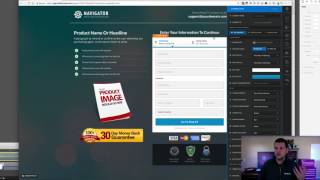
A short tutorial by Jaime (Jamie) Smith explaining where the old ClickFunnels "element name" option moved in the v2 (new) page editor. The video shows the old workflow (Classic Editor: gear → element name) and the new workflow (New Editor: select element → gear → sidebar hashtag → Get CSS Info → set CSS info Title), and reminds users to click the page Update/Save button so the change persists. The guidance is targeted at users of CF Pro Tools add-ons who use these element titles to connect custom code to page elements.
Chapters
Hey there. Jamie Smith, CF Pro Tools. Just wanted to share with you today a quick run through of where a few of the options have moved to inside of the new ClickFunnels page editor. So for those of you that are using some of the CF Pro Tools add ons, the way that I like to connect the code to certain elements is by setting a title on those elements. So in the old editor, you could go click on the element and change the element name and then that would connect some of the code and that has moved to a new location inside of the new page editor. So let me just back out. I'm going to show you what this looks like or used to look like in the old editor. So I'm going to edit page in Classic Editor and then I'm going to show you the element name. So say, for example, you are wanting to connect specifically to the two step order form you used to be able to. And this is in a lot of the installation videos for CF Pro Tools add ons. If you click on the gear icon, you can, you could go up and change the element name from say order order two step to CF dash order two step. And so that would change what was called the data title of that particular element and it gives the code a way to pull onto that that is no longer called element name in the new editor and it's not on the sidebar anymore. It's kind of changed locations. So I want to show you where that has moved to so that you can find it in the new editor. So I'm going to go ahead and exit out of this. I'm going to go ahead and click Leave since we don't need to save it. We're going to open this up in the new editor. So I'm going to click on Edit page and now we can do something similar. We're going to pick this element, we're going to click the gear icon. But now that what used to be called the element name is now in a different location. So if you go onto your sidebar and you hover over this little hashtag, it's going to say get CSS info. That's what we need to click on. We need to click that and then that what we need to change is actually the CSS info and the title options. So this we would do the same. We would set this to CF order two step or whatever. Another one that is common is the CF order summary. There's quite a few atoms that use these titles. So anywhere in a previous video that you see me explaining to use set the element name to CF something, then this is what you'll want to use again. If we close this out, we'll click on the gear icon, click on the little hashtag, and then we'll click this and give it a new title and we'll just call this order two step. And then make sure and click your update button here and that will actually save the change and it will close out your little box. Now if we go back in and take a look at that, then we'll see that it saved our CF order two steps. The other thing you'll want to make sure and do is actually click save on your page so that it actually saves that change into the page and it saves that element. So hopefully that helps a little bit. That is how to set the element name. What used to be called the element name in the new editor is now called the CSS info and setting the CSS info title. So hopefully that's helpful and I'll talk to you real soon.