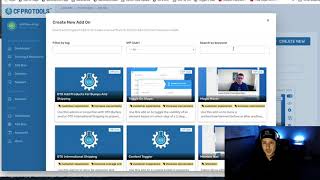
A short demo by Matt from CF Pro Tools support showing the new "Countries to include" add-on in the SASE version of CF Pro Tools. The add-on limits a funnel's country selector to only the countries you choose (useful for shipping or restricting sales by country). Matt demonstrates searching Add Ons, creating and naming the add-on, selecting countries (example: United Kingdom (GB), Australia, New Zealand), copying the generated snippet, and pasting it into ClickFunnels (Settings → Tracking Code → Footer Code), then previewing the funnel to verify the country options. The add-on is noted as a VIP club exclusive.
Questions this video answers
Countries to include (CF Pro Tools, SASE version).
Foreign. Matt here with CF Pro Tools support. And in this video I'm going to show you a new add on that was just created and launched into the SASE version of CF Pro Tools. Okay, so in the new platform there's an add on called Countries to include. And you're going to use this add on if you're only planning on shipping to specific countries or if you only plan on selling your product, whether it's physical or digital, and you want to sell that only to people in specific countries. So the way that this works, you'll install it, I'll show you that in just a moment. But once you've installed it, you'll see that your country code or your country selector input field actually only includes the countries that you indicate that you want to sell to. So that's pretty much it. It doesn't force a single. If you still want to do USA only and then disable that field. I, um, you can actually still use USA only field. However that one only works for usa. Okay, so if you want to do something outside of the United States, Canada only, the United Kingdom or anything else, this is the one that you're going to want to use. Again, it's called Countries to include. And what we're going to do now is I'm going to show you exactly how to set this up and install it. So let's come back over here and if you haven't already, click on Add ons and we're gonna click on Create new. Alright, what you're gonna do is a simple keyword search. Just type in countries or start typing in countries. Maybe I can spell right. And then we're gonna come over here and click on Countries to include. This is a VIP club exclusive. Okay, so I'm still working on the video here. Right here. Hey, welcome to the video. And what you're gonna do is make sure to name this appropriately. If, if you guys are planning on always shipping to the same places or selling to the same countries, you can actually use this same script. The same add on only have to create this once and use it on multiple, multiple funnels. But if you're going to have different funnels that cater towards different countries, you'll need to set this up. So maybe this one is like Australia or something and New Zealand. Right? So maybe you just want to name that appropriately so you know which ones they include. Or you can name it everywhere. Whatever you want down here is where things get fun. You can start adding in where you want to go. So Australia if you want to Add in a different one. Maybe you do New Zealand. And maybe we want to add in the United Kingdom, even though that's absolutely nowhere near New Zealand and Australia. Okay, maybe those are the places that we want to include, though. Once you're done selecting the country that you want to include, click the red button, create add on and it will give you a snippet of code here and you can actually see in the configuration which countries were included. Please note, United Kingdom is notated by GB Great Britain. Okay, so we're going to click on copy code and what we're going to do is go back over to click Funnels. I'm actually going to click on Settings, go to tracking code, over to footer code, and I'm going to put that. I've already added it in here just to make sure that it works. And I'm going to re add it with the New Australia, New Zealand. And I've got a couple other things in here. I'm actually going to show you the hover pair in a different video. And that's it. I'm going to click X and I'm going to click Save. All right, let's preview this page and see how it looks. Okay, so once this is the hover pair, by the way, just happens to be on the same funnel, we're going to come down here and we now have United Kingdom, Australia and New Zealand as our options. And that's how it works. Hopefully you guys enjoy this. I hope you guys put this to good use. If you have any questions, please, please send me a message and support. We'll get this taken care of for you. Okay, thank you.