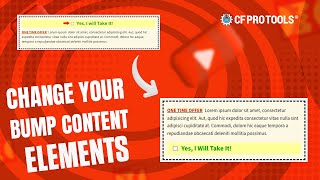
A short YouTube tutorial by Jaime Smith (uploaded Mar 21, 2024) explaining how to alter the visual placement/look of the ClickFunnels "bump" element using CSS/code from CF Pro Tools. The presenter describes two alternative code snippets: one for a standalone bump element and one for a bump inside a two-step order element, and encourages testing and links to CF Pro Tools for the code.
Chapters
Hey, did you know that you can actually alter your bump element on click funnels to look a little bit different? So out of the box that. Yes, I will take it with the checkbox that shows up up at the top of the bump element, but with a little bit of code that we created over here at CF Pro Tools with myself, one of our developers, we kind of played around with it and was able to get that. Yes, I will take it down towards the bottom of the bump, which kind of gives it a little bit of a different look and feel. So here's some code for the one off kind of the bump element on its own. And then there's some additional code, not additional, different. So you're only going to use one of these snippets, one or the other in the custom CSS field. The first one is for the standalone bump. The second one is for the two step order element. That means inside of the two step order element. Play around with it. You can move that bump box around. You can get a little bit of a different look and feel. Can you guys are bored with the original look, although that is still true and tried and proven and it works, it converts. So do what you will. Test this out, see if it makes a big difference. You can get this code by signing up for CF Pro Tools. I'll leave the links down below and you guys can give it a shot. Okay, I will. Yeah, I'll leave you guys alone. Don't forget to hit that like and subscribe button. Talk to you guys soon. Take care.