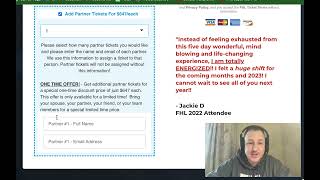
A short tutorial video by Matt (CF Pro Tools) demonstrating the Bump Quantity Fields add-on for ClickFunnels. The add-on lets buyers choose a quantity on a bump offer (e.g., 1–3) and dynamically reveals the corresponding additional input fields (full name, email) for each extra ticket or product. The video explains the conversion use-case (events, product variants), shows the widget behavior, and promises a setup walkthrough with a closing call-to-action to watch more videos or ask questions.
Chapters
Hey, what's up everybody? It's Matt here with CF Pro Tools and in this video we're going to look at a new add on called Bump Quantity Fields. This is a conversion boosting tool that can be used with Bump Quantity Add On. Bump Quantity Add on. And you'll recognize it if you've ever been to Funnel Hacking Live. Because here's what it does. If you've ever been to this site and you want to add additional tickets. So you would buy your regular ticket and then you would click on the bump offer and here's Bump Quantity, right? So you can select 1, 2 or 3. So if you select 1, you'll see that it brings up additional fields like this for full name and email address of the additional folks that are going to be going to that particular event. So this just happens to be Funnel Hacking Live. But if you have events or you have different products and maybe you have different renditions or different variations on that product and you want to collect more information, this is an amazing way to do that. So you can also set this up. So if you have more than one, let's say you have two or three, it will actually bring up enough information input boxes to take care of all of the partners, the information that you need based on the quantity that is selected here in this box. Okay, so I'm going to show you exactly how to set that up. Keep watching these videos. If you have any questions, of course, let us know and I'll see you guys in another video.