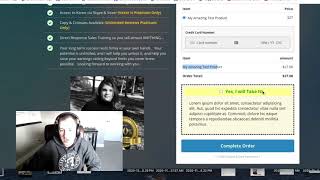
A short CF Pro Tools YouTube tutorial (presented by Matt from CF Pro Tools support) demonstrating a new "bump quantity" add-on for ClickFunnels order forms. Matt explains the add-on lets sellers enable quantity selection for bump products (tickets, shirts, etc.) on one-step or two-step order forms: users check a bump box, then choose a quantity which updates tally marks and the order total; nothing is added until a quantity is selected. He notes the element works similarly to cart mode, is compatible with cart mode, and recommends testing. A follow-up video will show setup steps.
Chapters
Foreign. Hey, what's up guys? Matt here with CF Pro Tools support and want to make a quick video and show you a new add on the bump quantity. Add on and quickly how that works. So if you're using a one step or two step order form and you maybe you have a bump, maybe some tickets or some shirts, physical product of some sort and you're like, I want to offer the ability to give them quantities of said bump product. You can use this add on to make that work. So I'm going to go through here real quick, just show you what I've got set up. So I've got a core product setup and a single bump. Okay. So what I'm going to do is say, yes, I want to take the bump. This is just a bump selector box. You can set this up in your settings to show or hide the bump box in this, the two step order or in a one step. This is actually its own bump element. So either way you're going to add that in. If I click the little box and say yes, I want it, you'll notice that nothing actually shows up here. But it does show the quantity indicator. So it's similar to cart mode in that manner. But it doesn't actually add anything to the cart until you select a quantity. So there's my bump product. It added a quantity. If I say I want three, it puts three tallies up, a total over here and then even five. So that's pretty much it. That's how it works. Once you go through with the order, complete the order, it works just like any other cart. I would recommend playing around with this. Try it out. This will work with cart mode as well. Okay, so I will see you guys in the next video. I'm going to show you guys exactly how to set this up. Okay, take care.