A spoken YouTube tutorial by Jaime Smith demonstrating how to create, configure, and install the Typed Headline add-on inside CF Pro Tools. The video explains each configurable parameter (start wait/start delay, typing speed, backspace speed, backspace delay, loop, show cursor, smart backspace) with defaults and units (milliseconds), shows how to name the add-on, create it, copy the generated code, paste into a funnel's Tracking Code, and preview the live typing behavior.
Chapters
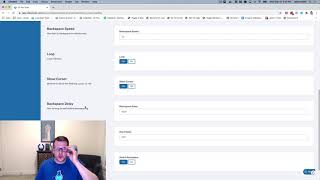
Okay, in this video we're going to walk through and I'm going to show you how to set up your own installation of the type headline add on. So we're inside CF Pro Tools now and we're going to go ahead and just click on Create new add on and it's going to pop up our little search here and we're just going to do a keyword search and we're going to type in typed headline. And so this is the first one here. We're going to click that and, and then you'll see the instructions up here at the top. I'm recording the instructions right now, so you don't see them just yet. And as always with add ons, you want to give it a custom name. So I might call this one demo typed headline and then we'll run through the options and what these mean. So the start weight is how long to wait before the very first time we start typing out. So you might want to have your page load and your headline stay static for say 5 seconds before it starts going through the typing process. And if you wanted to do that, then this is in actually in milliseconds, which is thousands of a second. So if you wanted to wait five seconds, you'd say 5,000. So that will wait 5,000 seconds before it actually loads. The type headline add on, if you want it to start right away, just defaults to zero. Just leave it at zero. The typing speed again, this is how fast to type in milliseconds. And the bigger the number, the slower it takes. So this is the delay between each typing of the character. So 60 as the default. It's pretty good. But if you go higher, say you go 600, it's going to seem like it's typing slower and slower. So the bigger the number, the slower the typing. The smaller the number, the faster the typing. Same thing with backspeed, backspace space speed Backspace is how quickly does the. Does the type backspace out and clear out the characters again? The bigger the number, the slower it will be. The smaller the number, the faster it will be. The loop is whether you want the. Say you've got three headlines and you just want them to loop through all three of those over and over and over and over again. So you set that to yes, that's the default. I think that's a good way to go. But you can have it do if you want it to. Just once it reaches the end of the number of headlines, then it just stop, stays static on the last one typed out Then you can set this to no, the show cursor is again, if we go back and take a look at this. When you see the little flashing black line at the end of the line, that is the cursor flashing, do you want to see that or do you not want to see that? And so that's what this option is for. You don't have to have that there, but I like it. I think it's a good. It's a good indication that something's happening. It's a good indication people kind of recognize what that cursor is. So I leave that set to yes, that's the default. The backspace delay is how long to wait once it's typed out, the end of the sentence, the end of your headline, how long to wait before it starts to backspace again? The default is 1500. That's a second and a half. That's 1.5 seconds to wait. So it gets types out to the end, waits 1.5 seconds, and then it starts to backspace. You could set that longer if you want that headline to stay static there for 3 seconds, 5 seconds, 10 seconds, whatever you want. You just multiply that out times 1000. Again, this is in milliseconds. All of these delays are in milliseconds. So 1500 is 1500 milliseconds, or 1.5 seconds if you want it to be shorter. Could be 500, could be 3,000, could be 10,000. And then the start delay is again, how long to wait before it starts typing? And so when it backspaces, how long to wait until it starts typing again? So do you want that backspace? Do you want that to sit there? The default again, I think is pretty good. 500 milliseconds, that's half a second. So backspace to where you're going to start and then wait half a second and then start typing. It seems natural that way. It seems like a reasonable speed. That's not super, super slow, but that is. The default is 500. Again, you can bump that up. If you wanted to wait longer before it starts typing again, you could. If you want it to wait less or not wait at all, you can change that. If any of these, if you want to not have a delay, you can just set it at zero. I think 500 is a pretty good, reasonable default. So that's why it's there. And then the smart backspace feature again is one where, if we see on CF Pro tools again, the number one way ClickFunnels users is the beginning of every headline so all we see is the it backspaces only those words that are different from the previous headline and then it types up a new pieces from there so we we don't see it type out and backspace all the way through the number one click funnel number one way click funnels users each time until it gets to the last one and then when it loops it gets rid of everything and then it starts again. So the smart backspace is just the setting that says only replace the words that are different. And if you turn that off, if you set it to no, then it will always replace all the words and retype out the entire line. Again, smart backspace only replaces those words that are different. So those are the settings. And now all we need to do is actually just create add on and then we're going to copy that code and then we're going to bounce into our funnel again and we're going to go to settings and tracking code and I have one installed here and I'm going to delete all that code out and I'm going to paste that in and we're going to hit save. That's all there is. And we're going to hit preview. And now we're going to see it starts right away. It types out our headline and now we're going to see it wait and then it's going to backspace and it's only going to it's do we have it set to our smart backspace? So it's only going to replace those words that have changed. We see that it keeps the styles, the strikethrough, the underline, the bold, the not bold, the italics keeps all that and it just keeps going and it's gonna loop and it's set to loop. And so that is how you get your own version of the type headline add on set up and installed and configured with your headlines. And I hope you like this one. I think it's a super cool feature and I hope you put it to good use. I hope it really helps to increase your conversion rate and I hope it helps you to be able to create pitch pages that have those multiple headlines in them that can hook your customers even better. So we'll talk on the next video.