This content was created by Jaime Smith. This content was uploaded by Jaime Smith. This is a YouTube video titled "How To Find Product IDs In 2 Point O" created on January 15, 2026. The video features Matt explaining the process of finding product IDs in ClickFunnels 2.0, highlighting differences from ClickFunnels Classic, and providing a step-by-step guide on assigning products to funnels and locating product IDs.
Chapters
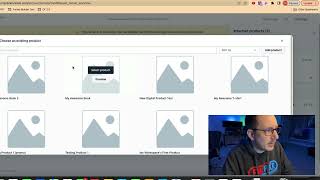
Hey, what's up everybody? It's Matt here. And in this video we're going to show you guys how to find your product ID for a product that you've created inside of ClickFunnels 2.0. Alright, we've been through this with ClickFunnels Classic so that you can create a whole bunch of different products or a different bunch of different add ons from CF Pro Tools for ClickFunnels Classic. But we haven't necessarily done it here for 2.0, so pay attention. It's a slightly different process. Let's go through that right now. So, so the first thing you're gonna do is you're gonna go in and you're gonna create a product. So if you're in ClickFunnels 2.0, go to the products tab and create a product. I'm not necessarily gonna go through the process of creating a product here, but once you've created your product, go to your funnels. Go to the funnel that you want to assign that product to. You assign a product to the different pages in that funnel. So we only have one page in here, but you're going to click on the three dots. You're going to click on Manage Products. Okay, so what you're going to do, you're going to add your products in here. Make sure that your products are assigned. It might be one of these. So I'm going to say select product here. Okay, so we now have two different products in here. So I've got my awesome Book two and my workspaces first product. It's always fun with these test accounts. Right? So, so let's say we both have, we have both of these on here. You want to make sure that whatever you have listed has a price attached to it. Okay, now let's go and what we're going to do is preview the page. Now once you're in the. What you want to see is that there's two different products on here. You've got one, you've got two. And what we want to do is just highlight the one that you're interested in seeing the product ID for if you need it for both of them, I'll show you where they're going to be at. They're pretty much going to be in the same vicinity. But I'm going to hover over this product here and I'm going to right click and I'm going to click on Inspect. Okay. So here you can see what the two different product IDs are. So we're here looking at product item V1, and you can see product item V1 up here as well. So these are going to go in order of the product. So you've got product number one and you can see product number two is being highlighted there. So the top product, the one on top there is going to be 102888 and then you've got product item slash B1 here. For the second product, that product ID is going to be 3482. Those are the product IDs that you can use for these products when setting up other add ons inside of ClickFunnels 2.0. Okay, hope this helps. I will see you guys in another video here in a minute and show you guys how to use these product IDs. All right, see you.