How To Open A ClickPop With A Button In ClickFunnels
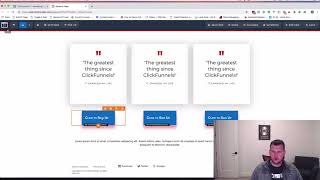
A short how-to tutorial (YouTube transcript) by Jaime Smith showing how to open ClickPop (popup) pages from buttons in ClickFunnels. The video demonstrates duplicating/creating multiple ClickPop steps, selecting templates, retrieving the ClickPop code from the Publishing tab, adding the CFPOP JS script to the page footer (Tracking Code > Footer Codes), copying the ClickPop URL, and setting each button’s action to ‘Go to website URL’ (open in same window) with that URL. The presenter previews and tests three distinct popups tied to three buttons.
Chapters
Hey there. I'm Jamie Smith, CF Pro Tools. Sorry my voice is a little gravelly, but I spent the weekend at the 10x GrowthCon event speaking with a ton, a ton of people and it was really loud, so I had to speak really, really high or loud to get things through. But I wanted to run through real quick. Just had a question in the support channel that wanted to know, hey, how can I tie a click pop? How can I open a click Pop page in clickfunnels using one of the buttons? I want to put a button on a page and I want that button to do actually open a click pop. So want to run through real quickly and show you how that works. And so here's what we've got here. I created just a quick funnel here. We've got an opt in page. And on this opt in page I want to have a few buttons and I want those buttons to open a click pop. And I've got a click Pop page here. I'm actually going to go go in here. Let's go ahead and click on this page. I'm going to actually duplicate this. We're going to make this open actually three different click pop pages. So let's go ahead and create another one. So we're going to go click pop two, we're gonna do create funnel step and we're gonna create one more so that we have three different ones. And let's go ahead and select the template for this one. And for click pops, I actually like to use the click pop templates because they show up like opt in pages. So we've used this one for the first one. So let's use a different one for the second one so that we get a page that we know looks different. So let's go ahead and select this one here. So we'll just let that page build. I'm not gonna modify anything about it, but you would do that obviously. And, and then let's go ahead and click a third one and we'll make this click pop3.3 and go ahead and click Submit and let this build out. And then we'll go ahead and pick a different template so we can tell the difference between our three. And let's go ahead and go in and pick one of our click pop templates here. And let's see, we used, we've used a couple of these already. So let's get to a. Another good one here. Let's use I really like this one to the yes no buttons on it. So let's go ahead and pick that one. And then let's go in and show you how this works. So it's super simple. Let's go into our squeeze page. So I've got this open in the editor already. And on this squeeze page I've got, you know, just some basic stuff. This is just one of the built in templates and I added three buttons and I want these buttons, each one of them to open a different click pop. And so what we want to do is we want to actually grab the code for the click pop to actually open it up. And so let's go ahead and click on this click pop one. And what you're going to do to grab the code to get this to open is a click pop page is you're going to go to the publishing tab and then on the publishing tab you want to go get click pop code. So click that and it will open up this page here. And I'll say, hey, what do you want your text link to say? Don't worry about that, we don't need that. And then do you want to set a time delay? Don't worry about that. We're not going to use it in this scenario. And trigger on mouse exit. We don't want that either because these are going to be tied to buttons so it works a little bit differently. All we can do is just grab the entire code just like that. And then I'm going to take and go back and I'm going to put that into my editor. So I've already got one paste there. I'm going to go clean this out for a brand new file. And so here's my code, here's what's put in there. There's a couple of important pieces here. So I'm going to go ahead and separate these out a little bit so you can see them. One piece is this script and then it's going to have clickfunnels.com assets cfpop js this is the code that recognizes opt in box or click pop links on your page. So this has to be on the page in order for everything to work. So the first thing we're doing is we're going to grab that, we're going to just highlight just that piece, just that script sect at the very bottom of that code. So we're going to go ahead and copy that and then I'm going to go back into my editor for the page that is going to have the click pop buttons on it. And I'm going to go to Settings and then tracking code and then I'M going to go to footer codes because I want this to show up below the page. At the end of the page, after everything else is loaded, I want this to load and then I'm going to paste that code in there. So you've got that code pasted in. I've already pasted in there before. So we've got that code now. Now the click pop links will be detected on the page and everything will work. So that's the. And then the next step is we need to actually grab just the link for the Click Pop itself. So inside of that first part of that code we've got this. A href equals and then we've got a URL. You'll notice there's data delay and data exit equals false. We don't need those pieces. Those are. If you. Those. Just don't even worry about those. Just go ahead and grab this. We want these clipbox to show up right away as soon as somebody clicks on a button. So this is all we need is the URL. So just copy that URL, then go into your button that you want to open this clip with. Click on the button itself to open up the settings and then go to Set Action. And then say go to website URL and leave it as open in same window and then just paste in that URL. That's all there is to it. So we've got one button now that opens click pop one. So let's go ahead and go to click pop two. So we're gonna go ahead and go to click pop 2. And there we go. Okay, and now we're going to click on the publishing tab and then click the Get Click Pop code. And again just highlight that and it'll highlight everything. And so then just go back into our text editor and then I'm going to drop this down a little bit, paste in that new one, and then I'm going to move that script down. I don't need to do it a second time. It's the exact same one as above. I just need this URL. So I'm going to grab that URL, I'm going to copy that and I'm going to go back into my editor. I'm going to go in there for my button two. I'm going to click on this one and I'm going to go to Set Action and I'm going to paste that in. And that's good to go. Now let's grab our Click Pop three. So go ahead and go back to that tab here. I've got them open in different tabs so it goes a little bit faster. So I'm on Click Pop three. Now let's do the same thing. We're going to go to our publishing tab, go to get Click Pop code, click on it to highlight everything and then copy. I did Command C on a Mac to copy everything. And then I go back into my editor and again I'm going to drop down a couple new lines. I'm going to paste in that code again. I'm just going to move this script down just so I'm highlighting the right stuff. But you'll see this. This CFPOP JS is the exact same for every one. All we need is the URL. That's the one that's unique. So you see this one is slightly different than this one is slightly different than this one. So that's all that needs to be different. And then let's go back into our editor for our page and then go to the third button, click that. I'm going to go to set action and I'm going to highlight all this and I'm going to paste it in again. These are set to open in same window. And let's go ahead and click Save. We're going to go and click Save. And now let's do preview. Okay, great. So we've got our page up. Let's go ahead and scroll down to where our buttons are at and and let's go ahead and try them out. So if we do click to sign up, take just a second. We've got some animation on this pop up. So our pop up comes in. That's looking good. This is one. This is the first one we have. So that's good. And let's go ahead and click to sign up. And now this one is opt in two. This is our different opt in. So that's good. And then let's do this one. And now we've got opt in three. So you can see that this works. We've got three different pop ups. So three different click pops showing up and they're all tied to different buttons on the page. So that's kind of how you would use the Click pop to open different pop ups and actually attach them to buttons versus pasting the entire code in and just having a text link that you can't really control. So hopefully that's helpful and we'll talk again real soon. Take care.










