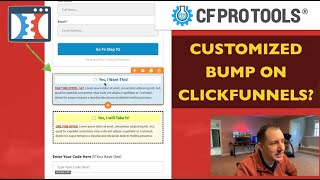
This YouTube tutorial (presented by Matt from CF Pro Tools) demonstrates how to customize ClickFunnels "bump" offers to match brand styling and improve visibility. Matt shows live editor changes — adjusting colors, borders, rounded corners, text, and placement — and explains that deeper layout modifications (for example moving the checkbox below text or left-justifying elements) require custom CSS. He says he will publish the exact CSS in a help doc on CFProTools.com and points viewers to CF Pro Tools features (multiple bumps, bump content) and the help doc link in the description.
Chapters
Hey, what's up, everybody? It's Matt with CF Pro Tools. What's going on in this video? We're going to be looking at bumps and how you can do some customizations to make your bumps look a little bit different, give them your own style, make them match your brand, and kind of just play around and do different neat things with them. So stick around. Let's see how to do this stuff. All right, so we're back in the editor, and in this video, I wanted to just kind of talk to you guys a little bit about how you could do some. Some neat things with your bump and how you could make it different, how you can make it stand out. How could you make it a little bit different than what everybody else's is that might be using click funnels. Right. So let's take a quick look. I'm going to go into one of our other pages here and start with a fresh slate on a bump. What I want to show you is just how you can make some. Some minor edits that will kind of make your bump kind of stand out. It'll make it match your brand, do the things that you want it to do, say what you want it to say. And most people don't realize that you can even make these edits and make this look completely different. So you can actually change the text. All this is right inside of the settings for your bump elements. So as long as you have a bump element on the page, you can make. You can. I mean, all the colors are right here, so just go in and make the changes. So maybe you want it to be blue there. Maybe you want to change what that background color looks like. Maybe you want that to be more white there and just kind of give it a little bit more of a. Kind of a fresher feel. Or it could be blue. I see a lot of people doing. See, let's go with white on this one. And then with the background, we'll make some. Some other changes with that. So you could have. Normally I would try and, you know, take some time, play around with it and just kind of find what feels. Find what feels right and looks good with your offer. Right. And if it doesn't look the way that you want it to, then keep playing around with it. So this looks pretty good. That makes it. It looks a little bit light, but it still stands out. What about the border? We can go to the advanced settings, see if that does anything that changes the. The border kind of gives it a little bit more rounded. And then the border, we got Full border. I'm not going to. I think it would look a little weird just to have like a top border. But what would it look like with no border? No, that actually doesn't look bad. That looks really clean. I like that. So you got rounded corners there and then you've got. I think anything over. I like the 10. The 10 doesn't look too bad. I might keep the border in there, though. Let's take the border out. I kind of like that. It looks pretty clean there and interesting. So I actually really like this. I think this looks really good. So just for a little bit of contrast so you can see what it originally looked like. Let's throw another order bump in here. So we made it. We took it from this to making it look like this. And then of course you can always come in here and you know, say, now this is amazing or whatever. You know, don't get too carried away. Just, you know, it's probably fine that it says, yes, I will take this. You can of course also go in here and make updates to this. Maybe your one time offer is $47. Just add that in there. One time offer, 47 bucks. But now what if you wanted to still make additional updates, you wanted to continue making updates to this and you could actually put this thing in a completely different place and make it look. This was something that it's almost kind of sam cart, like with their bumps, they're a little bit different. But this is the basic concept right here. So if you wanted the checkbox to be below all of the text, you could do that. You could have all of this text up here, you could have this up here and you could put all of this down here and you could left justify that. And that's all done with css. So it actually took a lot of coding. Look, a little bit of time to play around. It wasn't like super crazy, but it still took a lot of custom CSS coding to make that happen. So what I'm going to do, I'm going to make a help doc out of this and I'm going to leave this information because I can't put this in YouTube, guys, I'm sorry. They don't like it when you start putting brackets and notes and that kind of stuff. They're like, nope, sorry, can't do it. So what I'm going to do is take this text, I'm going to put it in a help doc over at cfprotools where you guys can get this and then you can take this text. You can copy it right out. You can copy the whole thing right on out and then stick it into your custom CSS settings. And you can start playing around with this and you can start moving stuff. Maybe you want this over to the left. Maybe you want something else to go up. You can come over here and play around with colors and all that good, fun stuff. And you can kind of give it a little bit of a different look, give it a little bit of a facelift and let the market let your audience vote with their wallets to see if they'll take that. And if it works, then keep it. Hope that this helps. I really hope that you guys have enjoyed this. So if you're inside of your CF Pro Tools account, we have the multiple bumps, so you can actually create multiple bumps. The ones that I'm specifically looking for, if I can find it here, is bump content so that you can actually create an entirely customized bump area, which is actually really cool. You can. You can add custom dropdowns, you can add custom colors, you can add completely custom areas in here and make this look however you want this to look. I think you'll find a lot of great things out of this. Go over to CF Pro Tools, grab yourself an account cfprotools.com play around with some of these options and I will leave a link for the help doc in the description so that you guys can get access to that as well. Don't forget to that like like and subscribe button and I will see you guys soon. Okay, take care.