How To Update Your SEO Data With ClickFunnels
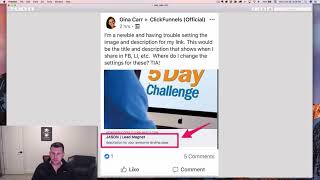
A short ClickFunnels tutorial by Jaime Smith (CF Pro Tools) showing how to fix the metadata used when a funnel page is shared on social networks. Smith demonstrates that shared previews come from the page's Settings → "SEO Metadata" (title, description, image URL, keywords, author), explains defaults that come with shared templates, shows capturing/updating a social image (uses Skitch to screenshot and upload), and tests the updated preview by pasting the page URL into Facebook. The video also briefly promotes cfprotools.com and CF Pro Tools add-ons.
Chapters
Hey there. I'm Jamie Smith, CF Pro Tools, and I wanted to share just a quick tip with you. I wanted to kind of do a series of these videos that run through some of the basic things. So the most common questions that I see asked about ClickFunnels and how to use ClickFunnels and some of the gotchas that come up. So this is one that I saw just a few minutes ago on a Facebook group, and I wanted to jump in and just kind of run through this real quick because I see this question quite a bit, especially with people that are just getting started with Click Funnels, and that is, hey, I downloaded this Share Funnel and Click Funnels, and I'm creating a funnel from it. And as you can see from the image, it actually shows this Jason Lead magnet description for your awesome landing page. Instead of what I wanted to show when I go to share that on Facebook or any social networking, really, it pulls some of the same information if you were using Google or Instagram or other things like that. But most often you see this on Facebook. So what happens is this is actually called the SEO Metadata or Search Engine Optimization metadata. And so there is a quick and easy way to change this inside of ClickFunnels. So I'm gonna bounce over to my ClickFunnels account and open up a page and I'm gonna show you how to fix this real quickly. So let's just bounce over there. So I am inside the ClickFunnels editor now. And so where that information comes from is under the settings, and it's called SEO Metadata. And so this is information that Facebook will pull from your page automatically. And Click Funnel sets some defaults. And when you're using a Share Funnel, it pulls in. So you those things when you're creating that funnel, and then when you share it with someone else, they'll also inherit those same settings. So when you're pulling in a Share funnel, one of the templates from the Click Funnels Cookbook or something like that, those A lot of times we already have SEO metadata set, but it's not what you want it to be, so you need to go in and set it yourself. You should do this and get in the practice of doing this for every page every time you create it as the first thing. So you just go into your settings and SEO metadata and then you'll notice it even tells you warning, change the default SEO page title. That is one of the first things you should do. The default for a lot of pages in Click Funnels is just going to be my awesome landing page powered by Click Funnels. You want to change that to be something like, you know, CF Pro Tools, VIP club order form, or whatever you want that page to be. And then the same with the description. So you'll notice again on this image, this. So what we see here, the title, that is what we see with the JSON Jason Pipe Lead Magnet. That's the title. The description is what we see just below that description for your awesome landing page. And again, we see that exact same thing here. There's also keywords. You won't see those shared here. And then there's the author. You also won't see that shared here. But there is the image URL. And so this image URL right here, this thing being shared, that is what's stored in that image URL. So you can actually upload your own image. And if you don't, Facebook will try and find an image on your page and just use that. And a lot of times it's not what you want it to be, so you want to be sure and set that yourself. So we want to wipe out this description or give it something else. You know, see if something like CF Pro Tools adds the extra power that your funnel needs to convert better and make more money. Okay, so that's, you know, that's something like. That is what you want for your description. And you'll notice that they give you a little preview down here below of what this might look like. And so I usually wipe out the keywords. If you're really doing search engine optimization, if you're trying to search into optimize your pages, you, you certainly would want to put keywords in there. And then also, you know, I do like to put in the author name. So I'll either give my name Jamie Smith or I'll put in CF Pro Tools, depending on, you know, what I'm using the page for. And so that shows there. And you can kind of see again that, you know, that example down below of what that might look like. And then the next one is the social image. These are great to go in, you know, and you can just do a quick Google search on like, what size should my share image be for Facebook? And it'll give you the dimensions of what that page should be or at least the aspect ratio of what that image should look like. But if you don't, you know, if you don't have an image put together already. One thing that I like to do real quick is I just go into something like I have a tool called Twitch installed on my. On my browser, here on my desktop. And for some reason it is not working. It's. I'm sorry, Skitch is the name of it. Let's see. Let's pull it up. It is dying for me for some reason today, so I'm just gonna quit. Oh, there we go. Finally getting it. So let's get rid of this. Let's see if it actually pops up my crosshairs this time. Here we go. And so I'm not sure if you can see this or not with the. With the crosshairs on the page, but what I do is I just basically drag a bounding box around what I want to use as my social image. I usually just take a screenshot of the actual page because a lot of times that's what you want to show anyways. So I grab that and say capture, and it's going to grab that screenshot for me, and then I can take and set the format. What I want it to be. Do I want it to be a PNG or a jpeg? I usually go with jpeg. If you're taking a screenshot that might have photos in it or some gradients and stuff like that, that works pretty well. And then all I have to do with Skitch is actually just grab that and drag that to my desktop and that gives me an image. And then I can go in back to my settings, back to my SEO metadata, and then go to this image URL and it's going to pop open my image gallery. And now all I have to do is drag that image that I have over here on my other desktop, just drag it up here and I drop it right there onto my gallery, and it's going to grab that image for me. It's going to upload it, it's going to process it, it's going to store it on the Amazon servers, actually, and then it's going to let me choose that as my image. So then I just say add image. Then it goes in, and now we can see that I get an ad image, I get the CF Pro Tools VIP Club order form, blah, blah, blah, and then it's saved. So now when I go and save that, that's going to save that metadata, and that's how it's going to pull up if I actually go in and pull that into Facebook. So if I go into and grab that URL and let's say I jump into Facebook and I'm just going to go in there and this is my live Facebook account, so bear with Me. Who knows what will show up some of these times. And I just paste that URL in. Let's give it just a second here. And it will probably try and pull that share image in for me. Let's not do that. Let's, let's just. I'm going to go, I'm going to save this and have it be only for me. So I'm going to share this and then let's just see what pulls up. Well, it's not even going to pull it up for me, so. But usually what you'll see is it will actually pull in a preview of this URL. So I'm going to go ahead and delete this post. Let's try this one more time while we're at it. Nothing like doing these things live. So I am just doing this on the fly here. Just wanted to jump in and help. So let's, again, we want to. Let's, let's put in. Just testing the SEO metadata and then now I'll paste my link in there and now it's fetching a preview and so we can see that it's got, you know, it pulls in my, the, the title and it pulls in the description and then I'm going to share it only with me. And let's see, we don't want that. So only me. And then I'm going to do share. And now let's see if it actually pulls in the image. There we go. And then it actually pulls in the image as well. So you can see that it pulled in the image I uploaded, pulls in the title that I set, and pulls in the description I set. So that is how you change those things inside of clickfunnels Again, you just go in, we'll open this page back up and you just need to go into the ClickFunnels editor for your page, go to Settings and SEO metadata and then make sure you set your title, your description, your author and your social share image. If you really do want to do search engine optimization, you can go ahead and set your keywords as well. Just needs to be a common delimited list. So you know, this could be CFO Pro Tools and click Funnels and Funnels, something like that. And then you just save your page and that's all there is to it. So hopefully this has been helpful. Hopefully you find it useful. And if you're interested in learning more about how to use ClickFunnels to its biggest potential and some of the cool things that you can do with clickfunnels that you never thought you could. Make sure that you go check out cfprotools.com you can actually grab like 20 free add ons as of right now. I may be changing that in the future. We may strip that down. It seems to be a bit much sometimes for some people, but there's so much stuff in there already. You get 20 like 20 add ons for free. And then there's also the VIP club where you get a bunch more. And there's like 53 total add ons right now that give you extra power with click funnels, let you do some of the cool things that you never thought were possible. So make sure you check out cfprotools.com hopefully it's been helpful and talk again real soon. Thanks so much.










