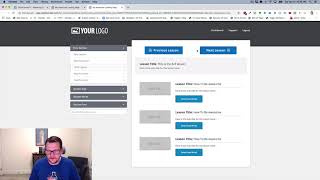
Jaime Smith demonstrates the Magic Mover add-on for ClickFunnels. The add-on enables inserting or moving multi-column rows, sections, or elements into other locations that the ClickFunnels editor normally prevents (for example, placing a two-column row of previous/next lesson buttons inside an existing one-column row). The demo shows enabling the add-on in a Safe Pro Tools account, copying a target element's CSS id/selector into the Magic Mover settings, choosing insertion before or after the element, saving, refreshing, and verifying that navigation buttons work with the Member Nav add-on. The speaker also demonstrates small style adjustments (font size) and confirms the changes across lessons.
Chapters
Hey there. In this video I want to do a quick demonstration of an add on that I call the Magic Mover add on and sounds super cool, doesn't it? So, and it is really, really cool. So I want to show you what it does. And I built this add on initially specifically for this case that I'm going to show you, which is I have a members area here. And in the members area I want to be able to put buttons. Previous lesson, next lesson buttons. They go to the previous lesson. The next lesson I have another add on that does that and it's called the Member Nav Add on. But this one, I want to be able to have these buttons in just below this regardless of the lesson section layout. The problem is that in order to have these buttons next to each other, I need to have a two column row. But the problem is this is already a two column row. So this is one column. I can't put this two column into this column column here inside of the editor. There's no way I can do that. We've got an element here. I can only add other elements. This is already a two column row here. So I can't add another row in here with the two column row. It just doesn't work. So what I want to be able to do is actually take this and insert it into this. And so that's what the Magic Mover does. So if we take a look at this, we've got our buttons down below and I want to just insert them in here. So let's go show you how this works. So if I go into my Safe Pro Tools account and I enable this add on, so I've got my Magic Mover add on here, I'm going to just turn it on and I've already got it installed on this page. And we're just going to refresh this page now. And because I've enabled it now automatically these buttons, this two column row is inserted into this other one column row. It's automatically moved up there. And here's an even cooler part. If I go in and I make a quick change. If I go in here and I actually rename this just a little bit. So I, I named this row something special so that the add on knows where it's at and what I want it to do. If I go in here and I say hey, instead of see a move after I want to put it before, I can do that as well. So I can go in and click update and click Save on my page. And now if I go in And I refresh this page. Now my buttons come in before. And now they work. They do the thing. This is because of the member nav that lets these previous, previous lesson and next lesson buttons work. But I can actually move elements around. And the cool part is I can actually do this with rows, elements, sections, whatever I want. And I can move things before or after. So I can move this after and say here and I can. All I'm basically doing is going in and saying, hey, I want to put something in just below this element here. So I'm just going to grab the ID of this element. I'm going to grab what's called itself CSS id. So I grab this and you'll notice that that's what's actually in my row. And I apologize, I'm going to have to move my doc here and decided to jump up in the middle of my screen. So I don't want to delete it, I want to go in. If I look at this naming convention here in my title for this, we can see that that's what I've got, is my CSS selector. So I just find out where I want to put it, what element I want to. To put it before or after, grab its ID and drop it into the CSS title here. And the magic mover then knows exactly what to do. I can move this whole section if I wanted to. I can do the same thing. I can move in these buttons and just after this I could say, hey, I want to move it here. So let me just grab. I just want to grab this element id and let's, let's say, okay, so I'm going to grab this and then I take that and then let's go. And I want to move these buttons instead of after my content, I want to move it after my navigation. So then I just say, okay, I want to move it after my navigation. Paste that in there. Update, hit save. And now if I go over and I hit refresh now my buttons are moved over here. And if I wanted to have my buttons move before that element, I just change it and I have it move before and I click update. And maybe I want these buttons to be. Maybe I want the text to be a little smaller. Maybe I want them to fit all in one spot. So I'm going to make them 14, you know, I'll make this 14. We can move these things down a little bit and then we'll see how that works. And now we can go in. And now we can see that these are moved in. They're above my navigation and now things still work. I can click through all my different lessons and they just work. So that's what the Magic Mover does. It gives you that power to move things into others. Specifically, it helps great when you've got multi column rows that you want to put inside of another row just like this. So that's the Magic Mover. That's how it works. And watch the video down below to see how to get it installed on your own page and put it to good use.