ManyChat Checkbox :: Demo by CF Pro Tools
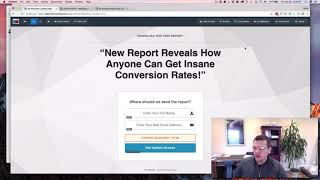
A practical how-to screencast (presented by Jaime Smith of CF Pro Tools) showing how to add ManyChat’s Facebook Messenger checkbox to a ClickFunnels opt-in page so visitors can opt into Messenger at the same time as email. The video walks through creating an opt-in page in ClickFunnels, inserting a custom JS/HTML element for the widget code, configuring ManyChat Growth Tools (checkbox type) including the install JavaScript snippet and opt-in message, creating the CF Pro Tools add-on and placing its code into ClickFunnels tracking/footer settings, and final checklist steps (publish the tool, authorize domain, provide an interactive button so subscribers click into the bot).
Questions this video answers
July 29, 2022
Pro account
Subscribers who opted into ManyChat prior to October 17, 2017 will see the box checked by default
Into the page tracking code area (header or footer tracking code) — presenter places it in the header code for separation but notes it can go in the footer
Inside a ClickFunnels custom JS/HTML element positioned near the opt-in button (above is recommended)
Chapters
Hey there, I'm Jamie Smith, CF Pro Tools. I want to share with you today a quick demonstration and the installation instructions on how to add a Facebook messenger checkbox to your opt in form so that you can actually collect a Facebook messenger opt in at the same time as you're collecting an email opt in. And this is a if you're using ManyChat. So ManyChat is a popular software for doing Facebook messenger bots and they've just released a week or so ago an ability now to add a Facebook messenger checkbox directly on your page and embed that into any page. And then they've also added the option so that you can actually fire the submit of that when somebody clicks a button on your page and you get to control that with JavaScript. So that allows us to in clickfunnels build a page that has an email opt in on it as well as hey, go ahead and send this to Messenger.
So.
So I'm going to show you how that works here real quick and let's just jump right in. So I'm on. I've got a new funnel here, just a demonstration funnel. I'm going to go ahead and add a new page and I'm just going to call this opt in demo 2 and we'll go ahead and create the funnel step here. And then for this one I'm going to go ahead and create an opt in page and let's just pick a simple opt in. Let's just do this one here. And we'll go ahead and pull this page up in the editor. And so let's say we wanted to add the option right in here above this button or below the button to say send this to messenger also. And so let me open up another tab just to kind of give you an idea what this looks like. In case you haven't seen seen these before. I'm actually going to go to CFOtools. I'm going to open another tab here in another screen so I can find a URL. I'm going to show you an example here real quick. So give me. Bear with me for just one second. Okay, we'll get this one added on right here. Okay, awesome. Okay, so let's go ahead and open this up in a new tab here so you can kind of see what this looks like. And so when we open this page up, then we'll see just below the button here we get this Send to Messenger checkbox and we can do a check and then that will send a Messenger. Facebook would recommend that you put this above the button so that somebody checks it before they get to the button. So you can do that as well. I'll show you how that works right now. So we want to say put this in just above the button. So the quick way to do that is we're going to go ahead and we're going to use. I normally do not like using the custom jshtm element. You'll find that none of my CF Pro Tools add ons use that. But this is the best way to get this embedded so you can put it where you want it to be. So we're going to go ahead and click that custom JSHML element. We're going to drag it above the button and I'm going to take some of this margin away from the button. We'll make that 10. And I think that looks good. The next thing we need to do is actually go over into manychat and so I'm going to open that up in another tab here real quick and get that prepped and then I will show you how to, how to create this tool so you can get the, the right add on. Okay, so let's go ahead and go in here and I've just got some, some basic tools set up here. And so let's go ahead. So this is in manychat. You're going to click on the Growth Tools tab and then you're going to click New Growth tool. This requires that you be on a Pro account. And so we want to go ahead. And if you're on a Pro account, you have this checkbox, so you want to go ahead and click check box and then you want to set your opt in message. So this one is just going to say, you know, it comes out of the default hey, you know, welcome so and so thank you for subscribing. The next post is coming soon. Stay tuned. And then if you ever want to unsubscribe, just type stop. Okay, so the one thing that you'll want to do is actually use this so that you can actually get somebody to interact with this message. So you'll want to set it up so that you can actually have a button added to this. Give them a reason to click something. Because once they've clicked now, they become a full fledged subscriber to your bot. If they don't click and you're just sending them a message, then there's some rules around what you can do and what you can send them next. So you want them to interact. So send them a link or a button or when they click the button, send another message or go into a flow or something like that you want them to be able to do. Give them a reason to click this button so that they interact with your bot. So that's, that's one of the keys there. We won't go into that. That I'll leave for you to figure out. But what we do want to do is go into the setup. You're going to need to grab a couple things. So one is the install JavaScript snippet. You'll want to make sure that your domain name that you're going to use this widget on is, is added to your authorized website list. So you can see I've got, you know, manychat.com comes out of the box. CF Pro Tools, my subdomain for clickfunnels. They're all there in the authorized website list. And the next piece is to actually install the mini chat snippet. So this is different for everybody, but all you have to do is just copy this to your clipboard and then we're going to close that down and then I'm going to bounce back into my tab here. And this one is a little different than the norm. Usually I put everything in the footer code, but in this case I want to go ahead and put this in the header code because it doesn't matter. It can go in the footer, but I put it in the header to keep it separate from the rest of the Add on script. And then this is just provided strictly from ManyChat. So they're just going to embed that there. So that's no problem. So we're going to leave that there. And then the next piece is we want to go back and we want to grab this little widget checkbox code right here. I'm going to go ahead and grab that. And we want to go in and this we want to put into our custom JavaScript HTML. So we're just going to leave this as regular HTML JS, click open the code editor and I'm going to paste that in. And that's all there is to that.
Hey, what's up guys? Sorry to interject here. I'm going to show you how to add in the code in the new version of CF Pro tools for the ManyChat plugin or the ManyChat add on. Okay. So if you're already in, make sure you go to Add ons and. Or you can go to your dashboard, click Create new Add on. Or there was a button up there where it said Create new Add on and you can search for manychat Checkbox Submit once you click on that. Guys, this is really, really simple. All you have to do is create something. We'll go with Live test for for this. That way I can identify it. There's no further configuration for this. And click the red button to create the add on down in the bottom left corner. Once you've done that, all you really have to do is grab that code. We're going to throw that into click Copy Copy. We're going to take that over to our Click Funnels account. May bring that right on over here. And where we're going to put this is inside of our opt in page in the Tracker code Tracker footer settings. Okay, so go to Settings, go to your tracking code and then go to your footer code settings. And what we're going to do is put that in right there. Technically that's all you have to do. Once you've done that, make sure to hit save and you're good.
We'll just leave that as the default. The next thing that we want to do is go in there's. We don't need to do this step because we've. We've already got it attached to our own button. So we can go ahead and go back to our opt in actions. We've got our message set up, so that's good. We'll notice the one thing here. Is this still set to draft mode? If this is in draft mode, you won't be able to see it on your page. So you have to actually publish it for it to be on your page. So just click the active and then you will be good to go. And then let's go back into our page now. And in order to see this I want to go in and I actually want to see this on the CF Pro Tools page. It needs to be on your either subdomain or your whatever custom domain you're using. Unless you want to use add app.clickfunnels.com to it. It won't work in preview mode basically is what I'm saying. So we want to go ahead and open this up and. And we're just going to open this in a new tab and we're going to keep our fingers crossed that it just pops up and works. And you can see there it does. So that is all there is to it. We now get a checkbox. It's just above our button. We can, you know, enter your name and email address and then you can also say send into messenger and click get instant access. The beauty of this is if you created your checkbox on one of your pages, on the page, if you attached and used a checkbox through any of the other tools that ManyChat has, where they have checkboxes, the ability for people to opt in prior to October 17th of 2017, then you'll be able to have this box be checked by default. I was not using Facebook messenger opt in prior to that, so that's why it comes in unchecked for me. And if you were in the list prior to October 17th, then this is going to be checked by default for you. So that's going to be huge because that's going to get you a lot more opt in rate. The one thing that Facebook will recommend is that people understand and recognize that they're opting in for something. So in this case, you know, I think it's pretty clear where should we send the report, get instant access. I think that's clear enough in my opinion, that they are opting in for something. So that is all there is to it. So if we just kind of recap here real quick. You've got a custom element. Inside of that custom element you get your ManyChat widget code that you get straight from the ManyChat widget set up tab. That's this code here. The other thing we have is in settings, tracking code, header code, you put your what's called the ManyChat Universal JavaScript and you get that from this install JavaScript snippet. Go here, copy this code. Just copy the entire thing, click copy coded to clipboard and then go back into your page and paste that in.
Okay. And the only other thing that you guys need to do is grab that text or that code snippet from CF Pro Tools in the app version. Make sure to copy that out and put that right over here into the footer code settings and you guys should be all set.
And then save your page. Make sure again that your ManyChat snippet is or your ManyChat widget is set to active and make sure that the opt in actions. This is just a recommendation. You can say whatever you want to here. Just make sure that you add something that has a button so that the user can interact with your bot. If they don't interact, then that limits the type of messages you can send them after this one. So it should have a link for whatever it is you want them to download or whatever it is you want them to do. Make sure you make that a button. And when they click that button. They've now opted in. They've now subscribed to your bot so you can send them more messages. And that's kind of the point of this. So hopefully that all makes sense, and hopefully have an awesome day, and we'll talk to you real soon.










