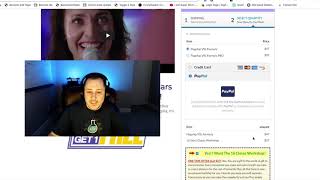
Matt King (CF Pro Tool support) demonstrates the PayPal OTO add-on for ClickFunnels in a short demo. He explains the prerequisite (the original PayPal Plus add-on must already be set up), then runs a live test purchase: clicking the order page's PayPal button, viewing the PayPal popup and price breakdown (core product + bump), completing the PayPal checkout, seeing the OTO page with PayPal buttons, purchasing the OTO, and reaching the confirmation page which shows all purchased items. He notes the PayPal OTO is not a true one-click upsell (the buyer repeats the PayPal flow) and that he temporarily lowered PayPal-product prices for testing. The video ends with a promise to show setup steps in the next video.
Questions this video answers
Matt King (CF Pro Tool support)
No — you must go through the PayPal checkout flow twice (not a true one-click upsell).
Chapters
Foreign. Hey, what's up everybody? It's Matt King here with CF Pro tool support coming to you guys today to show you the OTO, the PayPal OTO add on and how that works. This is a quick demo. I'm actually, I've actually already ran through the credit card side of this. So I'm actually going to test the PayPal version and show you guys how that looks when going from the, from the order page to, to the oto, which is what this video is all about, and all the way to the confirmation page so you can see that the process worked. And I think you guys are really gonna like this. If you guys haven't already set up the PayPal plus add on, there's a whole set of videos on how to set that up. This video is merely a supplement or this add on is merely a supplement to the original PayPal plus add on. So make sure that if you're using this one, make sure that you've already set up the paypal plus Add on on your order page. Otherwise the OTO page is kind of a moot point. Right? So all that said, let's give this a test. So like I said, I'm going to test out PayPal on this particular video with the original core product and a bump product. Okay. I know they when you click on PayPal, it's not going to switch to the PayPal product products until you actually make the purchase. So it's actually showing. I've actually lowered the prices on the PayPal version just so I can one see the difference between the two and two not charge myself that much because I'm testing this with my my own money. Alright, so that's it. Let's go through and test this. So you're going to click on the complete order button. The little PayPal button is going to come up. If in your configuration you had it set up to have PayPal credit on there, you, you would actually see the PayPal credit button as well. But I've disabled it, which is really cool. You guys have been wanting that. So let's click PayPal button and let the PayPal checkout thingamajig pop up here and I will show you. Actually if you click on the, there's a little drop down up here next to the price which should come up as $7. And if you click on the arrow you can actually see what's being charged. So it's gonna charge me that core product with a PayPal version of it and the bump PayPal version which was I set to $5 and $2. So that was correct. It is charging me for PayPal and not the Stripe version. And that's pretty much it. I'm going to click the Pay now button and we'll go to the next page. And on this next page it should automatically redirect me to the following page in the funnel. So on this page, there's nothing special going on here. This is just a template. I created this earlier. This is a standard button right inside of Click Funnels. You can set this up to do and say whatever you want. However, when we click this, it is going to should bring up because I paid with PayPal, if you didn't pay with PayPal, you will not get this. But if you pay with PayPal then you'll get the PayPal buttons. And I created this with a silver button, rectangular. It should be responsive. And I did not disable the credit card credit option for PayPal. So I'm going to click on PayPal one more time. And it's not a true one click upsell. So you will have to go through the process twice. This is as as good as it gets when it comes to PayPal. I did set it to $3.50 again, I'll click that down arrow. You can see that it's the PayPal version that's being charged out. And I'll click Pay now one more time and it should redirect, it should charge me and then redirect me to the confirmation page and then show me exactly what was purchased. So this page charged me the core product, the bump product which was 5 and 2 for 7 and the OTO which was $3.50. So everything worked out just as it was supposed to. Hopefully you guys like this video. I'm actually going to show you guys how to build this in the next video. So go ahead and click on the next video. I'll show you exactly how to set this up again. If you guys haven't already set up the original PayPal plus add on, please make sure that you guys go set that up, watch those videos and get put that, make sure that that is in place. Otherwise this, this OTO add on really won't do much for you. So I'll see you guys in the next video. Take care.