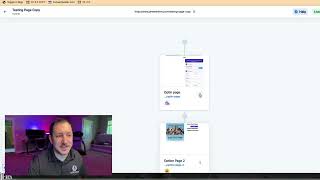
A short tutorial (by Jaime Smith) showing how to create a promo-price product and assign it alongside a regular-price product on a CF Pro funnel/order page. The workflow: create a one-price product (name, description, price) in Products view, then assign both the regular and promo products to the page (they must be added as core products, not order bumps). When a visitor enters a discount code, the system swaps the regular product for the promo product so the discounted price is shown. The video notes that product variants are not supported for this promo-swap method and previews a follow-up video about locating product IDs.
Chapters
Foreign. Hey, what's up? In this video we're going to look at products and how to create them and assign them to this page, to your order page. Okay, so again we assume that if you're here using CF Pro tools, creating the promo code pro, you probably have at least a basic level of understanding of how the, the editor works, the product creation process, assigning products to the page. So at this point it's a good chance that you may already have a regular price product on your page and you only need the promo price. So what's happening is you've got two products assigned to the page as a core product, at least two, and one of them is the regular price product and then the promo price. So what happens when they put in the discount code is it just swaps out one for the other and then all they looks to them like they're getting the discount product because they put the code in. Because they are. Right. So that's how that works. Let's go to the creation process. If you get out of your product or out of your editor view and go into the products view here, it'll give you the ability to create a product. Make sure to come in here, create your product, give it a name, give it a description, give it a price. Do keep in mind this will not work necessarily very well with your product variants. So this should be for a one off product with one price with no variance. Okay, let's click the X. Let's go back into our funnels and I'll show you the two different ways to kind of play around with this. I'm going to go into my testing page, copy funnel, and one of two ways that you can assign and manage products. You can either click the three dots here and manage the products and that will allow you to add those, or you can go into the editor view, which I find this to be really nice. Now you do not have to back out of the page editor. Um, you can go into the settings and you can go to the product settings there and you can assign those products here. So again we have the regular priced product and the promo price product. Um, you can add an image, you can do all the fun stuff here and then just make sure that both of your products have been added and that they're in the core area. You don't want to see them down here in the order bump. Otherwise it won't work. There won't be any product to swap it out with. So they do both need to be here. The pro, the promo version of your product will be hidden from view as long as it's properly configured, but the same way that we're showing you what to do here in this video series. Okay, so that's how it works. Once you've done all this, you are good to go. In the next video, I'm going to show you guys how to find those product IDs and get you guys to the next step.