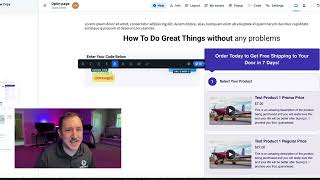
This content was created by Jaime Smith. This content was uploaded by Jaime Smith. This is a YouTube video titled "Promo Code CF2 CustomizePromoContainer" created on January 15, 2026. It provides a tutorial on customizing a checkout element using CF 2.0, including setting up sections, custom attributes, and styling success and failure messages. The video is instructional, guiding viewers through the process of integrating promo codes into their checkout setup.
Chapters
Foreign. So, welcome back. In this video, we're going to be looking at the section that we're going to build out and move into the actual checkout element. This should. What I'm giving you guys is kind of a bare bones, basic version of this. This section, if created like I'm showing you here, will work with the generic, basically the out of the box checkout element with CF 2.0. I've styled it so that it will match the default settings, the default color scheme for that checkout element. So you guys can. That's. This is what the beauty of this is, is you guys can style this to match whatever styling that you want, whatever colors you want, you can match. You can use this to match that and then move this into that checkout element using the Magic Mover add on later. Now what I'm going to do is because of that, I'm not going to spend a lot of time creating this from scratch. I've already built it, but I'm going to give you guys the basic building blocks. So what you need to do is create a section over here and then that will have its own little container which you're going to give a custom attribute to. I'm going to come over here. The way you set a custom attribute is by going into the advanced tab of that particular section or element and then adding a custom attribute. Now there's going to be a number of different custom elements and sections that need custom attributes for this particular area. So I'm going to leave each one of those in the instructions so that you guys can see those, you can copy those out and quickly add them to this. Okay. That way it's as easy as possible. And I don't have to go through each one of these individually, but what I will do is give you those here so that you can see exactly which which section. So we got the whole section that's moved in. This one's going to be the container. We have the input field here, which is in a two column row inside of a. Inside of an existing column here for this particular setup. But there's this input element which will have its own input CSS or custom attribute. The apply button will have its own custom attribute here. And then there is a message, a success message and a failure message. So once you set these up, add these in. The way it'll look is like this. It's using a merge tag and it's going to basically inject. If they put the right code in, it's going to inject this success Message in which you can customize inside of the configuration. Not here, you can customize. All you need to put here is the double curly braces and then the word message with the closing curly braces. And you can change the color and the font. You can style it how you want. Okay, so you're going to set that up here and then when somebody puts in the correct code, the configuration will kick in and it'll show them whatever that custom message is. It might be, yay, it worked, or congratulations, your discount has been applied. It might be whatever you want. You're going to do the same thing with the failure message. Now, I've styled this with a, with it being red and in a. I think it's probably just in the basic sans serif font here, but you can go into the settings and style that how you want. Okay, so once you've done that and created these, both of these will have their own custom attribute as well. And then they can be hidden. So you can come in here and hide both of these as you wish. Okay, so hide those. Once you've set this up, I do have an extra little kind of a headline or sub headline. This does not need a custom attribute. You could put picture, you could put images, you could put a progress bar, whatever you want in here. But I'd keep it simple if I were you. But it's your funnel, it's your setup, it's your checkout element. You guys do whatever you want. Once you've set this up, go watch the next video where I'm going to be configuring the add on itself and, and showing you guys how to get that installed. If you guys want to see a longer video of the actual process of styling this out, I'm going to leave a link in the instructions for that as well. So that way you guys can go watch and I'll show you guys basically how this whole thing came together. And that way you guys can, oh, okay, that's how this works, or that's how this works. There's almost an infinite way amount of ways that you guys could set this up. So it all comes down to your creativity. I can't wait to see what you guys come up with. Hit me up and Support a pro tools.com and just send me a link to your page. I'd love to see what you guys come up with. I want to see how creative you guys get with your promo codes and see what you guys come up with. Okay, that's it for this video. I'll see you guys in the next one where we begin the configuration process. Okay, See it?