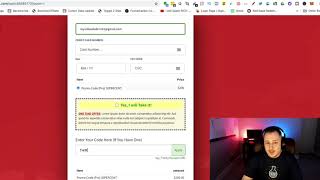
A short demo-style tutorial (YouTube) by Matt from CF Pro Tools support demonstrating the CF Promo Code Pro add-on for ClickFunnels VIP. Covers how to show/hide or force the promo code input, use URL parameters to preset or reveal codes, apply one code to unlock multiple product price points (requires distinct products per price point), and limitations (promo codes do not apply to bump products). The presenter walks through live examples (friends, 50 off, 30%) and previews where to configure the add-on inside ClickFunnels.
Chapters
Hey, what's up everybody? It's Matt here with CF Pro Tools support and I'm going to show you in this video how to use the CF promo code Pro add on. Okay, that's one of the first, one of the most in demand add ons we have inside of VIP club. So if you guys are not already in VIP club, I definitely recommend upgrading just so that you can play around with this one add on because there's so many things that you can do with this. Okay, so, so what you can do here, I'm going to show you guys how this works on a one step order form. However it should. I don't see why would, why you'd have any problems with it on a two step. And I'm going to show you exactly what, what's going to, what's going to go on here. So first of all, you'll see here on our page you can have some regular forms here. I can hide, I can hide the, the promo code bar like the input field so that nobody even knows that it's there. You cannot do the bump products. I'm going to take that off. I checked that out and did some testing with it. But what you can do is hide it if you want it or you can force the, the input field on if you want, or you can force it to not be there unless you put in some information into the URL bar, some URL parameters. And I'm going to put in equals 1. You can see that up here in the, up in the field. So I'm just going to hit enter and you'll see that it actually shows up right here when you type that. I can also force this on. So you do not need this extra URL parameter. However, if it is on, then if it's forced on that it'll always be here and you can put in code. So I've set this up. Unlike the free version which only works with one product, it's one product and there's a discount code product for it. With the promo code Pro add on. What you can do is actually use one code to unlock multiple prices. You could have multiple price points in different codes that will actually unlock different, various price points. Okay. You do need a different product for each one of those price points and I'll show you how to do that in a video coming up. You can add a bump, but the product, the promo code does not work for that. It's for your core products that you would be selecting. Okay, so let me show you real quick how that Would work. Maybe you have a friends code. I can just type in friends and. And it changes that. I hit enter, it applies, it says something cool. Hey, you're a really good friend. And then applies the code to that. A promo code pro. If I want to, I can just type in random gibberish. And it actually just goes back to normal. If I want maybe this high ticket product here, maybe I want a discount on that. And I say 50 all is one of my codes. I type that and now it gives me 50% discount on both products. Products. And then selects this afterwards, which is really cool. Maybe I want 30% off. And maybe, maybe somebody wouldn't type it in as 30%. Maybe they'd actually type it out and say 30%. All right. And then it still works. So it still comes up as $200 off. Now obviously you'd have to do the math with this. It's not going to actually give a percentage off. You actually have to do the math and say, I've got product one, it's 300 bucks, but for 30, it'd actually be 33% for this price point. But if you type in 30%, you just have the next product be $200. And then when you put that in, that's how it comes out. I could say 50 off. I have another code for 50 off and it gives 50% off of the $300. So there's numerous different ways. I actually have the friends code. Actually put in a couple different things. Like maybe Ben is the name of a friend, but type in Ben and it gives the code here. I actually typed in names in here so I wouldn't forget what they were. So maybe Josh is one of my friends and it's $10 there. Or Jane. Right. So it's really cool. Something else that you can do with this. And you'll see down here what the codes are. You can add in a bump or whatever. Very neat. And one of the cool things you can do up here, you can actually type in another parameter that actually presets the code. So I could say and Pecon equals 1 or question mark, Pecon equals 1 and promo equals 50 off. And then it'll actually put that code in. You'll see 50 off is automatically applied and it puts that code in. So you can send that code to somebody. So I think you're going to do great things with this. Let me show you how to set this up inside of ClickFunnels. So come along over here into the next video. Actually, it's down here. And I'll show you how to set this up. Okay, guys.