qty fields on page config
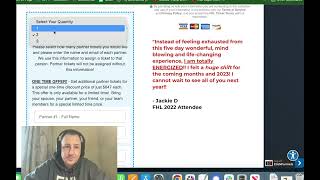
A step-by-step walkthrough showing how to configure bump quantity fields on a webpage using an add-on. The speaker demonstrates adding a one-column row, inserting custom input fields (e.g., additional attendee name and email), setting input types and placeholders, leaving fields not required so they only become required when the bump is selected, cloning rows for multiple quantities, assigning CSS row IDs (CF bump QTY fields 1/2/3) tied to quantity selections, hiding unused rows, and saving the page.
Chapters
Hey, welcome back. And in this video we are going to look at how to set this up. So we're finally there. We can use this add on that will boost conversions and allow you to do a few different things. When using the bump quantity add on, this is bump quantity fields. So what we're going to do is show you how to set that up. Alright, so what you're going to do on page, all of the setup for this is done on on the page itself. Okay, so there is the add on of course. I'll show you how to create that and set that up. Where to put that in your footer tracking section here in another video coming up. But make sure that that's installed. Of course. But most of the setup is right here. So already on your page you've already set up bump quantity, bump content. You can see that we have the field here for that. So we have our bump field, our content field. We have our row here that's set up. We have our selector for the actual selections of the quantities 1, 2, 3, etc. Right. So what we're going to do is we're going to add a new row with a few different input fields. So what you're going to do is make sure to select the blue plus here and we're going to say one column. So all we're doing is adding a row. You can do that by clicking the blue button down here or coming up to row saying add row and then you can add that down below. We'll just do a one column row and you can drag that down here below the Select 1 area and it will add a new row. Now what we're going to do is add a new step and that is just going to be the input field. If you have trouble finding it in here, it should be in your form field. So just click on form form and then click on input. Okay, so we're going to select that. Actually what I'm going to do while I'm here is add a little bit of. I'm going to make make sure that there's no top margin here and in the padding I'm going to take that down to about a five and then actually I'm going to bring this down to a zero and then we're going to for the, the element itself, I'm actually going to set that at 5. We'll check that out here, here in a little bit and make sure that that works out. So the input type, now that we're where we are right now is the Actual selector, the input field. So I'm going to click on that, bring up the settings and we're going to go through this real quick. This should be pretty easy. So the input type is going to be a custom type. We're not adding email address or name fields here because that will overwrite the original, the purchaser's information. So this is going to be for an additional attendee for this purpose. If you are doing shirts, variations on shirts, you would want to do a custom type. You could try doing a custom drop down. I have not tested that at this time, but we are going to stick with the custom type for this. And then you are going to give it a name for this one. We will call this that. This will be like the additional. Actually I'm going to call this first underscore customer name and then I'm going to call it one. So if I put in additional ones, I'll just call it the same thing. First underscore customer, underscore name, underscore two and then underscore three, et cetera. Right. Excuse me. So that's how you set that up. You can of course change the placeholder text, which I would recommend. So this would say first ticket holdername and then they would know to put their name in there when that pops up. Right. So that's where it's going to look like this. So if they select one, what it's going to do is it's going to bring up this row. So you can actually put more than one input field in. So you got full name, email address. These are just custom for just custom input field names. So let's go back to here, actually. Not there, not there. Over here. This is where we want to be. Right. So we're also going to leave this field not required because if they don't select this, we don't want them to get stuck in the system because they didn't want the bump. Right. So we're going to leave this to not required, which will actually, if they say one and then this comes up. So check this out. So if they say one, if they select this box and say, yeah, I want one now guess what? These fields just went from not required to required. Now they have to fill this information out in order to transact this order. Okay. And that all happens behind the scenes. There's nothing you have to do. All you have to do is leave this field to not required. Of course, change your font size, whatever you want to change this to make it look the way that you want. But this is how it will look. So it's going to be custom type, put in a custom type name, placeholder text, and then set the requirement for this field to be filled out to not required. That's it. Okay, now we have this row with an input field. If we want to have more than one input field in here, we can do that. So what I'm going to do here is just hit clone and it should do five. Should be good for that. So let's see, what would it look like if I put that at zero? I'm going to leave that at zero for right now. That way they're kind of close by each other and then I'll look at it and see how it looks. If it's too close, we can deal with that later. But kind of the way that it's looking here, I think I. You know what? I think I screwed up. Let me hit delete on that. We want to clone the element, not the row. Okay, clone that and then. Okay, that looks about right. That looks right. Okay, so what we want is both of those input fields to be inside of the same row. Okay, we'll get back to the row. That row has a CSS title. I'm going to come back to that here in just a moment. Alright, let's click on the settings here and adjust this one. So it's already set to custom type. And I'm going to change this to cut first name email. Alright, first customer email, underscore1. All right. Placeholder text, first ticket holder email. And it's already set to not required. So that's how that'll look. Just like this. And now what we're going to do is go put that CSS title. There are no CSS titles required for these input fields. Okay, it's all on the row. So let's go to that row. This one's already set. This one should be set to CF bump quantity selector row from a previous setup. So we're looking at this one here. If I can get this to work, click on the settings and then what we're going to do is click on this hashtag down here. We're going to call this CF bump QTY for quantity dash fields 1 and that one is corresponding to the quantity that selected. So if they select one, it's going to open up CF pump qty fields one row. Okay. And then we're going to click update. All right, that's pretty much it. Although it'll work, it'll now only work with one. So what I'm going to do. And I'll just do this real quick so you guys don't have to watch. Basically what we're going to do is clone that whole row and we'll clone it again. And it should have a little bit of space in between each one of those. So if they select two, it'll show two of these. If they select three, it'll show all three rows. But you have to. Now you kind of got to go through and do a little bit of work on this. We're just going to select that and change this to QTY Fields 2. So the CF bump QTY Fields 2, click update and then we'll come down here, do the same thing with the third. Oops, I cloned it. I'm going to delete that. Oops. And then we're going to go to the row settings, click on the hashtag and we're going to delete this information here. Set that as CF bump QTY fields 3. Now, only got one more thing to do. You've got four more input fields now that need to be updated. So I'm just going to kind of come through this pretty quick. I'm going to make that two and change that to second, not required. And then this here is the email. So this is going to be email second and then I'll name that two. Actually that should be second as well. Let's come down here. Second. Right, do the same thing down here with third. So this will say third and then three and this will say third, not required. Then we'll do the same thing down here with the last one and this will say third. Underscore three. This will say third ticket holder email and then not required. Okay, that's it. That's all we have to do. So I'm going to click save. We'll double check the rows manage here and just make sure that it says CF bump quantity fields 1, 2, 3. Now here's. Once you've got all that set up, I know it was a little bit complex, but basically it's just creating three fields, three rows, and then the information that you want to come up inside of each one of those, like say this one. So you want two to come up, two rows pop up. Right? If you want three to come up, then you select three as the quantity for the additional tickets. Three of those come up, you have full name email for each one of them. Each one of them gets their own information so that the information is stored properly in the contact profile so you can refer back to it. Now let's go back to here. Apparently not there. Let's come back here. And what we're going to do is we're going to hide each of these additional rows. Hide, hide and hide. And if you want to hide this, you don't have to, but you can hide this entire row here. So you do that by going into the row settings and then click on hide. So this whole area is gone. We're going to click on save and I will be right back. And come watch me in the next video as we get this add on set up and I'll show you if it worked or not. All right, see you in the next video.










