Setting Up A Free Plus Shipping Book Offer
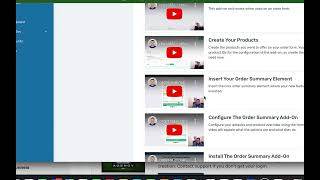
A short tutorial showing how to create a “free plus shipping” product presentation in ClickFunnels by using CF Pro Tools. Matt demonstrates creating two products (a $1 product shown as “free” via price-display override, plus a separate shipping product whose real prices sum correctly), configures CF Pro Tools add-ons (Forced Products and Order Summary), and pastes the generated scripts into the page footer to force the shipping line-item and adjust displayed prices.
Chapters
Foreign. What's up everybody? It's Matt here. And in this video we are going to take a look at how you can do a free plus shipping offer and make it look like there's two line items and make it look like the product is free. So there's a couple different ways to do that. But let's look at an example and this is based off of the Traffic Secrets book by Click Funnels, guys. And so what I'm looking to do is you want it to say, hey, the book, whatever book it is, there's so many people out there doing free plus shipping books or other types of physical products because it does not have to be a book. Okay? So hang tight and I'm going to show you exactly how to set this up so it looks like this. Two line items, one is for the book, it says free plus shipping and one for domestic shipping where it says 995. For my example I'm going to say 10. Just to make the math easy because we're gonna have to do a little bit of basic math, I'd say. So we'll, we'll, we'll be all right. We're gonna get through this together. Okay? That's what I'm saying. So out of the box you cannot do with Click Funnels. Click Funnels. Out of the box you cannot do a free product. So you have to do a little bit of finagling. What we're gonna do is we're gonna use a third party program called CF Pro Tools to, to add in a couple scripts that are gonna make this work. We're gonna use one called Forced Products in order to make this function the way that we want it to. So let's, let's start with Click Funnels and I'm just going to continue creating this new step. Your new step needs to be an order page. We need to select a template for this. So I need to click on sales and I need to go to order form type page. So here, this one's pretty simplistic. Let's use this one. What we're going to do is we're going to create two products. I'm going to go into the products tab on here. We're going to create, we're going to add a product. We're going to use stripe. We're going to make this product a one time product. We're going to go to save and next. Alright, so the first product is going to be my free book. Whatever it is that you want it to be called. We're going to say that this book, it's free plus shipping. But we want the book to show that it's free. But we have to have a product that's at least $1. So we have to put $1 in there. In fact it even says that right here. Okay. Now on the price display override, what I'm going to do is just say that it's free. Okay, I'm going to do that. Math will come into play here in just a moment, I promise you. So make sure if you have don't do your product variations that'll mess up CF Pro Tools. But if you have a fulfillment email or any follow up actions that you want to take or you want to connect this to a fulfillment company may sure to set all that stuff up. I'm going to stop here, save and close. And then we're going to come back to this in just a moment. We're going to go to the products tab. We're going to see that that's in there. And I'm going to add another product. But the next product that I'm going to add again it's going to be Stripe. It's going to be one time we're going to do a shipping product and it's just going to be called Shipping. Okay? Now I said it was going to be $10 of shipping. We're going to do nine. Okay? But I'm going to say in the price display override that it's ten dollars. Put the little dollar sign in there. Now remember when I said there's going to be a little bit of math. Remember the other product that I set up was $1, right? So that $1 plus this $9 equals $10. All right? So you make sure that you do this correctly like this on your end when you're setting this up. All right. Altogether the one product will say that it's free. This product will say that it's $10. Alright, so let's come back down here. We're gonna say save and close. I'm gonna go to my add ons and we're gonna create a new add on and we're gonna search for forced products like this. If you guys are CF Pro Tools users, great. Make sure to go into your account, do this, do a search for forced products. You can also use International forest products. So let's use force products. Let's open this up and what we need to do is force our shipping product into this cart by putting the product ID in here. So let's go back over here. See our shipping product. I'm going to do a control copy link address here and then we're going to go back to CF Pro Tools. We're going to put in the product ID and it strips out that entire address. It just pulls out the product ID that we need and. And then we're going to click Create add on. Now I'm going to come back to this, but we're going to need this script here in just a moment. But we're going to create another one first. Okay, let's go back to our add ons and we're going to go to create new part of this process requires another add on called order summary. So we're going to do a keyword search for order summary. If you happen to be new to CF Pro Tools, you're watching this video, you want to know a little bit more about it. Make sure to just go through the tutorials, the step by steps here that are included and you'll be all set. So we're going to set this to always show and I'm going to set this to show display price right here. And actually I'm going to, I'm going to leave this set to no for right now we might come back to that. But what we need to do is add a product override because the product ID cannot be free because the order summary doesn't know what the word F R E E is. It needs a numerical value in here. But since I still have this on my clipboard, this was the shipping product and I want the price to be $10. Remember it says that it's 9 in the settings but we want it to show 10. So we're just going to put that numeric value in there. Technically I probably don't even need the decimal and all that. We're just going to leave that in there as 10 and we're going to add another product override. This one is going to be for the other product id. Let's go back to click Funnels. Grab my free book. I'm going to do a control copy link address and then we're going to go over to back over to CF Pro Tools product ID. Paste that in there. So I've got 917 and 918 and I'm going to put zero here. Now whenever you put zero in here, it's going to show whatever you have up here for free price display. So I'm just going to say free book. Okay. Just to make sure that that works the way that we want it to. Again, always Show. I'm going to say yes. And display price. I'm going to say show display price. I'm going to say no. Okay, so let's click on Create add on and we're going to take, since we're here, I'm going to click on copy that code. You can see the values and everything that's in this configuration as well. Let's go edit this page. Let's go to the settings. I'm going to go to the tracking code, go to the footer code and we're going to add in the order summary there. And we're going to put in also the other one that we created, which is, let's see, add ons. We're going to go to my add ons and then we're going to click on Force products. Grab that code. Just click that blue button a couple different times. Back to CF Pro Tools. I'm sorry. Click Funnels. Click on that. So we now have the order summary. We have Force products and that is in the footer code. We do not want that in the header, we want that in the footer. Okay, so I'm going to leave these two here and I'm going to say it save. Save the page. And that's actually it. I believe there's nothing else technically that we really need to do except for customize the page a little more. Maybe, if that's what you want to do. But for the sake of what we're doing here, we're done. Let's click Preview and just see hopefully that it worked. And so I'm going to click toggle 2 step to go to the second page. My free book is set. The display price shows up here and what's in the order summary shows down here. My free book, remember that If I put 0 in it shows free book down here. The shipping shows is $10 and nobody knows none the difference. Right? So that's all there is to it. I didn't add a bump product so nothing's going to add. But that's how you would set up something similar to the Traffic Secrets order page. Just like this. Okay, hopefully this helps. If you have any other questions, feel free to let me know. I'll leave links for click Funnels and CF Pro Tools down in the comments and if you have any questions, leave them in the comments and I will talk to you guys soon. Alright, take care. Have a great day and stay awesome.










