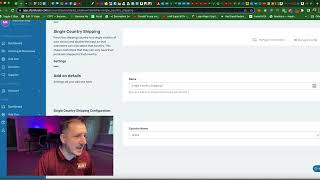
This YouTube tutorial (hosted by Matt of CF Pro Tools) demonstrates how to install the "Single Country Shipping" add-on to force a specific shipping country in ClickFunnels accounts (CF 2.0, CF 1.0, and CF Classic). The video shows how to find the add-on in the CF Pro Tools dashboard, create it, copy its script, and paste that script into the footer/tracking code area of a ClickFunnels checkout/order page. The presenter notes caching may delay changes (up to ~5 minutes or require a hard refresh) and provides support contact.
Questions this video answers
CF 2.0, CF 1.0, and CF Classic.
Into the page's footer code / tracking code area on the checkout/order page.
support@cfprotools.com
Up to five minutes (or require a page refresh/hard refresh).
Chapters
Hey, what's up? It's Matt with CF Pro Tools. In this video I'm going to show you guys how to install the single country shipping add on. So this add on allows you to force a single shipping country to your CF 2.0 or your CF 1.0 or CF Classic account. So in this particular example, I have set it up to force the country of Kyrgyzstan in here and then it also will give you just the state options or the local locations there that can be chosen within a particular country. So this also again works on CF 1.0 as well. So let's go look at what you need to do in order to get this installed. First thing you're going to do is go into your CF Pro Tools account and you're going to make sure that you have your live domain added to the domains tab over here. So make sure that you've got your domain added. If you don't do this part, it's not going to work. So we're going to come over here to add ons and then we're going to come back over here to my add ons and then we're going to click on Create New up here in the top right corner. You can either click on Create New or you can click on the link to create a new add on from your dashboard as well. So we're going to come over here to search by keyword and we're going to look for single. Oops, gotta spell it right. Single country shipping. And it pops up right here. And this one again will work in CF 2.0. We'll get that tagged appropriately and all you have to do is select the country that you want to ship to. So we do have us only shipping. So if you want to force to us, you can use that add on or you can now use this add on to force it to us. And it will just be there in the the drop down. Or if you want to ship to Brazil, only you can create that. And then you can click Create Add on, give it a name. Of course, before you do that, you're going to grab your script just like this and then you're going to go back over to your clickfunnels account. Let's come over here and take a quick look at this. And we're going to click on the account so right here on the editor. So you should have a page already created with a checkout element. Just a basic checkout element should be fine. This works with the one step, two step or the three step. So we're just going to use one step for this or we could add it over here to the two step. So let's do that. We're going to go over to code up here and then we're going to come down to the footer code down here and we have a bunch of stuff in here. I'm actually going to re add this here with a different code. So single country shipping. Just paste it in here, down at the bottom of your footer code area. Okay. Once you've done that, that's all you have to do. There's no other special steps, no CSS titles, no custom attributes. Click on the save button. Once you've done this, all you have to do is click on preview or you can go to the live page and it should work. It's probably going to cache for me, so you may have to wait up to five minutes or. Or refresh the page or do a hard refresh in order for this to show up on here. It looks like it already works for me, so it's forced to Brazil and the states or the regional area. You should be able to select one of those. Now you can also do this inside of CF Classic. You're going to do it the exact same way. You're going to come up to Settings on your order page, you're going to go to the tracking code area, you're going to go to the footer code area. Then you're going to come up here and just hit Control V to paste that new code in there. And then you're going to back out of there, save the page and then you're going to hit the preview button. Or you can go to the live page as well. Let's come down here. Looks like it did it forced Brazil into the country area. There's no state selector on Brazil or any other countries besides US and Canada that I'm aware of. So that is how this works. But hopefully you guys have enjoyed this. Let us know how you use this. Let us know if you run into any issues or have any questions. You can hit us up at support@cfprotools.com thank you so much. See you guys in another video. Take care.