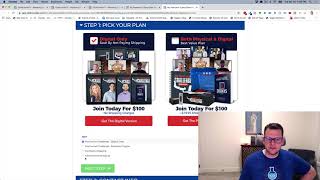
A short demo transcript showing the “Toggle on Product” add-on for an order form. The speaker demonstrates toggling visibility of elements (commonly images) based on the product selected, explains swapping images for different product variants or quantities, and notes the add-on can hide/show any page element when combined with a product selector.
Chapters
Hey there. In this video I'm going to show you a quick demonstration of the toggle on product add on. And what this does is it gives does pretty much what the title says is it toggles the visibility of an element based on the product that is selected on an order form. So let me show you a quick demo of what this looks like. And so we got here a little bit of a funnel hack I did of the One Funnel Away Challenge funnel. So I kind of recreated this funnel and one of the things on that funnel a lot of people like is this option to you select which product you want the customer to purchase or the customer wants to purchase based on. When they click on an element it changes the product. Well, part of how that works is by using this toggle on product add on. And so we have a product selector here that you normally wouldn't see. But we have our two core products here. We have our digital only version and our physical and digital version. So right now we have our physical and digital is selected in our order in our product selector. And, and you'll notice that version is checked. Well this whole thing is an image here and we're just toggling the visibility of two different variations of the same image based on whether this product selected or not. So if we swap which product we select then you'll notice our check goes to this one. So we're basically swapped the visibility of an image to based on what product is selected. So this is just one half of a combination of add ons that allows us to do this. And is this product on toggle? The other thing you could do is if you had, let's say you had options of 1, 2, 3, 5 or 10 of a product and you wanted to show the picture of the different quantities, one of a product or two side by side or three in a pack or five or ten. You could do that and just have an image and then you would stack up those images in your order form or in the page editor and, and it would hide all the ones except for the one that is actually selected. So when somebody switched from one to pick three then you could have the image go from a picture of one to a picture of three. And that gives the customer the, the visual need that they have of like oh yeah, I'm glad I picked this one because it seems like a lot more. So that's another great way to use this add on. So that's kind of what we got going here is that this, this product or toggle on product gives you a couple of options gives you kind of a half of what you need to get going with doing some product selector like this. Or you can also use it in combination with just a regular product selector here to swap images and what's visible on a page. You can actually use it with any element on your page. It's not just for images. You could use it to hide different rows. You could use it to show, or I should say show different things based on what somebody picks on their product selector. So there's a lot of things that you can actually do with this, but that's kind of just a quick example, and I hope you like it, and I hope you put it to good use.