URL Keyword Replacer :: Demo :: CF Pro Tools
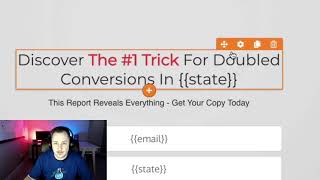
A short tutorial/demo by Matt (CF Pro Tools) showing how to use the "URL keyword replacer" add-on to dynamically replace page text with values passed in the URL (e.g., from ads or emails). Steps covered: create the add-on and name keywords with default values, copy the generated script into site footer/tracking code, assign a CSS ID to elements using double-curly merge tokens, and live-test by appending URL parameters (e.g., ?email=...&state=...). The feature is presented as a way to personalize pages and potentially increase conversions.
Chapters
Foreign. What's up, everybody? It's Matt here with CF Pro Tools and I'm going to show you in this video how to use the URL keyword replacer script. So this is real quick. It's the, the purpose behind using this is right here. You're going to use this add on to dynamically replace keywords on the page with values from the URL. The URL bar up here you might pass parameters in from like a different website, a different app, a different web page, or even from Facebook ad, you might pass parameters through to your landing page, in which case you can actually set some of those parameters to show up on your page and make it look a little more personalized, which is pretty cool, I'm not gonna lie. And according to this, you can. This could be used to increase customer conversion by increasing content that is relevant to your customer. So let's take a quick look at how you're going to add this. First, you're going to go to your add ons over here and then you're going to click Create New. If you're already on your dashboard, you can click Create New Add on. As you can see, I'm getting up there in add ons and then you're going to select or you're going to search for URL keyword replacer. Okay, and here it is. So what I'm going to do, I've already actually created, created this one. So what I'm going to do is go into my add ons and we're going to continue working with this one and we're going to throw that on our page. So what you're going to do, after you let me go on to the edit add on part, because I've actually already added some stuff, but really all you're going to do is give it a name so you know what you're working with. Live test. And then you're going to create a keyword and a default value. So if no parameter has been passed through the URL, it'll always show the default value. And this could be blank. If you want it to be blank, it can just. There could just be nothing there. So email might be not provided for the default, or it could be, I don't know, we'll just go enter your email based on some of the things I've got on the page, which is really cool. I've done some testing and I can't wait to show you what I found out you can do. Just by doing a little bit of playing around. You could Set a keyword, that's your keyword and this could just be, you know, whatever keyword you want to use. I put the default value as whatever. It could be blank again. Affiliate id, maybe you're passing Affiliate id. You want to show that on the bottom of your page so that people can see what your affiliate ID is. You wouldn't. That would. Affiliate ID would need to be passed through the URL first and then it could be down here and if there's nothing there, it might be not provided or something. Right, so we'll do that. I'm also going to add another keyword and that's going to be state and I'm going to leave that one blank. Okay. That way if they don't, if no state has been pushed through, then it'll just be blank. Alright, so that's it. I'm going to click update add on down here and then this was saved. You will always want to grab your code, copy that code out and then you'll go to your test. You're going to go to settings, you're going to go to tracking code, and then you're going to come over here to footer code and all you're going to do is swap that out. You're going to put that right in here. This is the same thing. It's the same one for me. So that's pretty much it. As far as installing the code. I'm going to hit save just in case. Now you'll notice that I've actually added the key, a couple of these curly, double, double curly braces into a few different places. So anything that's in our URL bar, the parameters, if they're in there, it should actually get added in here. Guys, you can use any text element, you can use a headline, you can use a sub headline, you can use the text block element. Apparently you can use the. You can actually use an input field and then you can put into the placeholder text, you could put the double curly braces and put the text. So what I found was that if you're passing the URL or an email address from a different page and you have that information to pass, it'll actually pre populate the email, which is actually really cool. Alright, so I'm going to try it with the state and see if it works. And then of course, if you just want to have like some text elements where you want to have it in a headline, you can do that too. So here's what I'm gonna do again. I'm gonna hit Save. One more thing I'm gonna show you is that any element where you've added these curly braces and you want this to work, you're gonna need to name the CSS title. So you're gonna go to the element, you're gonna go to the settings, and then you're gonna come down to the hashtag in the bottom right. Click on that hashtag and then you're gonna change the URL to CF URL dash keyword replacer. Okay, again that CF dash URL dash keyword dash replacer and you're going to click update. All right, you're going to do that. I did it for this one. I did it for both of these text elements here. Again, I'll show you that in the hashtag I renamed that. And then down here is a subhead. I renamed it down here in the subhead as well. And that's pretty much it. I'm going to show you this on the live page just because. Let me click the save just in case. I'm going to do it on the live page just because the URL is a lot shorter to work with. And so if you're sending traffic from Facebook and you want to send traffic or through an email at, or let's say you're sending traffic from an email to your landing page, you can put these parameters right into the merge codes in most of your, into most of your autoresponder programs. So that's a good way to use this as well. Okay, so looks like I might have some, some cached information going on in here. Enter your email. So that was actually the default value. So let's add some values in here. Right now there's nothing being passed, but you can see all of my default values down here are being used. Enter your email not provided, whatever. And you'll notice for state I said I just left it blank. Guess what? There's nothing there where there should be a state down here there's nothing there. So I'd have to write it in. So let's add in a few of these. So we're always going to start off with a. If it's the first parameter, it's always going to be a question mark and it might be email. So if I put something in here like yes sirmail.com, whatever hit enter, hopefully that'll that pre populated. And down here it showed here. So if you want to show them what their email address is. What. Not sure of a situation where you would do that, but you could do that. So for a Second one we would always use the. I think it's. I want to say the ampersand. Ampersand and affiliate ID equals maybe a bunch of numbers for that. Okay, so we're going to hit enter and then if that information was passed now you can see that the affiliate ID was there. Maybe you've got a random keyword that you want to use for whatever. So we're going to do another ampersand and we're going to call it keyword. All right, let's try that. Okay, that worked that time. Okay, it just helps. You just have to use the right URL parameter in order for that to work. All right, one more. Guess which one that was. The state. All right, so do another ampersand state equals Michigan or something. And then we'll hit enter. See how that worked out. So guys, that worked. Doubled your conversions in MI and it put it in here pre populated so the person could actually come here and submit their information without having to fill anything out. If you play your cars correctly using the keyword replacer script. Guys, I think this is really cool. I think you guys could get a lot out of this. And if you guys get creative with how this works and hit see it that way, that way it shows conversions in Michigan and then down here just says Michigan. Okay, so I think that you guys are really going to get something out of this. If you have questions, give me a shout in support and I'll help you out as best as I can. Okay, thanks. Have a great day.










