Vimeo Autoplay Unmute Restart With Tracking :: Demo Guide
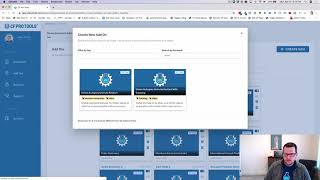
Jaime Smith demonstrates a Vimeo add-on (Vimeo Autoplay Unmute Restart with tracking) that combines autoplay/unmute/restart behavior with the ability to track video watch percentages and specific in-video events. He shows how to set up a ClickFunnels funnel (opt-in → thank-you video) and configure CF Pro Tools to map watch-percentage pages (10, 25, 50, 75, 95) and custom timed actions (seconds) to URLs so views fire automations (tags, lists, emails, SMS). The demo also covers the on-page overlay that clicks-to-unmute and restarts the video so viewers hear the hook and only then begin tracked viewing.
Chapters
Hey there, I'm Jamie Smith. In this video I want to show you a quick demonstration of an add on that I've got affectionately named the Vimeo Autoplay Unmute Restart with tracking add on. So we'll come up with a much, much better name for that. But it kind of explains exactly what it does. So it takes a combination of another add on called the Vimeo, the Vimeo Autoplay, Unmute, Restart, add on and it adds the ability to add tracking to it. So it's actually got this idea from a good friend of mine, Frank Kearney. Actually asked how we could track inside clickfunnels easily video view percentages as well as like calls to action, things like that at specific times in a video and actually track those things to be able to see statistics on those as well as tag and kind of automate things similar to what you do in other systems. But integrating those systems might be a little bit difficult with clickfunnel. So we made it easy and this is how it works. We've got a funnel here, just a basic opt in funnel. You could do this with all kinds of different funnels, but this one I've just a basic lead generation funnel. So we've got an opt in page and a thank you page. And on that thank you page we have a video. And that video could provide some sort of training. You know, this would be like your, your, your lead magnet type of funnel. So we've got a lead generation page and then we've got a thank you page that has our video on it. And the video could be a long training, could be, could be an offer, could be a vsl, could be all kinds of things. We've got a basic demo video on it, but what we want to be able to do is say hey, you know what I'd like to know when somebody reaches 10% view, 25% view, a 50% view. We could also track a 75% view and then a 95% view. Let's call this a hundred. Let's figure if somebody hits 95%, they probably watched 100%. You're never going to get a hundred percent accuracy when you're talking about 100% play rate because you know, seconds might be off by you know, a few here and there depending on the browser and it just, you know, can cause some issues. So we're going to track this as I actually as a 95% view. And then we also want to be able to say hey, did somebody see the offer on this page? So there's an offer. And I wanted to define when that offer comes in. And I want to see if they actually saw this. Now the cool piece is that this is actually tracking based on the video view itself, not how long they've been on the page. But did they actually see it in the video? Did they actually have the sound turned on so they could see it in the video? And actually the video was actually playing at that point of time. So that's kind of what we want to be able to do. So what we do is we set up a funnel like this and we've got our lead magnet, we've got our video page, and then we've got individual pages so that in the statistics for this we can actually see our view rates. And so I've just done a quick test on this and we can see, okay, we had a one unique view to our lead magnet. We had one opt in there. So we got a 100% opt in rate. Yay. And then we've got our thank you page, that's got a one unique view. But then we can also see, because I watched through this entire video, we got a 10% view, a 25% view, a 50% view, and somebody that saw the offer and 100% view. So the way that this works is we actually track views to each of these pages, but somebody doesn't actually have to land on the page. The page is going to get automatically included into the thank you page as they watch the video. So that's what allows us to do this tracking. And so the way this works is you set up your funnel like this and you install a pretty simple little add on from CF Pro Tools and you get this installed on your page and you just basically on your thank you page where your video is at, you tag your video and say, hey, this is my Vimeo video. This is where I want to track this stuff. And then you take the URLs for each of these things and you jump into CF Pro Tools and you go create a new add on. So we want to create a new add on. And we're going to call this, we're going to do a quick search. We're going to call this the Vimeo. There's actually two of these. One without the tracking and one with the tracking. So the with tracking version is the new one. And all we're going to do is we're going to put in the URLs for our watch percentage pages. You don't have to track all of them. You only want to worry about if somebody watch 10%, if they watch 75%, then you just put in the URLs for those two pages. So you just create your funnel to have a 10% and a 75% view. But you could create 10%, 25%, 50%. As we see here, we've got those options, 10, 25, 50, 75 and 95. Those are the watch percentages. So you can have URLs for each of those individual pages. You put them in here and the code will automatically track the view, track a view to those pages when that person reaches that point in the video. And then also you can add seconds, a specific watched action, say for like an I Saw offer. So you can put in how, at what point, what second in the video does that, Would you consider that action to have taken place? So if they, you know, call it Saw Offer, and that offer pops in at, you know, 324 seconds, you just put in 324 for the seconds watched. And then you grab the URL for that saw offer and you grab it from right here and you just grab that URL. You copy that and you go in here and just paste it in here. Now say you want to have a different action. You want to, you know, want to add another one. Not just Saw offer, but saw offer one, saw two saw, the Q&A saw, whatever. You can add as many of these as you want to. And that's how that works. So that's what this demo does, or I'm sorry, that's what this add on does. That's just a quick demo of what it does and it allows you to do cool things as well. Because now we can go in and say, okay, so I want to tag somebody if they've seen 10% of my video so that I can retarget them with an email sequence or I can send it off to another autoresponder, you know, or I can, you know, I can, you know, filter them out, I can provide them access to something. I can do whatever. We can go into our automations for that 10% view page. And in this automation I want to add a tag. So I just add a new action. I add say, you know, I'm going to add ad tag and then I'm going to say everyone, because we know who this person is because they opted in our lead magnet so we know who they are and we know they viewed this page because I saw 10% of the video and I want to add a tag. And then you just put in the name of your Tag, take just a second here, this load and then you know, say my new tag. And then you, you add that in and then now when that person views this page, now unfortunately, clickfunnels, we get this little weird bug that you gotta refresh the page to see it. But now that we someone sees this 10%, they watch 10% of the video, they'll get that tag added. You could also add them to a list. So we could, you know, say add to list again everyone, we're gonna add them to a list and you could just check your, you know, check your, you know, check the email list that you want to have them added to and it'll add them to that list. There's all kinds of options you could do. You could send them an email, you could send an SMS text message. If they've gotten 50% of the view on your page, you could send them a text message that says, hey, I hope you're liking the video. Make sure you pay attention, you know, make sure you pay attention to all the way to the end so you can see the special offer. There's all kinds of cool things you could do here. And then you can also from here if you want to add them to a list and add tag, then you can attach that list to a follow up funnel. You could do all kinds of cool things with this. So this really gives you just a ton of flexibility. So that's what this add on is all about. It's about giving you the ability to have a super cool video page. And just if you haven't seen the video page, let's just take a quick look and see what that looks like. So you get some cool features that come with that. Not only the tracking but we get to actually see the video here. And it actually looks like I've got this disabled. So give me just one quick second. Okay. And we're back. So I sorted out the issue. The issue was that I had this page saved and it was pointing to my development server which is turned off. And so the add on won't run obviously because it wasn't turned on. So I repointed the page to the right server, to the production server and now everything's working. So this is kind of what you get. We're just going to reload this page just so you can kind of see this real quick. So it loads the page and when it loads you get this nice little overlay over your video that has a nice little animated click to turn on sound, does a little pulse. It's got a Nice little play button. And then when you click to play, you'll notice the motion is playing in the background, but there's no sound playing. And because we've got it muted, it allows the motion to play. Your browser will allow for that, but it catches people's attention. And hopefully, especially if you have captions at the bottom so they can see what words are there, it's going to hopefully hook people in to actually want to click Play. And when they click Play, it actually goes back to the beginning of the video. So that's one cool piece of this. And then the sound will play. And then we're going to go ahead and turn the sound off. But the sound is playing. You can probably hear it just barely in the background. So we got a little bit of sound going. And then what happens is that it actually will fire events along the way. So it's tracking as people are watching the video. And so from there they can pause, play, do all the sorts of things. Whatever options you have turned on in Vimeo, they'll be able to do. So that's how that works. So you get the nice little overlay. Again, it kind of looks like this. When we refresh this page, they get the overlay that has the play button, has the click to turn on sound. The key being that when they click it, it actually restarts the video back at the beginning. So don't lose the most important part of your video, which is the hook at the beginning, so they get to hear that. So that's kind of one of the keys for this. And then we add in the layer on top of that, the ability to track how long they watch the video and fire off action so that you can do things like tags and send autoresponders and messages and emails and text messages, things like that. When they hit certain percentage watch or when they hit specific points in the video and they actually have to be watching. So you could sit and let this video run and play in the background right now with no sound on. But nothing's going to happen. It's not until they click this box, excuse me, this big old play button. And it starts back at the beginning with the sound turned on, does it actually start to track it as a watch percentage. So that's kind of the key. And I hope this all makes sense. I hope you like this add on and I hope you install a version for yourself and you put it to good use. Thanks so much. We'll talk soon.










