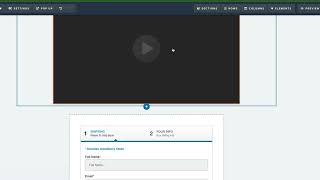
A short how-to tutorial (YouTube video) by Jaime Smith demonstrating how to install and configure the “YT autoplay unmute restart” add-on in CF Pro Tools and how to apply it to a ClickFunnels page (including brief notes about CF 2.0 compatibility). The walkthrough covers prerequisites (add your live domain, be a VIP member), creating the add-on in CF Pro Tools, copying the generated script into site footer tracking code, adding a YouTube video element to a page, specific video element settings, applying a CSS title (CF YT video), and previewing the page.
Questions this video answers
Jaime Smith.
July 25, 2022.
"YT autoplay unmute restart" (referred to as YT autoplay unmute restart video).
A paid VIP member of CF Pro Tools (VIP club add on).
CF YT video.
Chapters
Okay, so the first thing I'm going to have you guys do is go to your CF Pro Tools account. So just like with any other add ons, the first thing you're going to do is make sure that you've added your domain name to your domains tab. If you don't add your live domain to the domains tab, this will not work. None of your add ons will work to include this one. And that's going to be your first step, your first, first line of action there. So the next thing you're going to do once you've added that new domain to your account, for any new domains, click Add ons and then we're going to go over to create new over here on the right side and we're going to search for the YouTube, probably be the only one because we don't have any other ones that pop up. But if you type in YouTube it'll be the YT autoplay unmute restart video here. This is a VIP club add on. So you do need to be a paid VIP member of CF Pro Tools. So if you click on that, what you'll do is just give it a name. So once you set this up one time, you can use this one add on script numerous times on any video or any web pages, any funnels that you have where you are using a YouTube, a YouTube video. Now this will probably only work with one video on your page. Just like the Vimeo. You would only want to use it with one video and otherwise it could create some, some unwanted behavior. So let's create. We'll click Create add on. I've already set this up so let's go back to my add ons. I'll show you what it would look like after you've set this up. So you've got a YT autoplay. I set this up a little bit ago and it'll generate a code for you in which you would want to click the blue copy code. And you're going to take that out and you're going to take it over to your page where you have a video set up. Let's go check this out. So the first thing you're going to do is set up a video on your page. It's just a video element. So if you click add new element and you scroll down here and you will find the video element, you can add that to your page. You can set that up however you want. I'm just going to delete this one here. Click OK and I'll show you what the settings look like over here. So you have the video YouTube, the video YouTube URL. So you're going to grab that from YouTube. Make sure that the video type is selected is set to YouTube there of course set your autoplay to on. Controls to off. Your brandings are going to be set to off. Your your block pause is set to no. Your unmute label can be set to no. If you wish to set the width, you can go into your advanced settings and set this at half width, three quarter width or full width. I've got mine set at three quarter. Okay, so once you've done all this, there's only one other thing that you need to do. Make sure that the video works. Of course we're going to come down here to the hashtag where we're going to add in a CSS title. Alright? And that CSS title is going to be CF YT video. Once you set that on your video element, you're going to click update. And that is. That's actually it. That's all you have to do. And one more thing I almost forgot. So that code that you picked up while you were back here, remember we copied this out. Make sure that you go to your settings, go to your tracking code. Make sure you go to your footer code. So you always want to make sure to come over here to the footer code tab and put this add on in there. This one just happens to be right up at the top here. YT autoplay, unmute, restart and make sure to paste that in. You should be good wherever that is in the lineup. But I would keep that one towards the top. Alright, so that is all there is to it. Once you've done this part, of course, click the X, click save and you are ready to preview your page. So let's put this into perspective. This is a CF 1.0 add on, but this is one of the first add ons that we can that we can use that will work with ClickFunnels 2.0. How cool is that? I'm not going to have any video instructions on that for right now, but I will put written instructions on how to set that up. It's just an attribute that you need to set and I will set that up in the written instructions so you can see how to make this work with your CF 2.0 account should you have one. Okay, hope this helps. Hope you guys do great things with this add on and I'll see you guys in another video. Take care.