2019 Summit Presentation: Creating Your Reporting Cadence
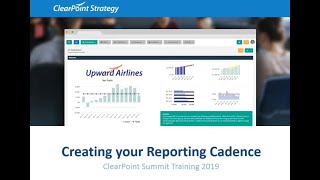
Joseph and Pierre from Clearpoint show how to build a reporting process that works for different audiences. They cover automating data loading, setting up a reporting calendar, and using notifications to keep everyone on track.
Hello, everyone. Welcome to creating your reporting cadence. Today we want to focus on creating an official process around your reporting and then leveraging some killer features clearpoint provides to help you put your process on autopilot. Then you can do other things with all that extra time you'll be saving. Just so you know us, meet your trainers.
Hello. I'm Pierre. I'm an associate consultant here at clearpoint.
And I'm Joseph and I'm the director of Customer success. So today we'll be covering several different things.
First, we're going to go into reports for different audiences and how you can create different reports depending on who needs to see them.
Great. And then we're going to focus on your reporting calendar. So every month there's certain things you need to get done by certain dates. Want to make sure we have all that solidified into a repeatable process you can do each month or each quarter.
And then we're going to show you how to leverage scheduling so the certain things that need to get done in the reporting calendar are facilitated and made as easy as possible for you.
And then we'll actually get into those brass tacks of running your meetings and ideally, leveraging clearpoint to run those meetings.
And finally, we'll discuss notifications, which is a way to complement your reporting process and make sure that you're aware of everything you need to know.
Perfect. So that's enough housekeeping. Pierre, let's ride.
Awesome. So we know that while we have a lot of information that we want to show, we know that one size doesn't fit all when it comes to reports. You know that we can use different reports organized through different scorecards to show the correct audiences the right information. So over here on our first report, we have what we call a leadership dashboard. This is something that's ideal for your executives and the leaders of your organization. Over here on the top, we have pie chart, which shows you a snapshot of how all your projects are going on throughout your entire organization. It's great for a quick pulse check of how everything is going. A little bit below, we have our quantitative performance. And what we see here is the most important measures from each department post out into one report that the executives can review at a glance. You can see in this report, not only do you see who is accountable, you also have a trend to see how things have been performing over time. So an executive can look at this report and be like, hey, our vaccination rate is trending down. This is something we need to do. And the target is also listed for context, moving down the corporate ladder a little bit, we can actually also go into our crime rate per 1,000 residents. So this is a great example. If a leadership wanted to know a little bit more about a measure and wanted to see what's going on, a little bit more detail than the initial report provides. Fortunately, with clearpoint, these reports are interactive and you can click into it, drill down and see what's going on. So at this level, you could see that you have an organizational measure. It's a top level measure, but now you also have some qualitative information, a chart to just to give a little bit of idea and scope of what's really going on with this one particular measure. Taking a step down, we have another report that is ideal for departmental managers. Over here, this is what we call a departmental report. And you can see that not only does it have the same information as the executive level report, it has a little bit more, because now a departmental manager would be a little bit more interested and invested in the more finer details. So not only do we have the quantitative info as well, but now we have the qualitative as well. Well, along with some chart information, you still also possess the same drill down capability. If a department manager wanted to know what's going on, you could still click into the report. It's highly interactive and again, you're brought to even more information. What's going on? We scroll down, we can see there's even a data table if you want to get into the raw data and performance behind it. Still, reports are really varied and we can even go one step down further. Over here we have what we call our individual staff report. And so this is great because this is a filtered report based on an individual staff member. This is someone you can meet with on your team to see how their projects are going. So over here you could see that the projects are pulled out along with a quick status, some analysis and recommendations. What's really cool about a report like this is because it gives you a lot of benefits. For example, one of them is transparency. You and your team can be on the same page about what's going on. It's going to minimize confusion if you're all looking at the same thing. Next is that you can evaluate what your employees need. Their success is your success. So making sure that you have the right resources for them to be successful is crucial. And then of course, tracking progress. You want to make sure that your team is making positive work on their projects and having a rapport that pulls in fields like complete targeted end date and be able to mark them as completed in real time are all great features that clearpoint provides. So why are reports for different audiences important? Well, they're important because different people have different needs and we need to be able to adapt to them all. Putting the right information in front of the right people is going to lead to better decisions and outcomes. And then with standardization, with our different report types, we can roll these report types out across the entire organization. It's going to make it easier to manage at the administrative and organizational level. You're going to have confidence that everyone's looking at the right context and it's reproducible. You can repeat this process at scale and over time with no difficulty. After Joseph teaches us a little bit more about our reporting calendar, we'll show you functionalities of clearpoint that make this process even easier.
Awesome. That's fantastic. Thanks, Pierre. So we're going to jump back into our reporting process here. Here we have it, right? You have your reporting calendar, and in this calendar, there's so many things that have to happen within a month. And it doesn't really matter if you're reporting monthly or quarterly, you're still going to find yourself having a short period of time, usually about a month in duration, where you need to turn around all the data to produce your reports. So within this month, you have things like due dates, data, review periods, where you're checking for accuracy, report generation and creation. Right? You have to actually make the reports that are going to be utilized. You have various meeting dates that have to happen potentially with various audiences. And then you're going to also be sending out a reminder email. And then depending on your users, you might send out more reminder emails. And on top of that, you might send out even more reminder emails. So this slide, of course, is looking a little chaotic. And we know sometimes that's how reporting can feel, but it doesn't have to necessarily be that way. In fact, we want to move you from a state that looks something like this to a state that looks something like this. And when you look at it, you know, it's so relaxing and soothing. There's really pretty colors. It's so, so nice, right? So going from something like this to this is a really nice transition. Now, on this calendar, you can see that on this example, the first of the month, we're sending out that first reminder and it's color coded with the table below. On the third, we send out our second reminder, just nudging the folks who haven't quite made their up to dates yet and letting them know that the due date is coming up on Friday the 5th, as you can see here. Then we have the system available to us to review our data for several days and then we create a report that we send out as a read ahead document. And then on the 16th, it's game day, right? It's our meeting. And then shortly after we have our action items and meeting minutes that we follow up on and circulate. So creating a repetition like this really helps to get people comfortable and also sets expectations while encouraging transparency. So we want to get you to a place like this. Now the other thing you want to think about is who's responsible for every part of this process, right? So ambiguity of who is in charge made for a really great 1980s and early 90s television show with who's the Boss? But it does not make for great performance management or strategy execution. So for these various components that we highlighted on our previous slide and the things we're trying to get accomplished each month so we can effectively report who's in charge or put another way, who's the boss. And it shouldn't just be an office or a department, but a specific person. If it's going to, if it's going to be a team that's working on this, make sure the team has a defined leader where the buck stops. This will prevent items from slipping through the cracks or not being completed and hearing excuses like, oh, I thought Jay was going to do that. It's best to have one person responsible for these tasks and also make sure that you don't forget that you have your objective measure and initiative owners who are all part of this process as well. So you know who's responsible for updating each element. And just a reminder, you know, creating that repetition of who's responsible and who does certain tasks, it sets those expectations and gets people comfortable. So you want to keep this management group, you know, pretty tight. Now a lot of these items that have to be accomplished, they likely either fall on you or someone in your office and you already have enough going on. So a clearpoint we want to help you take time, take some of that time back and take some of the administrative burden off you to allow clearpoint to put some pieces of your reporting cadence on Autopilot. So all of these pieces here, where we can see these magic wands coming out are things that can now be automated in clearpoint. So it's super exciting. And the thing to think about is that this doesn't even include what you can do with automating data loading, which Pierre will tell us about in a little bit. So these magic wands, this is a pretty magical process, but it's not magic, it's clear. Clearpoint. So let's have Pierre begin walking us through this transformation and dare I say, magical transformation. Yes, I think I dare say that. So we have a blank reporting calendar here without the wands that we'll be referencing as we walk you through these various components, just to kind of help you stay oriented as to where we're at in the reporting calendar. Pierre, take it away.
Thank you, Joseph. This is one of my favorite parts of clearpoint because this is one of those great features that's going to make your day easier and simplify what you have to need. Scheduling is set it and forget it. The return on investment is quick and massive. We're going to cover five things you can schedule in clearpoint, the data loader reminders, period, locking briefing books and HTML exports. We'll touch on how to do them, their use cases and how they fit into your reporting calendar. So first up is the data loader, which I will show you right here in clearpoint. One of the most exciting things, it's extremely helpful for uploading your quantitative information. In clearpoint, it can pull from Excel and other ERP software your organization already uses. Once the data is in, calculations and evaluations, setting the status run automatically, all without you having to click a button. Everything is scheduled and automatic. From there, your reminders can go out to your team to make their written qualitative updates. When they log in, all the preliminary information will be there and calculated accurately. So all your updaters have to do is write a few sentences and be on their way. This brings us to reminders. One of the easiest things in clearpoint to schedule. From our different calls and trainings and check ins with our users, we know that a lot of them can struggle with getting their data enterers to make their updates. And when these data enters finally do. Making them on time could be its own battle. Reminders are going to help you with that. Rather than you writing out a custom email about what your staff needs to update and when they need to do it. Clearpoint will send out the right email to the right people at the right time, with links in the description of exactly what they personally need to update. So let's build our first reminder together. We click on the add button up here. And now we're brought to the reminder template. So first we want to give the reminder a name. Next we can craft the email itself. What's great about clearpoint is it gives you full customization over crafting the email and it also does a lot of the heavy lifting for you. So it's actually going to pull in the name of your user. You don't have to type out multiple templates. You can customize whatever you have in the body of the email. This item list over here is actually going to be direct links to where your staff needs to make their updates. So there'll be no confusion about where they have to go or getting lost. For your recipients, you can decide to send to element owners, the people who are responsible and accountable for your different measures and objectives and items you have in clearpoint. And then one of the best parts is that you can schedule this all. And setting a schedule is very easy. We're going to schedule this with respect to our reporting calendar. And so when we click on the add button at the top, we can name this schedule and we can set this to run on the first of the month right when they get in the office. And so just like that, we can hit save and we'll see that the scheduled reminder is set to go out on July 1st. What's even my opinion, even great about reminders is that they can actually work together. So you have your first reminder out, but you know that not everyone who's going, not everyone's going to listen and pay mine to the first reminder. So you can actually send out a second reminder that's going to assess who actually made their updates and and then send out another reminder to those who didn't. This will save you confused emails from staff members who thought they already made their updates and are confused about the dumber email. And it will also help your staffers who haven't yet made their updates know that this is still expected of them. So let's go through how that works. Just like before we click on the add button, we can name this one second reminder and again we have full customization abilities so we can stress the urgency of these updates. And again it's going to pull in the appropriate name and links for us. And under status we can actually say, hey, if you haven't done your information and put in information, that's how the reminder is going to know that these people still have outstanding items. And just like before, we can schedule it as well. And we'll schedule with respect to our reporting calendar, super simple. Again, bright and early in the morning. And this time it's going to go out on the third of the month just to make sure that they have some time before the due date. So both reminders can go out on a schedule according to your calendar, without you ever having to log in or press send. Continuing with our reporting calendar, Joseph will show us how auto period blocking works with our established due date.
Ah, fantastic. Thanks, Pierre. And I love those reminders as well. They're super useful. So for those of you keeping track so far, Pierre has shown us how we can have our data loader run on the 1st of the month, have a reminder go out on that day as well, have another reminder go out on the 3rd of the month, and then now we're coming to our due date. So with that, there's a few things that we're able to do. So let's go under system settings, reporting periods. And here we have all the periods that are in the system. So you have the ability to lock a period. And there are a few benefits to this. Obviously, first and foremost, it prevents anyone from changing past data. So there's an added layer of data security. And it also helps to enforce our reporting calendar and timeline because we can tell our users the information must be in by a certain date, otherwise they'll be locked out. So if we want to lock a period, we can simply go to the period that we want to lock, click into that period and click locked period. So now that period is locked across the entire account. However, that's not very magical, right? So who wants to be locking this period at midnight or something? Not me. And we're going for Walt Disney level magic here. Okay, people, so let me unlock that period and we can jump over to this auto period locking here. On this tab, we're able to choose a date, we'll choose the fifth like we're doing in our reporting calendar, and then this is when the period will lock. So for us, what we want to think about is exactly when that period will be locking and the way clearpoint handles this. So in our calendar, we say that we want the 5th to be our date. However, what I've done here is made a common error because in a clearpoint world, what happens is you need to set the period to lock on actually the next day. And the reason for this is that clearpoint locks the period at midnight on the date selected. So in this example, the scorecards will lock at midnight on July 6th. If you wanted the period to remain unlocked all the way through the 5th, which, for our example, that's what I would prefer, then you'd like, you need to use July 6, because as soon as that clock moves from 11:59pm on the 5th to midnight on the 6th. That's when the period will actually lock. Now, one thing you might have noticed is that you can also do this by scorecard. You might have some scorecards that are related to your strategy, while other scorecards are more closely related to your operations. You also might have some corporate scorecards and some departmental scorecards. In this case, perhaps I would like to have all of my staff continue working on their department metrics, but I would like to lock down Metropolis Performs since that's where we do our strategy. So I can have the period lock just in this Metropolis Performs scorecard and then remain unlocked in all of my departments so they can continue their work. If these departments have other dates where information is due, then we can work with them to set dates that their scorecards that this period will lock in their scorecards for them. So I'll hit save. And now that's all set. That's one less thing I need to worry about. So now that our periods are locked, it means it's time to review our data. You could do it in clearpoint, of course, by clicking around and checking everything out, but you could also have it served up to you via a scheduled briefing book. So let's check out that magic. So here under briefing books, we have this Metropolis Performs briefing book template. So if I click into it, you'll see we've selected several things that are going to be included in this final report. So for us with our data review periods, we're looking at something that begins here on the 8th, right? So our period has been locked. It was open all day the fifth, it locked at the end of the fifth. And now on the eighth, we have three days to review information before the report is generated and distributed to people as a read ahead. Now, in order to account for that, we can have a briefing book that runs and is sent to us on that Monday morning. So let's go to schedules. And as you probably noticed when Pierre was setting up these schedules for reminder emails, these schedules work very similar to creating a recurring outlook meeting. So for this schedule name, let's just call it Briefing Book Review. I'd like it to come in to me nice and early in the morning, so it's there when I come in. And we can have this set to be the eighth day of the month. And I like this all to begin running starting July 1st. So hit save. And now that is all set. And I can also choose on the recipients tab who I want this to go to. So in this Situation, I want it to come to me and I also want it to go to Pierre. So I have that set. I'll hit save. And now we can see how this is scheduled to run. And what's going to happen is that this briefing book will be sent to Pierre and I on the morning of the 8th. We'll have time to review that report, make any corrections or changes in Clearport. If something looks off. And we have that served up to us very nicely. Now for the final report, one thing we can do is actually just duplicate this Metropolis Performs report. Then we can go into edit it and call this final. So it's going to have all the exact same content. And for our schedule here, we want to jump back to what we were looking at before, where the report will be distributed on the 11th. So for us, let's set up that schedule to be called Briefing Book Distribution. And maybe to be more clear, we'll even call it Final Briefing Book Distribution. We'll have that also go out early in the morning so it greets everybody. We'll have the first day that this schedule begins start on the first, and then if we don't specify an end date, this will just continue until we either disable the schedule or change the schedule, or we can delete the schedule so it'll Repeat monthly every one month. And then this will be on the 11th day of the month. Now, since we're going to use this as a Read Ahead document, we can also add additional recipients. So whoever needs to receive this Read Ahead document we're able to include. And then they will receive this briefing book as well, right in their inbox when it runs. It's a really cool process. Now just to recap what's going to happen here is the Metropolis Performs Briefing Book is going to run on this schedule on the 8th of the month and come to Pierre and I. We're going to review that document to make sure it looks good, make sure the information is correct. And if we're happy with it, we don't have to do anything else. We can just sit back and wait. And then this final briefing book, which will be an exact copy of the draft that is sent to Pierre and I, will run and automatically be distributed to the people we choose. If something doesn't quite look right in this Metropolis Performs briefing book that Pierre and I receive on the 8th, then we can go into Clearpoint, make any changes that are necessary to. We have three days to make those changes and connect with any departments if we need supplemental information. If we get To a point where we're not quite there yet. By the third day, we can always disable this schedule so it doesn't go out and then enable it again once we're all set. And even with schedules set, we're always still able to click run briefing book manually and send it to additional folks. So it's a really, really great feature. So with all these schedules that have been set, let's go ahead and dive into admin options. I go to admin options and go under schedules. This will show us all of the schedules that we have set up to run in Clearpoint. So that way if anything changes here, we can up in our cadence, we can update all our schedules in one stop. And if we need to disable any schedules, we can do it from here as well, instead of needing to go into that particular template. So it's really powerful. And how much time in the course of a year would this save you? There's no doubt that over the course of a year, it'll save you hours upon hours. And that is Walt Disney level magic right there. And that's what we're going for. So now we've come to a place where it's really time for us to discuss our actual meetings. So let's jump over and dive into some meeting management discussions. And Pierre, this is all you've done.
Thank you, Joseph. So we are doing a fantastic job of going through our reporting calendar. We've had a data loader run, we've had a reminders go out, we've had a due date come and go with no problem. We reviewed the information, we sent out the final report and now we're looking forward to the meeting. So I'm going to go out on a limb here and bet that you guys have all been through a meeting, which means that you know that not all meetings are created equal. What we have here for you is a four point plan that's going to guide you on how to have efficient and valuable meetings. The first part is setting the meeting. And so what we want you to do is think about your meeting process holistically. How often do you need to meet, who needs to attend, what will you discuss, and what's the goal? We have one client who schedules all their strategy and performance review meetings for the year all at once. This leads to great attendance at their meetings since people schedule their other commitments, such as work trips and vacations, around these meetings because they've known about them for so long. And when you're scheduling your meetings, your meeting time should gel with your reporting cadence. After all, you want to have something recent and relevant to talk about. You can only talk about the weather and weekend for so long, so you really want a current and accurate report to go with each of these meetings. This brings us to part two, meeting preparation. So you want to send out the report you'll cover in advance. That's the Metropolis Performance Forms report that Joseph helped us schedule. This way, everyone's prepared to discuss when they come to the meeting. You want to avoid people spending time in the meeting playing catch up instead of ready to contribute to the conversation. You also want to have an agenda. Send this to the attendees as well. This will keep you on time so the meeting doesn't spiral into unstructured tangents. We understand that sometimes important things come up in a meeting, and so we recommend setting time later on to give these matters the time it deserves. It's difficult to get everyone in the same room as it is, and so you really want to make sure that you're dedicating this valuable meeting time to the goals of the meeting and the topics on the agenda. You also want to develop a click path. A click path is a set of sequential instructions of what to present on a screen. This should complement agenda. The agenda is what everyone sees, but the meeting driver should be the only one with the click path. And then, of course, you absolutely want to define roles. You want to know who's leading the meeting, who's taking notes, and who's capturing action items. You want to have your roles established in advance so the meeting starts as smoothly as possible. You really want to make sure that the beginning of your meetings are getting off to a quick and easy start. People are informed. They know what we're talking about. They're there. Attendance is high, and you have a click path and roles ready to go to drive the meeting towards success. This covers all the prep work for the meeting. So now Joseph can show us how to handle the actual meeting and the next steps.
Exactly. So now it's game time, right? So we really recommend that you drive through the meeting using clearpoint. It puts all the information at your fingertips in case you need it to advance your discussion and with your audience. You can drill down for more information as appropriate, Tying back to some of Pierre's examples when we started together today. You can see some reports for different audiences, so ensure that you have some really great summary reports to share during your meeting. And as we've mentioned several times, keep that click path really tight. And how is your notetaker doing? You're going to want to ensure we have high quality notes that we can leverage after the meeting. Another recommendation is to capture action items as you go. So when you do that, you can wrap up each meeting by going over the action items to make sure everyone is aligned and you can recap any decisions made. Well, how does this all look in clearpoint? I'm glad you asked on screen or having a second person with a laptop actually might be best. So that way you can have your note taker doing this while the primary meeting driver can focus on navigating navigating clearpoint, it will not slow you down. So when you're on a particular element in clearpoint and discussing it during your meeting, your note taker or another designated person who is not driving the meeting can capture an action item. So here, if we're looking at our revenue measure and chatting about it on the field, for action items, when something comes up, we can simply double click hit add and we need an action item to form a committee to analyze revenue sources. Great. So for our end date, let's make sure that we have this completed, oh, by the end of the month or so and then we can click save and this action item has been added so it neatly and quickly ties to the element that it's on. Another example is here if I go under initiatives, because you can do this for all of your different element types, you can see that we have an action item that was added and tied to this initiative but has since been complete. Finally, for the end of the meeting, you're able to show your current action items that are in progress and you can create this summary report to show the information that's important to you. So here we've chosen to show the action item, the owner, any comments that are going on so we can keep track of what's happening and we can see the end dates. Now for our action that we added, let's make sure that we have an owner and someone who's in charge. So that way we know who to relate to and who to contact if we have any questions about it. So we could add it from the summary report or we also can drill down because these action items have detail pages of their own that we can go ahead and track information around. So here we'll go ahead and let's put Ted in charge. He'll be pretty good at this. So there. Now all that is saved. And on my action item report, we can see everyone who's responsible for these action items. So this is a really useful way to keep track of things and make sure nothing slips to the cracks. Heading back to our meeting management page. Now we're getting to the point where it's after the meeting. And as everyone knows, the process certainly does not end when the meeting is over. So at this point, we'll be working to distribute all of our notes from the meeting. And then the fun part begins, actually doing and executing your strategy. So we can use the action item report to drive performance and make sure that no tasks are being left undone. And it can be awesome in clearpoint and magical. And we have two approaches that can help create some magic. One is that we could send out with a scheduled briefing book, A recap of all the action items that are open. Another could be to send out the automatically after the meeting, a reminder email that captures the action items and goes to the people who are in charge of them. And of course, you could always do both. But let's look at how these could work in practice. So if we were going to go the route of sending out a briefing book, we go under documents and go to briefing books. Here we can add a new briefing book template that maybe we just call the action item report. Under Metropolis performs, we'll go to action items. We'll choose that current action items summary report. And we'll choose to include linked pages. By including linked pages, that'll ensure that every action item that appears on that appears on that summary report. We'll also have their detail page appear in this report. Now if I head to schedules, this is where we can set up that schedule. Now if we're still looking at our overall reporting calendar, which we should be, we know that now we've been brought through gameday. We're just focusing on that for the last several minutes. And we're looking at what things are going to work in terms of following up after the meeting. So for us, we can have this run and have it start on July 1st. Our schedule name will be action item distribution. We'll have it also run nice and early in the morning so people are greeted by it when they come in. We'll have it run monthly. And for this, let's do the third Thursday of the month. So I have that set up. It's set to ready to go. And then under recipients, I can choose whoever I think I need this to go to. So it could be the people who are responsible for action items. It also could be leadership, if you want leadership to have a report of where these all stand. But I can set this and determine that. And now that is all Set, it's going to run on a schedule and we'll get that recap after the meeting of action items that are on that report and open. Now, the other way that you can do it, and again, I might recommend even doing it both ways because they can serve different purposes, is to use a reminder email. So if I go under notifications and send reminders, we can see the reminders that Pierre created earlier to let people know it's time to update their elements. I'm going to create another reminder that I'll just call action item reminder for my subject line. Call this action item follow up and then I can craft my message however I'd like. Now, the key here is keeping in this item list bracketed text, because this will pull in a hyperlinked list of each thing that that person is responsible for inside of clearpoint. So under scorecards I can choose which scorecards I want to pull from Here I'll just pull from all of them. And then under elements I can check action item. So now this will only go out to people about action items under schedules. Let's create a schedule here. And we could have this run. Call this action item recap reminder. We could have this run again. I like that. First thing in the morning. So it's there when people come into the office. We'll have it start on July 1st. We won't have an end date, but this is where we could also have these action items provide maybe weekly reminders. So each Monday morning when someone comes in, they'll receive, if they have an open action item, they'll receive a reminder that action item is open and they needed to work to get that action item completed. You don't want to bother them weekly. Of course, you can always change how often this happens and maybe do it fortnightly. So every two weeks, just to take a little bit of pressure off folks, it's totally up to you. So I'll hit save. I have that set save. And now that is all set as well. Now, different departments can run their own meetings too, which again ties back to having different reports for different audiences. And they're able to, with your help, they're able to create these schedules as well for what they need. Now, one common thing we see people doing is using the HTML export feature in clearpoint to share information either internally on like an intranet or or externally to customers or citizens, depending on your sector. So we can also set these up to run on a schedule. And usually people would like to have these sort of be the very last piece that goes out. So here I have a Metropolis Performs HTML export template. I go into edit it. Remember, it's very much like a briefing book and I can see the content that we're sharing now. Before I'd have to go ahead and come in here and manually run it. Now I can just set it on a schedule for me here. Let's call this HTML report. I don't want it to start running until we get to July again. I'd like it to be actually even earlier in the morning. Wanted to run monthly. And for this let's do the fourth Friday of the month. So that way it's really at the end of the month. Once we've had all of our meetings and everything has been discussed, we're sure that things look good. This will publish that new content out externally or internally and be shared with a larger group. I'll go ahead and hit save. And now this is all set. And you see that schedule is ready to go. So this is really, really huge. For security purposes only administrators can publish something. But if you have a scorecard, admin, or someone who's in charge of a particular department that wants to publish these before, the administrator would have to go in and do it. But now you can just schedule it for the appropriate interval and you're all set, you know. And the other thing you can do as well is similar with the briefing books, we can choose who's notified when this runs. So we can have various department heads, people in leadership, or even just the analysts who are responsible for this be notified and receive the link once this runs. So that's a lot of great content to cover. And we've given you a ton of information on meeting management and we've brought you through now this entire reporting cadence, which is really exciting. So what I'd like to do is head back here to our media management page and we have all this content here as a recap. We also have a ton of information on meeting management that appears on our blog. And we actually even have an entire ebook all about this. And you can get this on our website as well or by just contacting us. We'll be glad to send it to you. And it's the one that has Teddy Roosevelt and the Rough Riders on it because, boy, Teddy Roosevelt, that guy. That guy really knew how to run meetings. So now I'm going to turn it back to Pierre so he can tell us a little bit about notifications and how those might fit into your reporting process.
Thanks, Joseph. So we did it. We started with Dataloaders to the game day of the meeting, to the post meeting, follow up. We got it all done through clearpoint. It's so exciting. What more could be done? Of course, there's always more that could be done. Clearpoint. And so what we have here is notifications. And so notifications aren't necessarily a part of your reporting cadence, but they're a feature that can complement it really well. So we're going to share with you some of the best ways to leverage notifications. But first, what is a notification? The best way to understand what a notification is is to explain how they're different than reminders. Reminders are proactive, whereas notifications are reactive. Reminders are saying, hey, go do something that thing hasn't happened yet, typically updates or the action item, whereas notifications are saying, hey, something happened, go see what it is. And so notifications are great for certain aspects and things that need your attention more quickly and can't wait for review at the meeting. I'll share with you two of the most popular notifications we've seen from our most successful clients and we'll actually build them together so you can see how easy it is. So the first one we're going to create is what we call a red alert status. And so what this will do is that it will notify me or whoever I want whenever the status turns to red or below. Plan. Next we go into elements and recipients and we can decide which measures should it notify me on and then of course who to notify. And just like that, if either of these two measures status is turned to red, I will be notified through clearpoint and, and via email if I want. Another great notification we see is around due dates. This one's a little bit more project focused so we can actually set a notification to alert us when something is coming. So we'll go to Initiatives and we can use several of these fields below to help us out. We could say if the project is not yet marked as complete and the end date is 30 days out, let us know. And so we can go to elementor recipient and we can go to the projects working on. And this is a great feature because not only can you add multiple projects, you can also have multiple people be notified. So if I need to be notified or anyone else, that is something that is very possible through clearpoint. And so this is a great way just to be ahead of the curve. So there are no unsurprising, no unpleasant surprises at the meeting. We can react to something quicker and more effectively through Clearpoint Joseph will show us some other cool notification abilities that we can.
Yeah, definitely. So one thing that there's obviously a lot of options here that you can see, right? But one I really like and wanted to share with you all has to do with changing end dates. So end dates are like your project due dates in a way and sometimes they need to be changed. However, if they're going to be changed, I want to know about that. So let me show you how I'd structure a notification like that. So I'm going to click on the plus sign here to add a notification and I will call it End Date Changes. Now the element type is going to be Initiative, but notice how I could do this with any milestones or action items as well. So I choose Initiative and then I'll go to check End date and I just want to be notified on any change. So if anything happens to it, I'm going to be told about that. So then under Elements and Recipients I can select any of these initiatives that I want to be told about if something changes with the end date. And then I can just simply assign myself so I get notified if the end date of any one of these changes hit save. And now that's added. Just perfect. So a great thing about being an administrator in clearpoint and creating these notifications is that these notifications are considered templates. So I have control over them and I can force these on people. But my users can also get notifications and utilize these as well. So let's jump over into our City Restaurant Audits initiative and we can see here that our friend Laura Chandler is in charge of this initiative and she's doing a pretty good job. It's going okay. Now if Laura wants to add a notification about this, she can do it in this way. You can go to edit the initiative overall and then you can go under Notifications. We have that tab here and she can click on the plus sign. Now here you can see that she can create her own notification on this and set it to any change, any edit, any update, or do something custom. But what she can also do is use a predefined template. So in here we can see the two initiative based notifications we've created. And maybe she likes the one that I created with end date changes. Now just in case somebody isn't labeling these in a super clear manner, by choosing it, Laura can see what exactly has been set up to make sure this is in fact something she wants to be notified about. And if it is, she can simply create save, hit save and see how she's linked now this particular initiative to that notification and she'll be notified if there's an end date change on it. It's really, really pretty cool. Wow. All this has been so incredibly magical. We have a lot of help documentation in our support center that walks you through everything that we've showed you. And as we mentioned, more information about Meeting management and everything that we covered can be found on our blog. And we have that Meeting Management ebook as well. Just remember Teddy Roosevelt and the Rough Riders and how effective he was at executing the strategy.
So true. Joseph. I think one of the coolest things is that if you look at everything we have set up in Clearpoint, all of it took under an hour, all while presenting. Think about the reminders, the schedules and notifications in your account that you can set up in such a short amount of time. Save yourself countless hours down the road.
That's so true. It really will save you a ton of time and not take you very long to get set up and off and running. If you have any questions, we're here to support you and all this is Walt Disney level magic right there.
More from Ted



AI in Local Government: How the City of Durham Analyzes Strategy, Risk & Performance

How Coral Springs Won the Baldrige Award — Blueprint for City Excellence | ClearPoint Strategy


AI, Data, & the End of Gut-Feel Strategy: Why Strategy is Becoming More Data Driven
Strategy Needs Accountability: How to Drive Project Follow-Through and Execution