ClearPoint 11 is Coming Your Way! (Webinar 29)
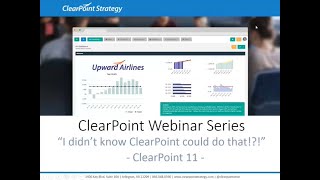
Kathryn and Joseph walk through ClearPoint 11's new features: a redesigned navigation system, a Recycle Bin for deleted items, upgraded summary reports, an improved strategy map editor, and a new notification system. The webinar ends with a Q&A.
Hello everyone and welcome to the I Didn't Know clearpoint Could do that Webinar series. Today we are introducing a shiny new version of Clearpoint, Clearpoint 11. If you could smell this release, it would be a brand new car, leaves turning in the fall, and a pie out of the oven all in one. That is to say, lots of fresh and exciting new features are coming your way. Before we get started, here are your smiling hosts. I'm Kathryn and back joining me today is the Michael Jordan of clearpoint Webinars.
Yep, it's me, Joseph. I'm back on the webinars for now.
So as a View House PTV announcements, we will be recording this session and we'll make it available within a week. The webinar will last about 25 minutes with time for questions at the end, so you can submit your questions to supportlearpointstrategy.com any that we don't answer at the end we'll follow up with by email. And on our last installment we tackled part two of our Project and Workflow Management series. So if you're interested in learning more about Gantt Charts, workflow and action items, I highly recommend checking out that recording on our blog, Support center or Vimeo channel. Just search webinar now Just like your favorite stand up comic on a holiday Netflix special We've got some new material to work with today with our release of Clearpoint 11, so we'll start out with some new and improved navigational elements. We'll introduce the Recycling Bin, a brand new feature of clearpoint. We'll dive into some improvements to Summary reports and to the Strategy Map Editor, show you some upgrades to Detail pages and talk about our robust new notification features. So please do submit any questions you have to that address there on the screen. SupportLearpointStrategy.com and we'll answer as many as possible at the end. So let's get started.
Let's do it.
We are flying the friendly skies here at Upward Airlines today and as we dive in I want to point out a helpful new navigational feature that you can find in the Control panel under Documents. Now you'll see here already that the list of items is a lot smaller and neater. So if I click on Briefing Book, I'm going to see all of my briefing book templates here on the page and from this page I can generate, duplicate, delete and edit these templates. Then if we look up in the top right corner we'll see a blue toggle similar to what we have elsewhere in clearpoint in my Favorites and my Scorecard, for example, as well as the Reporting period and Reporting frequency pages under Admin Options. So let's click on the right side of this toggle where the PDF icon is. And here's where I'm going to see a list of my generated Briefing Book reports, so I could easily download them later from here, or keep an eye on what other users are exporting by clicking on all users. So the change here is that instead of having two separate pages called Create Briefing Book and Briefing Book indented under Documents, I can just click on Briefing Books from this nice clean list and toggle to find all related things to these PDF reports. And HTML exports work the same way. So clicking on HTML Exports, I'm going to see my templates here too, and I can toggle over to where the zip file is shown here on the right side of that blue toggle, and I'll see my generated HTML reports as available to view and download on that other side. So this navigation is not only more consistent with other parts of clearpoint, it makes the control panel look a lot better, too. It's the little things that make clearpoint so sleek and modern. And speaking of modern, it's high time Clearpoint stops throwing everything away. Right, Joseph?
Yep. This is 2017, after all. Clearpoint's going green.
Exactly. So your most useful household container is now a clearpoint feature. We're introducing the Recycle Bin. And here's how it works. Maybe you deleted something, and maybe you deleted that something by accident. Maybe it was a really important something.
Well, let's delete our revenue measure for dramatic effect. Really up the fear.
Oh yeah, that's a terrible idea.
I love terrible ideas. Sure you do.
So now let's go ahead and delete our revenue measure from the Manage Measures page. And it's gone. Now you realize you've deleted something important and you start to panic. What do you do?
Retire early and suddenly? Perhaps tender your resignation? Or maybe just pack a bag and build a cabin in the woods?
All pretty solid ideas, but there's no need for that. Today we'll just click on our Recycle Bin and here we can see a list of all elements deleted within the last 30 days, including right here at the top, our revenue measure. And we can just click here on this orange reverse arrow and confirm to undelete that measure. Now we'll see two things happen here. So first, the measure is going to disappear from this list of deleted items. And second, if we click back into the measures dropdown, we'll see our revenue measure right back there like it was never. Like it never even left. So now if you need to get something back that was deleted by accident, we've got a great easy solution for you in clearpoint. And before we hop off this Recycle Bin page, you'll notice that there's a delete button next to every item as well. So if you're adamant about keeping clutter down and want to permanently delete something from your account right away, you can make a permanent delete from the Recycle Bin page. Otherwise, any deleted elements will stay in this list for 30 days for your recycling pleasure. And if that isn't helpful enough, there's another way to undelete something as well. Without even having to go to this Recycle Bin page. Let's click back into Manage Measures and we're feeling pretty risky, so we'll go ahead and delete that revenue measure again. Sorry, revenue. And at the top, we're going to see this option to show deleted. Now, this will show any measures deleted within the past 30 days in this scorecard. So let's check that on and look what's popped back up. Here we can see revenue is clearly differentiated from the other measures in this list. So there's a red deleted bubble letting you know that it's a deleted measure. We can see a timestamp for when the revenue measure was deleted, and we can use our undelete arrow right on the Manage Measures page to add it back to the list.
Nice, Catherine. So let's say you're in the scorecards and you swear that a measure used to be there. Well, now it seems that you can just show the deleted metrics to make sure it wasn't deleted. And if it was, you can recover it on the spot. Easy peasy.
So easy. So let's explore another helpful scenario here. We'll click down into our ticket price differential measure, where we're tracking our own numbers as well as industry metrics. Now, say that you came out of a meeting thinking that you no longer needed to have this industry information in your scorecard. So we'll head right into the Edit Measure window to measure series and get rid of the industry series. We click save and we'll see that it's gone from our data table. But now we're realizing that we actually really did need this in our account because it's being used in another calculation. So that information is important to have there. Well, what? Now we can go back into the Edit Measure window. The measure series tab and again we'll click on Show Deleted. Here I have my industry series available to undelete right away so we don't lose any of that information. There it is.
It's almost too easy. I can see myself deleting and undoing stuff just for fun. I think you can also undelete summary reports, reporting periods and more.
Well, it's good that you can have that to do in your free time. So we'd love to say that clearpoint has gone zero waste, but. But if you've got outdated or irrelevant elements cluttering your account, well, those are just meant to be deleted forever. So keep in mind that the elements in the recycling bin stick around for 30 days. So you've got a full month or full lunar cycle if that's how you track your time to undelete the measures. And after that time they'll be removed from your account.
Awesome. Well, a month should be more than enough time to figure out if you missed something or not.
Definitely.
Well, honestly, I tried to think of some really creative and clever way to transition to our next topic, but I just couldn't. So here's the roughest segue from one topic to another all day. Let's talk about summary reports. There we've segued. So several things have been done with summary reports and I'm overjoyed. But first, I'm going to go ahead and jump into our Executive measures with analysis summary report. Here we have a pretty standard summary report. It looks nice and does exactly what it's supposed to summarizes my measures. However, you're a very observant audience, so you can see that Find and Report has moved up to the top to encourage searching within your summary report for measures. If I'm looking for my measures that have a pound sign or hashtag symbol for everyone under 26, I can just type that and filter to find those measures. So there they are. And then when I'm done, I just delete it and then all my measures will come back.
Hashtag sweet.
Sweet indeed. But we're about to up the hashtag sugar content. So over here I can actually play around with my sort order and check out what happens. I open this up and I select what I want to sort by and my options are any field that I have in my report. So I'll check out what happens. I open this up and I select what I want to sort by and my options are any field that I have in my report. So I'll choose measures and then I can filter my measures Alphabetically. See? Pretty cool. When I'm done, I can easily just set it right. And here's where it gets even better. As I mentioned, any column you have in your report can be filtered on. So if I edit this report and decide that I want to go ahead and pull out my recommendations, I'll go and drag it out wherever I want, hit save. And now recommendations is an option that I can sort on, too. So let's say you're getting ready for a meeting. The report is due in just two days, and you want to do a quick spot check to see how many measures still need analysis entered. We can simply select analysis, change our filter, and pull out all of our blanks. And now I know that I need to march down the hall and bang on some doors to get some people to enter their analysis. I mean, come on, people. The meeting is in two days and we've had two weeks to get this entered. Super frustrating, right, Kathryn?
So frustrating. And yikes, it looks like one of those is mine.
Well, I accept your apology, and thanks for the validation. Anyway, so we'll move on. Keen observers probably also saw that we changed where you can control the number of rows per page before the report paginates. It's right here on the extreme right. So if I click into it, there are some new options. Hooray for new. Instead of just being able to go to 10, 25, or 50, you now have the added options of 100, as well as displaying all the rows.
Bonus show.
Heck yeah. Plus more on this later. But I need to tease it out a little bit first. So you know what? I'm looking at my report. I think I'm going to go ahead and set it back to the default order. And I'm not a huge fan of these recommendations being on this report, so I'll go ahead and just quickly remove that X that out, save it. And I think I'm kind of digging this. What do you think, Katherine?
It looks okay, but there's an awful lot of white space.
Yeah, I know. That's a good point. What gives is a ton of white space. I'm glad you pointed that out. With clear point 11, I have more granular control over my column width than ever before. It'd be so awesome if I could just reallocate some of that white space to my analysis column. Well, I can. So all I have to do is grab my columns and I can move them around however I would like. And notice when I start to make changes to the summary report, the top section of the page highlights. So I know I have unsaved changes and I get a save and cancel icon for whenever I'm ready. But I can continue to play around with my column widths here until my heart is full of gladness and I'm happy with my overall report look. So I'll just pull this out a little bit more, maybe shrink my last updated down a little bit as well. And then when I'm ready I go ahead and hit save. Now this report will save this way and render like this for everyone who visits the page. And I know people are really going to love this, particularly if you have a lot of columns and you're really trying to get strategic and maximize your screen Real estate Thoughts Katherine it's gorgeous. I know. It brings a tear to my eye too, but there's one more thing on this page. Oh yes, there's more. You can still edit right from these summary reports. We made them much more robust. If I double click into my analysis field, you'll see that I get a pop up in the pop up. I now have the full HTML editor at my service. In Clearpoint 10.5, the current version, you only receive limited options for editing the text, but now everything in your toolbox will be available to you. So I can go ahead and make my changes. When I'm done, I just go ahead and hit close and then you'll see that anything that needs to be saved is marked with an orange triangle. So I know the content I need to change. When I'm all set, then I can just simply click save. Actually, let's make a few more changes here. I'll throw in some more because I can do anything that I would like from these. Hit close and there we can see how I can just go through and make my updates really quickly and easily so users can knock these out. Then when you're all set, go ahead, hit save and those changes are saved for you. So all right team, I promised something else with the number of rows to be displayed. I teased it and you waited as I walked through some other features. And now it's time for the big reveal. As an administrator, I can go to System Settings and Admin options. From here let's drill into organization and security and then I can click on Report options. Do you see it? It's right in the middle of the screen. You can now set for your entire account how many rows your summary reports will display. As a default you have the power, but as Spiderman says, with great power comes great responsibility. Choose wisely because you do not want to compromise navigation speed if you have some truly massive summary reports out there. That being said, you can choose whatever you'd like and go ahead and hit save. So I think we have sufficiently put summary reports on the map for this release, and if I remember our rehearsals well enough, I think Kathryn has some other stuff she'd like to put on the map. It might have to do with maps generally.
Well, there's only one thing that those maps are settling could mean. So if you aren't Already jazzed for Clearpoint 11, we've got some exciting news for those of you who live by your strategy maps, we've made some improvements to the Strategy Map editor that you're really going to love. So let's go ahead and take a look at our corporate Strategy map, and right off the bat you'll see this map taking up much more space on the page. This is a feature that many of you wanted to see, and we're hopeful that it will make it easier for you to view and use your strategy maps during meetings and presentations. All right, now let's click to edit that map. So we'll see the options here have been slightly reorganized, and we've added some new helpful icons that we'll touch on as well. First, we'll click on Map Options, and in this window is where you could rename your map, choose to show the names of elements alongside your status icon. And this is a new feature in Clearpoint 10. That means you can start with a blank background if you'd like, and insert your elements right from clearpoint. So, expanding on this capability, you can now insert a solid background color if you prefer to use this, to a background image on your map. We just select Set Background Color here under Map Background. And here we have our standard blue that we've selected by a hex code, but we can also choose a custom color from the color picker too. For now, let's go back to an image though, and we'll upload one that doesn't have anything written on it, but has a little bit more structure to organize our objectives. Great. So as we're making some changes here, you might notice that you can see them updating on our map in real time behind this window. And we're going to keep with this show Names option. So let's go ahead and change the box color to white. We're going to enter some more of our branding via hex code for our border color, and just copy that over to our text color as well. Now we have some further options here we can change the width of the boxes in which our elements are going to display. So we could do this by a slider as well. We can change the border width to make it thinner or thicker, and the corner radius can go from all the way circular to all the way square. So we'll just give it a nice little rounded edge. All right, looks like we're done here. I'll click close and we can see our map taking shape already. Now, before we dive into those buttons in the top right, I'm going to just do a little bit of reorganization here to make things look neat and tidy. And I'll try to go quickly because I know you're all excited to see these new options for strategy maps.
I know I'm excited.
Keeping you in suspense. All right, almost done. Just a couple more to drag and drop. And now for the fun part. So if I select multiple here, just by clicking on these elements, I'm going to see really easily that they've turned orange. I have an X here in the top right if I wanted to remove multiple elements from the map, but I don't, so I'll just cancel out here. And instead I'm going to click on this icon here to vertically align these elements. Now, that was so easy. They're all right in place now. They look nice and neat, and I can do the same vertically for some other groups of elements on my page to make sure that they're absolutely perfect. Just a couple more changes here, and then you'll also notice four arrows to the right of those icons. And these will help you make very granular changes to make sure everything is exactly where you want it. So if we want to move this measure up just a little, I can click the up arrow and similarly move this one down so they've got equal spacing. And now our map looks perfect. We'll click save and see that clearpoint 11 strategy map editor has even more capabilities now to let you make awesome maps right from within clearpoint.
And we all know that strategy maps allow you to drill down into detailed pages. So let's do that and chat a bit about detail pages. After all, the devil is in the details. Not sure the relevance of that quote here, but oh, well, I think it sounds kind of cool. So I'll dive into one of my objectives. Let's say our top one here. Increase shareholder value. Yep, it's a detail page. Well, on my detail page, you've always had the choice to make changes directly on the page or edit the element overall by clicking the pencil Icon in the upper right corner. For those of you who make changes on the detail page like myself, this is going to be your new best friend. If you like to make changes via the pencil icon in the upper right, this might just make you reconsider. So check this out. I'll double click into the analysis field and you will see something similar to what we saw when we were making changes on our summary reports. The same logic applies here. So if I make a change to my analysis field, we'll see that orange triangle appear for the fields that need to be saved and we can make the inline changes throughout the page with just one save. So I can move down here to recommendations, double click express my happiness and continue to make changes. Now you used to have to save each field individually, but now we can just continue on the page double clicking in fields we want to change and only hit save once when we're done for good. So I'll head down here and maybe even add something to my description. Profits are good, so this is a huge, huge time saver. And also notice how as I move down the page, that bar will come with me. That makes it easier to keep in mind which objective I'm on and I can save from anywhere. So it's great. For anyone who has really large detail pages. I'm all set, so I'll go ahead and just click save. There we go. What do you think Katherine?
Oh man, I'm totally making my updates this way from now on.
I know it's totally epic. So obviously here I'm on an objective, but this is going to work the same way for all of my element detail pages. So you've been notified of this way to approach making changes. And I think it's time for me to hand the reins back to Kathryn so she can notify you about some changes to notifications in clearpoint.
Thanks Joseph. We definitely wouldn't want to end the webinar without showing off our improvements to notifications, so we've got several new more robust options based on your feedback and we're excited to introduce them to you. Now let's click on Notifications from under Notifications and Reminders. And here again we've got a toggle in the top right. So on this first page I can see all previous notifications that I've been alerted to in Clearpoint. And over where the gear icon is I can see any custom templates that I've set up. So remember that when you create a custom notification you can set up an alert so that you get notified when changes have been made in clearpoint. So I'll click to add and set up a new notification called New Action Item Added. And right off the bat you'll see already how different this screen looks from the notification Options in version 10.5. So here I have the option to send this notification just to myself or to a group of specific people. So maybe I want to include other members of my department, Avery, Joseph and myself. And then I could send them alert when there's a change to any type of element. Or maybe I just want to choose a specific element action item. Now I can specify what needs to happen for the notification to be triggered. And we have a ton of options here, so whether they're changed, duplicated, deleted, or in this case we'll pick added. You've got several changes that you can be alerted to. And since we're just focusing on our department, maybe we want to specify a scorecard. Joseph, Avery and I are going to be concentrated in the Eastern Division, so we'll be kept aware of any action items added there.
That's right. We're the beasts of the east.
Indeed. So for now we'll choose these criteria. But I do want to point out one other field level option that you have here. So if I were to click on Add Alert criterion, you could see that you still have several of the same options available based on characteristics of the elements in question that you do in 10.5. So for example, we could set up a notification for when the status indicator equals below plan and stay on top of any elements that are in the red. Now, one more option here is this preview tab which is going to show you any prior revision history entries that would have triggered this notification. So let's click Save for now and before we see this in action, we'll go through one more helpful example. So I'm going to click to add and this alert is going to be meant just for me. I'll call it Catherine's new element. So I'll just send it to myself. I'll get an alert about any element and we'll just stick it to the Eastern Division again. Then this time I am going to use a field level criterion. The field that I'm going to base this on is owner and I'm going to make sure that whenever the owner is changed to equal me, Catherine, I get a notification about that element so that I know I have something new to update in clearpoint.
Super useful.
Yeah, I think so too. Alright, you've waited long enough. Let's see one in action we're going to go into the Eastern scorecard and over to our action items. So here I'll add one called Create List of Potential New Food Service Providers. Upward Airlines food is pretty good, but airline food could always be better.
Yeah, it's okay.
So I'm going to want to have this done by next Monday. And when I click save I don't know if you heard that notification pop up, but regardless, we can see a one here where our new notification has appeared in the alert bell.
Omg, I am fawning over this. I'm losing my mind. Plus you'll notice here that this window is also new in Clearpoint 11. This is your alerts inbox. So this gives you pretty much an easy way to see recent notifications and reminders right from the alert bell. Plus people still get an email to their inbox about it too.
Yeah, exactly. There's plenty of places where you can stay alert to all of these changes. Now, if I end up with a huge list of notifications that I haven't opened even though I've seen them, and I want to get rid of this count here up in the top right, that's easy to do right from the notifications page. So if I just go back into notifications here in the control panel, I can click on the Dismiss bell in the top right, confirm that I want to dismiss these alerts and they'll all be marked as red. You can see now that our bell has gone back to square one. And that's not all. Clearpoint 11 makes it easier than ever to control the notifications that you receive by email.
Ah yes, I almost forgot here. But users can actually go to their profile in the upper right corner they can click on Edit Profile and once there there's a new section on the left called Notification Options that we can go to when we do that. From here we can turn the sounds of a new alert on or off. Plus we have all these other options here. So we can choose which types of actions we want to be notified about via email and whether or not we would prefer to hear about them as they happen. We can hear about them in a digest format that happens once daily, or not hear about them at all. So good deal. You have options now and choice is a good thing. Well, I know there have been several questions coming in during the webinar, so let's jump into those before we're out of time.
Good idea. Yep, there are several questions that have come in here. So one of these is what level of users can use the notifications feature. And for that the answer is updaters and above. So any user type with a license can create notifications for themselves to stay on top of changes.
Awesome.
Yeah. So Joseph, here's another good one. Maybe you can tackle this one. What other elements are able to be recovered in the Recycle Bin besides series and measures?
Great question. So you're also able to recover summary reports, periods and any elements that have been deleted. Plus you can recover scorecards as well.
Yeah, it's going to be a really robust, awesome feature to keep you on top of any accidental deletes. And here's another one. Will those reports keep their sort order based on the field you select?
Oh yes, good question. Let's see. Let me dive into a report here and give you an idea around that. So we'll go to this series icon Measure summary report and if I want to change the sort order based on the measure, I can do that. And then if I navigate to somewhere else in Clearpoint, say to look at my initiatives, when I come back and look at my series icons report, you'll see that that sort order is maintained. So within the same clearpoint session, those sort orders are going to be maintained for you as you navigate around the tool. So kind of a long winded answer, but the Reader's Digest version. Yes, awesome.
That'll be super helpful. And last question we have time for today is when is this release going to be available? So Clearpoint 11 is coming to a monitor near you in late August and you can be sure to stay tuned for some additional alerts about that release as we get towards the end of the month. So we want to thank you so much for joining us today. We hope to see you next time on the I Didn't Know proofpoint to do that webinar series. And happy reporting.
More from Ted



AI in Local Government: How the City of Durham Analyzes Strategy, Risk & Performance

How Coral Springs Won the Baldrige Award — Blueprint for City Excellence | ClearPoint Strategy


AI, Data, & the End of Gut-Feel Strategy: Why Strategy is Becoming More Data Driven
Strategy Needs Accountability: How to Drive Project Follow-Through and Execution