ClearPoint 12.0 (Webinar 40)
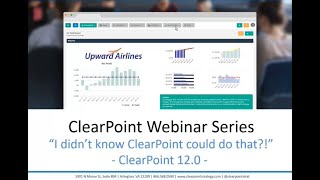
Kathryn and Ted Jackson walk through ClearPoint 12.0's new features for automating reporting, data uploads, notifications, and scheduling. They cover practical applications and answer questions about the platform's capabilities.
Hello everyone and welcome to the I Didn't Know clearpoint could do that webinar series. Today we're introducing our next upcoming release, Clearpoint 12.0. Before we get started, here are your smiling hosts. I'm Kathryn.
And I'm Ted.
And as a few housekeeping announcements, we will be recording this session and we'll make it available within a week. The webinar will last about 25 minutes with time for questions at the end. We so you can submit your questions to supportlearpointstrategy.com any that we don't get to at the end we'll follow up with over email. Now on our last installment, we walked through building two clearpoint cool reports, a satisfaction survey dashboard, and an executive summary dashboard. So I'd highly recommend checking out that recording on our blog, support center or Vimeo channel. Just search webinar now today is all about Ted. Just kidding.
Kinda wow. This is not what I signed up for.
We will be covering some new features of Clearpoint 12.0 and how to incorporate them into an almost fully automated reporting process. Anyway, I really want Ted to know how easy it is to run his reporting process in clearpoint because he's had a lot of frustrations lately.
Tell me about it. It takes up a lot of my time, which could be spent coaching middle school basketball.
We could all use a little bit more time for that. So there's a lot of ways that clearpoint could help everything run smoothly. Now you're probably already aware of some of the ways that clearpoint saves you time already, such as automated calculations and evaluations charts that update as you entered your data briefing about templates that you can run over and over. The list really goes on, but we're always looking for other ways to reduce your administrative task load in clearpoint so that you can get back to what matters most, which is executing on your strategy. So Most notably in Clearpoint 12.0 we've added scheduling capabilities and changes to notifications, which we'll point out as we go along. And as always, you can submit your questions to the address on the screen. SupportLearpointStrategy.com so let's dive in. We are strolling the friendly streets of Metropolis today. Ted, tell me what's been taking up so much of your time.
Well, my problems start before we even get into clearpoint. We use some very specialized software for marketing and financial management. I guess in Metropolis language we'll call it crime tracking and public safety software. We also track some custom measures in a variety of Excel spreadsheets. Wish there was a way to just get all the data into clearpoint more easily.
Well, that's simple. You can just upload it with the data loader.
There must be a catch.
Clearly you haven't been watching enough of our webinars. As long as you've got your Excel file, CSP file, or SQL query for your database set up in the right format, you can upload your data to clearpoint with the data loader. Let's take a look at an example.
Okay, we've been pretty behind in tracking our crime data.
All right, so clicking on our crimes per thousand citizens measure. I see what you mean. There's really nothing in here past January of 2017, but luckily, I've logged into the data loader, and I've got a whole package set up linked to an Excel file containing all the data we need to get back up to date. So I'll click next to see where the data in this package is going to go. And I can see that it's mapping to my safety and preparedness scorecard. So on the next screen, I can see which measures and series this data is going to end up in. So we'll see our crimes per thousand citizens here. And then I can see a preview where each cell that's going to be changed is shown in green. Then we can click finish, and when we get back to the home screen, we can click the green arrow to run that package. Now, we can see that it's uploading our data, so this might just take a minute here. And just like that, we can already see that our crimes measure has refreshed in the background and all of our data is entered.
Okay, this looks familiar, and it will save people some time, but does this mean that someone needs to log into the data loader and add a spreadsheet every month?
Well, not necessarily. Once your packages are set up, you can just run them from clearpoint. So if I go into admin options, I'll have a section right here for the data loader where I can see each of my packages. And if I click to edit our package, there's one more important feature to point out here, which is that I can set this data to run on a schedule right from within clearpoint.
Huh. So every month, new data could upload from my spreadsheet without me doing anything.
Yep, that's right. So to set up our schedule, we're here on the scheduling tab, and we'll just click add. And we can give this a pretty descriptive name, like first of the month, 5pm safety data. Then, using the various dropdowns on this screen, I can set the date that we want this to start running, the time of day, and how often it's going to repeat. Then each month, the new data will just keep rolling in.
Sweet. But how will I know there's new data in clearpoint? It's almost too easy to just set it and forget it.
Don't worry, you'll receive an email whenever new data is input, which contains a list of the impacted measures.
Okay, cool. So now that I've got my data into clearpoint, what if I want to see it in different ways? Like we're tracking our actual and target numbers in Excel, but could I see a variance year to date?
Yep, that's what calculations are for. So let's go back to that crime metric, and we'll see here that in addition to our two Actual and Target series, we've got three additional series that have populated just from the data that we entered and with a data loader. And that's because they're all being calculated to show the actual year to date, target, year to date, and variance. And again, our charts have updated automatically with that data.
So it looks like my status changed here, too.
That's exactly right. So not only does your data update automatically, we've set evaluation criteria for the measure to automatically determine whether that data is red, yellow, or green. And it doesn't stop at our measures. Your objectives and even your initiatives can all be automatically evaluated too. But that's a topic for another webinar.
Perfect. So, next question. I'll know about all these changes happening because I ran the data, but what about other users? They'll have no idea clearpoint is running itself.
Well, not quite. You can also set up some notifications for other users, and it makes total sense that you'd want to do this while you might not be making all the updates. As a clearpoint administrator, you're often expected to keep everyone up to date on when things happen. So you can use notifications to make sure your users get updates about changes as they occur and eliminate any excuses.
Can you show me?
Of course. So let's start by setting an alert for ourselves, which any licensed user can do. And then as an administrator, we'll have the ability to assign this notification template to other users as well. So I've clicked into the Edit window and I'll see that I have a notifications tab here where I can click to add a new notification. So I could set this to alert me to any change, any Edit or any update to this measure. But I'm going to click on Custom to choose a narrower set of criteria. So I'll see some additional options pop up here. And first I'm going to call this my status update notification. Then, scrolling down, I think I want to set this based on the status. So I'll check the box next to Status and I want to be alerted to any change to that status. Now, the way that this is set up, if we were to click Save right now, is that the notification would currently just alert me, but I can set it as a template to make sure that others in my department will get this notification too. So to assign other users and even other measures to the template, I'll just pop over to Notifications and I can edit our status update template. So heading over to the Elements tab, I can link some of our other measures here. And then on the Recipients tab I can choose any teammates who should also be alerted to these changes. When I'm done, I'll just click Save.
So now that we've added the team, they'll get emails when the status changes for these measures.
You got it. So it's a great way to stay on top of any changes, especially if they're triggered by the data loader.
That's cool, but I'm pretty sure I'll be getting some complaints about me cluttering inboxes with all these notification emails.
Fair enough. Well, that's where our email settings come in. So I can edit my profile and in this notification, email settings drop down. I can choose to get an alert for an email for every alert, a digest with all of my alerts for the day, or I can choose just to be notified within clearpoint and not get any emails at all.
Okay, so this pretty much takes care of my measure data, but let's take a step back. We're tracking a lot of projects in clearpoint and these are going to inform our measures and objectives. How can I make sure that project teams are getting their analysis in first thing?
Well, you can always send a reminder to project owners to update their information whenever you want.
Whenever I want?
Yes.
Every day at 5am, then again at.
8Am I regret telling you about this, but wait.
I don't want to have to get up at 4am to send this reminder and I have to be the one to hit send, right? How is this even different from a normal email?
Well, there's a couple of major differences and no one is getting up at 4am let's go take a look at a template so I'm going to click to edit my Project Teams reminder, and for one, a clearpoint reminder is going to send links to the exact pages that each teammate needs to update, which is already really helpful. That's what this item list is doing here in this text. And the message has also been customized to show when updates are due and any other customizations that you want to put in place. Then on the Recipients tab, I can choose to either send this to owners or to collaborators of these elements. And on the Elements tab, I can limit it just to our initiatives, so just our project owners will be notified then. Most importantly, you don't have to send them manually. No 4am Wake up calls for you or for anyone, please. There's a new tab here for setting reminder schedules, so I can click to add a schedule and we can determine a name for this schedule. So we'll just call it our Project reminder and we can choose when we want it to start and how often it should repeat. So if this is for a quarterly meeting, you'd probably want to send it daily quarterly. So we'll set this to every three months.
That's pretty useful. But how are my objective and measure owners going to know when projects associated with their results are updated?
Well, like we mentioned earlier, you would always assign a notification template to that group of users. But if the projects that are going to be relevant for each user are more varied, they can always add the relevant project as favorites. And that way they can just opt into alerts about all of their favorites. And if you're a collaborator, same thing. You can choose to get a notification when someone changes the items that you collaborate on too.
Okay, so objective owners should favorite the items that contribute to their objectives, but how do they opt in for notifications?
Yep, so if I click on my favorites, I'll see a checkbox here at the top that says to notify on changes and checking. This box is going to send an alert about any changes to these pages that I've favorited. I'll get an in app alert and one by email if I've set up my preferences that way.
But I still need the leadership team and owners of objectives and measures to make qualitative updates. You know, interpret this data, of course.
So you can always schedule a reminder email to be sent straight to their inboxes too. Going back to our Reminders page, we can see we've got a quarterly update in place. And if I head over to the Elements tab for this template, I can see that it's focused on our objectives and measures. So owners of these elements are going to see reminders to make their updates.
I'm just not sure one reminder is enough, though.
Oh, it's like the potato chip motto. Bet you can't eat just one reminder template, I think. Anyway, the point is you aren't just limited to one reminder. You can send a second one, a third one, et cetera.
But I don't want to spam the people that have already gone in and made updates by then.
That's totally fair. We can set up a secondary reminder using one or more filters that will tell you whether your users have already made their updates. So on the Status tab, the second reminder might just include elements that are set as not defined or no information.
Because of the automatic evaluations we've set up.
Exactly, because otherwise those elements would already be red, yellow or green. And the other thing that we can do is here on the Dates tab, we can use the days since last update filter to exclude any elements that have been edited in the past 30 days. That's a pretty good indication that people haven't entered this month's data yet.
That's helpful. I still don't know how effective it'll be though. I'll probably hear at least a couple of excuses about never getting a reminder email. Is there any way I can make sure they went through?
Yep, that's no problem. I'll just click to the Message tab and I can CC myself to make sure that those emails have been sent. You can keep receipts.
Wow. Between daily schedule reminders and copying my cell phone or email, I can really peer pressure my team to get those updates in.
Sure. But don't forget to also make sure that you've clearly explained the benefits of tracking strategy and that you're receptive to feedback about the process.
Okay, so say we do get everything into clearpoint on time. I want to have a chance to review it all before the report goes to Leadership. Can I prevent people from making changes after a certain time?
Of course. So if we go over to System Settings and into our reporting period page, I'll edit a period and I can see that we've got this Auto Period Locking tab. So on this tab we can choose the date that we want this particular period to lock. So if we're making our February updates and our review meeting is on March 20, maybe we want the system to lock down on the 15th so we have time to review in advance. So I can copy that lock date to all scorecards, but you can see that they are listed here individually in case you need to make an exception for data that's going to come in a bit later, so just keep this capability in mind when you're setting deadlines for your updates. You can work backwards from that lock date in clearpoint and even warn people that the system is going to shut down. So if users know their options are to get their data into clearpoint ahead of time or show up to a meeting completely empty handed, chances are they'll be at least a little motivated to make those updates.
Cool. So then I have to go in and create my briefing book, right?
Well, clearpoint will have saved your past briefing books as templates, so you can just regenerate the report you created already.
Yes, of course that's helpful, but I still have to log into clearpoint to generate it, right?
Think again. You can schedule your briefing books to be generated on a certain date of the month or quarter too. So let's go over to the briefing book section of clearpoint to take a look. Now, if I click to edit my quarterly strategy report, I can see that we also now have a schedules tab here, right in the briefing book template. So I can add a schedule so that my briefing book will run quarterly. I'll call this quarterly draft report. Now, if we know our system is going to lock down on the 15th of the month, let's set this to run on the 16th and that'll be during the last month of the quarter. So we'll set it to run every three months. And maybe we're going to want that at 8am so we'll save that schedule. And then there's one more shortcut here as well. Say you want to have more than one user receiving that briefing book on the recipients tab. I can choose as many of my fellow admins as I need to so that they'll also receive the report when you send it out.
Sounds like this could be a good way to distribute the briefing book automatically to leadership as pre reading for our meetings.
Exactly.
Well, what if I want to send out a link to an HTML report rather than a briefing book as pre reading?
Well, that's no problem at all. You can still schedule the HTML report to update automatically.
Wow. Clearpoint can practically automate everything. Can it run our strategy meeting for me too?
Can it? That one, you'll still have to lead yourself, but you'll have so much more time to prepare. With everything automated in clearpoint, you can focus on big picture progress rather than sweating the small stuff.
I can accept that.
Then remember, you'll probably have someone taking notes and Capturing action items during that meeting, Right? Have you ever thought about tracking those in Clearpoint?
Of course. We log action items after every meeting. If only that meant they would actually get done.
Huh. I have an idea that might help with that. So you have this action item report in the Metropolis City scorecard, and it shows the status, completion, start date, and end date of all of your action items. So in theory, everyone should be taking a look at this report, but there is a way to plant it right in their inbox instead. Now, we just saw how we can set up a briefing book template to run automatically. So I went ahead and created another one that includes that action item report. And if we click to edit that template and go over to the Schedules tab, we can see that it's set to run bi weekly on Mondays at 8am and on the Recipients tab, we've included all of our action item owners who are responsible for making sure those action items get done. See? No action item gets left behind.
Bingo. Speaking of action items, can I add an action item for someone to bring me a pumpkin spice latte? I've never had one.
Well, we've got to fix that. Let's go ahead and set an action item for Neil and we'll see what happens.
It's pretty nice to have all this taken care of, but I have other problems managing strategy around here outside of quarterly review meetings. It's about our projects.
Okay? Shoot.
We've struggled lately to have our projects completed on time. The deadlines just seem to sneak up on us without warning. Do you have any suggestions?
Oh, definitely. I just set up a project alert this morning actually, so it's really easy to trigger an alert based off of your project end dates so that nothing pops up unexpectedly. I set this one up as a template on the notifications page since chances are it'll be useful for almost all of our projects. If I click to edit my Project Ending soon template, we can see that this is going to be applied to any initiatives where the end date falls within 30 days of the current date. So I can then go to the Elements tab and link this to as many initiatives as I need.
And then I could set up a similar template for milestones.
Sure thing.
That's great news. The other part of the problem has to do with our marketing projects. I need to report on them in my quarterly strategy meeting. But I also have a monthly marketing operations meeting. Do I have to enter everything twice?
Not at all. So once you've entered your information about the project, that information is going to show up anywhere you reference that project in a report, there's no double data entry required. So for example, here in Metropolis, if I click on our Parks, Recreation and Sustainability scorecard, there's a few key initiatives that we're tracking for the Parks and Rec Department in particular, and one of them is to equip all parks vehicles with GPS tracking. We can see we've got analysis here and a budget and an end date among other fields. But clicking onto the detail page, I can see that it's also related to our citywide goal of having well maintained infrastructure. So chances are this is going to need to be displayed in citywide reports as well as. So if I go back up to the Metropolis City scorecard, I'll take a look at our initiative report here and we can see that our GPS tracking initiative from Parks and Rec is still going to be shown here with that same budget analysis and end state.
Cool. Having a cloud based platform is pretty useful after all.
Indeed. So we've walked through a lot today and we just want to recap visually all of the ways that you can automate your reporting process. So towards the beginning of your monthly or quarterly reporting calendar, you can have your data automatically uploaded from the data loader and being calculated and evaluated right within clearpoint. Shortly after that, you can schedule a reminder to automatically remind owners to go in and enter analysis for these updates. And then you can follow up with additional reminders as much as you need to until you lock the system down automatically sometime during that month or quarter. After that, you can automatically generate a draft briefing book or HTML report to review, make any additional updates, and then send out a scheduled briefing book or HTML report to leadership before your meeting. Then, after you've run that meeting, you can follow up automatically with action items until everything gets done.
And you can get alerts along the way to let you know when things turn red.
Exactly. So that's a lot more room in your calendar for activities. What are you going to do with all that free time, Ted?
You should see what I've already done with my free time just from sitting in on this webinar. Can you go back to Clearpoint?
I'm nervous.
Now go into the operations scorecard. Okay, I made a new action item. Look, get to know your colleagues at work. And here's what I've learned about you, Kathryn.
Oh, wow.
All of your previous webinars.
You look like you know me pretty well, Ted. Anything else you're going to do during your free time?
I'll also be coaching my son's basketball team. To victory and throwing pizza parties at the office.
Well, that is exactly what I want to hear. So, on that note, we're reaching the end of our time here today, and we want to make sure to leave time for some questions. Oh, hi, Neil. Ted, do you still want this pumpkin spice latte?
Yes. Thank you very much.
That's great.
Enjoy.
Wow. Those action items of a clear point are pretty effective.
So I got some real action, some real questions that also came in from the Internet while we were running this webinar. Who can set up reminders and notifications?
That's a great question. So for your reminder emails and your notification templates that can be applied to multiple elements and sent to multiple people, that capability is limited to scorecard administrators and full administrators. For notifications about individual elements, any licensed user can set up an alert.
Good. Another question. Can I still generate my briefing books without a schedule?
Yes, absolutely. So if we go back to the briefing books page, we'll see that our generate button is still there. And clicking on this button, the generate option has been replaced with the default that we had before, which is Send to me. Or if you've added some additional recipients to your briefing book template, you can choose to send the briefing book to that entire group anytime you want.
Final question, the one everyone's been waiting for. When is 12.0 coming?
That's a great question. So we will be reaching out to account administrators about early access to Clearpoint 12.0 sometime in mid November, and then we expect a launch in December. And we're going to be in touch with administrators about a particular date as things progress. Great. So that is all we have time for today. Thank you so much for joining us on this episode of the I Didn't Know clearpoint Could do that webinar series. We hope to see you next time, and happy recording.
Bye.
More from Ted



AI in Local Government: How the City of Durham Analyzes Strategy, Risk & Performance

How Coral Springs Won the Baldrige Award — Blueprint for City Excellence | ClearPoint Strategy


AI, Data, & the End of Gut-Feel Strategy: Why Strategy is Becoming More Data Driven
Strategy Needs Accountability: How to Drive Project Follow-Through and Execution