It's Your Strategy Calling! (Webinar 41)
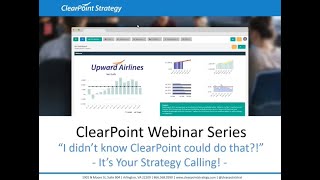
Kathryn and Abby walk through Clearpoint 12's notification features, showing how to set up and customize alerts for project updates, milestones, and risks. The webinar covers new time-saving tools and answers questions about notification settings in the software.
Hello everyone, and welcome to the I Didn't Know clearpoint Could do that Webinar series. Today we are showing you all the ways that you can put clearpoint notifications to work before we get started. Here are your smiling hosts. I'm Kathryn.
And I'm Abby.
And as a few housekeeping announcements, we will be recording this session and we'll make it available online within a week. The webinar will last about 25 minutes with time for questions at the end. So you can submit your questions to supportlearpointstrategy.com any that we don't get to on the webinar we'll follow up with over email. Now, on our last installment, I taught Ted how to use clearpoint. Okay, maybe that's a little or a big exaggeration, but if you want to learn a whole lot about how you can leverage Clearpoint 12's features to supercharge your reporting process, I'd highly recommend checking out that recording on our blog, video channel or support center. Just search Webinar Now. Today we are zeroing in on one of these Clearpoint 12 features, and that is notifications. Notifications give you a ton of power. Basically telepathy. Try not to let it get to your head. So you might be wondering, how is that possible? Well, notifications let you set alerts for when anything important happens in clearpoint. That way you are never caught unaware at a meeting and you are always up to date.
And if you are an administrator, you can even grant others these powers without them having to lift a finger. Exactly.
So we'll start by walking through how to set up a notification and a few examples of when you might do so. Then we'll talk about turning a notification into a template that can be reused over and over. We'll show admins how to create and assign notification templates from scratch. And we'll finish out with a few more helpful things to know and some other changes in Clearpoint 12. So let's dive in. We are flying the friendly skies at Upward Airlines today. Now say I just got assigned to work on a project. If I click here on our initiatives, I can see my Redesign Employee Satisfaction Survey project and I'll see my name here in the collaborators field.
Hey, I'm responsible for this too.
Woohoo. Teamwork. So since I'm not the only one working on this, I really want to stay on top of any changes to dates, analysis and more. After all, we're trying to avoid duplicate work here. And if Abby's already entered some notes from Our last meeting in clearpoint. It would be helpful for me, Joseph and Jenna to know so I can set up some helpful alerts for myself related to this one project in particular.
That's right, any licensed user can add a notification to any individual element, like a project measure or objective. That means they can get an alert in the alerts inbox in clearpoint and even an email if they choose for just about any change that gets made to that element.
Right? So to set up a notification I'm going to click into the Edit window and I'll see my Notifications tab here where I can set up these alerts and I'll click on the plus icon to add a new one. Now first we have to choose what we want to stay alerted of. If I really just want to stay on top of any change, this first option in the dropdown might be our best bet. Otherwise I could segment just the edits, like changes to the name or owner, or the updates which are changes to things like status and analysis if I think that one is going to change more than the other. Now if I wanted to get even more specific, that's when I would click on custom notifications. And a custom notification is going to let you drill down field by field to choose what clearpoint keeps you up to date about. So let's give this a name to make sure we know what this notification refers to. And a really good example for our project might be to stay on top of changes to the start or end date so that you can factor in that project to the rest of your workload. Since we know everybody's really busy, let's call this our project End date coming up alert. Then I can scroll down and I'll see. I've got all of my default and custom fields here as options that can trigger an alert straight to my inbox. So I'll check the box next to end date and once I do that I'll have a drop down where I've got a few options if I want to be notified of any change to the deadline, whether it gives me more or less time. I can go with this any change option. But if there's a particular date or date range I'm worried about, I'll see that I can set that up too. For example, I could choose before December 31st so that I know about any projects ending before the end of the year. But most importantly, just like our dynamic date filters for summary reports, you've got a dynamic way to keep an eye on the end date of your project too. So let's say we want to get an alert when the project end date comes within 14 days of the current date, I can use our drop down to select days before and I'll enter 14 as that number. So when the clock strikes midnight on that 15th day before the project is over, we'll wake up to an alert that it's time to get in gear. For the last two weeks.
There might be some instances where 14 days is too close to the end to make much of a dent in an incomplete project.
So there's a few other fields you might want to track for sure. And in any case, having that end date alert can remind you to reassess what the end date of the project should really be. Now, taking a look at our alert criteria here, I can see at the top it says notify when any of the following are true. So that's right. We aren't just limited to one criterion. So we can actually rename this alert just to our project alert. And now I can select as many fields as I want to keep track of that would be useful to know about in one notification. So that might include our per site complete so that we know whether we're making progress towards completing our initiative. And I can just leave this set to show me any change. We also are definitely going to want to know if we've completed our project so I can get an alert when completed equals true. And now that we've got this notification set up, I want to test it out. So Abby's got her laptop right here next to me. On my honor, I am not looking at her screen. She is going to make a change to this project and I can use my alert inbox to swipe out the change she's making.
Hopefully none of your real life projects.
Feel like detective work, right? But there's always a chance that a key player has been out of office or that you're assigned to the project as more of a manager than an updater. So in these scenarios, a notification can really help you out. And in any case, I just got an alert, so it looks like Abby's done with her changes. I can click into my notification inbox to check it out. So I can see here with this highlighted alert that a notification has been triggered and I'll click on the screen icon to view it. And here I can see in this message the name of the notification that was triggered, the name of the initiative where that change was made, and I can even click on that initiative if I'm elsewhere in Clearpoint. I can See, the initiative was modified by Abby and then I can see what change triggered the alert. So our percent complete has gone from 50% to 75. Nice work. Now, staying on top of things with notifications isn't just limited to our initiative. Overall, this can be really helpful for my milestones too.
You might not be assigned to every milestone, but you'll still want to know how they're going, especially if it impacts the milestones you are in charge of.
Right? So maybe I want to stay up to date about some analysis being entered for each milestone. Scrolling down here to our milestones, I can just double click and click to edit a milestone and then I've also got a notifications tab here just like my initiative. So I could set up an alert for my analysis by clicking the plus icon again. I'll set this to custom and this time we'll want to name it something like Milestone Analysis Change. Scrolling down, I can check the box next to Milestone Analysis and save that alert to get a notification if there's any change to this milestone's analysis. Now, if anything goes wrong or goes super well with a milestone, we'll be the first to know. Cool.
And the benefits of notifications don't just stop at project tracking. Let's walk through another situation where a notification might help. I'll navigate to my revenue measure here, and if I click on our status indicator at the top, we can see that this element is automatically evaluated. So I'm not always determining manually when this falls below target, but I definitely don't want to overlook something like that. So I can use notifications to make sure I never miss an opportunity to analyze periods where we ended up below target. So I'm going to set up a.
Notification to alert me so that it.
Doesn'T happen again, then I can log in to explain my results or just let my teammates know I'm on the case.
So I have clicked to edit the.
Measure here and now I'm going to click again into that notifications tab. Now we'll click on the plus icon to add a new notification, and in the new window that opens, we're again going to specify that we want this to be a custom alert and we will name this red alert. Now I'm going to go ahead and check the box next to status and I'm going to select equals in this first drop down and then specify that I want to be notified whenever the status is below. Plan. Now I can save this notification and if we go back to the Revenue Detail page and add a monthly revenue value in a data table that's below plan. We will see the measure automatically evaluate and that will trigger a notification to go off. So now we can see the measure has evaluated to below plan and if we click into our alerts inbox here we can see the notification that was triggered. So here we can see that the revenue measure has been changed and that the status has been changed to below plan. Now what if instead we want to be notified whenever analysis is added to a certain element?
Of course, there's a notification for that too.
Yes, and I know just which objective I want to track. Fun experience here at Upward Airlines and at Clearpoint for that matter. We take fun seriously, so we want to track this one closely. So I'm just going to navigate to our fun experience objective.
Click to edit.
It and then again click into that notifications tab. Then I'll click the plus sign to add a new notification. Again select a custom alert and I'm going to name this notification Analysis Added. Now I will check the box next to Analysis select does not equal in the first drop down and then I'm just going to leave this last field blank because I want to be notified whenever any analysis is added. So I'll save this and then let's see what happens when I add some analysis about frequent flyers experienced on their most recent flight. I'm going to go ahead and let everyone know that our VIPs didn't have a very good time.
So it looks.
Like that alert is triggered. So we can click to view that in our alerts inbox and see that we have been notified that analysis has been added to this objective.
Man, that's a pretty sad alert to get about our VIP's poor experience. Can you give me another example of a notification? While I think of some ways to make their experience better, maybe we should be giving everyone hot chocolate at the beginning of a flight.
I'm sure you'll think of something great. In the meantime, you might be wondering.
How you would set up alerts for.
Some of your more customized types of information, and I want to walk you through an example of that as well.
So if we go back to our.
Project Redesign Employee Satisfaction Survey, we can see that we've identified one risk here that in switching survey platforms we might encounter technical issues. Chances are, when thinking through risks, you might have some scale for determining how.
Likely the risk is to occur and.
What the impact would be.
So if we click into this risk.
Here, we can see we've got fields to identify both the probability and severity of this risk and if we double click into these fields, we can see that we have options in the pick list for high, medium, and low probabilities. So if we set up a notification for this risk, we can be notified if either one of these fields is identified as high, so that we'll know about it right away. So I'm going to click to edit this risk, click into the Notifications tab, and again click the plus sign to add a custom notification. I'm going to label this alert High Risk. Then I'm going to check the boxes next to Severity and Probability. Set both of these to notify me when either field equals high. So I'll just go ahead and save this and then let's see what happens when I set the probability of this risk to high. Now that I've done that, I can see the alert has gone off. So I'll just click again into the alerts inbox and see I've been notified.
That there is a high probability of.
This risk, which is definitely something that I want to know now. If you're gathering feedback on your process, you might hear from your users that certain notifications have been really helpful for them. It's simple for administrators to take those notifications and turn them into a template. For example, let's say Joseph caught wind of the cool notifications Kavan was setting up on the Employee Satisfaction Survey project and wanted to add his own so that he could be notified about some of his other projects.
Glad I could be so inspirational. I see why Joseph might need to stay in the know about different projects than me. So it's great that he can add his own notifications, but does he really have to specify each one of those same fields over and over in each one that he creates?
No. Because you're an administrator, we can turn your notification into a template so that Joseph can go in and add the same notification settings to each project right from his account.
Perfect. Will you show me? Sure.
To do that, I'll just navigate back to our initiative. I'm going to click to edit the initiative and click into the Notifications tab again. And then I'll just click here to edit the notification.
So I'll just need to check the.
Box here for set as a template. And now other users will be able to assign it to other initiatives. Once I save this, we'll see that it has turned orange to let us know that it's a template. And if we click on this little turquoise screen icon here, we can preview the template and ensure that it has the same settings that we set up before. And actually, I benefit from this notification template too. I can go ahead and attach it to the other projects I'm responsible for so that nothing sneaks up on me. So let's go ahead and navigate to my Calculate employee compensation project, edit it, go to the Notifications tab, and click to add a notification. This time I want to click to use a predefined template and then select our project alert from the drop down and save here. So now we have this template assigned to our project.
Awesome. So if you're an administrator, one thing you might think about is to create a set of notification templates that are especially relevant to your process and to your users. For example, are there particular updates that people have overlooked in the past or places where the ball gets dropped? If you know where these gaps are, you can let users know that there are notification templates so that they can stay informed about these changes. And that way you'll set them up for success even more quickly. But sometimes you might want or even need to give them a little extra push. And clearpoint's got you covered there, too. So here's a common scenario. Your department heads or assistant city managers might not be the ones entering the data into clearpoint. Maybe they're even browsers of your account instead. But at the end of the day, they're the ones that need to report out on that information. So somewhere between that data being entered in clearpoint by one of their employees and your big review meeting, they need to know that the right information was updated, who updated it, and what actually happened. So what better way to stay on top of that than to use notifications? But you, as a kindly administrator, don't want to put that task of logging in and adding notifications on these busy individuals. You just want to make certain that they're getting those alerts. Well, we've made sure that you can do that. Administrators can take any notification template and specify which users should be getting that notification about each objective measure or project. Now, to do that, we're going to click on notifications from the control panel and click on this notification screen that only admins can see.
Just to point out what we're seeing here, we've got all the notification templates in our account listed, as well as notifications that I, as an administrator, have set up for myself.
Right, And I can add a new notification template here by clicking the plus icon. So we'll want to give this notification template a name. Maybe we want people to stay up to date about our project budget so we can Make a Budget Changes alert at an exclamation point for emphasis. And note here, since that we. Since we are creating this notification from this notification templates page, it's automatically going to be set as a template that can be a credit applied across elements.
And by other users.
Right? So we do have to pick an element type for that template and we'll select Initiatives. Then, using these fields here, we can opt to be notified for any change to our budget field. Now, because this is a template, there's one more step. We're going to want to link this notification to any elements where we know it's relevant. And we can do that right here in the Template window. Window. So again, rather than linking a notification to Initiatives one by one, we're just going to link all the initiatives here where that notification should apply. So I'll set this up in a few projects. As an example, I'm just selecting each initiative from the element dropdown and they'll appear in my list. Then for each one, as the recipient of the alert, I can just add whichever department head or council member or other responsible individual needs to stay on track with this project. So this also creates an easy list right on that screen, so I know who's going to be alerted to what.
Really, there are no excuses not to stay informed.
Exactly. And it looks like this has prompted a question from one of our viewers, Joseph, who I just assigned three initiatives to. He's asking, what are all these emails from clearpoint? Are these clearpoint notifications? This is awesome. But what if I like getting notifications, but they're making it hard to get to inbox? 0 okay, so this brings up an important point, which is don't forget to tell users that they might get notifications from clearpoint. I'm sure they'll be thrilled, just like Joseph is. But Abby, can you help him out with his email problem here? Absolutely. First, look at the positives.
It's great that your teammates are active in clearpoint, but we totally understand wanting to control the frequency of emails you're getting. And you're in luck. You can control whether or not you receive notification emails by clicking on your initials here in the top right corner and then clicking into Edit Profile here. You can either select to not receive email alerts at all, to receive an email for each alert, or to receive a digest email with all alerts for each day. Then you've got a couple of other.
Options for how often you'll be getting.
Notifications specifically for items you own or have set as a favorite. If we go to the My Favorites page. Here you'll see the option in the top right corner to Notify on Changes. We can check this box to receive an alert whenever our favorites are changed in any way and uncheck it to stop receiving these alerts. Similarly, on my scorecard, which contains all the elements we own, we have the same Notify on Changes box that we can check or uncheck if we don't want to receive these alerts. Now, when Katherine got the notifications earlier, you might have heard the annoying alert sound that went along with it.
Oh, I thought that sound was useful.
Well, to each their own.
But you do have the option to.
Turn off the alert sounds by again clicking into your initials and selecting Silence Alert sound here.
Perfect. That's all really helpful to know about. And to finish out our time today, I do want to switch gears a little. There are a couple of tiny but mighty changes coming in clearpoint 12 that we couldn't resist pointing out, so let's click into Manage Scorecards to take a look. Now, many of you admins out there are familiar with the process of adding a scorecard, and we're making that process a whole lot quicker. If I click to edit my scorecard, I can see the same four tabs here that we've had in the current and previous versions of Clearpoint, including User Access. But if I click on the User Access tab, we'll see that this has changed a bit. You can now really easily see with a checkbox all of the users in your account who has access to this scorecard, and you can easily change that with the click of a button.
Wow, this is a great time saver for sure.
And there's one other time saver to be aware of, which comes into play when you're linking elements, which is probably something you're doing a little bit more frequently than adding scorecards. So we got a sneak preview of this functionality already today in our notification template, but I want to point out the change in context of adding links. So in our initiatives we have one recently added project Airport Traffic.
And we.
Want to make sure this is aligned to all of the right strategic objectives so that we can show how it's contributing to our overall goals. So of course to do that in clearpoint, I'm going to want to go into the edit window and add a link. So clicking on the Links tab, here's where I'm going to see this change. I no longer have to open a new window to add a link. I've got my drop downs right here. So I can see that I'm linking within the Upward Airlines corporate scorecard. I can link to the relevant objectives and I can choose the objective from the list. Then clicking Add Link is going to add it to my list of links and I can just restart to link as many elements as I need. So with that we would love to open up the floor Internet for questions and here's one that's come in Will those email settings influence what happens when I generate a briefing box? And that's a good question. So as a reminder, I believe this viewer is referring to the notification email settings drop down that we showed off in the profile window and this has been significantly simplified. So that's a really good thing to point out there. These email settings apply to alerts that you've set up about your changes. So whether that's an individual custom notification notification template or those changes to My favorites in my scorecard, this is where you can choose to receive emails about those alerts. Other notices of completion in clearpoint, like a briefing book export, a data upload, or a duplicated scorecard, are still going to be delivered to your inbox no matter what.
Here's another question. When is Clearpoint 12 coming?
It's coming Monday night. Woohoo.
We can't wait. You'll receive an email welcoming you to clearpoint 12.0 then.
Yes, we're very excited to share these features with you and if any additional questions come up before the release, after the release, we're here to help. Definitely reach out to us. For now, that's all we have time for today, so we want to say thank you so much for joining us on this episode of the I Didn't Know clearpoint Could do that webinar series. We hope to see you next time. And happy reporting.
More from Ted


AI in Local Government: How the City of Durham Analyzes Strategy, Risk & Performance

How Coral Springs Won the Baldrige Award — Blueprint for City Excellence | ClearPoint Strategy


AI, Data, & the End of Gut-Feel Strategy: Why Strategy is Becoming More Data Driven
Strategy Needs Accountability: How to Drive Project Follow-Through and Execution