Project Management: Get. Stuff. Done. (Webinar 27)
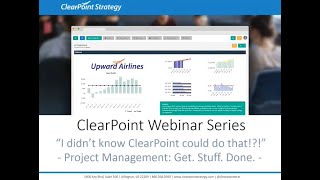
Katherine and Jenna walk through Clearpoint's project management tools: how to set up initiatives, milestones, and action items, plus custom fields and reporting features to track work and keep teams aligned.
Hello everyone and welcome to the I Didn't Know clearpoint Could do that webinar series. Today we're going to be diving into managing projects in clearpoint so that you can get even more stuff done. Here are your smiling hosts. I'm Katherine. And I'm Jenna and as a few housekeeping announcements, we will be recording this session and we'll make it available within a week. The webinar will last about 25 minutes with time for questions, so you can submit your questions to supportlearpointstrategy.com we'll answer as many as we can at the end and any that we don't get to we'll follow up with by email. On our last installment, we dove into the Data Loader to tackle your automated data needs. You can check out that recording on the clearpoint Live Vimeo channel, on our blog, or in our support center.
Just search Webinar.
So today we're focusing on the ways that clearpoint can help you track project information and stay on top of all the important things that need to get done at your organization. So chances are you're already tracking your high level goals in clearpoint and staying up to date on performance measure data there as well. So why not extend the benefits to your initiatives and track them in clearpoint too? You can link them to your goals and measures to show the relevance to your strategic plan and provide the same level of transparency and accountability to your project teams, departments and leadership organization wide. So we'll cover the types of elements that you can use to manage projects in clearpoint. We'll talk about the fields you can use in clearpoint to track information about your project and a few helpful summary reports. We'll make sure you can set up your project team for success in clearpoint, and we'll go over some options for marking elements.
Complete.
Now don't worry if there's a feature that you don't see on this list that you want us to talk about. We will leave time for questions at the end per usual. And there's also more of this content to come. So this webinar is part one of two on project and workflow management in clearpoint, and we'll be covering workflow in more detail on our next installment. So let's get right to it and jump into the friendly skies at Upward Airlines. Jenna, over to you.
No thanks, I'm not skydiving today.
Don't worry, no clearpoint employees or clients will be harmed in the making of this webinar. Could you just start with an overview of the elements we have available for project management.
Sure thing, Kathryn. According to the clearpoint Glossary, an initiative is a project or group of activities put in place to improve, measure, performance and help achieve the overall organizational strategy. A milestone is a key step along the way to completing an initiative, and.
An action item is a small project.
Or request that typically is short term and does not need funding or resources set aside.
Okay, so what does that actually mean in Clearpoint? Think of an initiative as the overall.
Project contributing to your strategy, and the milestones as the key phases within the initiative. Action items come up along the way and are smaller tasks that usually have a pretty short timeline.
Okay, great. So those are good guidelines to keep in mind regardless of whether your organization uses different terminology than the terms we'll be using today, like program or project for an initiative, for example. Or maybe your milestones are referred to as project steps or tasks, and your action items might be called to dos instead. So even if the terms we use today don't sound like your organization's process, keep in mind that those are the types of scopes that we're referring to. And today we'll be focusing on initiatives and milestones in particular, and we'll go into more detail on action items in our next webinar. So I'm going to go ahead into initiative and click on Redesign Employee Satisfaction Survey. So here we can see several properties about our initiative that we're tracking in clearpoint in the fields on this detail page that'll help you stay in the know about your project. And the best part is these are all available by default in clearpoint, so we've got the start and end date here to see how long we have.
To complete the project.
Not to mention that we've mapped that out in total days and the elapsed days since the start date, which are both calculated automatically. Then we've got budget so you can show the resources set aside for the project. We're showing percent complete, which will get updated each period. When we reevaluate, we have a description somewhere of where the project is completed, an analysis and recommendations for this month, and then we'll come back to owners, collaborators, and discussion a little later. Now, as I mentioned, most of these are just the default fields that clearpoint adds in place when it comes to initiatives. So we really want to make it easy for you to track project related information that you need. And that's why you also have the ability to add additional custom fields and relabel the default fields as well. So under ADMIN options, custom fields. Let's go to the Initiative section and maybe we want to add an additional date field for the target end date so that you're aware of the original target, even if it's really shifted a little bit. So I'm clicking on Admin Options and Custom fields and then under Initiative let's click to add a new field. So here we'll name it Target End Date and we have several field types that we can track. So we're going to track a date here and then we'll click to save that field.
Another way that we can make sure our projects are getting completed on time is to add that information in a pick list field. So we'll go ahead and add another field to our initiative. We'll call it Completed on Time and we'll make it a pick list here. And when we're, when we're making a pick list, we can choose what options we want to show up in our pick list. So we'll go ahead and make our option early on time and late go ahead and save that field. We'll click Save again and then I will use our History button to go back to our detail page for our initiative.
Okay, so now to add these fields to our page layout, going to go into our Edit menu and click on Edit Layout and we'll find these fields in the list that we can pull out onto the page. So I'll search for Target End date and our Completed on time custom field. Then maybe I'll drag these over right underneath our start and end date so that we're tracking all of that date related information in one place.
And see.
Whether we're really staying on track on these different fields.
Can also be a handy filter for summary reports, which we'll talk about more in our next webinar. Great.
So now if your organization is like many of the others we work with, you probably break your projects down into smaller phases. And milestones in Clearpoint are the perfect elements to showcase this information. So we can see we've got the milestone field here on our detail page to show the names, start and end dates, and status indicators of our milestones. And let's double click on this field.
To see it in action.
So I can click on Add Milestone here to add a phase to my project and an edit window is going to pop up for me to add the details. So we'll call this interview Survey Consultant. And we can click here on the Edit Dates tab to give this an independent start and end dates from our project. So maybe this milestone in particular is going to be from mid January to the end of March. And let's click Save on that for now, my milestone is going to appear here on this list in chronological order based on those start and end dates.
Keep in mind that milestones are part of an initiative. They aren't actually an element on their own. So they'll be linked to the initiative you add them to, and only that initiative.
Yeah, that's a really good point. And even though they are just linked to that one initiative, when you add the milestone, they do have their own detail page. So you can click down into our interview survey consultants measure to see the initiative that the milestone is linked to. The milestone can have an owner independent of the initiative overall. And then we have specific analysis recommendations, of course, our start and end date, and any other fields that we want to track specific to this milestone.
So in terms of project management at your organization, you'll want to decide how to use all of this functionality around milestones in conjunction with your initiatives.
Right? So to put that another way, do you want to track information about your milestones by clicking down into each detail page or. Or do you want to use a summary report to point out and have users edit the most important information at.
A high level, it really might depend on how much bandwidth you'll have on your project team in terms of the depth you're hoping to track for each of your projects and milestones.
So if we want to track our milestones at a high level, we'll need to add a summary report to showcase just the information that we want to update. So I'll click on Initiatives in the top navigation and go to Manage Initiative Reports to add a new report, Click the Add icon here and we'll go ahead and call this our milestone analysis report. And then let's go over to the Columns tab. We'll include the initiative, its owner, and maybe its collaborators as well to show who's responsible for the overall project. Then if I type Milestones here, I can see all of these fields related to our milestones, and I'll go ahead and pull out the milestone name and the milestone analysis field. So let's click Save and then click on the name of our report to.
See what we set up. So now you can see we've got one central place showing an overview of the analysis for each of our milestones organized by the initiative. And we can see who's responsible for each initiative as well. Teammates can easily come to this one page to make all of their updates on their milestones and their initiatives if they'd like to, and see at a glance how a project is doing overall.
Definitely. So we've set up a really helpful view and we'll talk more about setting up some other useful summary reports as we go along. Back on the initiative page, though, there are a few other features we want to show you, especially with milestones and sub milestones.
So some projects are simple and may just need one initiative and one layer of milestones to track, but if you're tracking a more complex project, you can add multiple layers of milestones. And we use a parent child relationship to show this hierarchy in CareerPoint. So let's go ahead and make the milestone that we added earlier a child milestone.
So I'll come down here to our.
Milestones field, edit the field, and I can edit our interview Survey Consultants milestone, and I'm going to make it a child of our Hire Survey Consultants. So on our Edit Milestone tab we can add a parent milestone, Hire Survey Consultants. And when I save this milestone now, we can see here that our milestone is indented underneath Hire Survey Consultants along with our other milestone conducted test projects. So this is one way to view kind of this parent child relationship. And if we scroll down to our Gantt chart, you'll notice here that we can see that relationship in the Gantt chart as well.
Right. So the Gantt chart is a great visual aid for the information that you see in the milestones field and more. This field is available on every single initiative detail page to show the status percent complete start and end dates, and the hierarchy of those milestones and sub milestones, all in a more of a calendar format.
And of course, someone's going to need to be in charge of making sure these projects get done. So one of the most crucial aspects of project management is ensuring that every project has someone responsible for making sure it stays on track when it comes to initiatives that might not be just one person. So we have both the owner field and the collaborators field available to track who is accountable for these projects. So you can set the owner and collaborators for your initiative right from the detail page. I'll go ahead and assign this one to Katherine, since that's who we're logged in as. And then I can set my collaborators as well. Let's see, I'll help Katherine out, and.
Maybe we'll get Avery to help us.
Out as well on this project. And I'll save that. And of course, if we want to change the name of this field because we don't want like the names owner and collaborators, we can do that in system settings, admin options. So to change collaborators, we go to field labels. Collaborator is here. And we can go ahead and change this to maybe our team member here, and our team members save that customization. And then to change the name of our owner field, we go to custom fields at the initiative level. And here under owner, we can change this to Project Manager. Go ahead and save that. And when we go back to our initiative detail page, we can see those updates. So now we have our project manager and our team members.
Awesome. So that'll help everyone in your organization recognize what role they play. And one thing to note here is.
That when your users look at my.
Scorecard to see everything that's on their plate, it will include the initiatives that they own and the initiatives that they collaborate on.
Right. And you can also use these fields to your advantage when you're sending reminders. And we'll delve more into reminders in our next webinar. But for now, let's go back to our initiative report and add a filter based off of the owner field.
So this is the report we built.
A few minutes ago. We have our project managers and our team members here. And I'm going to go ahead and edit this report and go to the Filter tab. And I want to set a filter based off of our project manager. And my favorite way to use this.
Filter is to set it up so.
That the current user sees everything that they are responsible for. So when I use this filter for current user, whoever is logged into clearpoint will see all of the initiatives that they own in that report. So I'll go ahead and click save and our report will update. And now, since we're logged in as Catherine, we will see all of the initiatives that Katherine is set as a project manager for here. And since many users are involved in each initiative, you may want a way for them to communicate with each other other than the analysis and recommendations field, when we have our discussion field available for that. So if I scroll down here, have.
Our discussion field, and when we add.
A comment here, the comment will be timestamped and user stamps. So I'll add this comment and we can see that Katherine made this comment today at 9:37am.
That'S awesome. That's a really great way for our whole team to stay on the same page. So, Jenna, do you think that our project team is going to have new information for this initiative every month?
Nope. We're really only looking to update the status of this project once a quarter.
Okay, so there are definitely instances where you might not want to track new information about your initiatives every month, or you might not even have that information available at that frequency. And that's no problem in clearpoint. So you can set the reporting frequency of your initiative just like you can for other elements. I'll go and click on the Edit icon and over to the Edit Initiative tab. And then here under Reporting Frequency, I'm going to change from having to update the initiative every period to having to update it quarterly. I'll click Save and so if we go back to January here and our project is above target in January, it's still going to be above target in February as well. So it'll carry over through the periods in each quarter.
Once you've completed an initiative or milestone, you can mark it as complete.
That's the best part.
So to do that, I'll go ahead and edit our initiative. And then here on our Dates tab we have a checkbox for completed. So I'll go ahead and check this here.
It'll set today's date as the completed.
Date, and I can change it to something else if I want to, but I'll go ahead and save this. And now it's marked as complete. You can also mark your elements complete from summary reports. You do have to turn this option on so we can do this in System Settings Admin options. Under Organization and Security, we have a completed Items tab, and here we can allow marking of milestones and initiatives as complete for summary views.
So I'll go ahead and save that.
And then I'll go back to our summary report Milestone analysis. And now you'll see that our initiatives and our milestones have checkboxes next to them. So I can just check off our milestones and mark them as complete right from this view.
Yeah, that's a pretty easy way to keep everybody on the same page about what has and hasn't been completed. But do I still have to show it on this page? It's kind of hard to tell the difference right now between the ones I'm still working on and the ones that are complete.
Actually, Katherine, there are several ways that you can decide to display or not display initiatives and milestones once they've been completed. So the first option is you can choose to have your elements still show, but have a strike through through them. This option again can be turned on in admin Options Organization Security. On our completed Items tab, here I can select Strike through completed element. Go ahead and save this. And now once I go back to our Milestone Analysis field or report, you'll see that all of our completed elements now have a strikethrough through them, so I can easily tell that they've been completed.
Okay, that's pretty helpful, but I really just want those milestones out of my face.
Well, you can also hide completed items completely, so this option you can turn on for each individual scorecard. So I'll go to our Manage Scorecards page and I will edit our corporate scorecard, which we're working in now. We have a completed items tab here and I can choose to hide my completed initiatives and milestones. I'll just do milestones for now and then I can set a date to hide them. Before the certain date, we'll just choose the end of May. Now save. And now when I go back to.
Our report.
You'Ll see that our milestones just refresh the page here and you'll see that our milestones will no longer be there on the report and going forward, as we complete them and move through the system, they'll disappear from this report as well. Awesome.
So they'll also be hidden from the drop down menus and my scorecard in.
Addition to this report, right? Yep, the drop down menus, my scorecard, and summary reports.
Awesome. So this is a great way to keep your project dashboard clean and relevant. Not to mention that satisfying feeling when an item disappears from your task list. All right, so we're reaching the end of our time here today and we want to make sure we address your questions. So Jenna, are there any questions that have come in?
Here's one. Is it possible to change the terminology of initiatives and milestones in the account?
Yes, absolutely. We want to make sure that clearpoint fits the reporting process you have in place. So if you want to change the initiatives to be called projects, for example, we'll go back into system settings and admin options and this menu and element names item here in the top left, right is going to allow you to change the default language in clearpoint to the terminology that your organization uses, both for a singular plural and whatever label you want to appear in the top menu. So I can click save. And once our toaster disappears, we're going to see this project language show up in the top menu. And then for milestones, we're going to.
Want to go into field labels.
And relabel the milestones here as we see fit. So maybe we want to call these our tasks instead. And we'll click save. And if we go back to our initiative detail page or our project detail page, we'll see all of our tasks where our milestones used to be. Okay, so another listener is asking, do I really have to add my milestones one by one?
So there is a way to bulk add your milestones. If I'm on my initiative, I can edit my initiative and we have a Milestones tab which we've just renamed to Tasks. I can come under here next to the Add icon and there is an option to add multiple and here I can just enter the name of all of my tasks or milestones and I can set an owner for all of them or team members. I can edit all of their dates or I can do that after I've added them. I'll go ahead and click Save and you can see here that all of our tasks have been automatically added to our initiative. Awesome.
So here's one more question which is is it possible to set controls so that the start and end dates of my milestones don't fall outside of the.
Start and end dates for my initiative?
So there are no automatic controls in place for that in Clearpoint. But again, we want to point out that the Gantt chart is a really helpful place to track whether those dates make sense. So here we can see under the overall umbrella of our employee satisfaction survey, we have that complete list of milestones here. And if I double click on the Gantt chart, you actually have a really way to edit those details. So I can click to shift the start of a phase forward or back as well as adjusting the percent complete. I could change the start and end dates manually, or I could click and drag to expand or decrease the length of my project. And then I can also change the status right from the Gantt chart too. So this is a really easy way to see how your projects and the tasks within them stack up in terms of your timeline. All right, so it looks like we've reached the end of our time here today and hopefully we'll see you next time for round two of our Project and Workflow Management series on the I didn't know clearpoint could do that Webinars. Thanks so much for joining us and happy reporting.
More from Ted



AI in Local Government: How the City of Durham Analyzes Strategy, Risk & Performance

How Coral Springs Won the Baldrige Award — Blueprint for City Excellence | ClearPoint Strategy


AI, Data, & the End of Gut-Feel Strategy: Why Strategy is Becoming More Data Driven
Strategy Needs Accountability: How to Drive Project Follow-Through and Execution