Updating Efficiently (Webinar 21)
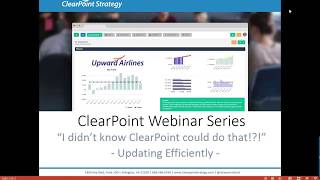
Katherine walks through Clearpoint's update features: My Favorites, bulk editing, copy forward, and email reminders. Learn to streamline data entry and reporting so updates take less time.
Hello everyone and welcome to the I Didn't Know clearpoint Could do that webinar series. My name is Katherine and I'll be your host today. And today's episode is all about making efficient updates in clearpoint. So you may have recently watched a slew of world record breaking athletics during the Rio Olympics and now it's time to become the Simone Biles of your own clearpoint account. So just a couple of housekeeping items. We will be recording this session and we will make it available within a week. The webinar will last about 25 minutes with time for questions at the end. So you can go ahead and submit your questions at any point to supportlearpointstrategy.com and we'll get to them at the end. So we'll follow up via email on any questions that we don't get to and on our last installment we covered administrator capabilities in clearpoint and showed you how to use clearpoint like a boss. So if you missed that last webinar, I'd highly recommend you check out the recording on the clearpoint Live Vimeo channel, on our blog and in our support center. Just search Webinar Today is all about saving you and your users time. We're going to be talking about updating efficiently in clearpoint, so we'll be showing you some great ways to make changes in clearpoint at lightning speed. And many of your users will be logging in specifically to make their monthly or quarterly updates and edits. So there are a couple of views, My Favorites and my Scorecard where this can be accomplished especially quickly. We'll also talk about how to easily update multiple elements at once. We'll talk about how to use Clearpoint 10 summary report capabilities to your advantage, and we'll also touch on copying forward information from previous periods. So as I mentioned earlier, if you have questions, please send them to that address on the screen supportlearpointstrategy.com and we'll get to them at the end. So that's more than enough. Intro and let's jump right in. Per usual, here we are flying the friendly skies with our Upward Airlines account, and we'll start out here by talking about two pages that are useful for gathering and updating important information in clearpoint. So right below Home over in the Control panel we have My Favorites. Let's click here. So using My Favorites is a great way to easily access the pages that are most important to you in clearpoint. So each page you've chosen as a favorite will be listed here and then you can use this page to edit any detail pages and non default summary reports that you have in clearpoint Favorited. Not to mention you can set an element as your homepage by clicking on the home icon next to that element so that the first thing you see when you log into clearpoint is a page that's the most relevant to you. And you might be wondering how to add elements to the My Favorites page. There are a couple of places that you can do so I'll start by clicking on our new homepage and I'll see that there is an orange star in the upper right corner. That's how I added the page to My Favorites and I could also click that star to remove the page from my Favorites. From here I'll click on the Manage Measures page from the Measures dropdown and you can also see that there is a star here next to every measure in this list by clicking on that star. I favorited the page and you'll see it shows up now with an orange fill to indicate that it's one of my favorites. And in addition to seeing this on the My Favorites page, when I click into the Measures dropdown, I'll see that element favorited there as well. So we really want to make it easy to get to your favorite pages, make them really accessible across clearpoint. Going back into My Favorites, there's also another page here worth mentioning, and that is My Scorecard. So we'll use the blue toggle in the top right corner of the My Favorites page to switch between My Favorites and My Scorecard. My Scorecard shows all of the elements that list me as an owner or as a collaborator. So even if I'm collaborating on an initiative with multiple other people, that initiative is still going to be shown in this view. And if I want to look at the items I own in a particular scorecard, I can collapse the others and make it super easy to find what I'm looking for. Then I can click to update and edit any and all of these elements, making all of the necessary changes to the elements I own right from the My Scorecard page. So this saves me a lot of time in getting things done because I just go to my scorecard and I can find the elements that I own. And as you'll remember, all of the information associated with the element is now stored in the Edit window. So if I want to make updates to my analysis or other update fields for this measure, I can do so if I click on Update Measured Data. Since this is a measure, I can add my numbers for the most recent period to my data table, I can click to edit information such as the owner or the description or the name of this measure, and so on. So I'd like to show you a great feature here on the Series tab, and you'll see that there are checkboxes next to each series listed here. This is our bulk editing feature, which you'll see in multiple different places around clearpoint. And as you may have guessed, bulk editing allows you to make the same change in bulk across elements for series in particular, you might not use this month to month, but it is definitely the fastest way to make a change to multiple items at once when you need to. So here, in order to bulk update these series, I can either check the boxes next to each series, or I can use the box at the top to check them all at once. And then in the menu next to the Add button I'll have the option to edit multiple. So here I'll see that every aspect of the series has a checkbox next to it, and I'll simply check that box to make changes to that aspect of all the series selected. So if I want to change the series data type, this is our revenue measure. Maybe I want to change it from currency to an accounting format. I'll click Save and all of those other aspects that were not checked off have not been changed for these series. It's just the data type that's been updated for all four. So then I can save my change. Click into the revenue measure and I'll see that by making that one change, all four of these series were updated, which is great. So what else can you bulk edit in clearpoint? As far as measures are concerned? You can also bulk edit charts from the Edit Measure window. And if I click on Manage Initiatives, I'll see that for every type of element you can also bulk edit that element. Just check off the appropriate boxes or check the top box to select them all. And again you can click on Edit Multiple from next to the Add icon and select which criteria you want to edit. So for elements you can make bulk updates. For example, if I needed to mark multiple elements green or red, say our initiatives aren't tracking well for this period, and I could edit criteria like the owner or description. For initiatives, I can even edit the dates. So I'll go ahead and save that change to the status, and I'll see that both of my initiatives are now showing up as red for this period. You can also bulk edit the milestones associated with an initiative by clicking to edit that initiative. Going to the Milestones tab, and again using the boxes, using the menu to select Edit Multiple and then just selecting the criteria you want to change, clicking Save so we've covered some great features here in the Control panel on Detail pages and in the Manage Elements view that will shave seconds off your reporting process in clearpoint, help you reach your personal best. But now we'll talk about how to update from summary views and some great way to save time from there. And one key piece of tracking your strategic plan is of course, keeping your data up to date. This is what many users are doing when they log into Clearpoint every month or quarter. With Clearpoint 10's great new feature of inline editing on summary views, making these updates is going to be more efficient than ever before. So I'm going to show you how to add what we like to call a Matrix Summary view, which is going to show series data from each measure, along with status evaluations for multiple periods. So let's navigate to the Manage Measure Reports page and then I can click on the plus icon to add a new report. I'm going to call this report our webinar Matrix View. And now let's click to add our columns. So the Series Status column is what makes the matrix view unique. As long as I've added the Series column, I can add any other information that I need my users to update. So maybe I'll choose Analysis and rearrange those. And then once I've got my columns on the screen, I'm able to select further options by using that small arrow icon next to the column. So I click to expand Series Status. If I want to rename this column, I can do so to make it crystal clear for my updaters what they're looking at. Call it the last three months data, but more importantly, I can opt to display this information for multiple periods. So I'll click that box next to display multiple periods of data, and then I'll click over to the Periods tab and this is going to be where I select how many periods of data I want to show. So we can select from just the current period, the current calendar year, but I'll go ahead and just select last n periods. Then I can specify the particular number three. And this is going to show the last three periods worth of data for my Series Status column. Now let's go ahead and click Save. So here, clicking into my new report, we can see data from all of our measures in the Upward Airlines Corporate Scorecard and a record of how we're doing over time. So to use the matrix for quick updates, which is what we're getting at in this webinar, your measure owners can simply go to this view, double click to input the data on every necessary series, make their changes all in one place, and then click Save. So this view is great. We've made changes to three different measure data pieces all in one place. But you may be wondering how we can take this even further, since after all, we are going for gold in our clearpoint account. What if I want to set up a view that makes it crystal clear to users not only which criteria for their measures they need to edit, but which measures they need to update? We can easily do that using clearpoint's summary report filters. So filters let you choose which items to include in a summary report based off of one or more characteristics that those items have in common. So to put a filter on my report, I'll click To Edit, go to the Filters tab, and here I'll select what type of information is going to serve as my filter. And this can be any field associated with the element type that you're creating the report for. So here it's going to be any field associated with my measures, and I'll go ahead and select Owner. And once I've chosen Owner as my filter, I'll need to enter some criteria. So clicking into this drop down I see I can select all measures where the owner is blank, it hasn't yet been specified, does not equal a certain user. I can ignore the filter entirely, but I'll select Equals and I'm going to see a drop down appear of all my users in the clearpoint account. I could select a particular user, but I'm going to click on this current user filter. And this is a great filter. Since it's dynamic, the current user is the person who is currently logged into clearpoint looking at that report. So whoever is looking at this screen is going to see only the measures that have been assigned to them. Yep, that's right. Instead of having to create views for each measure owner to look at separately, you can use one that's tailored to them all, all at once. So I'm logged in as clearpoint Support my Olympian alter ego. So when I click Save, I'm only going to see the measures that I own. And now not only do I have all of the information I need to edit or update in one convenient report, I won't even be distracted by the measures that I don't need to worry about. I can be in and out of clearpoint in seconds. So before we move on, I Want to point out a couple of other ways that the summary report filters can help track down what needs to be updated in clearpoint if we click back in to edit the report and go to that Filters tab. Let's say that only our monthly measures should be shown here. It's August, it's not the end of the year or the end of the quarter. I'm really just worried about the monthly measures getting updated. So I can choose to filter by Reporting Frequency and again I'll select Equals. I'll see a list of all the reporting frequencies in my account and choose Monthly. And maybe we want to show when these measures were last updated as a column. So I can then go back to my column, add Last Updated and I'll also put that owner on the spot and show who's going to be updating that measure right in the summary report, I'll click Save and so now I can see exactly when each monthly measure was last updated, both date and time, who was the last person to update it, and you know who that owner is that needs to be updating it in the future. So as you can see, these report filters and columns allow you to whittle your reports down to exactly what you need to know, which will save you time in tracking down the information that you need. And filters can get pretty specific. We hear questions about them from users a lot, so if you're ever wondering how to set up a particular view, you feel free to reach out to our team and ask. We'd be happy to help. And lastly, we have a feature to show you that is useful for updates when things haven't changed much from period to period, and that is the Copy Forward arrow. So you may have seen this arrow in various places. It's a small blue icon with a circular arrow inside. And you'll see this in places across clearpoint where where there is information to be updated and I'll click into the revenue measure to show you. So to demonstrate, we're going to pull February information into March. So here I can see that my March analysis is blank. Let's double click on that field and I'll see the Copy Forward arrow next to my Discard and Save icons. So for individual fields that you can copy forward, that arrow will only be shown when the field is blank. So I'll click to copy the information forward. When I click Copy forward, two things happen here. My February analysis has been pulled into March and I'll also see that that Copy Forward arrow isn't there anymore. If I were to remove the information it would appear again, but once the field has been filled, I no longer have that option shown to Copy Forward. So as a disclaimer, Copy Forward is not a replacement for taking the time to analyze all of your measures, objectives and initiatives. But sometimes it is useful to have last month's information as a base to build on for your most recent analysis. So I'll use this prior format from February and make sure that everything is up to date for this period. So our revenue still didn't reach our target, but I've got that updated and I'll add a little bit more information and when I'm done I'll click Save. So similarly, if I click into the Edit Measure window from this page, I'm going to see that Copy Forward arrow next to the individual recommendations field, but I'm also going to see a Copy Forward arrow at the top of the window which will allow me to copy Forward information for all of the fields displayed on this page at once. So I'll click Copy Forward and see that my recommendations have been filled, as it was the only blank field. I'll also notice that my analysis, the one that I've already updated for March, has not been changed. So clicking Copy Forward is not going to overwrite information that you've already typed in for that period. I'll click Save. And last but not least, you can even copy information Forward across an entire scorecard. So under Manage Scorecards you'll see that same Copy Forward arrow next to each scorecard and I can click on it next to Upward Airlines. This time I can choose what period the information is going to come from. So say everything in my scorecard is quarterly. I'll use the end of last quarter as the source period and go ahead and use the next quarter as the destination period. And then here we can get really granular with the types of elements and types of data that are going to be included when I copy the information forward. So maybe we just want to say that all of our initiatives have not changed in status from the last period and we want to get those done taken care of all at once to leave us more time for other parts of our report. So I'll leave those boxes checked, click Copy Forward and I'll see in this toaster that I'll receive an email when this is complete, because since you're copying information across the whole scorecard, depending how much that is, it might take a little bit of time. Clearpoint will be sure to notify you when that's complete and where we would have had to go to our last period and check the status of each indicator individually and then update them. We've now copied them all forward with just a couple of clicks, which has saved us time to move on to other things. And you may be wondering what the easiest way is to let your users know when it's time to go in to edit the information and and to direct them to those views that you've set up where they can edit it and update their information very quickly. Clearpoint has got you covered here. We have email reminders that you can set up. So this will send an email to users based on the filters that you've put on the reminder. I'll click Add to add a new reminder and give it a name. So this will be our monthly reminder and then I can customize the text of my message to tell users exactly what they need to know. So it has been 25 days since their last update. We're coming up on the end of the month. We want to make sure users know that it's time to go in and that they haven't yet updated their data for this period. So then it'll say please log into clearpoint, update the following item. It'll pull in the reporting period that you specify, as well as the items for each user whose first names will also be included in that message. And I can even put in a plug for the view that we've created so I can say take a look at the webinar matrix view to find the information that needs updating. And then lastly I can copy the email to myself to make sure I'm aware when it goes out to my users. Then, similar to Summary report, we have filters here. You can filter by sending to the owners or the collaborators of your elements filter off of a particular scorecard. If you only want to send a reminder for elements that are above caution or below plan, you can do so or for a certain type of element. So maybe this is just a reminder about our measures that haven't been updated in the last 25 days. You can choose to send to particular owners. And then here on the Dates tab is where you would specify the number of days that have passed so that users who have already gone in and updated their Data within that 25 days will not get this reminder. But users whose information has not been updated in 25 days will see this show up in their inbox. Then lastly, on the Recipient Preview tab, I can see who is going to receive information about which measures. So Greg is going to go update percent of employee ownership Janice will update maintenance cost per 100,000 miles, etc. I'll click save to save my template, and then whenever I want to generate that reminder, all I have to do is click the email button, select a period, and click Send. So we've covered a lot today on time saving tricks in Clearpoint, and I want to make sure we have some time to answer your questions as well. So we have one coming in here which is it's great that you can choose what measures to show in the matrix view, but what if there are series that I don't want to be shown here, or series that I don't want my updaters to change? There are a couple ways to do this. Clearpoint will let you choose the series that you want to display and the series that you want your updaters to be able to edit. So let's go back to that webinar matrix view and I'll click into the revenue measure and I'll target the target series in particular. So we don't want our updaters going in to change the target series. It's not something we want to be updating month to month. I'll double click to edit the target series and then here I can see the option to lock series for updaters. So any users with editor or scorecard, admin or admin permissions will still be able to edit the target, but your updaters cannot. And then I can also opt to hide the series from my summary view so that when I go back to my webinar matrix, we'll only see the actual series displayed for revenue, and it'll be crystal clear what data needs to be entered. One more question here. Can I filter off of measures that don't have data for a particular period? Yes, there is a way to set this up with the summary report filters. So let's click forward to march here to demonstrate. Or maybe April, where we don't have a lot of data, I'll click to edit the report and the filter that I'm going to add is going to be based off of element status. So this will assume that when you're entering data, you're also entering a status for that information based on your numbers. So what I've done here is to include any elements that have a not defined, which is that gray default bar in Clearpoint or a no information status, which is that blue circle that appears in your calculations when there's not yet enough information to calculate a status for that measure. I'll click Save here and you see that top measure disappear that has already had data entered. If I enter some expenses here as well and click Save, I'll see that report filter again to only display information for April that has no status or no information status. So that will show you what still needs to be updated data wise based on your summary report filters. And with that, it's getting towards the end of our time together today, but we'll be back in a few weeks with a new webinar for you. So thanks so much for your time and for joining us. We'll play you out with some Olympic fanfare and we'll see you next time on the I didn't know Clearpoint could do that webinar. Happy reporting.
More from Ted




AI in Local Government: How the City of Durham Analyzes Strategy, Risk & Performance

How Coral Springs Won the Baldrige Award — Blueprint for City Excellence | ClearPoint Strategy


AI, Data, & the End of Gut-Feel Strategy: Why Strategy is Becoming More Data Driven
Strategy Needs Accountability: How to Drive Project Follow-Through and Execution