Using ClearPoint for Process Improvement (Webinar 44)
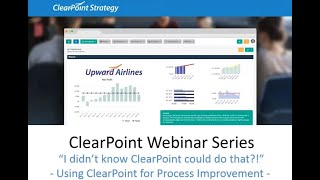
Kathryn and Rachel walk through ClearPoint software for managing process improvement projects. They show how to set up initiatives, customize fields, track milestones, link projects to strategic goals, and generate reports using examples from the City of Arvada, Colorado.
Welcome to the I Didn't Know clearpoint Could do that Webinar series. Today we're diving into managing process improvement projects in clearpoint. Before we get started, here are your smiling hosts. I'm Kathryn.
And I'm Rachel and as a few.
Housekeeping announcements, we will be recording this session and we'll make it available within a week. The webinar will last about 25 minutes with time for questions at the end, so submit your questions to supportareerpointstrategy.com any that we don't get you on air, we'll follow up with over email. Now on our last installment, we took an in depth look at the ClearPoint data loader. So if you've been curious about your options for automatically uploading data into clearpoint, now is a great time to check out that recording and transcript on our website or on our Vimeo channel. Just search webinar and Today we'll be focusing on leveraging clearpoint for process improvement.
So we'll talk through the elements of.
A process improvement project, walk through setting up clearpoint initiatives to support your efforts, configure some alerts to keep things flowing smoothly, and talk through how to link these improvements back to your organizational goals. Lastly, we'll craft a summary report to showcase all the process improvement and projects on your radar. So again, please submit your questions to the address on the screen. SupportLearpointStrategy.com and before we dive in, we want to talk a little bit about what these projects might be focused on. So what defines a business process? It might be something formal, like the documented steps you need to take to get a particular permit, or something informal like maintaining your office supply cabinet. In either case, it's something you do routinely that's designed to help you and your team work in a more streamlined way.
So why is it important to improve your processes? Well, your processes affect your business outcomes.
For better or for worse.
A process that doesn't run smoothly might result in a bad service experience, duplicate efforts towards the same result, wasted resources, or even just frustration on your team. On the other hand, a well defined and executed process allows you to keep your team focused on what matters, course correct easily if something goes wrong and deliver positive outcomes with only the resources you need.
Exactly. And one important thing to keep in mind today is that process improvement should be collaborative. Clearpoint can help you manage communication, remind you of your deadlines, track your progress and other important information, but it's an added resource and not a substitute for in depth in person conversations with your team you'll want to have involvement from all the players in your process, since they'll be the ones at the forefront when you implement your proposed improvements. And then lastly, we want to give a shout out to the city of Arvada, Colorado. Some of the ideas that we'll be.
Sharing with you today were inspired by.
The innovative process improvement work that they conduct internally. They have an awesome team of people trained in facilitating process improvement from different divisions of the organization, and they're seeing some great results. So thank you, Arvada, for sharing these tips with us. And to those of you who are watching the webinar today.
All right, so now that we have some background information on the process improvement best practices, let's jump into clearpoint and see how they look in action. There are a ton of benefits to conducting process improvement from clearpoint. First of all, it allows you to keep all of your information in one central location that everyone involved can contribute to. And you can customize the information you're tracking, the timeline of your project and who's collaborating on the project to match your organization's methods. So where should we start? Where can we fit process improvement into our clearpoint account?
So I can think of two main options. You might integrate these process improvement initiatives right into your department scorecards alongside other projects, or you can create a separate scorecard with where your team can track process improvement. It really depends how you want to view your project and who's going to need access to be involved.
So for the purposes of setting up an example, today we have a process improvement scorecard already built out here. Go ahead and click into that. And then first let's start by creating a new initiative for our process improvement project. So we'll go to the Initiatives Top menu dropdown, and we'll go to Manage Initiatives. And then we can click the plus icon to add a new initiative. We can call this Process Improvement for Onboarding. And then we can go ahead and select an owner and some collaborators here.
And this will be great since, you know, we have a new round of new hires coming on in the fall. So we'll want to make sure that our timeline matches us to improve our onboarding before then.
And then we'll go ahead and select a start date to match with our recruiting process, since that starts in September. We'll have this start here in the beginning of May and then wrap up towards the end of the summer to make sure we're ready in time. All right, and now we can go ahead and click Save, and then we can click into our New Onboarding Process improvement.
And we can see here that we.
Have a number of default fields on the page, but it's going to be important to create some custom fields as well for the unique process improvement information we want to track at Upward Airlines. So in order to do this, we'll go to System Settings, Admin options, and click into our Custom Fields menu option here. And since these fields will be created for our onboarding initiative, we'll click the Initiative tab here and go ahead and click the plus icon to add a new field. And we'll create this one for approval to make sure we have the buy in of our leadership first before we start in on our project. And for field type, we can select Pick List and then give the options of yes, pending, and no. And then we can click Save.
Great. So you might have seen as Rachel selected that Pick List field type, that there are a ton of different types of information that you can add to clearpoint. So really, anything that you want to capture for your process improvement exercises can easily be tracked by creating a custom field to display on your initiative detail page.
That's right. And to save us some time, I've created a few more fields where I can reflect and record data as we gather information for our team. As you can see, a lot of these are HTML text fields, which allows you to format text links and images. So let's go ahead and save out of this window here and navigate back to our onboarding process improvement initiative. And to add those new custom fields onto our layout, we can click the drop down here next to our Edit pencil and select Edit Layout. And then you can see here, if we scroll down on the side, all of our custom fields that we just added are available for us to bring onto the layout.
Perfect. And we'll talk about these in more detail as we're adding information to them. So let's bring out that priority field along with current state and desired future state. We have a SWOT analysis field, our.
Approval field.
And then customer perspective and brainstorming session.
All right, and brainstorming session there.
Yeah. So a really holistic view at our initiative.
All right, it looks like we're ready to save and begin entering some information. So before clearpoint, we were struggling to keep track of this information in a Word document, so it's a huge relief to be copying and pasting it out of there. It'll be so much more interactive and easy to manage this project in clearpoint. So, first off, we'll start with our priority field here and I'll go ahead and give this a high priority. And you may be wondering why you'd even want lower priority projects in clearpoint, but it can be helpful to log the ideas there for now and then tackle them when your team has more time. Yep.
And if you're struggling with how to define high, medium and low priority processes for improvement internally, the City of Arvada has shared a couple of key tips. So first off, there needs to be clear buy in from the team who has proposed the project, and a clear owner of the project will take responsibility for making sure it gets done.
One thing that can help with this is to pursue projects the department suggests to your process improvement team rather than the other way around.
Right. And on top of that, the more closely aligned the project is to the strategic plan overall, the more likely it is to be prioritized. Then lastly, there's that question of bandwidth and making sure the resources required for the project are available.
All good points. And then I do want to point out that we have a discussion field here to track questions and comments. So if I double click in here and I can type in a comment, if I click Add comment then it will be timestamped to show that I was the one who posted the comment and when I did.
Great.
And then let's make sure we're also on the same page about our current and desired future states.
Yep. So this information is often part of conducting a gap analysis on your process. You can use that current state field to define what is and isn't going well in the process you're examining. So for example, at Upward Airlines we're doing a great job outlining our new hires responsibilities for their role. But we're struggling to effectively communicate company culture in our onboarding training.
And not only that, but this field.
Could also be used to demonstrate the scope and boundaries of your process. So we want to be clear that we're not examining how we hire new people, just what we do to train them once they get here. Then that desired future state is going to explain more about where you want your process to be, so how you'll improve from where you are now and with what end results in mind.
Awesome. And then we also have this SWOT analysis field where you can track your strengths, we weaknesses, opportunities and threats related to the onboarding process. You can copy and paste that in here.
Great. And then below that we've got our customer perspective field to help you keep in mind who will benefit from improving your process. So every process has a customer who is impacted by the process outcomes. Whether this is an internal group, a citizen, consumer, or another organization you provide a service to. So the City of Arvada often interviews these individuals as part of their process improvement project and captures insightful quotes from these sessions. In clearpoint, it can be really persuasive to capture this feedback in the form of quotes from the real, live human beings that your process affects. So in our case, the customers are both the new employees receiving onboarding and the teams who are counting on the new hires to be effectively brought up to speed. So in improving this process, everyone wins.
And then finally, we have a space here for tracking our brainstorming session. So as you go through diagramming exercises, whiteboarding, walkthroughs and other activities to analyze your processes, you can incorporate one or more fields in clearpoint to track your findings. Let's put an image here of our whiteboarding session. Go ahead and drag and drop that in. And oh, might just take a second to load there. And there we go. We have an awesome picture of our whiteboarding session. So I'll go ahead and save all of those changes we just made. And now you can see that all of our great new ideas for process improvement are tracked on our project. But how will we actually track the implementation project? How will we work together to get this done? So in clearpoint, you can leverage milestones as a way to organize and track what you need to accomplish.
Yeah, and the great thing about that is that each milestone can have its own owners and collaborators and start and end dates and more separate from the overall project.
Exactly. And we'll use a shortcut to add a few phrases to our project all at once. So I'll go up here to the edit pencil and I'll go into the milestones tab on the left. And then the shortcut here is I can click the drop down icon next to the plus and I'll select to add multiple. So I'll go ahead and grab some milestones from our document here and paste them in here. And then I can go ahead and click save and save one more time and you can see that now those milestones have been populated on our detail page.
Great, this is really helpful. But what if there are other intermediary steps we want to track? I mean, how granular can we get with this process?
Well, we can really get as specific as we want. If we want to break these phrases down into smaller project steps, we can always add what we call sub milestones. And a quick insider tip, if we want to quickly add another milestone, we can actually just double click on this field here on the detail page, and then click this add button here and we'll add a new milestone that will make a sub milestone. So we'll add plan, team event. And then the key here to make this a sub milestone is under the parent milestone field here we can select the milestone that this is a sub milestone of. So for create draft onboarding schedule, we'll select that as the parent and click save. Yep.
So then when we save, it's going to be clearly indented to show that hierarchy between the overall milestone and sub milestone. So is there anything else we should know about that's helpful for tracking our project?
Yes, there's actually a couple more things, if you can believe it. So if we scroll down to the bottom of the detail page, we've also included our GANTT chart. You can see that our milestones and some milestones have been included here as well. And we can actually just drag and drop the bars here to adjust the timeline and also double click from the GANTT chart in order to adjust the status. We can adjust the dates here as well. And the percent complete of our milestones. Go ahead and do a couple of these to make it look nice. All right. And then click here to save. And then in addition to our milestones, we also have the option to add action items, which if we scroll up, you can see that field here. And action items might serve as a smaller to do list, like scheduling a phone call or buying supplies. So to add one, I can just double click on this field and click Add. And then I'll name my action item.
Here, order T shirts or new hires.
And then we can select a timeline here. And this will probably have a shorter timeline, so I'll set this for the beginning of May and give myself maybe about a week to get that done. And then click save.
Nice. And as a tip for action item management, you might do what the City of Arvada does and keep clearpoint up on the screen during your team meetings for process improvement. That way you can easily capture and assign any action items that come up while they're on everyone's mind.
Another important reason why clearpoint is great for tracking process improvement is that it allows you to link directly to impacted strategic objectives in your strategic plan so that you can easily see where your improvement efforts align with your overarching goals. So to do this, we'll click back into our edit pencil icon here, and then this time we'll go to the links tab on the left. And in order to link to an objective that matches with this process improvement, we'll go to our Upward Airlines corporate scorecard to access our strategic plan. We'll select Objective as the link type, and then we'll link this to high employee ownership. Nice.
So along those lines, we also want to make sure to measure the changes from this project.
Right.
To be able to see our impact.
Yeah. So we can actually also link to measures as well from here. So we'll stay in the Upward Airlines corporate scorecard, but this time we'll select Measure as the link type. And then for the element, we'll go ahead and do percent turnover rate. And then we'll know that if this goes down as a result of successful onboarding, especially within the first six months of employment, then we'll know our improvement efforts are working. We can go ahead and click Save. Yeah. And if we scroll down here, we.
Can then see we've got our Objective and Measure field where we can easily click from this page to see how things are going at a higher level. So this is looking really great.
Totally. Now let's set up alerts to help you automate communication with collaborators on this project. This will help keep your workflow moving. So let's say we want to alert all project collaborators as soon as a project is approved. So we'll go ahead and we'll go to notifications here. And then we can click the plus icon to add a new notification. We can call this process approved. And then for the criteria, we'll select Initiative as our element type. And then you can see here we have access to all of those custom fields that we added. And we can select Approval equals Yes. And then we'll know that our project has been approved and we can start working on improving our onboarding process. And then in the Elements and Recipients tab on the left, we can select that this should be pertaining to our process improvement. For onboarding, Add, Link, and then for recipients, we'll make sure the appropriate people are receiving this. And then we can go ahead and click save.
Great. So now that we've got that notification set up, any chance we can see it in action?
Sure thing. If we navigate back to our project and then we set the approval status to yes from our pick list and click Save, you'll notice that our notification bell just populated with a new notification. We click here and click to view it. We'll see here that our process has been approved and we can go ahead and start working on it.
Great.
So now that we've got a clear.
Picture of one of our process improvement projects, we might think about how to summarize all of these types of activities that our organization is undertaking. So let's talk through a couple of different reports we could create to keep track. And to start this process, I'm going to click on Initiatives and into Manage Initiative Reports and say we only want to see the high priority projects that we're undertaking right now. Just to show you sort of the basic structure, we'll start with an overall look at our process improvement project. So on the Columns tab I'll pull out our initiative name the responsible parties, start and end date, and maybe our milestones too.
So let's click Save.
And we can sort of get a look at the full list here of what we're currently tracking in clearpoint. Then if we wanted to just narrow this down to show high priority projects, we could do that manually. But there's an easier way here on the Filters tab to add a filter and say, okay, only show our initiatives if the priority equals high. And on top of that, if we're currently working on it, it probably also means that the project has been approved. So let's go ahead and add an additional filter for approval equals yes. And if we really had a ton of projects and were worried about completed projects getting thrown into this mix, we could also say initiative completed is false. And that way we only get those incomplete projects that are still in progress. So we'll go ahead and save here and we can see that our onboarding process improvement project is the only one that's currently in progress. So maybe we want to pull this into a scorecard landing page, given that all of our projects are in the same scorecard and display this particular report as part of a larger landing page as a whole, so that anyone from our leadership team is able to come in and see those important updates at a glance. So for that I am going to want to make sure to have some more custom fields ready. And I've gone into admin options clicking on custom fields and I'll go ahead and add a field called Current Process Improvement Project and we'll make this a data grid so that we can reference a summary report from elsewhere in clearpoint. I've also got a couple of additional fields here, created one for our GANTT chart of all of our projects and just an overview where we can introduce our team a little bit. So we'll save those fields and then to create my scorecard summary report, I'm going to click into Manage Scorecard Reports, click the Add icon and call this our Process Improvement landing page. So then for our page Layout, we want to have our GANTT chart, our current project report, and our overview. I'll click Save here. And now we can take a look at the content. So for our overview, maybe to make things personal, I'll pull in a picture of our team here at Upward Airlines, and I'll give a little bit of background information about what we're undertaking for process improvement. Then, for our data grid field, when I double click, I'm going to see a series of dropdowns. So first I want to select the scorecard from which I'm pulling a report, specify that it's an initiative report, and then find the report that I created. So one more thing before we save, we'll do the same for our GANTT chart. And the Gantt chart is actually going to be a default report that's in every scorecard in clearpoint. It's similar to the one we saw on the Initiative Detail page, but just gives an overview of all the projects in that scorecard.
So here we can see we've got a really nice summary of our information.
And now it's time to put all.
That planning to the test.
So as you go about implementing changes to your processes, it's always good to prepare for an adjustment period, since new ways of working can take some time to settle in. And it's always good to remind people why the changes are important so that old habits don't take over. For example, here at clearpoint, sometimes when we implement a new change to a process and see a positive change in the result, our managers will email our whole team about it, which keeps everyone excited about the reasons we do what we do. And of course, if you need to schedule report data uploads or email reminders in clearpoint to keep things on track, we've got you covered. There's definitely some other webinars that we can pass along for scheduling information. And of course, your improved process might not be perfect the first time, so don't be afraid to keep on improving. Now, with our remaining time today, we'd love to open up the floor for your questions. So here's one that's come in. What if you want to track different information about your project milestones from your initiative? Rachel, do you want to tackle that one?
Yeah, sure. So let's navigate back to our process improvement to our project here. And as you guys remember, we have our milestones on the side. But actually what you might not have known is that you can click directly into the milestone to access its details detail page. So this has some default fields Here that can contain information specific to this milestone, but I can also create some custom fields to track information here as well. So if I go back to system settings, admin options, and then custom fields, and this time I'll click into the Milestones tab on the left, and this is where I can add a custom field for my milestone. So maybe outcome of milestone is a field I'd like to have. And I'll make this an HTML text and then click Save, Save order. And then if I navigate back here to my milestone, I can edit the layout to add that new field. So we'll do the edit layout here, just like we did for our initiative. And I can see search for my new custom field here. And there it is. Joe, you can drop it there. Now I have the option to track this information specific to my milestone.
Awesome. And one other thing that's kind of cool about milestones is because they're all linked to just one initiative, when you add a field like this to one milestone detail page, it actually updates all of the detail pages for the milestones associated with that one initiative. So now we can track the outcome for each of these milestones one by one. And we've had another question come in from Laura, which is, do collaborators receive an email notification as well? Great question. So the way that the notifications are going to work is that you can.
Choose.
On that Elements and recipients tab who receives the notification for each element that you've linked. So if you want to set up notifications for another project and you have those specific people in mind that you want to receive notifications about it, you.
Can assign them here.
And another thing that users can do if they want to receive notifications is if they're not administrators especially, they can go in to an individual element that they want to keep track of and add a notification for that element. So they can choose specific criteria that they're really interested in getting alerts about. Or because we set up that approval template, we can just go ahead and save that for ourselves, for this project, and then if it gets approved, we'll get a notification about it. So they're really flexible, and if you have any questions in mind or uses that you want to alert people about, definitely reach out and we can help you get those configured. So we've got one more here. What if I want to use this initiative layout on other projects? Do I have to set it up every time? And note, there's a couple of shortcuts there that you can leverage, one of which being our bulk edit layout feature.
So if we like the layout of.
This particular project.
And we go into.
The edit layout window, there's a drop down next to the save icon to update all initiatives in the scorecard, all initiatives with the same name, or all initiatives in the account. So definitely be careful with those bulk uploads and make sure you choose the right option. But it's a great shortcut. And another option that you might think about is creating a template. So assuming that these process improvement projects are a subset of your overall project tracking, we could just add one here called Process Improvement Template. Go to the Detail page, make sure it has the fields that we want to see on that page.
And then.
Every time we want to add a process improvement initiative with that format, we can go to Manage Initiatives and simply duplicate that process improvement template and give it the name of our new project. One last option is under Admin Options, you can set a default layout based on an existing element. So if you do decide that you want all your newly added initiatives to have that same layout, you can just specify an initiative here. And when you add a new initiative, they're all going to mimic this format.
One thing to be careful about there is that that's for your entire account, so that will affect all new initiatives added in all scorecards. Just something to keep in mind.
Exactly. All right, well, we are reaching the end of our time here today. Thank you so much for joining us on this episode of the I Didn't Know clearpoint Could do that webinar series. We'll see you next time. And happy reporting.
More from Ted



AI in Local Government: How the City of Durham Analyzes Strategy, Risk & Performance

How Coral Springs Won the Baldrige Award — Blueprint for City Excellence | ClearPoint Strategy


AI, Data, & the End of Gut-Feel Strategy: Why Strategy is Becoming More Data Driven
Strategy Needs Accountability: How to Drive Project Follow-Through and Execution