Teaching Numerical Methods with IPython Notebooks 1 | SciPy 2014 | Aron Ahmadia, David Ketcheson
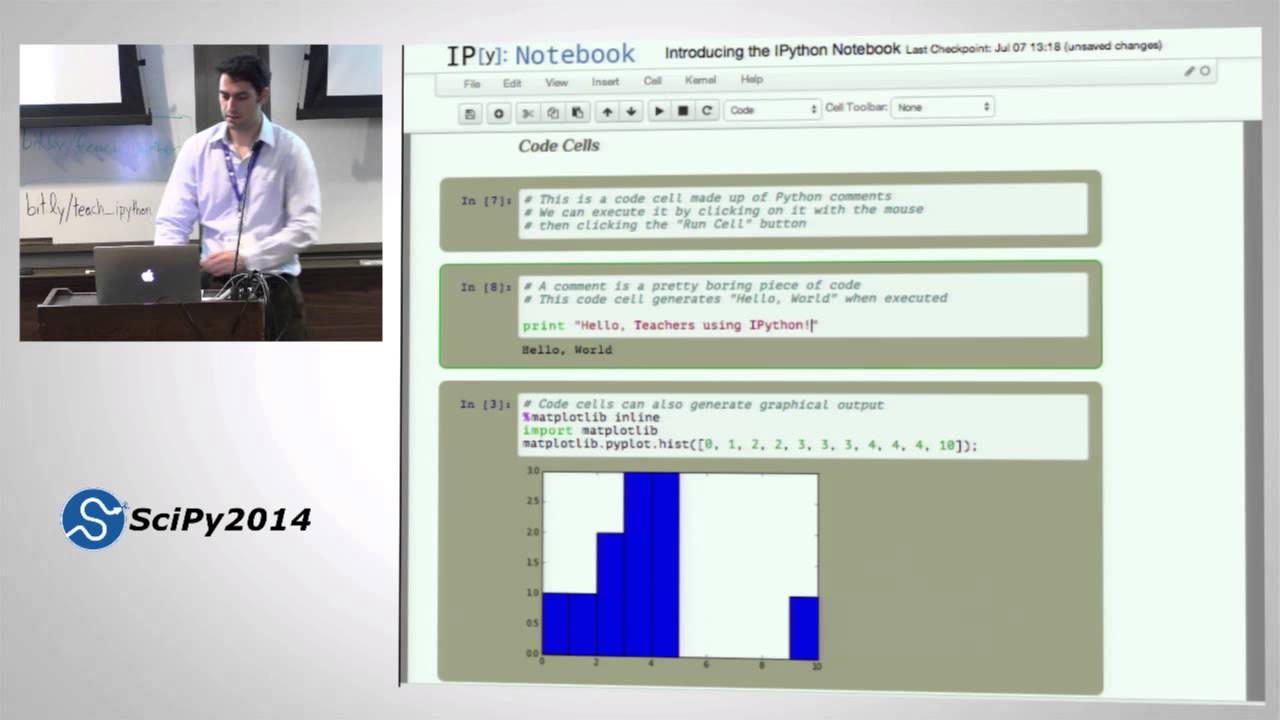
David Ketcheson shows how to use Jupyter notebooks to teach numerical methods, letting students write and run code alongside explanations and visualizations. The session covers distributing assignments via GitHub and cloud services, notebook basics like cell types and keyboard shortcuts, and security considerations for embedded content.
Chapters
My name is David Ketcheson. I'm an associate professor at King Abdullah University of Science and Technology. It's an international graduate-only university in Saudi Arabia. If you don't know anything about Saudi Arabia, it's kind of similar to Texas. It's hot, humid, and there's some oil there. Let me just see if I can get a little— there we go. Yeah, so we're actually— here. I'll slow the internet connection down a little more while we wait. So we're on the Red Sea coast. And it's quite humid there. It's the west coast of Saudi Arabia.
OK.
Okay, so the Wi-Fi is really slow. I'm actually going to use the Wi-Fi during part of the tutorial, so hopefully it's enough. But yeah, there's a tutorial on YouTube videos next door or something. I don't know.
How do you close that loop?
Yeah, yeah. We also have golf courses over— well, we have a golf course over there. Very, very similar to Texas. Yeah, okay. I got to zoom out a little more to be— to get to anything recognizable.
Do you have a network up here?
Sorry? The LAN.
Oh.
I don't have my— oh, you have a— that would be awesome.
Thank you.
Okay, there's where we are. There's lots of water.
Thanks, David. If you're having trouble with the internet connection and your connection is down, I actually need you to stand up and then sit over here because what I'll do is I'm going to hand out a USB. USB key with the materials to you here, so in a small, localized place. If you're OK, you've got your materials, and you've got an internet connection, don't worry about it. But if you don't have an internet connection and you need materials, come sit here, and I'll take care of you.
OK, how many of you actually teach numerical methods? OK, and how many teach primarily something else? But they're here anyway because they have faith that this is applicable to them. Okay, good. Well, I think, yeah, so I won't assume that you know a lot of numerical methods. I'll show a couple of examples where we'll actually be, you know, numerical methods will be the context, but I think all of the real meat of the tutorial is more or less subject matter independent. Also, I should say we'll focus really On the technical side of things, I was a little ambitious initially with the abstract. We won't cover a lot of, I think, pedagogical techniques. But tomorrow's keynote— we have Lorena Barba here. She's going to talk tomorrow on very similar things and focus more on the other aspects of it, the non-technical aspects. So today will be very focused on— The technical aspects. the technical side of things. Okay, how many of you would say you're extremely comfortable with IPython Notebooks? How many of you would say you're at least somewhat comfortable? Okay, okay, good. We will go over some of the basics of IPython Notebooks, so, but if we're going If we're going too slow or too fast, feel free to speak up. OK, so I'm going to go ahead and move forward, Aaron. You think?
Yeah.
I think almost everybody's with us. And you don't actually have to run anything in this part, so you can just watch for the beginning here.
There you go.
All right, awesome. Okay, so if you want to follow along on your own screen, you can, or if you want to just watch up here, you can for this part. There will be a participatory part soon. Anyway, if you, if you click on the notebook called introduction, you should see this. All right. Okay, this first box here I will explain actually close to the end of the tutorial. It's applying some CSS, and that's why this notebook looks a little bit different than, you know, the default way that you see notebooks. If your notebook doesn't look like this, right, if it looks like this, right, then you can run this box and it will make it look like that. I don't know which you prefer, but all right. So there's a little bit about the scope here. So again, it's about teaching with IPython notebooks. The context is numerical methods, but I think it's applicable to other subjects. But I do want to say a little bit, and this will be almost all the pedagogy I'll really talk about, but, and this is my own opinion here, I think a course in numerical methods should not just teach students to understand the methods from a theoretical point of view, but they should actually be able to, you know, given a problem, choose a good method for it, implement it, make sure it works right. Okay, because that's what you have to do in practice to use numerical methods. Now usually, or very often, courses focus mostly on the theoretical or just understanding the numerical methods, and if programming is required, the students have to sort of learn it on their own, pick things up ad hoc. I think it's worthwhile to actually spend time in class with students programming. And that's one of the reasons why I use IPython Notebooks in my teaching, because it facilitates having students learn and program and experiment in the classroom. But you can also use IPython Notebooks in a very traditional course just as a way, say, to distribute homework assignments and collect them also, or Maybe for occasional laboratory sessions where you do have all the students in the computer lab and have them working in notebooks. You can also write a set of notebooks that are essentially a textbook. And the advantage that notebooks have over a traditional printed textbook is that you can have, well, mathematics and formatted text. Okay, that's— you could have that in any medium. But you can also have executable code. right, in the middle of your textbook, and you can have the figures and animations that the code produces and other figures all side by side. So the big advantage is really having that executable code and also I think animations. So for instance, if you're teaching students how to solve time-dependent PDEs, in a textbook they would maybe just see a snapshot of the solution at some time, but in a notebook you could have an animation of the solution. And we'll see examples of that. And to me, that's just a quantum leap, you know, in the kind of understanding that it facilitates. It's so much more powerful to see something that is time-dependent actually changing in time than to see just a snapshot of it. Okay. If you click here, here's just a quick example. This was in case you're not too familiar with the notebook. You can see here's a notebook from a short course. where you have obviously explanations and mathematics, figures, right, and then code that you can run. Here I'm just viewing it on nbviewer, so I can't run the code right here, but if I click this download link, then I get a copy of the notebook locally and I can run it. How many of you have used nbviewer before?
I have.
Okay, I'll talk a little bit about it more later, but it looks like almost everybody. Okay, and then so there's some motivation. Here are some more examples. These are 4 courses heavily based on IPython notebooks for teaching numerical methods. There are lots of other fully developed or little pieces of teaching materials for other subjects, and there's a very nice collection of them on this page. So if you click this link, a gallery of interesting IPython notebooks, if you've never seen this before, it's really quite an impressive collection. So the first section here is entire books or other large collections of notebooks on a topic, and there are several, you know, full course notes or essentially textbooks written in IPython notebooks, okay, for different subjects. So you can see there's statistics, programming, math, physics, and so on. All right, so there's a lot of material out there available, and this is one of the great things about writing your materials in IPython notebooks is that it's so easy to just distribute them freely. At least I think that's a great thing. Whereas traditional textbooks are usually not distributed freely. Okay, and then I have here links to a few blog posts by people whose names you're probably familiar with at this conference, talking about how they teach with IPython Notebooks. So you can get more different perspectives, I guess. I'll give you my perspective today on how I use it, and here are some other perspectives. Especially I think this discussion on the Software Carpentry site written by Greg Wilson is a really interesting discussion of the advantages and disadvantages of using the IPython notebook for teaching. Okay, so let's do something interesting now. So One issue you have to deal with if you want to teach with Python at all, right, is that you need all your students to have Python and the necessary packages like Matplotlib and NumPy installed on their computers. 5 years ago when I started doing this, that was still a pain. Now it's quite easy. You just download Canopy or Anaconda and you have binaries on whatever platform you want. This last semester in the spring, I tried something that made it even more painless. So there are 2 cloud services that will run IPython notebooks: SageMath Cloud and Wakari. So I'm going to go ahead and click this link to SageMath Cloud, and let me just log out to show you what you'll see. Go ahead and— go ahead and create an account there if you want to play around with it. The Wi-Fi is not very good here, otherwise I was actually going to suggest that everybody just run the whole tutorial on SageMath Cloud, but obviously with the Wi-Fi the way it is, that won't work. So you can create an account if you want, or you can just watch along. I recommend trying it out, but your connection may be too slow to really do much with it here, unfortunately. I Okay, so I don't know why it took me to this page. I guess because I was on settings before. Okay, so when you log in, you won't have any projects. You can create a new project. I'll go ahead and create a new project. I'll just call it SciPy tutorial. I don't have to give it a description. Okay, and it appears here in my list of projects. Each of these projects is basically a complete sandboxed environment. It's backed up. to multiple locations. In fact, even if you crash it while you're running, it will behind the scenes be spun back up on another machine, and you can keep going, and you won't even know most of the time. Okay. Now, if I click up here on New, it says I can name— I can put in the name of a file or paste in a web link. So what I'm going to put here is actually the URL of the GitHub repo for the tutorial. So I'm on GitHub now, right? This is this teaching numerics with notebooks.
Whoops.
And if I click over here to copy the, the link to my— then I paste it in here, right? And I click from internet here. Okay, so you can actually do a git clone here without knowing any Git, and this is really useful for your students if you want to distribute your notebooks without them learning Git. So this is what I— this is how I distributed the notebooks for my course this spring, and none of my students had ever used Git before. I don't think any of them used it since. Maybe some of them did afterwards, but here you have just a very simple interface to Clone a GitHub repo, although maybe— oh, okay. So it did clone it, 'cause it tells me now when I try to clone it again that that path already exists. So what that did, if I go back to Files, was clone that into my directory here. Oh, just to show you that this is sort of a complete working environment, if I go to New File, I can click down here Terminal, for instance, right? And now I have a terminal. Okay, and I can—
Oh, you can type.
you know, go into this directory, look around. I could actually launch IPython from here if I wanted, but I won't. Okay, but I can, for instance, you know, I could install Plotly here, right? Okay, except I don't have permission, so I need to do user. Yeah, okay, so you can install your own Python packages in here, whatever you need, right? It's a complete working environment. which is really nice. Now if I go into this teaching numerics with notebooks directory, right, then I can click on— I can open this introduction notebook on SageMath Cloud. Okay, and this part's a little slow. So the first time you open a notebook, it does a bunch of stuff behind the scenes. It's actually wrapping the notebook server in another server that allows you to synchronize between different users. So Who has created a SageMath Cloud account? Okay, can you— what's your username? Ursula? Okay, so I'm going to— oh, okay, just a second. I'm going to— okay.
Oh, her. Yeah.
Okay, it should. For some reason it's not. Here's my email. Oh, you have—
@gmail.com.
OK. So there you are. I'm going to add you as a collaborator.
OK.
So now if you go to your projects, you should be able to see my project. So just go back to— because I'm zoomed in so much, I don't have all the controls. But if you click up here on Projects, Ursula. All right, you should see this SciPy tutorial project that, that I created.
Uh-huh.
You guys can do the same thing with the person next to you if you want. So if you click on that SciPy tutorial project, right, and then open one of the notebooks, you can, you and I can edit it at the same time. So did you— okay, maybe the Wi-Fi is too slow to do it, but But if you get there later, tell me and we can demo it. All right, so, okay, and you see here I can have multiple things open at once and it's got this nice little tabbed interface. So here I've got an IPython notebook, here I've got a terminal, right? Okay, I can run the IPython notebook here. Okay, and my connection is again too slow. So You can— okay, I'm a little frustrated with the internet connection here, so I won't be able to demo things as much as I could, but there's a lot of nice features here. You can search across your whole project, you know, so I can see anything that has the word numerical in it.
David, comments?
Oh, go ahead. I noticed that when you go to your project control, there's a quota. And I wonder if you have a class of students and they're all using your notebook, does it exceed your CPU quota?
So that's a per-project quota, I think. And what I had— yeah, so there are different ways you could do this. You could have one project, add all the students as collaborators, and then everybody would be working in the same space. I think that's not usually the way you would That's not how I wanted it to work. So what I did was have each of the students create their own project under their account, and then clone the GitHub repository with all the notebooks for the course and work there. So yeah, good question. Was there another?
Yeah, I just wanted to gush that this is a total game changer for a lot of us. If we work at these big state schools, they have computer labs. labs, and they're reimaged every quarter, and students can't install anything. And so this has really been the sticking point for me. So this is awesome.
Yeah, I agree. I can't take any credit for this. So this is William Stein.
You're spreading the message.
All right, I'll take credit for spreading the news. So this is developed by William Stein. He's actually the guy who developed Sage also. And he's now working on this full-time, as I understand. And his plan is exactly to target that kind of thing, to make this useful for courses like that. It's still right now, I think, very new. It's less than a year old. But he's extremely accommodating. So for my course, I needed a couple of special packages installed. And I didn't want to have to have the students install them. So I actually asked him. And the next day, he had everything installed by default. So yeah.
It's free?
It's free. There will be paid accounts. There are not paid accounts yet. And I don't know what is guaranteed to be free forever. Yeah, I can't say anything about that. You'd have to ask William. He's extremely responsive, so if you send email to wstein@gmail.com, you know, you'll probably— before the end of the tutorial, you'll have an answer to whatever. Is it free since any time?
Sorry?
I know he intends for it to be sustainable. You know, right now it's running on donations from Amazon and Google, you know. And he intends it to be sustainable long-term, so there must be paid things.
Yeah. So different web services have different ways of handling when you exceed your quota. Like Heroku just cuts you off and takes away some of your stuff with a warning, but Amazon Web Services bills you.
Okay.
What is this going to do if you accidentally exceed your quota?
Yeah. This is so new that probably nobody knows the answer to that question. If you email William and say, I need more space, You'll have it. So yeah. He said he had— he posted on Google+ a month ago that he has enough resources to scale up to at least 10 times the number of users he has right now. And it's already being pretty heavily used by the Sage community. So by the way, I'm using this to run Sage notebooks, which is a little bit probably strange from his point of view because he developed Sage Sorry, I'm using it to run IPython notebooks. And there's something called a Sage worksheet. How many of you have heard of the Sage worksheet? Okay. This was kind of grew up alongside the IPython notebook. It's very similar in a lot of ways. You can run Sage worksheets on here too. Okay. I'm not, I'm not gonna get into— oh, okay. You're saying credit William. All right. So no debate there.
We learned a lot from William's progress.
All right.
But credit to William.
Okay. And I don't know, for some reason my connection is so slow that that cell won't even run. Oh, there it goes. Okay. So it's running. Anyway, I think in the interest of time, I'm going to jump back to the introduction notebook and click on this link to Waqari, another awesome service which I've also used. I haven't used it to teach a full course thus far. OK, and my connection has really died. I even have a wired connection, so I don't know what's going on. I'm going to try to get you back. All right, so Wakari is another free, for now at least. They already have paid accounts available.
Wakari has both free and commercial accounts available. And both SageMathCloud and Wakari are expanding in a couple of ways in sort of the enterprise and university direction, where they'll install— you pay them money, and they will install a local Wakari on university machines. So you can install a local SageMath cloud on your university machines. Your university gets to administer them and work with them, or for your company if you're at a company, and they'll maintain sort of the software stack for you. And that's sort of another option. And this is actually— you asked how they're sustainable. This is one of their real possibilities.
OK, so here's— I haven't used Wakari for teaching, but here's a notebook that reproduces a figure from a paper that Aaron and I and a few other people wrote. And we put it up on Wakari and we have a link from our webpage. So anyone who reads the paper can just go up here and reproduce the thing. And so this is another thing that I love using notebooks for. So here we have the code to reproduce it. And you can, if you read the paper and you say, well, what would happen if you change this boundary condition, right? You can go do it there. And you don't need to install anything. Right? It's all included. So Wakari has these bundles that are prepackaged software environments.
Okay.
All right, so both of those allow free accounts. Both include all the most common scientific Python packages. I think both of them are viable options for teaching a course. I haven't talked to the Wakari guys about supporting a course, but I think they would be interested.
I think they're here.
Yeah, I think so. Maybe they're in the room. I don't know.
Good opportunity.
Yeah.
Yes?
So do either of these allow real-time coding? So that you can have this open and then you can type something and make corrections?
Yes. So yeah, I should have done that. So here I'm actually in the notebook. I can— oops. So are you talking about just me or you and I both editing this notebook at the same time? Yeah, that's what I was trying to do with Ursula. Did you ever get it to load?
Yes, it's loading.
So if you open that introduction notebook, right? So if you click on— in Files, you should be able to— OK.
I run the Python.
Oh, you're in the notebook. Okay. So, so go ahead and create a new cell. Oh, this is the wrong copy of it. Sorry. I have too many tabs open here. Yeah. So you should be able to create new cells, type things. Can you do it? Do something around, you know, around this part of the file so everybody can see that you're editing it at the same time? Maybe— OK. OK. So due to the—
She's modifying it.
OK. It tells me that you're changing it. It's very snappy with a good internet connection. So go try it at home.
OK. So—
But also to address your questions, depending on the quality of the language, In classrooms, we run into this situation a number of occurrences where student interaction, especially if you've got classes that are larger than 25 or so, a lot of university wireless just can't handle that kind of volume. So be careful.
Yeah. I guess if you have a wired laboratory, right, then you're obviously fine. Okay. So just really quick comments about distributing notebooks and collecting them. So if the notebooks contain the homework exercises like they do in my course, then this is an important issue. So I already showed you on SageMath Cloud a really easy way. If you put all your stuff on a GitHub repo, all they have to do is one time paste that GitHub URL into the box on SageMath Cloud and they get the whole thing. You can also just throw your notebooks into Dropbox in your public folder and then give your students the link to them on nbviewer. So I'm gonna assume everybody's familiar with Dropbox. So what I did was just put this notebook in my public Dropbox folder, and then here's a link to it on nbviewer. So if you go to nbviewer.org and you just paste any URL of a notebook in here, right, it will show you a static view of that notebook. Extremely useful tool for distributing notebooks. Let me just— all right. And then collecting them— oh yeah, you can also throw notebooks up as gists. Okay, I won't demo it since we're running a little bit behind schedule. To collect notebooks, there are a few different things I've done. In a very small course, you can just have the students actually, you know, run their code in front of everybody else, explain it, right? That's the best in my opinion. You can have them add you as a collaborator to their projects on SageMath Cloud, and then you have direct access to their notebooks. Without having to email things back and forth or anything like that. Or you can have them post theirs somewhere public on the web and an nbviewer link to it. Now depending on the course, it may or may not be okay to have them putting their homeworks up publicly on the web. For my small graduate courses, nobody seems to have a problem with that. Any of those approaches in my opinion is much better than having them print out their notebook and give it to you, right? I wouldn't recommend that. All right, so now any more questions?
Yeah.
A more traditional format is you want to somehow grade the students' work.
Yes.
And you don't want them to grade it in front of the other students, so you have to have something to mark up or go over. Can you mark up their notebooks and send them back or what?
Yes, so in using any of these approaches, right, you could download their notebook or access it on SageMath Cloud and, you know, write some comments in red, right? in new cells, write their score at the bottom, and send it back to them.
Yeah.
OK. Yes?
There are a number of people who are trying to find what is the ideal workflow precisely for this question. And we're open to ideas on the IPython list on annotation and work and combinations of automated grading on the test, on the code parts that can be automated, Plus manual feedback. This is kind of open territory, and we're happy that the one thing to know about the notebook is that the underlying data structure that represents one of these files is a JSON data structure that allows for metadata everywhere. So there's slots to annotate metadata in multiple places, and that can be a space where a GUI can overlay, a grading GUI of some kind could overlay and There's a lot of opportunity for interesting ideas in this direction, and I think there's plenty to do. We're not going to be able to do all of that, so we're hoping that some of you will pick some of that up.
We're running about 10 minutes behind schedule, so I'm going to move us forward. I'm going to note also though that we saved a half hour at the end of this because we know that a lot of people have a lot of experiences to share and discuss. We have a lot of really technically I think we have 3 of the core— the 3 corest core IPython developers are in this tutorial, as you probably guessed from some of the comments and help that's coming around. So yes, there will be time to go into detailed discussion, hopefully. And then you can also save deeper questions for Professor Barba at the end of her keynote tomorrow morning. And of course, we're all happy to go out And have some food with you or rehydrate.
So one really closely related issue to what you asked though that I just want to throw this out there because I don't have the perfect solution is of course you want to keep copies of your notebooks with and without the solutions, right? And then when you update one of them you'd like to update the other in the same way, right? And of course you want to— you can keep the ones without the solutions in a public place but the ones with the solutions probably need to be in a private place. So these are other issues that I think still need to be dealt with in an optimal way.
Hi.
I'm Aaron Almedia. David introduced me a little bit earlier, but I'm a research scientist with the U.S. Army Corps of Engineers. I'm based in D.C. I'm affiliated with Software Carpentry as well and George Washington University. Actually, I have a small desk next to Professor Barba in GW. which I sometimes visit. My chief experience in teaching with the IPython Notebooks is not in a traditional classroom. So I have been teaching Software Carpentry for the last year and a half. We've got a couple Software Carpentry instructors in here. I see them. It's a 2-day intense boot camp where we sit people down and we throw all sorts of new topics at them. And I won't go too much into what Software Carpentry is, But my experience is, and the way that I approach the IPython Notebook comes a little differently from what a traditional classroom instructor— and David is far from traditional— but a little bit differently than from what even David does. And so if you have questions or comments or think it's weird, we should discuss it. But keep in mind that this isn't necessarily what you would maybe do. In the classroom, but it might be something that you can take advantage of or use some aspect of the way that we do things or approach things.
OK.
So if you are not seeing anything, that's because I don't have mirroring on, which I'm going to turn on right now. Is there a keyboard shortcut for mirror? Because that would be awesome. Is it Control+M? Does anybody know one? I don't think there is either of us.
But you can put your displays in the bar under the video preferences.
Command+F1.
Okay.
How does that look?
Okay.
So there are about 4 different ways that you can follow along in this presentation. The first is if you have the notebooks downloaded, you can, using Your IPython Notebook tool, right? You can— if you're in a different notebook, you can always click on the IPython Notebook in the top left. That's a hyperlink to the sort of directory browser view. And you can then click on another notebook to start it up. So I've actually— this is the one that I have started. It's introducing the IPython Notebook. You can click here. To get to this notebook?
Mm-hmm.
Okay, that's one way. You can also just click on this link here and that will take you to a static view of the notebook. So you can't execute anything in the notebook, but if for some reason things aren't working for you and you'd still like to at least follow along from your web browser, you can do that. And so this is again the static view of the notebook, and again it looks very, very similar to But it's different in that this stuff I can click on it, but I can't execute commands.
OK.
So I'm going to be working from this live version of the IPython Notebook. And feel free to follow along, you know, watching on the screen, just reading the webpage, or using it. Also, for the next— when's the break? 10:30.
2:15.
2:15. For the next half an hour, I'm going to be coming— covering notebook fundamentals. I'm going to be talking about modal editing, so the command mode versus edit mode. I'm going to be talking about how to use Markdown. I'm going to talk about how to use display. And I'm going to talk how the different cells work. So if you know all of this, feel free to either hang out and help people who are new to the IPython notebook and coming at this for the very first time, Feel free to just pay attention because maybe I know one or two things that may be new to you, maybe in the modal editor or in command line. And feel free to go grab some coffee. I'm not going to be offended. I know that this is in some sense covering ground that you're already familiar with, but we need to sort of establish the space. And we didn't assume that anybody here was going to know IPython Notebook when they came in.
OK?
Are there any questions about that before we get started?
No.
Is anybody— bit of a sticky note if you are comfortable with browsing forward with whatever you've got. You've got a notebook up and you're on the right notebook.
Put up your sticky if you're ready to move forward.
And actually, definitely the first thing to do is to try running a cell. So you can click on this cell. You'll get a green box highlighting it. And then just press the play button right here. And if you see a bunch of stuff change, that's a good sign, because that means that the styling worked. And if it doesn't work, go ahead and put up a hand, just so we know that people have some issues. OK. And thanks for volunteers.
Put up a sticky note if you have this notebook open and you're ready to—
Yeah. Put a sticky note up if you're in good shape. Normally we work with 2 colors of sticky note. There's a good sticky note, I'm doing well, and there's an I'm in trouble sticky note. We don't have 2 colors, so it's— I tried to adjust and I'm already seeing the problems. Yeah, or feel free to raise a hand if you need help. I'm going to keep going and I'm going to talk just a little bit about what the notebook is.
Right?
And one way to think of the notebook is just an interactive environment for writing and running code. And this is actually the description that you'll find at the landing page for the IPython notebook. So this is fundamentally what they want to say. It's an interactive environment You write code and you run code in it. But you could also think of the IPython notebook as a weave, right? And this is a weave in the sense of a literate programming where your code is here and your comments for the code are here and some of the outputs from your code are here and maybe even your data is stored here and your analysis is here. So a code is also in some sense A live paper, right? It's a manuscript that has all of the pieces of the scientific experiment encoded into it.
Absolutely.
Okay? It is also a tool for prototyping, because sometimes you want to write new code, but you're not ready to put it into your library. You're not ready to save it out as a script. You just want to see what it does, right? I'm gonna quote Fernando, because this is one of my favorite Fernando quotes. As scientists, we don't know what we're doing, right? We have no idea what we're doing. And so we're continuously exploring and trying new things and changing things and seeing what happens. That's the fundamental, you know, that part of curiosity is why we're all here, right? Well, that's why I'm here. And hopefully you've got some of that too, and that's why the IPython notebook might be useful for you. And then finally, this is becoming more and more important. People are realizing this. That once you have all of your code and all of your data and all of your pictures all together in one place, right, now after you've created a paper, that paper is no longer just a piece of dead, you know, recycled cellulose that can be read, right? And that's how it's reproduced. Somebody has to go and they have to look at the paper and then they have to go in and figure out what your environment was. Your entire experiment is in the paper. Right? When you hand somebody your paper now, when you hand somebody a notebook, you're handing them your entire experiment. And all they have to do to run your experiment is click run all, right? Maybe they have to start up a supercomputer because you're— it was a big experiment. Or maybe they have to collect some of their own data. But it's a reproducible workflow. And this is an idea that I would say is becoming— it's increasing in virulence. People are getting more excited about this every year.
OK.
Of course, it's all of these things, right? It's what you make of it. And if you just want to prototype code and you don't want to use it for your papers, or if you just want to use it for your papers and you don't believe in prototyping with a notebook, that's OK, right? This is a tool for you, and you should use it however is most effective. But of course, today we're talking about teaching with the notebook. So it's a little bit of all of this. It's mostly, I think, in this section, kind of the first part. We're going to read code, or we're going to write code, and we're going to show people how to run it. And everybody here is going to run it with me because we have a live presentation. So the first thing to understand about the notebook is what it is, what it's made of, right? And Fernando just stole my thunder again. It's a JSON— it's a list of JSON cells, right? And each of those JSON cells— and if you don't know what JSON is, it's just a way to store data. It's a structured way to store data. And it has a nice text encoding. So each of your cells underneath the hood is just expressed by text. And each of the cells can be one of 4 types. These are the 4 important types. So code, I hope, is kind of this fundamental type that you're very comfortable with. It's the cells that you can execute. And we already executed a cell a little earlier. We're going to go and we're going to execute more cells later. Markdown is a high-level language that allows you to write HTML more easily. OK? Heading cells allow you to structure and organize your notebook. In fact, they're the simplest of cells. And we'll show you what they are right here.
OK.
This is a heading cell. So one thing that's hard to see is what my notebook is showing up here. But if you've got a live notebook session, not a static view but a live session, you'll see that this says Heading 2 over here. And I accidentally double-clicked this. I'll undo that later. But this just means that when this cell is viewed by the IPython notebook, it's going to present it as an H2 element in HTML. And that's just— in Word, you know, you have Heading 1, Heading 2, Heading 3, Heading 4. In HTML, you have H1, H2, H3, H4. It's the same thing. It's just a way to describe the structure of your document. And so the title of this is H1, right? Introducing the IPython Notebook. These cells are H3. And then each of these sections are H2. Okay. So that's heading and Markdown and code. Raw cells are cells that you do not want IPython Notebook to do anything with. Right? So think about what these cells are. Code tells the IPython Notebook that this is code that should be executed. Markdown tells the notebook that this is Markdown formatted text. And I want you to turn this into HTML, so it's nice and easy to see and it's pleasant. I can embed images and such. Heading says, well, this is a heading. Raw says this is not something for you. So what's an example? Who here has used a raw cell before and why did you use a raw cell? Yes, Eric. For example, you just paste some data file, for example. OK. Eric pastes a data file in— So like ASCII table or something. An ASCII table, right? So it's just something just to show, right?
OK.
I use raw cells if I'm writing a LaTeX paper in an IPython notebook because there is LaTeX that the notebook doesn't know what to do with, right? And so if you have LaTeX that it's not Markdown, it's not code, and it's not heading, that's where you would put it. Fernando, Brian, do you guys have any other interesting examples of raw cells uses? What was your usage? I already used it for LaTeX. I used the obvious one.
Restructured text?
Restructured text. OK. So if you don't want to use Markdown and you have— again, it's another text format.
Yes?
Does LaTeX or restructured text appear as coding? It appears as raw text. Raw text. It's as if you used an HTML pre or code element. It just doesn't do anything to it.
Yes?
Since RST came up, are there any plans to support RST, not just Markdown, in the Markdown settings?
Oh, man.
That was easy. Thanks, man. Okay.
One thing that I've done with this is to post transcript sessions of what this would look like if you ran it in a command line. Essentially it's just a pre, but the main reason for doing that is that you can show a command, particularly if you want to illustrate what error messages look like and what should be done when students find them. I use it to give examples of this is the garbage your screen will look like and don't panic because it's really something OK.
That's totally reasonable. OK. So I covered very briefly raw cells. We talked a little bit about heading. We're going to go in a slightly deeper dive into code and Markdown cells. I'm going to show you the basics of code cells. And I'm going to talk a lot about how we edit cells in the notebook. Because it actually turns out that there's a very rich and powerful keyboard syntax for navigating around the notebook, and it's— this is new to IPython 2. So even if you're sort of familiar with IPython 1 and you've been using it a lot, this modal editor will trip you up if you haven't sort of been using it and haven't seen it. Okay, so the first thing is code cells using our formatting, and we'll talk more about what the formatting does, but we have a nice sort of brown background. It's brown on my screen, probably brown on your screen, and beige on the presentation. And that's how you identify it. There's also a small indicator over here that says that this is input, right? And then this 1 says that this was executed as the first instruction of the last session where this was run. And it could be the current session. And we'll get back to that in a little bit. If you want to execute this code cell, again, you select it by clicking on the cell and you'll see that it turns green. The border.
Yeah.
It doesn't actually have to turn green to be selected. I'm actually— so there's a light gold boundary when it's selected. If you click in here, it'll turn green and that's the edit mode. I'll come back to that. But if you're here and you've got a green background and you're pretty sure you selected it, you can press play, and the only thing that should change in your notebook is this number to the left. And if you're not sure that it changed, go ahead and click play again. You've got to click on it and press play, and that number will go up.
Okay?
So, stickies down. Put a sticky up.
Stickies up.
if you were able to get the IPython notebook to advance. And that number right there, if you could get that number to change by clicking play. If you have not been able to get it to play, it is essential that we stop now and make sure you understand because the rest of the notebook will make no sense if you cannot make cells advance, if you can't execute them. Next time we'll have green stickies. Are there any general questions, like any quick general questions I can answer while stickies are going on? Any non-general questions? Any specific questions? Any unrelated questions? Is it— could you explain why we're changing the formatting? Is it something you do when you teach? Okay. So there's 2 reasons. The first is that the default IPython style is not all that pretty. And the second is that anytime anybody tries to change the default IPython style, it becomes a very long discussion because everybody has an opinion. So it's much easier for people to individually style the notebook to their tastes. And of course, you're free to reuse the styling. So the CSS file that has all of the styling is just a single file. And you're free to copy and reuse this for your own course. And of course, change it a little bit. Add your university's colors or—
Don't.
Or don't.
Make text larger or smaller. It's your preferences.
I like how this one highlights the code cells. So we'll talk about the styling.
Yo, we're going to go into detail about it. But yeah, that was just a general question.
Yeah?
Do you need to run the cell always to make the styling— To apply the styling?
Yeah.
We'll get back to that.
We'll get to that. We'll get to that. Yeah, it's actually at the bottom of this notebook. We'll talk about that. Okay, so this is probably a slightly more interesting cell because it prints output. And of course you already see the output because that was saved into the notebook. But now you can change this cell. So to change this cell, you can click on it, and again, there'll be a green background when it's editable, right? You're in the cell and you're editing it. You can click into it.
Okay.
And then again, you click the triangle to get it to print out your command. Can you clear the output? Yes. I'll get to it. But it's in this cell dropdown. You can do current output and you just clear. And I cleared the wrong cell because the play button advances you one cell.
Wow.
Did I clear all?
Yeah.
Oh, I'm sorry. You know what it is? The mic is here. Thanks. The mic's here, and I'm over here, and I'm leaning over instead of moving the mic.
OK.
It's the clickable trackpad that does it. Blame it on the trackpad.
I'm really good with this trackpad. Okay, and this is probably a slightly more complicated example. And this is a matplotlib histogram. You, you might— is everybody seeing blue or are people seeing a different color here? Blue? Is anybody seeing green? Okay. Why? I've been seeing these green matplotlib plots and I don't know if somebody changed the default in matplotlib.
Are you colorblind?
That's a terrible way to find out, isn't it? I could swear it was blue. OK. OK. And I'm going to unpack what these 3 commands are in a little bit. But this is just to show that a code cell can output visual output besides just the text. It can output images, and it can output JavaScript and other sort of wild and amazing things.
OK.
So now we're getting into the modal editor. And we're going to stop using our mice. And we're going to be Unix command line hackers for the next 5 minutes. Who wants to be a Unix command line hacker? Who's ready to run?
OK.
I'm going to do my best. And if I get stuck, Brian's going to come rescue me. Or Fernando.
Or Min.
Somebody will come. I'll start waving my hands and flailing.
OK.
So right now, I'm navigating around just by pressing up and down, the up and down arrow keys. OK? And if pressing up and down does not move you out of the cell— so for example, here, I'm pressing up and down. And it's moving me between cells, which is really weird. If, if that's happening, then I'm in edit mode, right? And to get out of edit mode, I hit Escape. So everybody here who loves vi will feel very comfortable all of a sudden, and they'll get a warm fuzzy feeling. Yeah, and then they start typing other vi commands, and then the illusion is broken. Okay. Okay. But now I'm in, in command mode, and I'm gonna go into edit mode by selecting a cell and pressing Enter.
Okay.
And I get that reassuring green box that's really, really tiny and hard to see. But now I have a cursor inside and I can navigate around in the text. Okay. So I want you all to practice. I want you to go into edit mode and I want you to get out of edit mode, move to another cell, start pretending you're going to edit that and Escape to get out of it. And I want, you know, get comfortable using the keyboard to navigate between cells and to get in and out of edit mode. And the only keys I'm pressing here—
Escape.
are the up and down arrow to navigate between cells, Enter to enter exit mode— and if you accident— or edit mode. If you accidentally type Enter too many times, you can just undo it by using the Delete key, right? And then Escape to get out of edit mode. OK. Let's do stickies down and then put a sticky up if you've got a question and, you know, you think that something's not quite right. And if you've got a neighbor next to you with a sticky up You can politely answer their question. Feel free to give it a shot. OK. So there are 2 modes. OK. Who here has used a modal editor before, like vi? OK. Who has not and doesn't— is still kind of uncomfortable with this? It's OK to be uncomfortable. OK. You have to think Like a Unix geek in the '70s. And a Unix geek in the '70s is a special person. They don't want to be sitting in front of a computer for 10 hours a day, but that's what they're doing. So, they've made up a new martial art around programming. OK. And that martial art involves stances. And different stances help you do different things.
OK.
So when you are in the command stance, you are operating on cells, right? You're playing cells, you're executing cells, maybe you're talking to the kernel, but you're at the top level managing cells. When you are in the edit stance, you are down in a cell and you are working just with that cell. You're typing code. You want shortcuts that help you cut and paste text. Right? And other things that you might want if you were just in a regular text editor. So that's the difference. You have 2 stances. And, you know, maybe if the IPython developers get a little wild, you'll have 4 or 5 stances in 10 years, but probably never. Look at Brian shaking his head. That means no. Start filing issues and requesting this. Don't get me in trouble. Okay. So these are the 2 stances. The most important thing you should know is that if you are in the command stance, right? We're not editing a cell. You can get to it by pressing Escape. I think if you press Escape 100 times, you'll definitely be in command stance. Type the letter H. OK? That brings up help. This is the most important keyboard sequence in the IPython notebook. Escape H. Right?
OK.
Tell me what to do. And you'll notice that the command mode allows you to type just a single letter and have an action, right? You press X, you cut the cell. You press A or B, you can move up and down. You can use K or J to select down. And then these ones on the left are kind of important, right? And what they do is they change a cell's type. Right? So, and that means that the cell is now considered by IPython to be something else. So I don't type in something and IPython says, oh, that looks like Markdown. I'm going to make that Markdown for you. No. You have to tell IPython that it's going to be a Markdown cell. Other than that, it assumes that you want it to be a code cell.
Right?
By default, everything is a code cell in IPython. So if you want it to be something else, you tell it what it will be. And so I'm going to give you an example. I'm going to click Close. And I'm going to turn this code cell up here into a Markdown cell. So I'm going to press Escape to make sure I'm in command mode. And then I'm going to just hit M. OK? And you see how that's been turned into a— it looks different now. And if I hit Shift-Enter, which is another command, or Control-Enter, right? These are both ways of saying execute this code. Does anybody know why this just got huge?
It's because you're in command mode.
It turned it into H1. Yeah, because Markdown, when you put in a— and I'm going to go into edit mode now— when you put in something with a single hash mark or hash mark, pound sign, what do they call this in the UK?
Octothorpe.
The octothorpe. I'm sorry. If you put an octothorpe down, then the code following this will be treated as a header in Markdown. Of course, Escape-Y will turn this into a code cell, and now it will be treated as just a comment.
Okay?
And it's okay to make mistakes, right? It's, it's really okay to accidentally execute 99% of the code or Markdown that you will find in an IPython notebook. Just be careful of things that have an exclamation mark in front of them because those are system shell commands. And it only takes about 5 characters of system shell command to completely wipe out your hard drive. Maybe 9. But it's easy to do. So, again, we'll go back to that in a little bit. Okay. So, we've done a little bit of the modal editor. We talked a little bit about command mode. There's more in the IPython documentation. There's a lot of commands I didn't cover. But I just wanted to get you comfortable, and I showed you mouse navigation for the most part. I wanted you to get comfortable with using the keyboard to just do the basic Enter, Edit, Escape to get out, right? And then Ctrl+Enter or Shift+Enter to execute.
Okay. Is there a way to bring up the help screen?
Yeah, just press H.
And some of our screens are too short to display it all.
You can scroll if you— it's a scrollable window.
It should be scrollable. If it isn't scrollable, file a bug. Maybe it's an IPython 2.0 thing.
That's weird.
I haven't seen that before.
OK.
I'm going to keep going. We've got another 10 minutes or so, and then we'll take a break. I'm going to eat a little bit into the break. So next is the, the architecture of the notebook. So, so far I've told you that there are Markdown cells that are for presentation, right? They generate HTML. There's raw cells that don't do anything. There's header cells which help you structure your notebook. And then there are these code cells. Okay, what is the code cell doing when you press play? It's running code. Okay, it is okay for it to be magical to the students the first time they see the IPython Notebook. The first time. It is not okay for it to be magical to you. You should understand a little bit about what's going on here because if things go wrong, it's important to understand how they might be going wrong and what you might need to do to fix it. And for example, which computer needs to be restarted. Okay. So the IPython Notebook is really 3 programs all sort of masquerading and hiding the fact that there are 3 programs running. There is the front end, which is actually executing in your web browser. So your web browser, using JavaScript, is building this nice, rich display for you. And there are plenty of examples of things like D3, these nice, beautiful animations. There's no code running on another computer or in another process. It's all running in Chrome or Firefox or Internet Explorer or Safari or Opera or whatever it is you're using. I don't think Lynx supports JavaScript, so that's probably not happening there. For the non-Unix geeks, Lynx is like a text-based web browser.
It's old school.
Okay. So because there are 3 programs, things are divided up. And so that first part is the frontend. There's a middle piece that does all sorts of things that you don't need to worry about, but it's there. What's the name of that? And that's the connections between the backend, which I'm going to talk about in a second, and this frontend, which is your webpage or this live webpage that's executing things. OK. Now I'm going to talk about the backend. OK. And it's called the backend because it's not the thing that you see. You see the frontend. And the backend is what we would call an IPython kernel typically. Right? So if somebody says, the backend, if they're talking about the kernel, if they're talking about an engine, they're usually talking about the same thing. Those have slightly different meanings we're not going to go into. But we talk about the backend. That's the thing that actually executes code when you run code cells.
OK?
And the backend is usually somewhere else when you're on a cloud. So if I'm on SageMath Cloud, the frontend is still on my computer. But the backend is on some machine in William Stein's basement. OK. And so when I run stuff, you know, and I run a big simulation, he doesn't pay his heating bill in, you know, the winter because that's all coming from his machines. OK? When you have a live notebook, it is a front end, the middle end, and the back end. And that's what we're looking at now, a live notebook session. If we have something that is a static representation, and the most common static representation you will see is what you see on MBViewer. There is a very limited frontend. Usually it is— usually it is just static HTML. Sometimes there's JavaScript in it, but usually not. So usually it's just basic HTML. There's no kernel and there's no middle end. It's just the— just the presentation of what you saw. Okay. Are there any questions about that? Are there any comments or corrections from the developers?
I think that's it. Okay.
Actually, is the default just to show the cells before they've actually been executed? There is a— the default is— oh, so the default is to bring up the notebook in the state that it was saved in. And so when you execute a cell, the notebook will show the output. And if you save the notebook—
uh-oh. With one caveat.
Security? I'm going to later.
Okay, which means that certain kinds of output are not displayed by default.
Yes, yeah, and we'll talk about that at the end of this session in about 5 minutes. Okay, so the other thing to note, and these 2 are code cells and I want you to execute them. This is the x= 0 print x and x+= 1 print x. Okay, so if you do Shift+Enter on the first cell, and you can be in either command or edit mode, and Shift+Enter will edit— will execute the cell. But on this second cell, when you select it, I want you to hit Ctrl+Enter a couple of times.
Okay.
So the output is changing because that kernel is stateful. Okay. It's saving the stuff that you executed before and it's keeping track of that for you.
That's—
Important to understand. And then if I shut this notebook server down and I start it back up again, what's the value of x going to be? Say again?
What you last executed?
No. So what happens is when we shut down the kernel, it loses its state. So what will happen is x will be undefined.
That—
no, that was a good guess. That's what I would have guessed, actually, if somebody asked me.
But—
The output will still be there, but those are not the values of x, which is living on this cell that again could be out in Washington or it could be on my computer. By default, when we're running IPython Notebook, everything is on my computer. Okay, so I'm going to show you how to restart the kernel. Press Escape, and I'm going to do it with keyboard. Press Escape and then hit 0 twice. It's going to say, do you want to restart the kernel? You just hit Enter. It'll automatically be selected by default. Okay. And now if you try to execute this bottom cell, you're going to get an error that x is not defined. And if you execute the stop cell, of course, it'll set x to 0 again. Okay. And the other thing I want you to do is try execute this cell a bunch of times. Go up, execute the previous cell, and then go down and execute the bottom cell.
Okay.
And the reason that I'm making you do this is because people don't realize the first time they see the notebook that you can execute the cells in any order. Right? So you could, you could write a notebook that should be executed from the bottom up. Right? And it's probably been done. But you can, you can execute cells in any order. And so the part of what this sort of breadcrumb over here on the left is, is it's helping you keep track of what you executed last. But it only tells you the number the last time you executed it, right? So this could have been commands 1 through 10 and you wouldn't know. You'll also know that when you restart— notice when you restart the kernel that the number starts from 0 again.
Okay.
So these are Markdown cells. In the interest of time, I'm only going to briefly cover them and then I'm going to hit the IPython security model and HTML a little bit harder. And we will be wrapped up. So I'm just going down and just making sure I'm not—
math.
OK. Can I ask a quick question?
Yeah.
So how do you execute a cell without advancing to the next cell?
Control-Enter.
OK.
So I am going to speed up because I've been going a little too slow. So these are the examples of things that you can do with Markdown cells.
Okay.
So if I double-click and put this in edit mode, you'll see what the raw Markdown looks like. And you can, of course, double-click on this yourself. You can see how to do lists. You can see how to do italics or bold. This is a little bit funky. You see that the enumerated list here is using 1, 2. But when it's formatted— and I have to execute the cell to format it— it automatically does A, B as the numbering. And that's just something to know if you use nested enumerated lists, the formatting will be handled by your CSS file. Okay? Horizontal rules are just triple dashes. To put something in block quotes, you have to put the entire paragraph. Just precede it with a forward angle bracket or a right angle bracket. Okay? You can put links in very easily just by using block arrays around the title of the text, right? The title of the link, where it's going to go, what its name is, or how it'll appear. And then the actual URL goes in parentheses afterwards. No space. Okay. If you want to show code examples using Markdown, you can either indent everything starting with 4 spaces, right? And everything with that 4 spaces will be indented into a code block. Or it's better and nicer to use triple tildes or triple backticks. And then you can put over here what language you want the code highlighter to assume the code is. Because by default, I believe it assumes it will be Python.
OK.
You can also use Markdown tables. This is not in the Markdown spec. I'll get to you in a sec, James. This is not in the Markdown spec, but it's an extension called GitHub-flavored Markdown, which is supported by quite a few Markdown parsers, including the one that IPython uses. Okay. You can also embed images using a very— almost the same syntax as URLs. You just put an exclamation mark mark or a bang in the front.
Okay.
Are there any questions about embedding Markdown? Yes?
Internal links within another notebook?
Yeah, those work.
Yeah.
Just using the same syntax. And in fact, you'll notice the IPython developers use it pretty frequently to navigate within their own sort of tutorials and documentation.
How do you tell if you want to do a relative link within the notebook When you start a notebook, how do you tell where you are?
You're in the directory that that notebook lives in. Yeah. With some weird caveats sometimes depending on how you started the notebook. But in general, you're in the directory you started in.
Let's talk about the relative links, relative paths in the Markdown cells to point to other notebooks just by filename.
Yeah. You don't need to put like a ./ or anything. You just put the filename of the notebook.
But they need to be in a subdirectory of where you launched an IPython notebook server, right?
Yes, you can't climb up, you can only climb down. So relative works as long as it's below. You never try to— basically you can think of the root directory where the server began as a ceiling you can't cross. So you can do anything you want relative below that ceiling, you can't punch above it.
Yeah.
But if you create notebooks for your students, And some of them use Mac or Linux and others use Windows, they're going to have problems with the paths sometimes with the slashes and stuff. So Windows is the main one.
OK.
So you have to explain to them how you do something so that they don't get overwhelmed forever.
OK. So a couple of important things. The security model of IPython has changed in 2. It used to be that you could put whatever you wanted in Markdown. And Markdown is a superset of HTML. So you could actually put any kind of HTML you wanted in there, and it would execute. You could put CSS in there. People put videos. People put JavaScript. It was awesome. It was a total playground. And then— And then the big bad security people came and said we weren't allowed to do this anymore. So now we have to follow the rules, and we sanitize— we. The IPython developers sanitize HTML in Markdown. And by sanitizing, it means taking away all the fun things. Okay? You know, if there weren't any hackers, we could have JavaScript everywhere. There aren't.
Or there are.
Okay.
Just so you understand what the impact of this was, hidden JavaScript can trigger calls to your kernel, including starting your kernel, which means a hidden JavaScript Could call it— call Python to do rm -rf of your hard drive. So opening a notebook could wipe out your hard drive. It was that bad. We really had to do something. It was not an option.
Yeah, yeah. That's fine.
All right.
But fortunately, we still have all of our toys. They're just slightly hidden. Okay. So first of all, if you want to embed any kind of HTML, there's 2 commands. It's from IPython display import HTML, and then you can use HTML. And this HTML can do anything, and it's not sanitized in your session.
OK.
If somebody else wants to come and use this HTML or read this notebook, whatever you put in here will be gone. They have to re-execute the cell that puts the HTML in the notebook. This is part of the security model. This is true for HTML. It's true for CSS. And it's true for JavaScript. Okay. So that's one way. Another way that you can do things is to use this %%html cell magic. And this will do the same thing. You don't have to do the from display import html. But it's the same thing. You still have to execute the cell in order for this output to be displayed. And that's why in the beginning when we modified the CSS, it didn't change for you unless you executed the cell. And there are some weird exceptions on nbviewer for what gets saved, but for the most part, the saved output is not preserved for HTML or CSS.
Okay.
And I'll go down to that in a second. Actually, I'm probably going to skip it. That's as much as I'll say for now. We can embed mathematical equations using MathJax. So for those of you who are familiar with LaTeX and you haven't seen this, you are probably glowing inside. You don't have all of LaTeX. You have a surprisingly large amount of it. You can use equation environments. There's a full list here I've linked out to what you can do and where you can— what you can try. And then here are the rules for using MathJax in the notebook. You use dollar signs or this angle and parentheses, or you can use double dollar signs for what are called displayed math, which is where you have the nice centered equation block. And yes?
Is MathJax in there automatically?
Yes. It requires an internet connection, but you can also install a local copy of MathJax. But generally, web developers prefer that you just go to their version of the JavaScript. That's just how it's done.
And if you're on a plane and it's missing, the only thing that happens is the equation won't render, but it doesn't lose other functionality. You don't lose the data. You'll see the dollar sign instead of the rendered equations.
So it's Java?
JavaScript.
JavaScript. JavaScript implementation. Yeah, subset.
What kind of cell is the one with MathJax?
The one with MathJax is Markdown. Thank you. That's a very good question. Yeah, only Markdown will display MathJax like this. There's another way to do it using the display. There's a display LaTeX, and you give it a LaTeX string, and it uses MathJax on the backend for LaTeX, right? I'm looking at the developers and they're all reading their email. Yeah, so the question is, when I use from IPython display import LaTeX, does that just go to MathJax or does that call a LaTeX renderer?
I never use that.
I never use that, but other people do. Yeah, put it in a Markdown cell. Okay, there are line magics and cell magics, and again there's this thing where if you use a bang in front of a command, You get a— you are interacting directly with your shell. So on OS X and Linux, this will be very interesting. On Windows, it will— replace the ls with dir and you'll get something. Okay? And then you can actually even assign output from a shell command to your variable, and then that's an IPython— or that's a Python list, and you can do anything you want with a Python list. OK. I'm 5 minutes over. So there's other notes in here that you can read on your own. We will meet back at 2:35, OK? And get restarted.
I have a question.
Yeah.
Thanks.
More from David

HYDW08 | Prof. David Ketcheson | Solitary Water Waves Created by Variations in Bathymetry

Prof. David Ketcheson | Analysis and Modeling of Solitary Waves in Non-dispersive Models


Teaching Numerical Methods with IPython Notebooks 2 | SciPy 2014 | Aron Ahmadia, David Ketcheson
Teaching Numerical Methods with IPython Notebooks 3 | SciPy 2014 | Aron Ahmadia, David Ketcheson

Practical Experience in Teaching Numerical Methods with IPython Notebooks|SciPy 2014|David Ketcheson
