2 Ways to Get Social Clips out of your Long Video (quickly!)
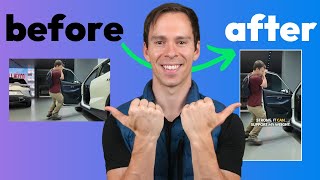
Two ways to turn long videos into short clips for social media. Use Descript's AI to auto-generate candidates you review and trim, or manually highlight transcript sections and apply vertical templates. Both get you clips ready for YouTube Shorts and TikTok in minutes.
Everyone knows you need to be making short clips out of your long videos, but it's tedious, right? It doesn't have to be the first way I'm going to show you how to pull social clips out of this is the automated way. I'm going to have AI look through my transcript and find the key parts that it thinks will make good clips. So in my project, the first step is that it has to be transcribed. The second step is to come to underlord in the top right. And then we're going to scroll down to this repurposed section and then click on Create Clips. And it has a number of clips that you can set. So how many clips do you want? I have seven typed in there, but you could type three, you could type five, whatever you want, it doesn't matter. And then the clip duration, I recommend if this is going to go on YouTube shorts, keep it 60 seconds or less, because that is the maximum length of a YouTube short. And so I usually do around 40 seconds. And it's not gonna find exactly 40 seconds, but it's gonna be plus or minus 15 seconds. And then below that is a layout. So you can have this then get put directly into a template that can apply a certain type of caption, it can add a certain frame around your video or whatever you want that you find yourself always doing with your shorts. And so these are preset ones from descript, but I made my own. So I'm going to go to Browse template, I'm going to go to Drive, and I'm going to go to Social media templates vertical. And by the way, this. These three templates are on my free downloadable Descript template pack. So you can see the link in the description to download those. And the reason I made these, because descript has so many, um, I made these because mine are a lot more simple. Descript has like, they add their descript logo, they add a gradient and there's. There's too much going on. All I want is like, I have this one that's called plain, and that's all it is. There's nothing else added. And then I have plain with white frame. It's just me with a white frame around it. And then the idea is when you download these, to use them yourself. You could of course, change that frame to your brand's color or whatever you want to do with it. But then the third one is playing with white frame and captions. So then it's got the plane inside, it's got the white frame around it, and Then it's got captions right over the middle of the video, which is about over my chest. So I'm going to do this one. So now you can see it's going to apply this layout, the one that I have selected in blue and I have for the topic. You can give it a prompt and the prompt I left it actually let me get rid of that and type in Find this video. By the way, it's a two hour video of me and my friend going around to different Chinese car dealerships and testing the different types of cars. So I'm going to say find parts where Ross or Josh are amazed by a feature and then I'm going to say submit Underlord is thinking and this shouldn't take too long. This is Chat GPT in the back end. So it's literally reading through my transcript. It doesn't have the context of tone of voice or what's going on in the video, it's just going off of the transcript and let's see what it comes up with. So there we go. It came up with three different clips and it tells you a little bit of information, it gives it a name. So this first one is calling Cool Car Feature Plug In Video Games. And then it gives you a little summary of what it is, why it picked it. And then this is interesting, that little five star, that's how good it thinks this clip is. And it actually gave all of these five stars. That's. I haven't seen that before. Usually it's like it gives one a five star and then one's going to be like a three, four, one's going to be like a 3.2 and they put them in descending order. But in this case it gave all three a five star rating rating. So these should be good clips according to ChatGPT. I do notice that this one is 86 seconds. So in the bottom left it tells you how long it is and that's too long. That won't work as a YouTube short. So in a second I'll look at it and see if it's, if it's going to be usable, I'll have to cut a lot out and the last one's 121 seconds. And you. There's also an option by the way, to set the layout, change the layout if I want it to be something different than what I already specified. But if I click on it, it takes me to that short and you can see my original video was in landscape and this put it into portrait mode, into that vertical mode and it's kind of hard to see, but my white frame is there and the captions are there. So that's pretty cool. And then the other thing it does so you can see the entire transcript from the part that it pulled as well as you can see a little bit before the part that it pulled is stricken out. That's called being ignored. And that's there in case I need a little bit more context. I'm aware of what it is that I was talking about before the part that it selected. And if I wanted to bring that back in, I could hit this little restore arrow and it brings that back into the video. I'm going to hit undo to bring that back. And then same thing at the end, it does a strike through there where it's letting me know that there's a little bit more that was mentioned afterwards. I can see this is 49 seconds and if I look on my timeline, I can see that there are two layers. I got added my captions layer and the rectangle which was the white, which is the white frame around the outside of the video. And that's it. Everything else is unchanged. I didn't have any other effects getting applied with my particular template. And so what I could do now is review it. I could see if there's any other cuts I want to make. I could add music, I could go to music in the bottom right, add something from Descripts library and then when it's all ready to go, I just go to Publish and then I can push this out to YouTube or I can export it, put it up on TikTok, that type of thing. Okay, but let's go back to our main composition. So if I click on this dropdown and I come back to raw, this was all my original video. And this next way I'm going to show you is the manual way of pulling social media clips out of it. And you can see I already have a bunch of highlights on here. And so that's what I would do is once this is transcribed, read through it, you find the interesting parts. Read or watch. And if there's like a standalone story that could be a good short or a good point or interesting fact, those are all things that I would want to highlight. Something that would make sense in a 60 second or less format. And I happen to know there's one part at the very end of this video that I liked where I do a test of the strength of the door. I'm jumping on the door. And so I'm going to highlight that because that would make for an interesting short. And you saw my highlights up above were in yellow. But you can click on this little dropdown and you could go to green, for example. And then when you have your highlights made, go to underlord in the top right again. And we still have our create clips from before pulled up. So I'll hit the back arrow, hit back arrow again. And then in that box, start typing, copy highlights. And it's gonna be that first one. When you click on it, you get all the different colors of highlights in this project. And if I click all highlights, it's gonna copy all of my highlights from this whole project into my clipboard. If I click yellow, it's gonna do only yellow and et cetera for each of the colors. But I'm just gonna do the green one that I just made. So I'll click on that. It says copied one green highlight. And then I'm gonna go back to my compositions. I'm gonna say new composition. I'm gonna change this to Portrait because I want it to be social media appropriate. And I'm simply gonna hit paste by pressing Command V on my keyboard. That's for a Mac. If you're on a Windows, it's gonna be Control V. And there it is. My video is now put into a portrait mode. And from here I could do all sorts of things. I can click on the layer, I can grab these purple edges and make it bigger. Or in this menu that's over it, I can hit Position Fill canvas, and that makes me full size. And then I can double click in there, reposition myself like that. I can also apply one of my layers or one of my templates to this. So if I go to Scene, browse templates, go to Drive, and scroll down until I find my social media templates. There it is. And there's the one I applied before the plane with white frame and captions. Simply click on it and it put that into this video. And if I look at my timeline as before, I have a captions layer and a rectangle layer for that white frame around it. And then from here, I can make any cuts that I want, do whatever I want to get access to all of my descript templates. First subscribe and then click here and I'll see you in the next video.








