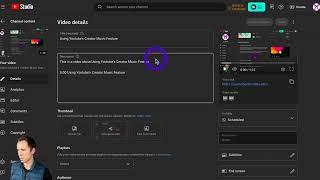
Instructional tutorial explaining how to export subtitle files (VTT or SRT) from Descript and upload them into a YouTube video via YouTube Studio, including choosing between timed and untimed uploads and overriding YouTube’s auto-generated captions.
To export subtitles from descript and upload them into your YouTube video, find the descript project that you want to take the subtitles for. Hit Publish, go to export and then over here on the right click Subtitles. And you have two choices here. You can do VTT or srt. Both are time synced, so either option works. And click Export. And it's a super small file so it'll download really fast. And then head over to YouTube, go to the video that you want to upload those subtitles to. Click on this thing that says subtitles. So this is the the video view in YouTube Studio. Click Subtitles. And this here is the auto generated one that descript automatically creates for you for every video. And if you click on these three dots in the top right, you can click upload file and you'll want to select the one with timing. If you do without timing, this will be a. TXT file and then it'll YouTube will automatically sync it based on what you give it. But I'm going to do with timing. I'll hit continue. Find your subtitles file. And remember the one I downloaded was a srt. So here it is. I'll hit open. And there it is. There's my subtitles and there's the timestamps associated with each one. And Now I've overridden YouTube's automatic subtitles.