Beginner's Guide to Descript's Teleprompter
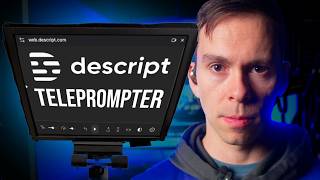
Ross Zeiger shows how to use Descript's teleprompter to record YouTube videos with a script. He covers loading text, adjusting scroll speed and text size, and positioning the teleprompter near your camera to minimize eye movement. Keep lines short and record in one take, pausing only to fix the script as you go.
Chapters
No matter how good of a public speaker you think you are, you will be even better if you use a script for your YouTube videos. You need to make your YouTube scripts more like a good book and less like you just hit record and started saying whatever it is that's on your mind. But how do you do that? In this video, I'm going to show you how to use Descript's built-in teleprompter to record your script without needing any extra gear. Let's get started. On your screen right now is Descript's teleprompter and the script that I'm reading. This is what you're going to learn how to set up in this video. So here we are inside of a Descript project. And the important thing to know about the teleprompter is it's accessible through the record feature. So that means you have to get into a recording either by clicking the red record button here or at the bottom of a project. If you're in a blank project, you can click right here and this pops up. You can start the recorder through any of these options. It can be a camera recording, a screen recording, or audio only. For the sake of simplicity, we're going to do an audio only in this tutorial. So go ahead and click on that. And we can see my sound waves. That means my microphone is coming through. At the bottom here, you can choose your inputs. So you can choose what camera you want to record, which microphone and which screen recording, that's a little bit beyond the scope of this tutorial, but I have done an in-depth tutorial about that, which I'll link in the top right corner of this YouTube video. So to actually access the teleprompter, we're gonna come over to the right of this red record button to this one right there. And you can see when I hover over it, it says teleprompter. So click on that and this floating window pops up. And there is the script you just saw me read at the beginning of this video. So I'm going to just go ahead and select it all and delete it so you can see what it looks like when it's blank. It's going to say paste, type, or input from script. So you have 3 options for bringing text into Descript. Now, before I, I actually add my text, I just want to point out that the controls are there on the bottom. And we're going to go into all of these later once we have our text added. But for now, I'm going to start with the paste option. So I already have, I went over here into my script. I selected some text, I right-clicked and said copy. And then I came back to Descript, right-clicked and said paste. And there it is. It brought my script into my video. And so you could do that from a Word document, from an email, anywhere at all that you have your script, you can copy it and then paste it in here. I'm going to hit undo. The other thing you can do is just start typing. I am typing my script into the teleprompter. So you can just type it in there just like that. So that's your second option. And your third option is to import from script by clicking on that white underlined Words there, and that'll allow you to browse through your computer and select a file like a.doc file from Microsoft Word and import it directly into your teleprompter. For the sake of demonstration, I'm going to pull up a script here and I'm going to copy this whole thing. Right-click, copy. And one thing I want to point out, I'm going to talk more at the end of this video about techniques, but notice that I keep each line short. And followed by spaces. This is good teleprompter technique because you don't want to have a big giant block of text or it'll get overwhelming to read as it's scrolling. But we'll talk more about technique later in this tutorial. So I'm going to minimize that. I'm going to come back to Descript. I'm going to right-click and say paste. And now my script is in there. And now that it's in there, what I can do is come into my options across the bottom. So This one in the bottom left is the size of the text. So if I drag this little white dot to the left, it gets smaller. If I drag it to the right, it gets bigger. And this is just a matter of personal preference. So customize it to your liking. The next one is the scroll speed. And this one you'll have to figure out for yourself based on trial and error, but you'll settle on a speed that you like. Maybe you read fast and you want it to be a little bit faster by dragging that white dot to the right or slow it down by dragging it to the left. I'm just gonna leave it in the middle for now. Undo will restart this entire thing. So if you're playing through it and you want to start over, then you just click that button and it'll pop the teleprompter back to the start of your script. The play button is going to both start scrolling the teleprompter and start recording. So be aware that it's gonna start recording as soon as you click that. That up arrow is the import button. So that's what opened up the browse through your computer where you can select a file on your computer and import the script into Descript. This button right here just mirrored my whole video vertically. So notice it's all upside down. The reason for that is if you have an actual physical teleprompter, you can buy devices that have their own screen. And they use a mirror to reflect the script to you to read it. So if you're using a device like that, that is when this would come in play, as well as this other button will mirror horizontally. So depending on how a physical teleprompter is set up, you could mirror it so that it's easier to read. I'm just going to get it back to how we started. If you're just reading it off the screen like this, then you can leave it, uh, normal left to right, top to bottom, just like this. And next to that is dark mode or light mode. So if you click on that, you can have a white background with black text or black background with white text. Whatever's easier for you to read is valid. And then there's a little settings button. Your options there are to have a variable scroll speed or a constant scroll speed. So variable is where if I click play, watch this. It kind of speeds up over these blank areas, over these, these gaps between paragraphs. That would be variable. Constant means it's just going to scroll exactly the same speed through those gaps. It's going to be completely constant speed. I'm going to hit pause. Moving on in our settings, auto scroll when recording begins. This means you can either click the record button to start the scroll. or you can click the play button to start recording. Either way it works. If you toggle it off, then clicking record first won't automatically start scrolling the teleprompter. Focus mode. If you have focus mode on, that's going to, when you're playing it, only the line with this arrow next to it in the middle of your teleprompter will be white, completely white. And then the stuff below it is kind of grayed out. It's not as. Visible. So that is with focus mode on. If you turn focus mode off, then everything's going to be white even as it's scrolling. Okay, so let's go ahead and pause it. As I mentioned, you can start and stop it with that play button. So I click play and it starts scrolling, I click pause and it stops. Or you can click this button and it restarts you back to the top of your script. And then down below, as you can see, As soon as I clicked play, it started recording. As soon as I clicked play on the teleprompter, it started recording into Descript. And then if I stop it, it's going to start transcribing it and you can edit it from there. Again, I go into that in the recording tutorial that I'll link in the top right corner of this YouTube video. Now let's talk about technique. Using a teleprompter is a skill. At first, it's going to feel really awkward and uncomfortable. And unnatural, but with a little bit of practice, you can get better at it. You will get better at it. One thing you want to keep in mind is eye travel, the distance that your eyes have to move to read the script. So you can adjust the size of this box, just like any window in your computer. You can make it super wide. However, the wider it is, the more your eyes are going to have to move from left to right across the page. So you want to minimize your eye travel, and you can do that by making this box short, not too short that it's uncomfortable to read, but just short enough that your eyes aren't moving dramatically. Now the next thing is you want to keep this box as close to your camera as possible. So for most people, if you're recording on a laptop or you have a webcam mounted above your computer, your webcam is going to be above the screen of your computer. So what we want to do is physically move the teleprompter to the top middle of your screen like this to get as close to your camera as possible. Now again, if you have a physical teleprompter, that's even better. If you can have these words directly in front of your camera lens, that's the best of all. It'll look like you're not even reading a, a script at all, but you want to get this as close as possible to your camera. And then I mentioned the actual layout of the teleprompter. So I recommend keep your sentences short, put a space between paragraphs, and you can, you can edit here inside of the teleprompter. So maybe you read it and it doesn't quite sound right. You can pause it. So you're reading and you say, while reading a script off your teleprompter, and you don't like how that sounds, you can pause it, click at the end of that sentence, add a space to add a little bit more of a gap until the next sentence. And then you can modify this while reading a teleprompter. You can just type in there what you meant to say, and then you can back up by putting your cursor somewhere and tapping the up arrow on your keyboard. And that'll move your cursor, which then moves this little triangle. And when you're ready, you can hit play again and continue on. Now, my recommendation when you're using a script is to do your whole video in one take. Just start recording, and if you mess up a line, do exactly what I just showed you. Back up a couple seconds and read it again. Don't stop the recording. You don't need to pause it or stop it. Just keep going. And when you're in the editing process, then you can take out all that dead space or the bad takes, which I show you how to do in normal Descript editing. In this video up in the top right corner. Now you know how to use the teleprompter, but how do you actually record yourself using Descript? Well, the tutorial that you just watched is a companion to another one I did showing you how to use Descript to record your face and screen. Click right here to watch that one next.








