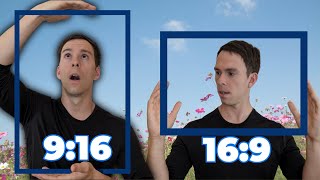
Learn how to convert portrait videos to landscape format in Descript by adjusting canvas size, repositioning layers, and changing background colors. A quick walkthrough of the exact steps to flip your video orientation.
Today you're going to learn how to take a portrait mode video like this one, the one that is shot on typical cell phones, and we're going to make it into a landscape mode video, and vice versa. Here we are inside of our Descript project, and let's say this is the cell phone video that we put into our project, that we're going to make into Landscape. Now, the first thing to check is here in the top left corner of your canvas, you click on this and you can see that we're in landscape mode. So that's why we have this rectangle laying on its long side, its horizontal side. It's a 16 by 9 ratio. The other would be Portrait, which is the long one. So we could fill that, but for now, we're going to fill it into the landscape mode. And we have all this black area on the sides. All we need to do is click on the image itself, click on the layer that we want to change, and we get this menu that pops up over it, and right here where it says position, click on that and click Fill Canvas. And there we go. That's it. And now if it's not how we want it to be positioned, you can simply click on it and reposition it. Just drag it up or down so that your head fits into the space. Alternatively, you can also grab the sides of this, just like a layer in PowerPoint or Canva, and you can make it smaller if you wanted. You can also find the dots in the corners to shrink it proportionally if you don't want to fill the entire space. So now there's a little bit of black on the sides again. And if we want to change the background color there, we simply click out, come up to background and click this plus button. And we can go to white. You can open the color dropper, change it to red. I could even match my background using the eyedropper like that. Okay. Now, the other thing to show you, though, is if this is in portrait mode. So if we're in portrait mode like this, once again, we can click on the layer, go to position, and click Fill Canvas. And now it nicely fills the entire canvas and none of the background is showing. So that is how you change a video from portrait to landscape or from landscape to portrait.