Create AI Videos with Descript (NEW Feature)
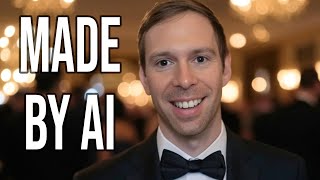
Descript's new Underlord assistant generates AI videos directly in the app. Create images, pick one, and convert it to a five-second video. You get three minutes per month, and the tutorial shows examples like a dog catching a Frisbee and a headshot doing a backflip.
Questions this video answers
Five seconds.
Three minutes of AI video per month (36 five-second clips).
In the project-files folder named "AI Assets".
I made this, this and this. Using descript's new feature, it's finally here. You can now generate AI video directly inside of descript, and it's super easy. Let me show you how it's done. To generate your AI video, we first need to create a new project. So I'm going to create a video project. Here I am inside of a blank new project. The important thing to know about this feature is there's not a button that just says generate video. What you have to do instead is use the underlord to do this. So click on the underlord in the bottom right corner and then what Descript recommends is you could tell it, go ahead and generate a video on X, Y and Z, whatever you want it to make. What descript actually recommends, and what I've found good results with is have it first generate an instance image. So let's start with that. I said generate an image of a dog jumping up and catching a Frisbee. I hit send and underlord's going to think about it. And so it created four different images for me to choose from there. And they're labeled 1, 2, 3, 4, and I like number two. So what I'm going to say next is generate a video based on image 2. I hit send, Underload says I'll generate a video based on image 2. And it's thinking about it. It will take a minute or two here and you can see it's starting to say importing video. Video import completed. And in just a moment we'll see it here in the project. There it is. And let's see. So this first frame is the image that was generated. It's the one I selected over there on the right. But I can actually play this. So let's see how this video looks together. Okay. Not perfect. If I scroll through here, you can see the, the, the Frisbee is first of all not getting caught, but it's also kind of flying on its own, like right there. The dog lands and then the Frisbee takes off and there's some weird distortion stuff happening around the Frisbee. But hey, pretty incredible, isn't it? And you can, instead of having a photorealistic image like this, you could also go off of like a watercolor type of image or a drawing, black and white doodles. And you'll get better results because it's not trying to create a photorealistic thing. So let's go ahead and try that. I'm going to say generate an image of a hand drawn convertible sports car driving down the road, I hit send and there we go. It generated a Porsche. And I said, now turn this car into a video. I hit send. And by the way, with everything you generate in Descript, if you come up to your project files in the top right, a folder is created after you've generated an image. And if you open that up, it's called AI Assets. Inside of here are all the images it made. So there's my four dog images. Even though I didn't use them, I only use one of them. They're still showing up under my AI Assets. And then the video that I made is this fifth one here on the list. And once I generated this car, it removed that dog from my video. And so when something's not being used, there's a little dot next to it that says not used in project. And if there's no dot, then it is in fact being used in the project. And as I say that, I see that my car just finished getting created. So let's go ahead and click play and let's see how this looks. Okay. Pretty cool. There's still problems. For example, there's no driver, there's a passenger, but it's just an empty. This is, we got a self driving car going on here. But you can see the wheels turning. And you see what I mean, that when it's hand drawn or anamorphic or something like that, it's going to look better than when you're trying to create a video out of realistic photos. Now the other thing you can do in addition to creating things yourself from prompts is you can click on this little paperclip. You can search through your computer, browse through your computer, find something like an image that you want to make a video from. So for example, I could click on this little thing right here. I say open and it's now attached that image. It's an image. It's an AI generated image of a mouse that I made. And I can ask underlord turn this mouse into a video where he is running across the field, hit send. Okay, and it's done. It's starting to pop in here, so let's go ahead and play it again. First frame is the original image itself. This was the image I generated in grok, which is my favorite AI at the moment. And so if I hit play, here he is, he's starting to run like so. And by the way, there's no audio with this yet. I'm sure someday that'll come. But for now, this does not generate the audio with the video, but look at that. That's pretty dang good. He's jumping along, he's running along. And now let's try this one more time with an image of me. Let me just select a random headshot here. The prompt is generate a video. The camera zooms out and the man does a standing back flip. I'll hit Enter, and let's see what it does with this. So again, getting into the ability to edit other humans, in this case, myself. Okay, so the video is done. Look at this. There's my first frame. It was just a headshot of me standing right here at my desk. And the prompt I gave it was, zoom out. And then the man does a backflip. So let's see how this does zooming out. Boom, there's the backflip, and some weirdness happens. You can see I like, sprout a couple extra legs or something right there. But you can see you can have infinite fun with this. This is going to open up unlimited creativity among creators. And as always, as I always say with these, this is like version zero. This is going to be so incredibly impressive in the coming months and years. Now, I also want to let you know, this is descript's changelog here, that each video it generates is five seconds long. You can't make it longer or shorter. As of now. Again, I'm sure that'll change someday soon. There's different styles, and they actually have a style library you can click on. And then they show you here you can do like 3D animation, anime, black and white, et cetera. And I'll leave a link to this in the description so you can see all these different styles, but you can incorporate this into your prompt. So I could have said something like graphic novel. The man turns into a graphic novel and does a backflip. And then it would look like this. So these are just different starting points as far as styles that you can turn your video into. And then the next thing is exactly what I mentioned at the beginning that they recommend. Generate an image first or use a reference image like I did with the attachments. And then that way you're going to get a lot more control over the outcome. And the advantage of the image generation inside of descript is it can give you those four different options. So you can choose your favorite one and then go from there. Or I didn't show this, but you could also tweak your prompt. So you could say, I don't really like these options. Give me four more. And then whatever else, change the colors, change the style and it'll do that for you. And then you can also just do, as it says here, script integration. So if you don't know really what you want, but you know you want some type of B roll, then you can ask underlord in the prompts, come up with something to cover up this part of my video. And it'll do that based on the script content and B roll. By the way, a lot of people don't know what that term means. Your A roll is your main part of your video. Where in, in my case it's my talking head and my audio. B roll would be anything that goes on top of that. So it's not directly me talking, but it's other video complimenting what I'm saying. And so that's what where this is all really going to shine is generating B roll for your existing video. And then it tells you briefly how it works. Of course it puts it into the AI Assets folder. I showed you that. And then lastly, for a limited time, they always do this when they're first rolling something out. Don't know how this is going to be charged in the future, but for now you can generate up to three minutes of AI video per month. That is 36, five second clips. So that number might come down in the future or it might become an add on or an upsell or something like that. But for now, take advantage of it. You get 36 clips per month and it's super, super exciting. It's one thing to know how to generate video, but it's another thing to actually edit the video. So check out this video next where I show you how you can edit your video using AI.








