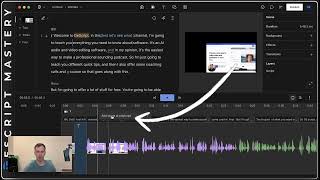
This is a short tutorial transcript explaining how to use 'scenes' in Descript to divide a project into sub-clips so edits (like resizing, sound effects) apply only to selected parts. The speaker demonstrates adding a scene at the playhead (via right-click or the slash key), selecting scenes in the scene bar, and verifying that changes affect only the active scene.
Next we're going to talk about scenes. Scenes are the sub category of your project. So we have our scene bar right here. Currently this clip only has one scene. So the advantage of a scene is when you apply something, like you apply a sound effect or any other feature that you're applying, it'll apply to the entire scene. Now, since we only have one scene, whatever I do to this is going to apply to this whole project because it's only one scene. So if I, if I make it smaller, for example, like I'm doing right now, this whole project is going to be smaller. If I scroll anywhere along here, you'll see it's the same size. So if I only want that resizing to apply to the first five seconds of this video, what I can do is in my timeline, I can find the 5 second marker, select it, and you have to move the playhead. So you can see where my playhead is, this blue line on the timeline and it's at about five seconds. I can right click it and I can say add scene at playhead. That's one way to add a scene. Or I can hit the slash key button. And now I have a scene. You can see here on the timeline, there's a number one which indicates that this is my first scene. And there's a number two to the right of the playhead which indicates that this is my number two scene. I also have them right here. So I can, if I click on this in the left side, then I now have my first scene selected. And now I have my second scene selected. So now whatever I do, now that I have my second scene selected, whatever I do to this scene is only going to apply to it, not my other scenes. So if I drag this, have it fill the whole thing, that change has not affected the first scene. Scenes are the way that you divide your project and apply changes to the frames that you want.